Getting your new iPhone SE 4 set up and loaded with your stuff is a pretty smooth process. Apple has a few different ways to move everything over from your old phone, whether it's another iPhone or an Android device. I'd start with the Quick Start method if you have both phones handy, as it's usually the simplest.
Use Quick Start for iPhone-to-iPhone Transfer
Turn on your new iPhone SE 4 and place it near your old iPhone. You should see a pop-up on your old device's screen asking if you want to set up the new one. Tap Continue and then hold your old phone over the animation on the SE 4's screen to scan it.
You'll be prompted to enter your old iPhone's passcode on the new SE 4. After setting up Face ID, you'll see an option to Transfer from iPhone. Choose that, and keep the two phones close together and plugged into power. The transfer time depends on how much data you have, but it can take from 15 minutes to over an hour.
Restore from an iCloud Backup
If your old phone isn't with you or is already erased, restoring from iCloud is your best bet. First, double-check that a recent backup exists on your old device by going to Settings > [Your Name] > iCloud > iCloud Backup.
On your iPhone SE 4, follow the setup steps until you reach the Apps & Data screen. Select Restore from iCloud Backup, sign in with your Apple ID, and pick the most recent backup. Your phone will then download your apps, photos, and settings over Wi-Fi. Keep it plugged into a charger and connected to Wi-Fi until it's done.
Transfer Using a Mac or PC
For the fastest and most reliable transfer, use a computer. Connect your old iPhone to your Mac or Windows PC. On a Mac with macOS Catalina or later, open Finder. On a Windows PC or older Mac, open iTunes. Select your device and click Back Up Now.
It's a good idea to check the box for Encrypt local backup so your passwords and Health data are included. Once that backup is complete, disconnect your old phone, connect your new iPhone SE 4, and select Restore Backup. Choose the backup you just made. This cable-based method is often much quicker than downloading from iCloud.
Move Data from an Android Phone
Switching from Android? Start by downloading the Move to iOS app from the Google Play Store on your Android device. On your iPhone SE 4, during the initial setup, tap Move Data from Android when you get to the Apps & Data screen.
A numeric code will appear on your iPhone. Enter that code into the Move to iOS app on your Android phone. You can then select what to transfer, like contacts, message history, photos, and your calendar. Keep both phones plugged in and on the same Wi-Fi network until the transfer finishes.
Manually Move Specific Items
Sometimes you only need to bring over a few things. For contacts, ensure they're synced to your iCloud or Google account, then just sign into that account on your SE 4. For photos, you can turn on iCloud Photos in Settings, or use a service like Google Photos.
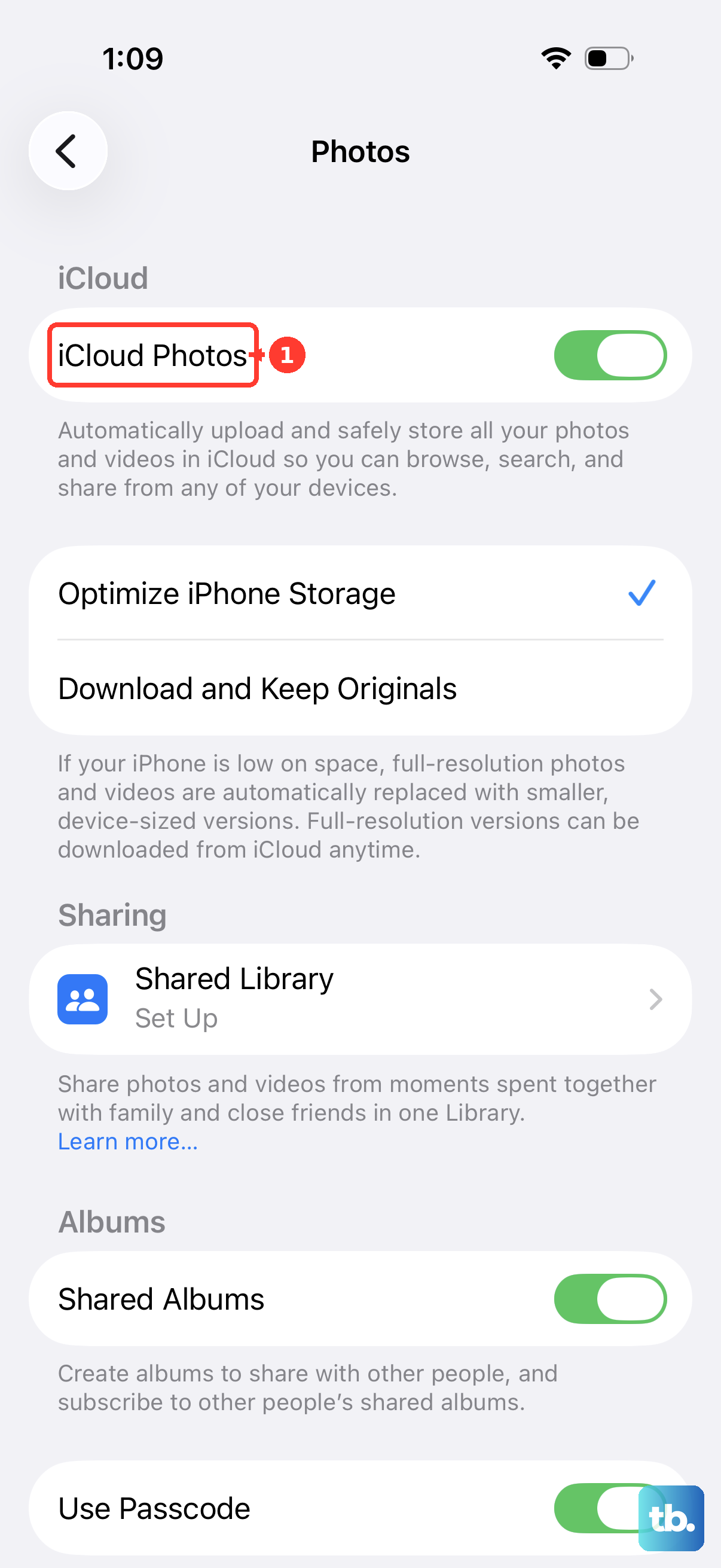
If you use WhatsApp, use its built-in chat transfer feature during setup. For music, services like Apple Music or Spotify will sync your library when you log in, though you may need to re-download songs for offline listening.
What Might Not Come Over
Most things transfer seamlessly, but there are a few exceptions. Apps that have been removed from the App Store won't restore. Game progress or data in apps that don't use cloud saving might be lost. Any music or podcasts you downloaded for offline use in apps will need to be downloaded again on the new phone.
Final Steps After Transferring
Once your data is on the iPhone SE 4, take a moment to open your key apps and make sure they're working. You'll likely need to re-login to banking apps, email, and social media accounts, as a security measure. Don't forget to enable Optimized Battery Charging in Settings > Battery > Battery Health & Charging to help preserve your battery's lifespan.
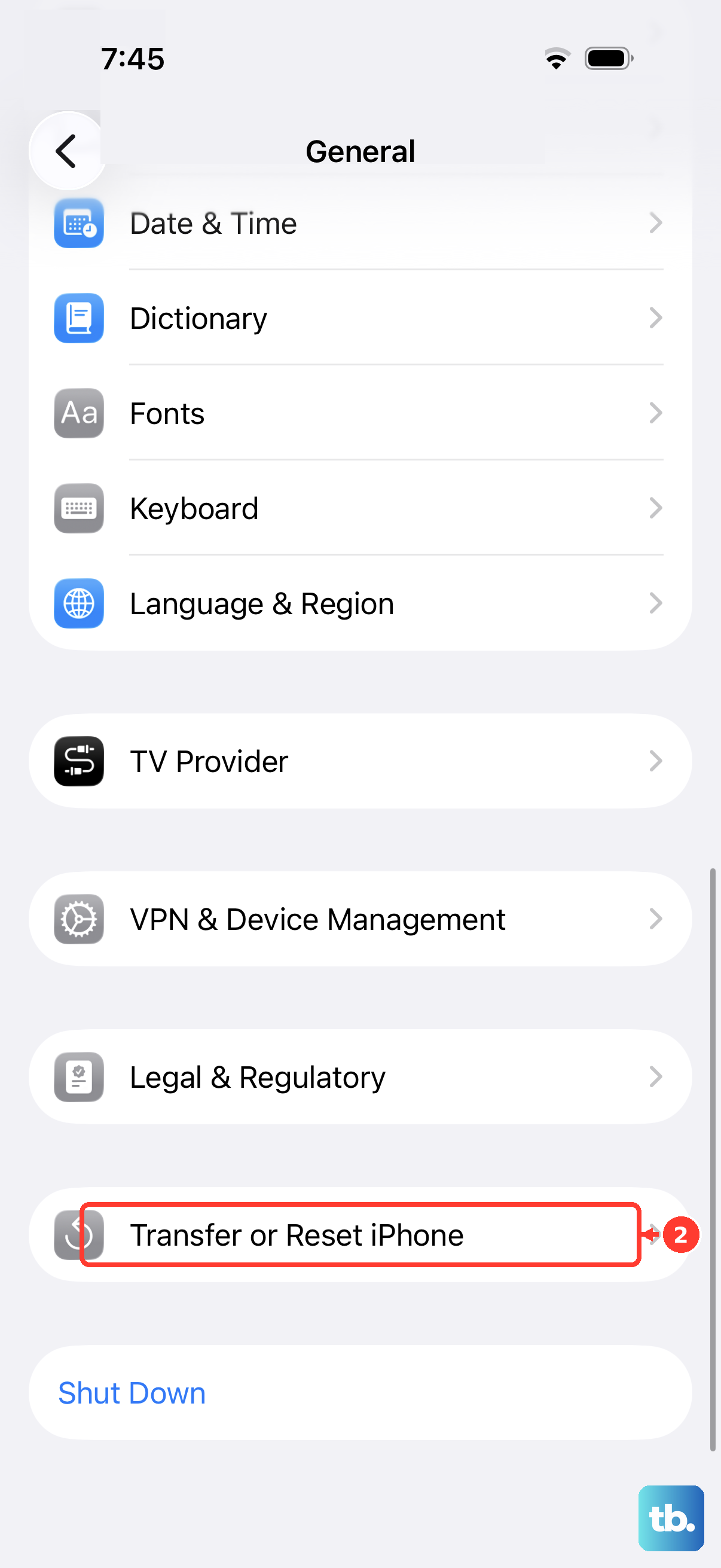
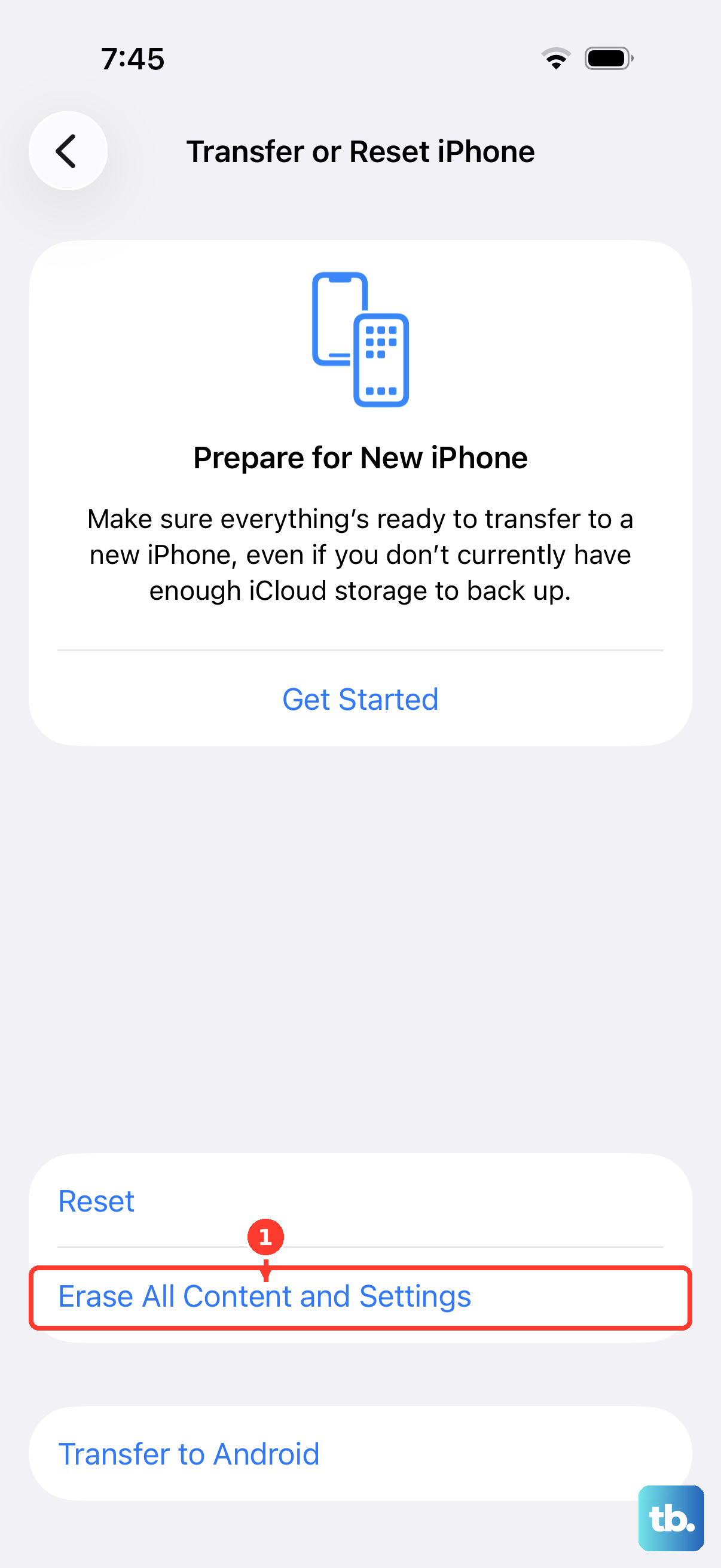
Finally, when you're absolutely sure everything is on your new SE 4, you can wipe your old phone. Go to Settings > General > Transfer or Reset iPhone > Erase All Content and Settings on the old device.