Getting everything onto your new Google Pixel 9 Pro XL doesn't have to be a headache. Whether you're coming from an older Android phone or making the switch from iPhone, Google's built-in tools make it pretty painless. Here's what works best.
Move Data During Pixel Setup
The absolute easiest moment to transfer is when you first turn on the Pixel 9 Pro XL. On the Copy apps & data screen, tap Next and pick where you're coming from. You can pull data straight from your old phone using the included Quick Switch Adapter, or restore from a Google backup.
If you're using the cable method, connect both phones with a USB-C cable (or use the adapter that came in the Pixel box). The Pixel will detect your old device and walk you through choosing what to move, apps, contacts, photos, messages, settings, the whole deal. This works completely offline, so you don't need Wi-Fi.
Use a Google Backup
No old phone handy? No problem. As long as your previous device backed up to Google, you can restore during Pixel setup. Sign into your Google account, select Restore from backup, and pick the most recent one. Your apps, home screen layout, and settings will download automatically.
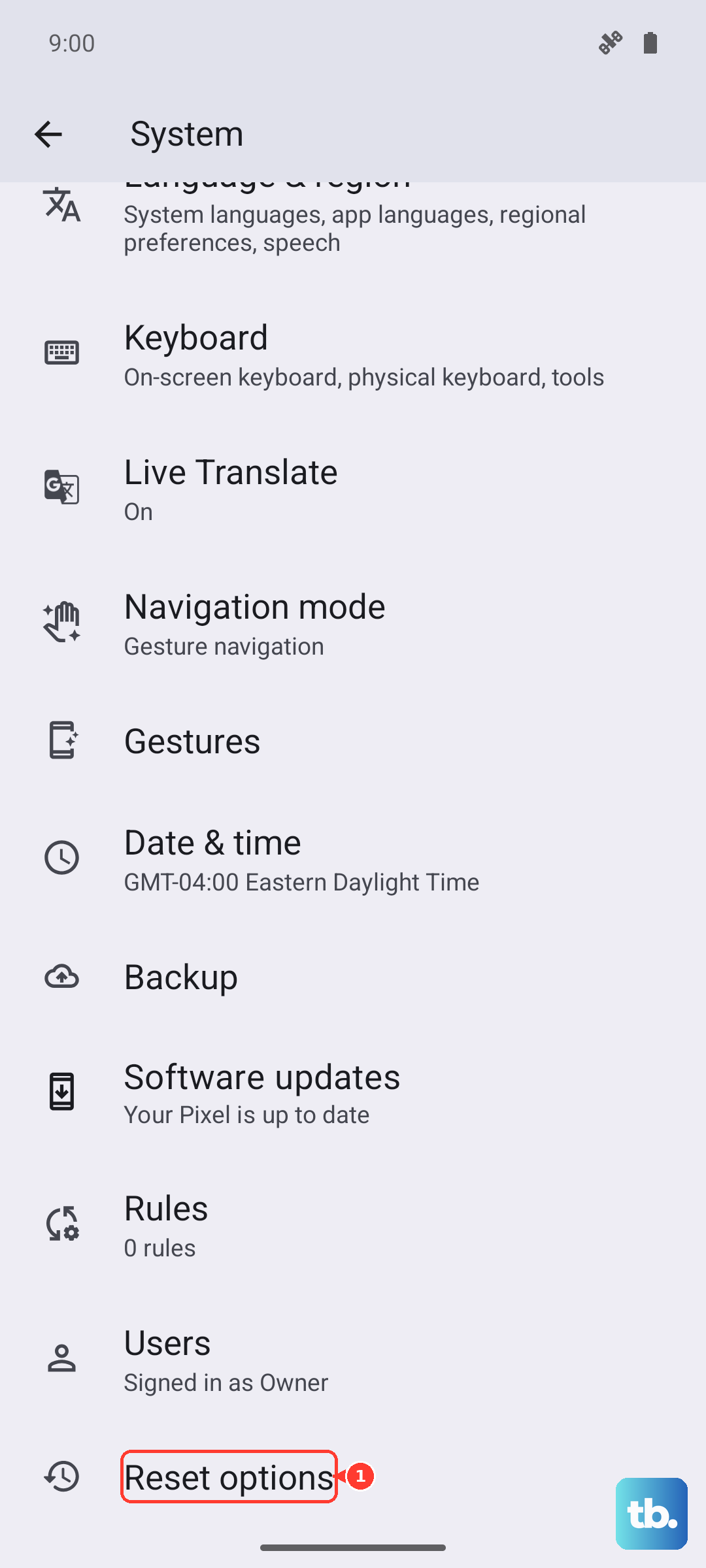
It's worth double-checking that your old phone had backups running. On most Android phones, that's under Settings > System > Backup. If you see a recent date, you're golden.
Switching from iPhone
Moving from iPhone to the Pixel 9 Pro XL is smoother than you'd expect. During setup, choose iPhone as your source when asked. Use a Lightning to USB-C cable (or the adapter in the Pixel box) for the fastest transfer, though wireless works too if you don't have the right cable.
Your contacts, calendar, photos, and iMessages will come over. iOS apps won't transfer, you'll need to download Android versions from the Play Store. WhatsApp chats can move separately using the app's built-in transfer tool.
Sync with Your Google Account
Once you're signed into the same Google account, a lot happens automatically. Contacts, calendar events, Chrome bookmarks, and Google Photos will appear on your Pixel without any extra steps. You can check what's syncing at Settings > Passwords & accounts > Google.
If something seems missing, tap your account and make sure the toggles are on for everything you need.
Moving WhatsApp and Other Chats
WhatsApp has its own transfer flow for Android to Android. Open WhatsApp on your old phone, go to Settings > Chats > Transfer chats, and follow the prompts. For other messaging apps, check if they offer cloud backup, most do these days. Game progress usually saves through Google Play Games, so logging into the same account is all it takes.
After Everything Comes Over
Give your Pixel a few minutes to finish downloading apps and syncing data. Log into the apps that need it, especially banking and two-factor authentication ones. When you're confident everything made the move, factory reset your old phone before trading it in or passing it along. That's under Settings > System > Reset options > Erase all data.