Your tablet has a keyboard attached, but the screenshot shortcut depends on its operating system and the keys available. Start with the section for your tablet to capture the screen, select an area, or open the image for editing. For Android, match the shortcut to your tablet and keyboard before using it.
Take an iPad screenshot with Command
With a compatible keyboard connected to your iPad, you have two choices: capture the screen or capture it and immediately open Markup.
Press Command + Shift + 3 to take a screenshot.
Press Command + Shift + 4 to capture the screen and open it for editing in Markup. On iPad, this shortcut does not start the Mac-style region-selection tool.
For a scrolling webpage in Safari, take a screenshot.
Open its preview.
Select Full Page to include the supported scrolling content. This option is not offered in every app.
Assign Command when your keyboard has no labeled key
A keyboard without a Command-labeled key makes the iPad shortcut harder to identify.
With the keyboard connected, open Settings > General > Keyboard > Hardware Keyboard > Modifier Keys. Remapping requires a keyboard with configurable modifier keys.
Select the modifier key you want to change.
Assign it to Command.
Press that reassigned key with Shift + 3 to capture the screen.
For a screenshot that opens for editing, use the reassigned key with Shift + 4 instead.
Capture an area on a Windows tablet
Press Windows + Shift + S on your Windows 11 tablet, including a Surface, to open the snipping overlay.
Choose the capture mode.
Select the area or window you want to capture.
For a full-screen image saved directly to a file, press Windows + PrtScn on a keyboard with Print Screen. The saved image is in Pictures > Screenshots.
To copy only the active window, press Alt + PrtScn.
Paste that image into an app that accepts images by pressing Ctrl + V.
Tip: On a Surface keyboard equipped with a Snipping key, press it for the capture overlay or press Windows + Snipping key for a screenshot.
Use the ChromeOS shortcut that matches your keyboard
On ChromeOS tablets and convertible Chromebooks, the right shortcut depends on whether your keyboard has a Show windows key.
On an external keyboard without Show windows, press Ctrl + Shift + F5 to open the capture toolbar.
Select Screenshot.
Choose full-screen, partial, or window capture.
For a full-screen screenshot on a keyboard with Show windows, press Ctrl + Show windows.
To open the capture toolbar with that keyboard, press Ctrl + Shift + Show windows instead.
On a keyboard equipped with a dedicated Screenshot key, press that key to open the capture toolbar.
Screenshots go to Downloads by default. To change the destination, open the capture toolbar.
Select Settings > Select folder.
Choose the destination folder.
Find the supported shortcut on Android
The physical-keyboard shortcut list identifies the controls your tablet supports.
Connect your keyboard. For a Pixel Tablet, use the tablet undocked.
On Android devices using Google's settings interface, open Settings > System > Keyboard > Physical keyboard > Keyboard shortcuts. Manufacturer menu labels differ.
On a Pixel Tablet, open Settings > System > Keyboard > Physical keyboard > View keyboard shortcuts instead.
Use the screenshot combination listed for your tablet, if the list includes one.
On Android builds supporting it, press Meta + Ctrl + S. The Windows, Command, or Search-type key supplies Meta; this combination is not universal across Android tablets.
Alternatively, press Print Screen on a supported build when your keyboard sends Android's screenshot key event. Support depends on both the tablet and the keyboard mapping.
Use dedicated keys on Samsung, Xiaomi, and Lenovo
A dedicated capture key or trackpad gesture gives you another route. Match the instructions to the exact tablet and accessory.
On a DeX-capable Samsung Galaxy tablet running Samsung DeX with a compatible keyboard, press Prt Sc. Samsung documents this shortcut for DeX without a version-by-version One UI compatibility table, so confirm it in your tablet's shortcut list: press Windows, Command, or Search + /, or open Settings > General management > Physical keyboard > Keyboard shortcuts.
With the Xiaomi Pad 8/8 Pro Focus Keyboard or Xiaomi Pad 7/7 Pro Focus Keyboard, swipe downward with three fingers on the trackpad.
On a Xiaomi Pad 6S Pro with its Touchpad Keyboard, press F4, the screenshot function key.
Alternatively, swipe downward with three fingers on that keyboard's trackpad.
For the Lenovo Yoga Tab Plus TB520FU, attach the supported keyboard pack through the pogo connector.
Press its Capture Screen function key.
For iPad 10th generation or iPad A16, attach the compatible Logitech Combo Touch through the Smart Connector.
Press its top-row Screenshot key.
If the keyboard method fails, use the buttons for your tablet. On an iPad without a Home button, press the top button and either volume button together, then release. On an iPad with a Home button, press the top and Home buttons together, then release. On supported Android tablets, press Power and Volume down together; on Galaxy tablets, release both buttons when you hear the shutter sound or see the screen flash. On supported Surface devices, hold Power and press Volume up. On ChromeOS tablets, press Power and Volume down together.
Open Snipping Tool when Windows shortcuts fail
Start a Windows 11 capture directly from Snipping Tool when the keyboard shortcut fails.
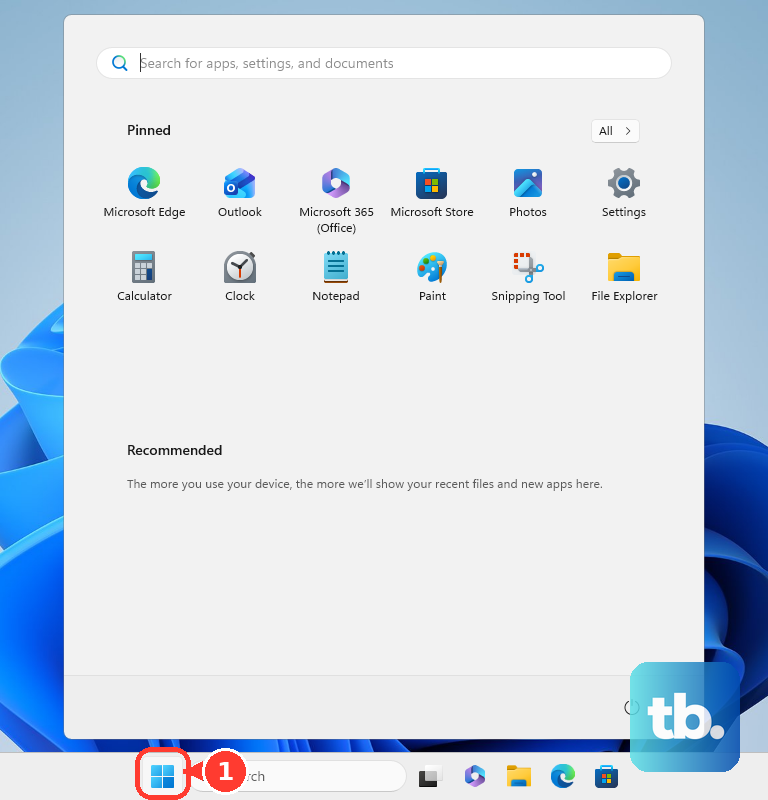
- 1.Open Start and search for Snipping Tool.
- 2.Launch Snipping Tool. If it is missing, install or restore it from its Microsoft Store product page, then launch it.
- 3.Choose Snipping Mode and select Rectangle, Window, Full screen, or Freeform.
- 4.For a menu or other content that disappears quickly, choose a Delay. Select New, then arrange that content before capture begins.
- 5.For Rectangle, Window, or Freeform, complete the capture selection. Full screen captures immediately.
- 6.Use Save as to choose where to save the image.
Frequently Asked Questions
Why does Print Screen open a capture tool instead of copying the whole screen?
Windows 11 uses screen snipping as the default Print Screen behavior. Open Start > Settings > Accessibility > Keyboard. Turn off Use the Print Screen button to open screen snipping for traditional capture. Press PrtScn, then paste the full-screen image with Ctrl + V.
Is there another Windows screenshot shortcut without a Print Screen key?
Microsoft documents Fn + Windows + Space Bar as a fallback on supported hardware. Compatibility depends on the keyboard and device.
Can I make iPad screenshots show a thumbnail instead of a full-screen preview?
On iPadOS versions with Screen Capture settings, open Settings > General > Screen Capture. Turn off Full-Screen Previews.
Why are screenshots blocked in one app or on my work tablet?
Android apps can block capture of protected content, and no universal consumer setting overrides that block. Use the app's available export or share option, or contact its vendor. For a managed tablet with screenshot restrictions, ask your administrator to allow capture.