You are about to step away from your inbox for a few days, but the emails will not stop arriving. Without a heads-up, the people writing to you may assume you are ignoring them or simply slow to reply. A vacation auto-reply in Yahoo Mail solves that by sending an automatic note to anyone who emails you, telling them you are away and when you will be back.
The feature is called the vacation response, and it lives entirely inside Yahoo Mail's web settings. Once you switch it on and pick your dates, Yahoo handles the replies for you in the background. Below is exactly where the option sits and how to turn it on, edit it, and switch it back off.
Sign in to Yahoo Mail on the web first
The vacation response is set from Yahoo Mail in a browser, so start there rather than anywhere else. Open mail.yahoo.com (or login.yahoo.com) and enter your Yahoo ID or email address. Click Next, type your password, then click Sign in.
Once you are in your inbox, you are ready to open the settings where the vacation response lives. The path differs slightly depending on which version of Yahoo Mail you are using, so the next two sections cover both. Pick the one that matches the interface in front of you.
Open the vacation response in New Yahoo Mail
If you are on the current version of the inbox, the option is a couple of clicks away. Click the More options icon, then select Settings from the menu that appears.
Inside Settings, click Vacation response. This is the panel where you will enable the auto-reply, choose your dates, and write the message your contacts will receive while you are away.
Open the vacation response in older Yahoo Mail for Desktop
Some accounts still run the older Yahoo Mail for Desktop layout, which routes you through a slightly different menu. Click the Settings icon, then choose More settings from the options shown.
From there, click Vacation response. You land in the same kind of panel as the newer version, so the steps that follow work the same way regardless of which path got you here.
Turn on the auto-reply and set your dates
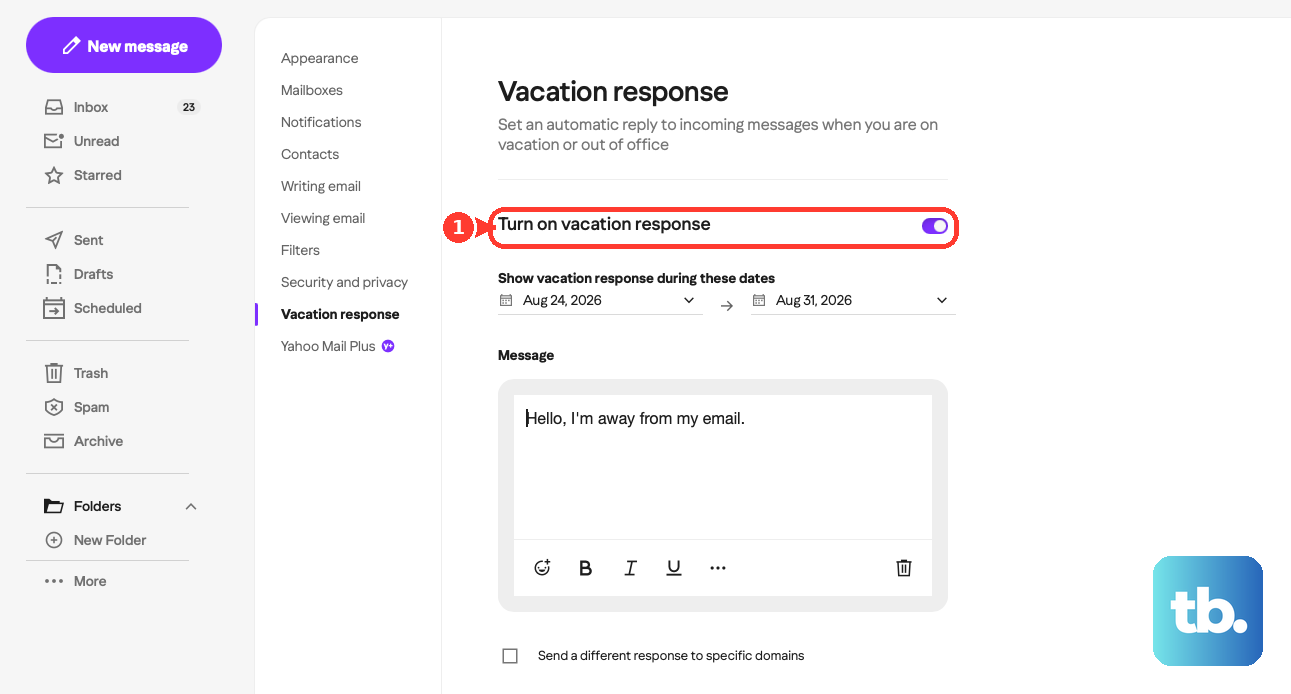
With the Vacation response panel open, the first thing to do is switch the feature on. Toggle on Enable vacation response so Yahoo knows you want automatic replies sent while you are out.
Next, select the dates you want the vacation response to be active. This window controls when Yahoo starts sending the automatic note and when it stops, so set it to cover the full stretch of time you expect to be unavailable.
- 1.Toggle on Enable vacation response.
- 2.Select the dates you want the vacation response to be active.
- 3.Enter your response message in the box.
- 4.Click Save to turn on the auto-reply.
Keep the message itself simple and clear. A short note that says you are away, gives the dates, and tells people when you will respond is usually all your contacts need. Once you click Save, the auto-reply is live for the date range you chose.
Write a message that actually helps your contacts
The text you put in the box is what every sender sees, so it is worth a moment of thought. State that you are currently away and, if it helps, restate the dates you will be back so people can plan around your absence.
Avoid sharing sensitive details about where you are or why you are out. The point of the reply is to set expectations, not to publish your schedule. When the wording reads the way you want, save it and your contacts will start receiving it automatically.
Send a different reply to specific domains
Yahoo Mail lets you send a tailored response to people emailing from particular domains, which is handy when colleagues and personal contacts deserve different messages. With the vacation response selected, enter your info on the right pane.
Scroll to the bottom of that pane and click Send a different response to specific domain. Enter the domain you want, such as yahoo.com or gmail.com, so anyone writing from that address gets the alternate note instead of your general one.
- 1.With the vacation response selected, enter your info on the right pane.
- 2.Scroll to the bottom and click Send a different response to specific domain.
- 3.Enter the domain you want, like yahoo.com or gmail.com.
- 4.Enter your message in the box.
- 5.Click Save.
This is useful if, for example, work contacts on one domain should get a formal handoff with who to reach in your place, while everyone else gets a friendly heads-up. Type the message for those senders in the box and click Save to lock it in.
Edit a vacation response you already set up
Plans change, and you may need to push your return date or rewrite the message after the fact. Open the Vacation response settings again using the same path you used to set it up, whether that was through Settings or More settings.
Select the vacation response, then enter the new info on the right pane. Update the wording in the message box, then click Save. Your revised dates and text replace the previous version straight away.
Turn off or remove the vacation response
When you are back at your desk, you will want the automatic replies to stop so people get your real responses again. Open the Vacation response settings and select your vacation response.
Scroll to the bottom of the panel and click Remove vacation response, then click Remove to confirm. That clears the auto-reply so Yahoo no longer sends it to anyone who emails you.
- 1.Open the Vacation response settings.
- 2.Select your vacation response.
- 3.Scroll to the bottom and click Remove vacation response.
- 4.Click Remove to confirm.
If you remove it before your end date, the replies stop instead of waiting for the window to close on its own. It is a quick way to take back control of your inbox the moment you return early.
A quick recap before you log off
Setting a vacation response comes down to three moves: sign in to Yahoo Mail on the web, open the Vacation response settings, and toggle the feature on with your dates and message in place. The optional domain-specific reply and the edit and remove steps cover the rest of the lifecycle.
Because the whole thing runs through Yahoo's web settings, you can set it up from any browser before you leave and switch it off the same way when you get back. With the auto-reply handling your inbox, you can step away knowing nobody is left wondering whether their email got through.
Frequently Asked Questions
Where do I find the vacation response in Yahoo Mail?
In New Yahoo Mail, click the More options icon, select Settings, then click Vacation response. In the older Yahoo Mail for Desktop, click the Settings icon, choose More settings, then click Vacation response. The feature is set from Yahoo Mail's web settings in a browser.
Can I send a different auto-reply to certain senders?
Yes. With the vacation response selected, enter your info on the right pane, scroll to the bottom, and click Send a different response to specific domain. Enter a domain such as yahoo.com or gmail.com, write a separate message for it, then click Save.
How do I turn off the vacation response when I get back?
Open the Vacation response settings, select your vacation response, scroll to the bottom, and click Remove vacation response, then click Remove. This stops Yahoo from sending the automatic reply to anyone who emails you.
Can I change my message after I have already set it up?
Yes. Open the Vacation response settings, select the vacation response, enter the new info on the right pane, update your message in the box, then click Save. Your new dates and text replace the earlier version.
Do I need to set start and end dates for the auto-reply?
When you enable the vacation response, you select the dates you want it to be active. That window tells Yahoo when to start sending the automatic reply and when to stop, so set it to cover the full time you expect to be away.