Maybe you are switching to a new primary inbox, consolidating several accounts into one, or you just want a backup copy of every message landing somewhere you check more often. Whatever the reason, sending your incoming Yahoo Mail to another address keeps you from logging in to multiple places every day. Yahoo builds an auto-forwarding tool directly into its settings, so once it is configured you can leave it running quietly in the background. The catch is that automatic forwarding is a paid feature, and this guide walks you through exactly what you need and where every option lives.
What You Need Before You Start
Automatic email forwarding in Yahoo Mail is tied to a Yahoo Mail Plus subscription. The official help documentation directs you to upgrade to Yahoo Mail Plus to use the email forwarding feature in your settings, so a standard free Yahoo account will not show the option.
If you do not already have Yahoo Mail Plus, plan to add it before you expect the forwarding controls to appear. Without that subscription, the settings panels described below simply will not include a place to enter a forwarding address.
To configure forwarding, you will want to use Yahoo Mail in a web browser on a computer rather than the mobile app. The settings panels and breadcrumb paths in this guide refer to the browser experience.
Signing In to Your Yahoo Mail Account
Open a web browser and go to login.yahoo.com. You can also start from mail.yahoo.com. Enter your Yahoo ID and password to sign in to the inbox you want to forward messages away from.
Make sure you are signing in to the correct account. Forwarding is configured per mailbox, so if you manage more than one Yahoo address, log in to the specific one whose mail you want redirected.
Opening Settings and Finding Your Mailbox
Once you are signed in, open the Settings menu for your inbox. The forwarding controls are tucked a few clicks deep rather than on the main screen, so you will need to step through a couple of panels to reach them.
Inside Settings, go to the Mailboxes section. This is where Yahoo groups the account-level controls for each address connected to your inbox.
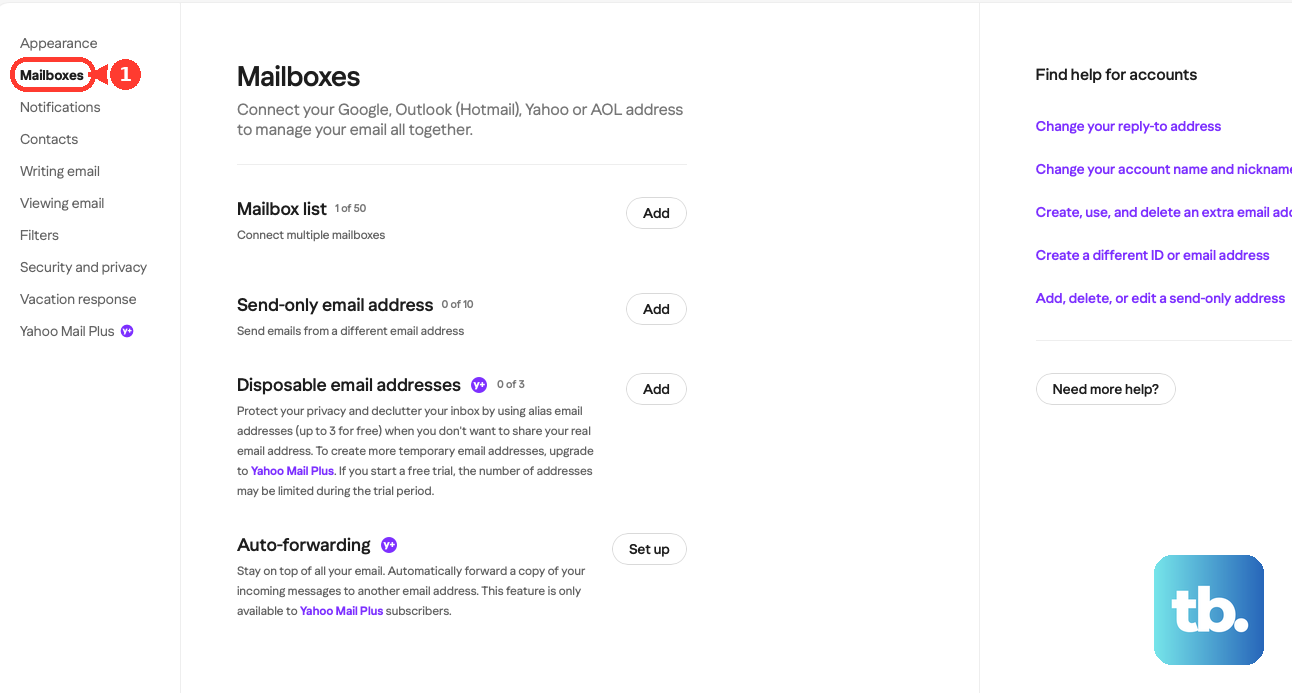
From the mailbox list, select your primary mailbox account. Choosing the account opens its individual settings, including the forwarding area you are looking for.
Setting Up Auto-Forwarding Step by Step
With your primary mailbox selected, you are ready to point your incoming mail at a new destination. The process is short, but the final activation step happens outside of Yahoo, so do not stop until forwarding is confirmed.
- 1.Sign in to Yahoo Mail in a web browser, then open Settings.
- 2.Go to the Mailboxes section and select your primary mailbox account from the list.
- 3.In the forwarding area for that mailbox, type the email address you want your Yahoo Mail to forward to.
- 4.Click Verify next to the forwarding address you just entered.
- 5.Sign in to the destination email account you set as the forwarding address.
- 6.Follow the verification instructions Yahoo sends to that inbox to activate forwarding.
That confirmation message in the destination inbox is the part people most often miss. Until you open it and follow the steps inside, Yahoo will not begin sending your mail to the new address.
Confirming Forwarding From the Destination Inbox
Yahoo deliberately requires you to prove that you control the address you typed in. This stops anyone from quietly routing your mail to an inbox you do not own.
After you click Verify, switch over and sign in to the email account you entered as the forwarding address. Look for the verification message from Yahoo and follow the instructions it contains.
Once you complete that step, forwarding becomes active and new messages arriving in your Yahoo inbox will be copied along to the destination. If the confirmation email does not appear right away, check the spam or junk folder of the destination account before assuming something went wrong.
Using the Older Yahoo Mail for Desktop Layout
Not everyone sees the same Yahoo Mail interface. If your inbox uses the older Yahoo Mail for Desktop layout, the option names may differ slightly even though the result is the same.
From this layout, open the Settings menu, look for the additional settings options, and go to the Mailboxes section. Select your primary mailbox account to open its individual controls.
In the forwarding area, enter the forwarding address and click Verify. Then sign in to that forwarding address and follow the instructions sent there to finish setup. The same Yahoo Mail Plus requirement applies to this layout, so the feature only appears if your subscription supports it.
What to Check If Forwarding Does Not Appear or Work
The single most common reason the forwarding area is missing is the subscription requirement. If you are on a free account, upgrade to Yahoo Mail Plus, since the feature lives in Settings only for Plus subscribers.
Double-check that you opened the right account as well. Because forwarding is set per mailbox, signing in to a different Yahoo address than the one you intend to redirect can make it look like the option is absent when you are simply in the wrong inbox.
When the option is present but mail is not arriving at the destination, the verification step is usually unfinished. Go back to the destination inbox, locate the message Yahoo sent, and complete the instructions inside to switch forwarding on.
Frequently Asked Questions
Do I need a paid subscription to forward Yahoo Mail automatically?
Yes. The official help page directs you to upgrade to Yahoo Mail Plus to use the email forwarding feature in your settings, so the auto-forwarding controls do not appear on standard free accounts.
Where do I go to start setting up forwarding?
Sign in at login.yahoo.com or mail.yahoo.com in a web browser, then open Settings and go to the Mailboxes section. From your primary mailbox account you will find the forwarding controls described above.
Why isn't my mail being forwarded after I entered the address?
Entering the address and clicking Verify is only part of the process. You must sign in to the destination inbox and follow the verification instructions Yahoo sends there. Forwarding stays inactive until that confirmation is complete.
Can I set up forwarding if I use the older Yahoo Mail for Desktop interface?
Yes. Open Settings, go to the additional settings options, then the Mailboxes section, and select your primary mailbox account. In the forwarding area, enter the forwarding address, click Verify, then sign in to that address and follow the instructions sent there. The same Yahoo Mail Plus requirement applies.
Does forwarding affect the copies kept in my Yahoo inbox?
Forwarding sends your incoming messages on to the destination address you verified. Treat the destination inbox as the place to check those messages going forward, and keep your Yahoo Mail Plus subscription active so the feature continues to run.