Ready to play Roblox, but unsure which app your laptop needs? Windows laptops and MacBooks use the desktop player, while compatible Chromebooks use the Android app through Google Play. Start with the installation steps for your laptop, then get familiar with the controls and tackle any setup problems.
Make sure your laptop supports Roblox
Roblox supports 64-bit Windows 10 or Windows 11, and macOS 10.13 or later. Windows graphics hardware also needs DirectX 10 feature-level support. Windows 7, Windows 8.1, and 32-bit Windows do not meet the current requirements.
A Chromebook needs Android-app support and Google Play enabled. Linux is unsupported.
Roblox recommends at least 300 MB of storage. For a single-use household, it recommends a minimum 4–8 Mb/s internet connection; larger households should have more bandwidth. The published operating-system minimum alone does not guarantee compatibility with every laptop.
Install the desktop player on Windows or Mac
This gets the official desktop player ready to open games from the Roblox website.
Open roblox.com in a supported browser: Chrome, Firefox, or Edge on Windows; Chrome, Firefox, or Safari on Mac.
Sign in to your Roblox account. If you need an account, complete the next section first.
Open the experience you want to play.
Select its green Play button.
Download the installer through the installation prompt.
Run the downloaded installer.
Complete its installation prompts.
Return to the experience’s webpage.
Select Play again.
If the browser asks which application to open, choose Roblox.
Confirm the application choice. The game opens in the installed app; it does not run inside your browser.
For the direct-download route, open the official Roblox download page.
Download the installer offered for your operating system. On Mac, select Download Mac App.
Run that installer.
Complete its prompts before returning to the experience’s Play button.
Create an account and add a recovery email
Open the Roblox homepage.
Fill in the account-registration form.
Submit the form.
Sign in to your account.
Select the gear icon.
Open Settings.
Select Add Email.
Enter your email address.
Verify the address using the message Roblox sends you.
Tip: Use your verified email instead of your username on the website’s login screen, but switch to your username if several accounts share that email and login fails.
Set up Roblox on a Chromebook
Compatible Chromebooks run Roblox’s official Android app through Google Play. Availability depends on your device, account, and region.
Select the time at the bottom right of the screen.
Open Settings → Apps → Manage Google Play preferences. Google says a Chromebook without this option does not support Android apps; school or work administrators also control access on managed devices.
Select More in the window that opens.
Complete the terms-of-service prompts.
Open Google Play.
Find Roblox by Roblox Corporation.
Select Install if the Chromebook is eligible.
Open Roblox from the Launcher after installation.
Sign in to your Roblox account.
Use Microsoft Store on Windows
This gives Windows users another official way to install Roblox.
Open Microsoft Store.
Search for Roblox - Windows, published by Roblox Corporation.
Open its listing.
Select Get when offered, or the listing’s installation control for your account.
Complete the installation prompts.
Launch the installed Roblox app with the blue icon.
Sign in with your existing Roblox account.
Complete the prompted Microsoft/Xbox account link. This is a one-time requirement for the Store version. Your progress, friends, Robux, and inventory stay associated with your Roblox account.
If you have the older light-gray-icon Store app, remove it after signing in successfully to the blue-icon replacement. Roblox says the older app will eventually stop working; the current Store listing is Roblox - Windows.
Get comfortable with the laptop controls
For standard keyboard movement, press W or Up Arrow to move forward, S or Down Arrow to move backward, A to move left, or D to move right.
Press Space to jump.
On a touchscreen Chromebook with standard touch controls, drag in the lower-left area to move.
Tap the lower-right jump control to jump.
Drag across the middle of the screen to move the camera.
To leave an experience, press Esc to open the Roblox menu.
Select Leave.
Select Leave again to confirm.
If those controls do not work, open the Roblox menu with Esc.
Open Help for the experience’s supported keyboard shortcuts, mouse instructions, and touch gestures. Developers can use different controls.
Lower the graphics quality for smoother play
Where graphics controls are available, lower the graphical load manually or let Roblox choose the quality automatically.
- 1.Press Esc or select the Roblox menu control to open the in-experience menu.
- 2.Open Settings.
- 3.Set Graphics Mode to Manual to adjust it yourself, or select Automatic to let Roblox handle the quality setting and skip to the final step.
- 4.In manual mode, move the Graphics Quality slider left for lower graphical load or right for more detail.
- 5.Press Esc or select Resume to return to the experience.
Fix installation and launch problems
Start here if setup fails or the installed desktop player will not open. For Store and Chromebook installations, use the app-update steps below.
Restart your laptop.
Try launching Roblox again.
If the desktop player still fails, download its installer from the official download page or the experience’s Play installation prompt.
Run the downloaded installer. On Mac, open the newly downloaded Roblox.dmg.
Complete the installation prompts. On Windows, reinstalling supports overwriting the existing installation.
If that Windows reinstall fails, open Start → Settings → Apps → Installed apps on Windows 11.
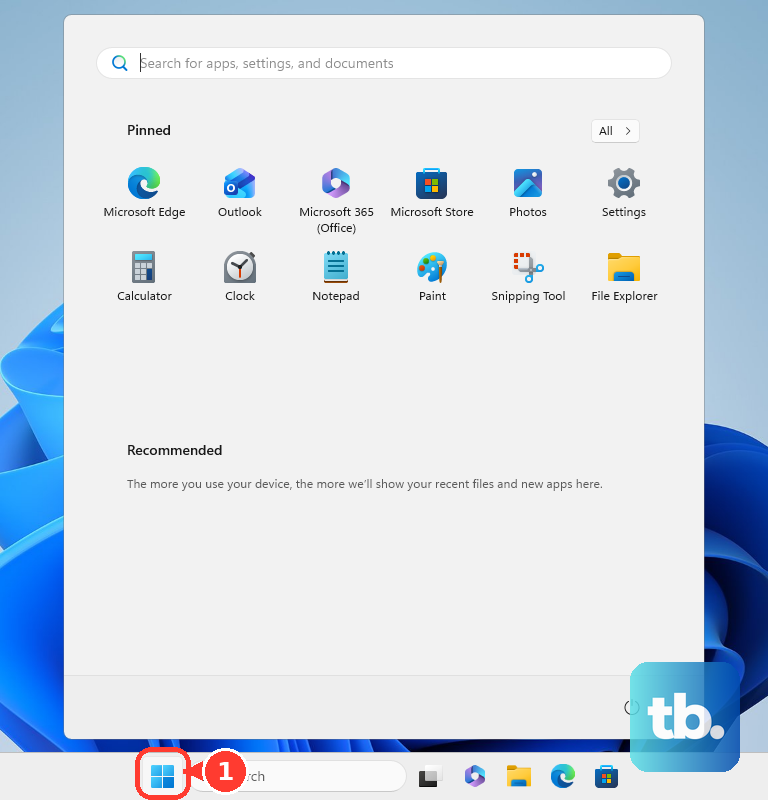
Find the Roblox installation you intend to remove. Both Store versions appear under the name Roblox, so identify the intended app first.
Open its More menu.
Select Uninstall.
Restart the laptop after removal.
Run the official installer again.
Complete the installation prompts.
For Store app updates, open Microsoft Store → Downloads.
Select Check for updates.
Install available Roblox updates.
On a Chromebook, open your Google Play profile → Manage apps & device → Updates available → See details.
Select Roblox.
Select Update.
On a school or work laptop, ask your administrator for help when installation or network access is restricted.
Frequently Asked Questions
Do I need Roblox Studio to play?
No. Roblox Studio is the creation and testing application. You do not need it to play published experiences.
Can I use a controller on my laptop?
Yes. Connect a supported Xbox or PlayStation controller to your Windows laptop or MacBook, then enter an experience that supports gamepad input. Follow that experience’s controller prompts.
How do I join a friend who is already playing?
Open your friend’s profile. Select Join Experience when they are playing, their permissions allow joining, and your account has access to the experience.
Can I play Roblox through BlueStacks or Nox?
Roblox does not support Android emulators for ordinary consumer gameplay. Its anti-cheat rules block emulator use for accounts without edit access to the experience. Use an official installation on a supported laptop instead.