You need to find one word on your iPhone, but there is no single Control-F key that works everywhere. Safari, iPhone Search, Messages, Notes, Mail, PDFs, photos, and browsers each keep search in a different place. Use the path that matches where the text lives, and you can jump straight to the result instead of scrolling.
Find words on a Safari webpage
The most common Control-F need on iPhone is finding a word on the webpage already open in Safari.
Open Safari and go to the webpage you want to search. Tap the Page Menu button, then tap Search Document.
Enter the word or phrase in the search field. Tap Next Result to jump to the next match on the page.
Older address-bar and Share sheet workflows are not the current iOS 26 Safari path. Use Page Menu and Search Document.
Use iPhone Search when the location is unclear
Tap the Search button at the bottom of the Home Screen on iPhone models with Face ID. Or swipe down on the Home Screen or Lock Screen.
Enter what you are looking for in the search field. Tap Search, a suggested app or website, or a result.
Use iPhone Search when the text is in an app, a contact, Mail, Messages, or recognized text in photos.
Search inside the app you are using
This method applies when the text sits inside an app instead of a webpage or system-wide result. App search depends on the app, but the control is normally either a search field or a Search button.
Open the app that contains the text. Tap the search field or Search button. If no search field or button is visible, swipe down from the top of the app screen.
Type the word or phrase. Tap Search.
Search Messages Mail and Notes
Use these built-in searches when the text is in conversations, emails, notes, or note attachments.
- 1.In Messages, tap the search field below the conversation list, enter a word or phrase, choose a person, conversation, or shared-item filter when needed, tap Search, then tap a message result.
- 2.In Mail, tap the search field, type the text, choose all mailboxes or the current mailbox above the results list, then tap a message.
- 3.In Notes, tap the search field and enter your text, or choose a suggested search such as Notes with Drawings and add more text.
- 4.Inside one note, open the note, tap the Note Actions button, tap Find in Note, tap the Search button, and choose options.
- 5.For PDFs and other attachments inside a note, select Include Attachments, then enter the text in the search field.
Find text in PDFs and documents
In Preview on iOS 26, open a PDF, tap the Search button, enter a word or phrase, then use Next Result or Previous Result. For stricter matching, tap Search Options and choose Whole Word or Match Case. Tap Done when finished.
In Pages, open a document, tap the More button, tap Find, and enter a word or phrase. Tap Search Options for Whole Words or Match Case, then use Go Up or Go Down to move through matches.
In Word or Excel on iPhone, open the file, tap Search in the upper-right corner, select Find, and enter the word or phrase.
In Google Docs or Google Sheets, open the file, tap More, tap Find and replace, type the word, tap Search, and use the arrows to move through matches.
Search text in photos and real-world objects
Open Photos. Tap the Search button in the bottom-right corner. Type the text you want to find, such as an email address or phone number.
Tap a suggestion or Search. Browse the results or tap Collections.
For real-world text, open Camera, place the text in the frame, tap the Detect Text button after the yellow frame appears, touch and hold the text, adjust the grab points, then tap Search Web.
Photos also searches dates, places, people, captions, and categories.
Use Chrome or Firefox Find in Page
The most common cause of confusion in other browsers is that each browser puts Find in Page in a different menu.
In Chrome, open the webpage. Tap More, then tap Find in Page…. Enter your search term.
Use the highlighted matches, then tap Done.
In Firefox, tap the Page Actions menu. Tap Find in Page, then enter the word or phrase.
Use the up or down arrows to jump between matches, then tap X.
Firefox also lets you long-tap a word on the page, choose Find in Page, and move through the matching results.
Use a keyboard dictation or Voice Control
This method applies when typing is slow, you have an external keyboard connected, or you need hands-free help. Apple documents Command-Space for iPhone system Search with an external keyboard, not a universal Command-F shortcut for iPhone text search.
With Magic Keyboard connected, press Command-Space to open system Search. Apple documents this shortcut for Magic Keyboard, so other external keyboards can behave differently.
For spoken input, open Settings > General > Keyboard and turn on Enable Dictation.
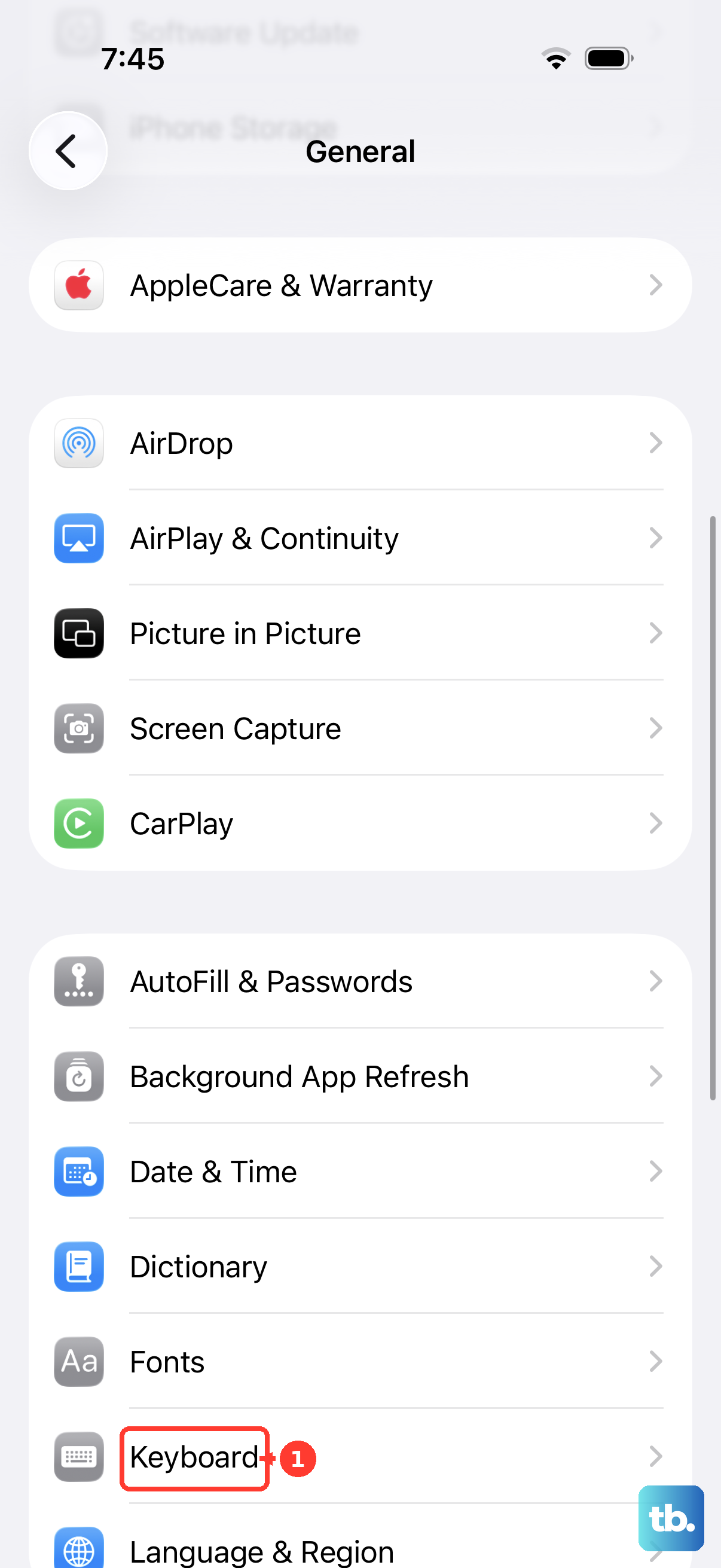
Tap the Dictate button on the onscreen keyboard, or in a search field where it appears, then dictate the word or phrase.
For voice operation, turn on Voice Control, then use spoken commands to tap visible search controls, perform gestures, dictate, and edit text on the current screen.
Fix missing iPhone Search results
When app content does not appear in iPhone Search, open Settings > Search, scroll down, and tap the app. Turn Show App in Search on or off for that app.
This setting controls whether the app appears in system Search results. It does not change Safari’s Search Document tool.
If this method fails, search inside the app itself, then use the webpage, note, PDF, document, or browser search tool for the exact screen or file you are viewing.
Frequently Asked Questions
Is Control-F available on iPhone?
There is no single universal Control-F button for every iPhone screen. Use Safari’s Page Menu > Search Document for webpages, or use the search tool inside the app that contains the text.
Can I use Command-F with an iPhone keyboard?
Apple documents Command-Space for opening iPhone system Search with an external keyboard. Apple does not publish a universal Command-F shortcut for iPhone text search.
Can iPhone search text inside photos?
Yes. Photos can search recognized text in photos and videos, including text such as email addresses and phone numbers. It also searches dates, places, people, captions, and categories.
Why do some apps not show up in iPhone Search?
Open Settings > Search, choose the app, and turn Show App in Search on. For text inside a specific file, message, note, webpage, or document, use that app’s own search tool.