Your keyboard has stopped responding, keeps disconnecting, or types something different from what you press. Start with a connection restart, then work through the settings and reset options for your computer or keyboard model. There’s no universal keyboard reset shortcut, and reconnecting a keyboard is different from clearing its saved settings.
Reconnect a wired keyboard
If your external USB keyboard has stopped responding, start with the cable. Both Windows and Mac support this simple connection check.
Unplug the keyboard from your computer. On Windows, wait briefly for the system to unload its driver. Then reconnect the cable securely.
If the keyboard still does not respond, try another USB port. On Windows, connect the keyboard directly to the computer if you have been using a USB hub.
Revive an unresponsive wireless keyboard
A depleted battery or a lost wireless connection leaves a wireless keyboard unable to respond. Charge the keyboard or replace depleted batteries before trying again.
For a Bluetooth keyboard with a power switch, turn it off. Wait several seconds, then switch the keyboard back on.
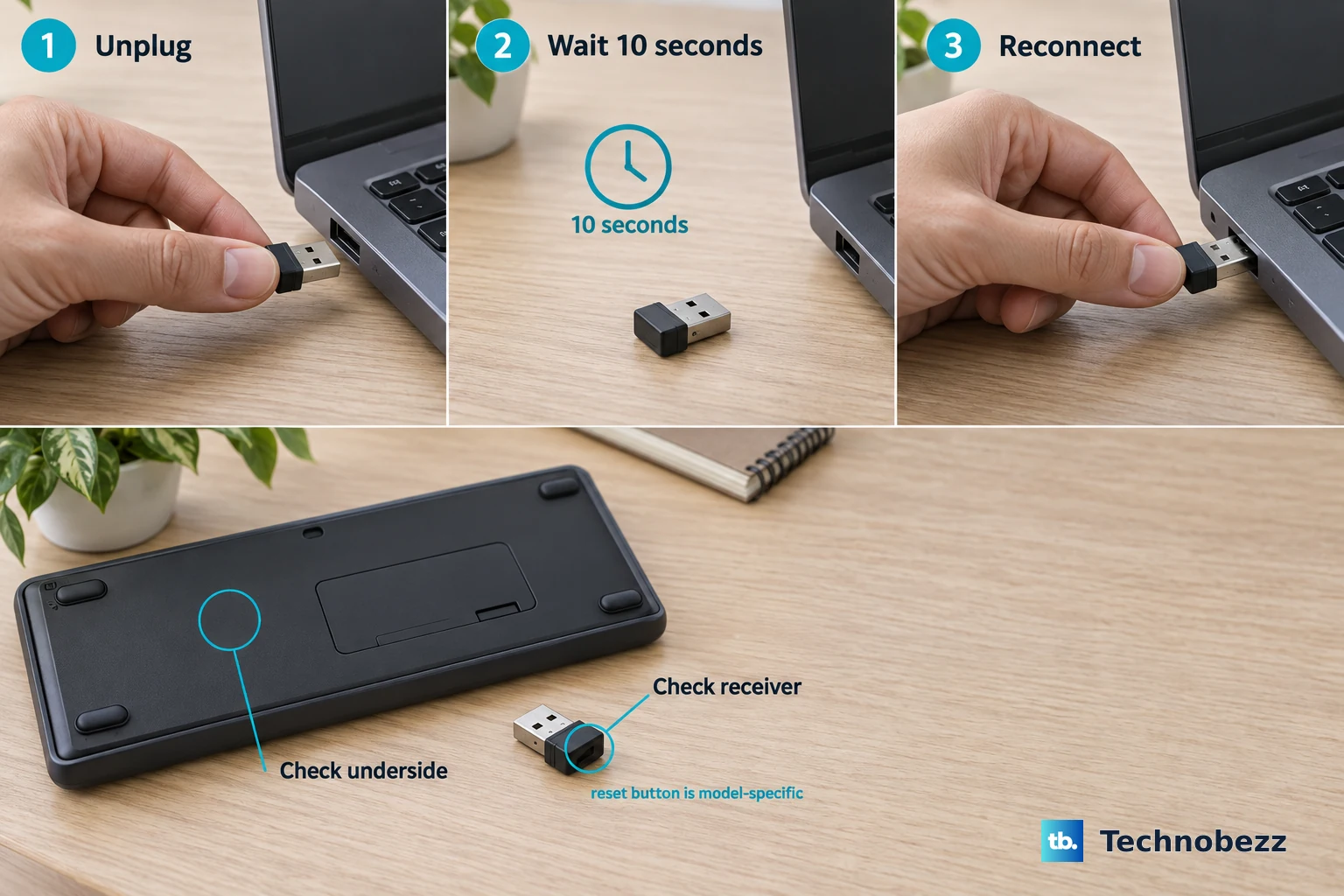
If your Windows keyboard uses a USB wireless receiver, unplug the receiver. Wait approximately 10 seconds, then reconnect the receiver.
Check the keyboard’s underside and its receiver for a Reset button. If your model has one, follow its instructions to reestablish the wireless connection. A physical reset button is a model-specific feature.
Restart the computer when reconnecting does not help
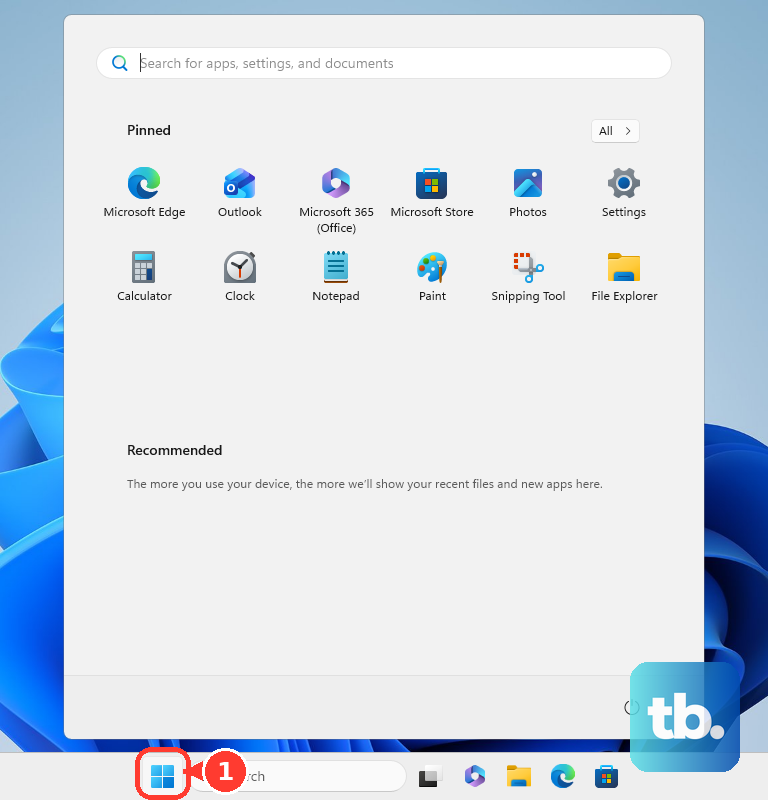
A Windows restart reloads the operating system and its keyboard connection without clearing the keyboard’s saved profiles. Save your work first. On Windows 11, select Start > Power > Restart.
For an Apple-silicon Mac, connect the computer to power, then choose Apple menu > Restart. Apple says the SMC resets automatically on these Macs.
Need to type while troubleshooting Windows? Use your mouse to open Start > Settings > Accessibility > Keyboard and enable On-screen keyboard. Click the displayed keys to type.
Refresh a Windows Bluetooth connection
This resets the Bluetooth connection between your keyboard and Windows 11. Open Start > Settings > Bluetooth & devices. Switch Bluetooth off. This temporarily disconnects your other Bluetooth accessories too, including a Bluetooth mouse.
Wait briefly, then switch Bluetooth back on. If the keyboard remains disconnected, open Devices on that settings page. Open the keyboard’s More options menu, then select Remove device. Select Yes to confirm.
Put the keyboard into pairing mode using its model’s instructions. Select Add device > Bluetooth. Choose your keyboard.
If the connection still fails, open Start > Settings > System > Troubleshoot > Other troubleshooters. Select Run beside Bluetooth. Follow the Get Help diagnostics.
Bring a Magic Keyboard back online
Move your Magic Keyboard’s rear-edge power switch to the off position so the green marking is hidden. Switch it on again so green is visible. If it still will not connect, attach the rechargeable Magic Keyboard to your Mac using its compatible USB-C or Lightning cable. The cable connection pairs the keyboard and charges its battery.
Wait one minute, then disconnect the cable. For a continuing connection problem, open Apple menu > System Settings > Bluetooth. Turn Bluetooth on if it is off. If Bluetooth cannot be enabled, select Apple menu > Restart.
After the Mac restarts, try enabling Bluetooth again in Apple menu > System Settings > Bluetooth. Use cable pairing only with rechargeable Magic Keyboards; it does not apply to older Apple keyboards with replaceable batteries.
Correct keys that type the wrong thing
These settings fix altered typing behavior without resetting the keyboard hardware. On Windows 11, open Start > Settings > Accessibility > Keyboard. Turn off Filter keys if you enabled it unintentionally. Turn off Sticky keys if it is also changing how you want to type.
For unexpected characters, press Windows+Space to select your intended keyboard layout. If the correct layout is missing, open Start > Settings > Time & language > Language & region. Open your language’s ellipsis menu. Select Language options.
Under Keyboards, select Add a keyboard. Choose the correct layout. If you use PowerToys to remap keys, close PowerToys to stop its remaps while you test.
On a Mac, open Apple menu > System Settings > Accessibility > Keyboard. Turn off Slow Keys if it is unintentionally enabled. Open Apple menu > System Settings > Accessibility > Pointer Control. Turn off Mouse Keys if it is interfering with typing.
For incorrect Mac characters, open Apple menu > System Settings > Keyboard > Text Input > Edit. Enable Show Input menu in menu bar. Choose your intended layout from the Input menu.
Reinstall the Windows keyboard driver
If the simpler fixes fail, reinstall the affected keyboard’s driver. Save your work and keep a working mouse or alternative input available before starting.
Right-click Start and open Device Manager, using administrator credentials if prompted. Expand Keyboards and identify the affected keyboard.
Right-click that keyboard and choose Uninstall device > Uninstall. Check that you have selected the correct device before confirming.
Right-click Start and select Shut down or sign out > Restart. Windows attempts to reinstall the driver during the restart.
Try a Chromebook hardware restart
Turn your Chromebook off. Turn it back on. Google recommends a normal restart before a hardware reset.
Test the keys with ChromeOS Diagnostics. Open Settings, type diagnostics in the search bar, then select Diagnostics > Input > The internal keyboard > Test and follow the on-screen instructions. Stay in that window while you test, or the test pauses.
If it still fails, back up files in Downloads. A hardware reset restarts hardware including the keyboard and touchpad, and Google warns that it can delete some downloaded files.
Turn the Chromebook off again. On most Chromebooks, hold Refresh while tapping Power. Release Refresh when the Chromebook starts up.
For a ChromeOS tablet instead, hold Volume Up and Power together for at least 10 seconds. Release both buttons after that interval. Reserve a full Powerwash for a last resort because it erases local user data.
Use a reset that matches your keyboard model
A model-specific reset restores keyboard settings, with controls and scope that depend on the device. For a Logitech keyboard supported by Logi Options+, turn the keyboard on. Connect it to your computer.
Open the keyboard’s settings in Logi Options+. Select SETTINGS > OTHER > RESET TO DEFAULT SETTINGS. This restores configurable settings; do not treat it as a firmware or pairing-memory reset.
For a Razer peripheral with a reset control in Synapse 4, export its device profile before resetting. Connect the Razer keyboard to your computer. Open Synapse 4. Select your device.
Click the top-right ? icon. Choose RESET. Confirm the reset.
For a Keychron J-series keyboard covered by the J-series reset instructions, turn the keyboard on. Hold Fn+J+Z for four seconds. Rapid red flashing indicates completion; this timing does not apply to every Keychron model.
For another keyboard, follow the reset instructions for its exact model. A shortcut from another model is not a universal factory reset.
Frequently Asked Questions
Does Fn+Esc factory-reset a keyboard?
No universal factory-reset shortcut exists. On Logitech keyboards that support Fn lock, Fn+Esc switches between media functions and standard F1–F12 behavior.
Can I use Bluetooth pairing settings for a keyboard with a USB receiver?
Windows Bluetooth pairing controls do not pair proprietary USB receivers. Use the receiver’s model-specific pairing procedure. Logitech Bolt and Unifying receivers are not interchangeable.
How do I restore the default modifier keys on a Mac?
Open Apple menu > System Settings > Keyboard > Keyboard Shortcuts > Modifier Keys, then select Restore Defaults. This restores modifier-key assignments, not every keyboard preference.
How do I reset a Surface Pro Flex Keyboard that fails when detached?
Detach the keyboard. Hold Esc for approximately five seconds until the Fn LED lights. Reattach it to Surface Pro for at least 30 seconds before testing wireless use. This procedure is specific to the Surface Pro Flex Keyboard.