Windows Update can stall, loop, or fail because its local update files or services are stuck. Start with Microsoft’s safest reset tool, then move to the cache reset and repair options that rebuild the update flow. These steps use current Windows 11 paths and avoid retired reset wizards that no longer apply.
1. Run the Windows Update troubleshooter first
Start here: Microsoft’s Windows Update troubleshooter checks the update components and resets the parts that need it.
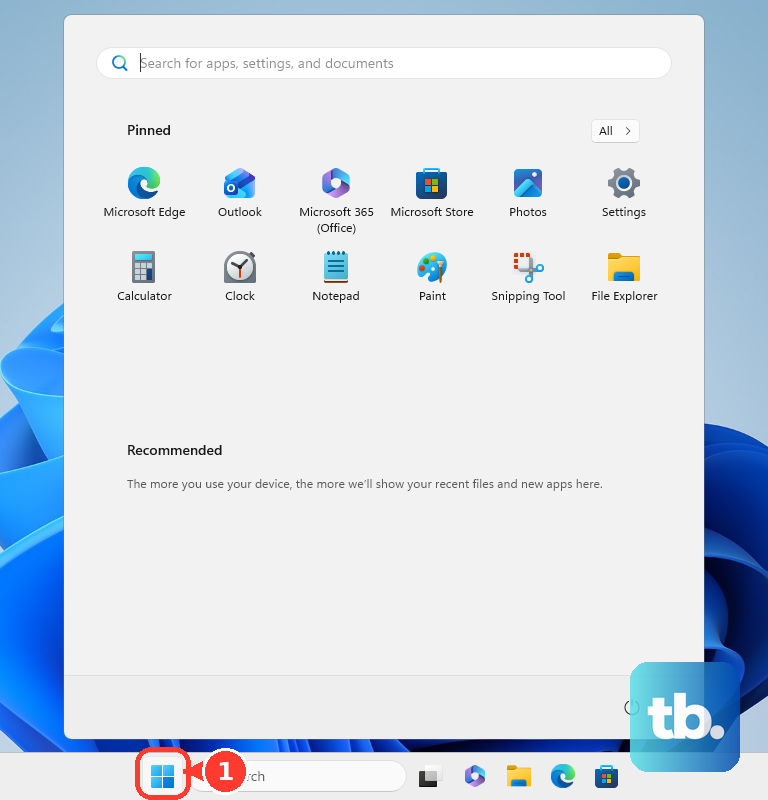
- 1.Open Start and select Settings.
- 2.Go to System, then Troubleshoot.
- 3.Select Other troubleshooters.
- 4.Under Most frequent, find Windows Update and select Run.
- 5.Restart your PC when the troubleshooter finishes.
- 6.Open Start, select Settings, choose Windows Update, then select Check for updates.
2. Clear the Windows Update cache
Press Win + R, type services.msc, then press Enter. Find Windows Update, then right-click Windows Update and select Stop.
Open File Explorer and go to C:\Windows\SoftwareDistribution. Delete every file and folder inside SoftwareDistribution.

Return to Services, then right-click Windows Update and select Start. Open Settings, select Windows Update, then select Check for updates.
If the troubleshooter does not finish the job, this cache reset removes files inside SoftwareDistribution so Windows can download fresh copies.
3. Reset the cache with commands
For the faster version, use Microsoft’s command-line reset for the Windows Update Agent cache. Open Start and type Command Prompt, then right-click Command Prompt and select Run as administrator.
Run net stop wuauserv. Next, run rd /s /q %systemroot%\SoftwareDistribution, then run net start wuauserv.
Open Settings, select Windows Update, then select Check for updates.
4. Repair corruption with DISM
Open Start and type Command Prompt. Right-click Command Prompt and select Run as administrator, then approve the administrator prompt.
Run DISM.exe /Online /Cleanup-image /Restorehealth. Wait for the command to complete.
Open Settings, select Windows Update, then select Check for updates. Cache resets fix downloaded update files; DISM repairs the Windows image that the update process depends on.
5. Reinstall Windows 11 through Windows Update
Windows 11 includes a repair reinstall option that keeps your apps, files, and settings while reinstalling the current Windows version. Open Start and select Settings, then go to System, then Recovery.
Under Fix problems using Windows Update, select Reinstall now. In the Fix problems using Windows Update window, choose the restart option you want, then select OK. Restart your PC when Windows asks.
This option requires Windows 11 with the 2022 annual update plus the February 2024 optional update or later. On work or school-managed PCs, update policies can hide this option.
6. Install a stubborn update manually
Microsoft Update Catalog Use this when you know the KB number. Go to Microsoft Update Catalog, enter the KB number in the Search box, select Search, choose Download, save the file, then double-click the downloaded update and follow the prompts.
Windows 11 Installation Assistant Use this for Windows 11 feature updates on x64 PCs. Go to Microsoft’s Windows 11 software download page, select Download Now under Windows 11 Installation Assistant, run the tool as administrator, select Accept and Install, then select Restart Now.
Windows 11 Installation Media Use this when update component repairs have failed and you need reinstall media. Go to Microsoft’s Windows 11 software download page, select Download Now under Create Windows 11 Installation Media, run MediaCreationTool.exe as administrator, then follow the prompts to create USB, DVD, or ISO media.
Back up your files first. If one specific update refuses to download through Windows Update, install that package directly from Microsoft.
7. Remove the update that caused the issue
Use this path when Windows Update broke right after one update installed: remove that update instead of resetting everything again. Open Start and select Settings, then select Windows Update.
Under More options, select Update history. Under Related settings, select Uninstall updates.
Select the update, then select Uninstall. Some updates cannot be uninstalled from Settings.
If Windows will not start normally, enter Windows Recovery Environment, select Troubleshoot, choose Advanced options, select Uninstall Updates, then choose Uninstall latest quality update or Uninstall latest feature update.
8. Skip retired reset tools
Older Windows tutorials mention Microsoft Fix it or Easy Fix reset wizards with default or aggressive modes. Do not use those as current Windows 11 instructions.
Microsoft’s current paths are the Windows Update troubleshooter, the SoftwareDistribution cache reset, command-line reset steps, DISM, Windows Update reinstall, and Microsoft’s official download tools.
If Windows says your update settings are managed by an organization, use your IT support path. Those PCs can be controlled by Windows Update policies such as update service location, Windows Update access, internet update access, and automatic update configuration.
Frequently Asked Questions
Does resetting Windows Update delete my personal files?
No. Clearing the Windows Update cache deletes downloaded update files inside SoftwareDistribution, not your documents. The Windows 11 reinstall option in Settings is designed to keep apps, files, and settings.
What should I do after resetting Windows Update components?
Restart your PC, then open Settings > Windows Update and select Check for updates. If updates appear, select Download & install and restart when Windows asks.
Can Microsoft Update Health Tools fix Windows Update problems?
Microsoft Update Health Tools installs automatically through Windows Update or Microsoft Update and helps keep Windows Update running smoothly on consumer devices. Check Settings > Windows Update > Check for updates to get it automatically.
Should I use third-party Windows Update reset scripts?
Use Microsoft’s built-in tools first. The verified Microsoft-supported paths are the troubleshooter, cache reset, DISM, Windows 11 repair reinstall, Microsoft Update Catalog, Installation Assistant, and installation media.
Is Windows 10 covered by these steps?
No. Microsoft still documents some Windows 10 paths, but general consumer support ended on October 14, 2025. These steps are written for current Windows 11 consumer PCs.