You open Windows Settings to pair headphones, a mouse, a keyboard, or a speaker, and Bluetooth either is not there or refuses to behave. The switch may be missing, the device may never appear, or the connection may say it worked while audio or file transfer still fails. Start with the checks that solve the fastest Windows 11 Bluetooth problems, then move into pairing, drivers, and managed-PC limits.
1. Confirm Windows can see Bluetooth hardware
Start here when the Bluetooth switch is missing or the PC never finds nearby devices.
Select Start > Settings > Bluetooth & devices.
Look for the Bluetooth controls on that page.
If Bluetooth is missing, right-click Start, select Device Manager, and look for a Bluetooth adapter.
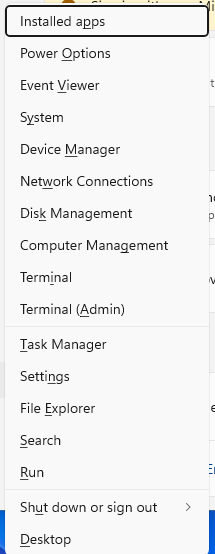
If Bluetooth is absent from Device Manager, treat it as one of the two problems Microsoft names: the PC does not support Bluetooth, or the Bluetooth driver is missing. On current Windows 11, use Start > Settings > Bluetooth & devices; the Windows 10 path belongs to legacy guidance after October 14, 2025.
2. Reset Bluetooth and switch off Airplane mode
Select Start > Settings > Bluetooth & devices, turn Bluetooth Off, wait a few seconds, then turn it On.
Next, open Quick Settings from the Network, Sound, or Battery icons on the right side of the taskbar, or press Windows logo key + A.
Select Bluetooth if you need the taskbar control.
Make sure Airplane mode is Off.
Or select Start > Settings > Network & internet > Airplane mode, then turn Airplane mode Off.
Use these radio checks when the Bluetooth switch is present but pairing fails.
3. Restart before removing devices
Restart Windows before changing pairings or drivers: select Start > Power > Restart, then test Bluetooth again from Start > Settings > Bluetooth & devices.
This step belongs early because Microsoft lists restart among the basic Bluetooth repair steps, and it costs less time than rebuilding a pairing or reinstalling an adapter driver.
4. Pair the accessory again from Settings
Remove only the problem accessory, then pair it again from the current Windows 11 Settings path.
- 1.Select Start > Settings > Bluetooth & devices > Devices.
- 2.Find the device, select More options, select Remove device, then select Yes.
- 3.Turn on the Bluetooth accessory and put it in discoverable mode with its pairing button, power-button hold, or manufacturer shortcut.
- 4.Select Add device > Bluetooth, then choose the device when it appears.
For supported Swift Pair accessories, select Start > Settings > Bluetooth & devices > Devices, turn on Show notifications to connect using Swift Pair, put the accessory in pairing mode, then select Connect when Windows shows the notification.
5. Check power range and another connection
Turn the Bluetooth device on.
Charge it or install fresh batteries.
Keep it in range of the PC.
After that, disconnect it from another phone, tablet, or computer, then try Add device > Bluetooth again.
Bluetooth accessories fail pairing when the accessory is off, out of range, low on power, or already connected somewhere else, so use this check before you touch Windows drivers.
6. Run Get Help for Bluetooth troubleshooting
Microsoft’s current Windows troubleshooter flow runs through Get Help: open Get Help, search for Bluetooth troubleshooter, and follow the guided steps.
Use this before driver removal. It can catch common setup and connection problems while keeping the adapter and paired-device list intact.
7. Update or reinstall the Bluetooth driver
Move to drivers when Bluetooth is still missing, unstable, or broken after the pairing checks.
Select Start > Settings > Windows Update, then select Check for updates. Install available updates and restart when prompted.
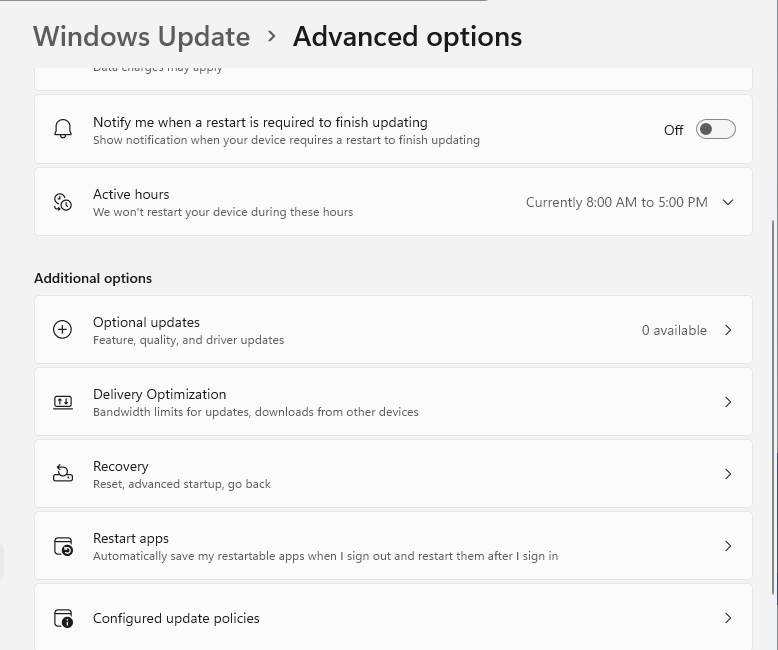
Then select Start > Settings > Windows Update > Advanced options > Optional updates. Expand Driver updates, select the relevant Bluetooth or wireless driver, then select Download & install.
In Device Manager, right-click Start, select Device Manager, expand Bluetooth, right-click the Bluetooth adapter, then select Update driver > Search automatically for drivers. Follow the prompts, then select Close.
If updating does not repair Bluetooth, return to Device Manager, expand Bluetooth, right-click the adapter, select Uninstall device, confirm, then select Start > Power > Restart so Windows can reinstall the driver after startup.
If Windows does not offer the right driver, use the official PC maker or adapter maker source. Dell users can enter the Service Tag at Dell Support and open Drivers & Downloads. Intel adapter users can use Intel Download Center or Intel Driver & Support Assistant. Lenovo users can open Lenovo Vantage > System Update > Check For Updates, and HP users can open HP Support Assistant, go to My Dashboard, find their computer, then click Updates.
8. Fix audio and file transfers separately
A Bluetooth device can be connected and still fail at the specific job you need. For Bluetooth audio with no sound, select Start > Settings > System > Sound, choose the Bluetooth audio device under Output, then test audio again.
For a stuck audio connection, select Start > Settings > Bluetooth & devices > Devices.
Select the Bluetooth audio device.
Now select Disconnect, then select Connect.
If the same device still fails, use Remove device, then pair it again with Add device > Bluetooth.
For Bluetooth file transfers, first make sure the receiving device is paired and ready to receive. Then select Start > Settings > Bluetooth & devices > Devices > Send or receive files via Bluetooth, choose Send files or Receive files, and follow the prompts.
9. Stop when policy or old Windows advice is the blocker
On a work or school PC, Bluetooth settings can be restricted by the organization that manages the computer. If Bluetooth settings are missing or blocked on a managed device, contact that organization instead of changing Bluetooth policy settings yourself.
Skip older tutorials that tell you to use Control Panel > Devices and Printers > Add a device as the main pairing path. On current Windows 11, Microsoft documents Settings > Bluetooth & devices > Add device. Skip the Windows 10 Action Center Bluetooth tile too; Windows 11 uses Quick Settings from the Network, Sound, or Battery icons.
Use Microsoft’s Windows 11 installation or download page only when normal Bluetooth troubleshooting points to a broader Windows repair or upgrade. It is not the first repair for a single Bluetooth problem.
Frequently Asked Questions
Why did Bluetooth disappear from Windows Settings?
When Bluetooth is missing from Settings, check Device Manager. Microsoft lists two causes when Bluetooth does not appear there: the PC does not support Bluetooth, or the Bluetooth driver is missing.
What should I do when my Bluetooth headphones connect but play no sound?
Open Start > Settings > System > Sound and choose the Bluetooth headphones under Output. If that fails, go to Bluetooth & devices > Devices, disconnect the audio device, then connect it again.
Should I download a Bluetooth driver from Windows Update or the PC maker?
Use Windows Update and Optional updates first. If Windows does not provide the needed Bluetooth or wireless driver, use the official support page or companion app from the PC maker or adapter maker.
Why does my Bluetooth device not show up when I try to pair it?
Turn the device on, charge it or replace the batteries, keep it in range, disconnect it from other devices, then put it in the manufacturer’s pairing mode before choosing Add device > Bluetooth.
Can I still use Windows 10 Bluetooth instructions?
Windows 10 Bluetooth paths are legacy after October 14, 2025. On current Windows 11, use Bluetooth & devices, Quick Settings, Get Help, and Windows Update.