The Learn about this picture item on your Windows 11 desktop comes with Windows Spotlight. To remove it, switch to a picture, solid color, or slideshow background. If you want to keep Spotlight’s rotating wallpapers, you can hide the item along with your other desktop icons.
Switch away from Windows Spotlight
Changing your background removes the Spotlight item and stops its wallpaper rotation.
This option applies to Windows 11 when personalization is available. On a computer managed by an organization, policy can restrict background changes.
Open Settings.
Select Personalization.
Open Background.
You can also reach the background options from the desktop. Right-click an empty desktop area and select Personalize, then open Background.
Under Personalize your background, choose Picture, Solid Color, or Slideshow instead of Windows spotlight. Picture gives you a single image; Slideshow keeps your background changing.
Choose a solid color if you want a background without a photograph. Each of these alternatives replaces Spotlight, so removing the desktop item also means leaving Spotlight’s wallpaper rotation.
Keep Spotlight wallpapers by hiding desktop icons
You can keep Spotlight’s rotating backgrounds and get the picture information item out of sight. The catch is that this hides every desktop icon. It doesn’t delete them.
Right-click an empty area of your desktop.
Open View.
Uncheck Show desktop icons.
Your desktop continues to use Spotlight while the icons are hidden. This option suits a desktop where you are comfortable keeping all icons out of view.
To restore your icons later, check Show desktop icons again.
Restoring the icons also brings the Spotlight item back into view if Spotlight is still your background.
If hiding every icon doesn’t give you the result you want, replace Windows spotlight with Picture under Settings > Personalization > Background > Personalize your background.
Use a picture you already have
File Explorer lets you replace Spotlight directly with an image of your choice.
Open File Explorer.
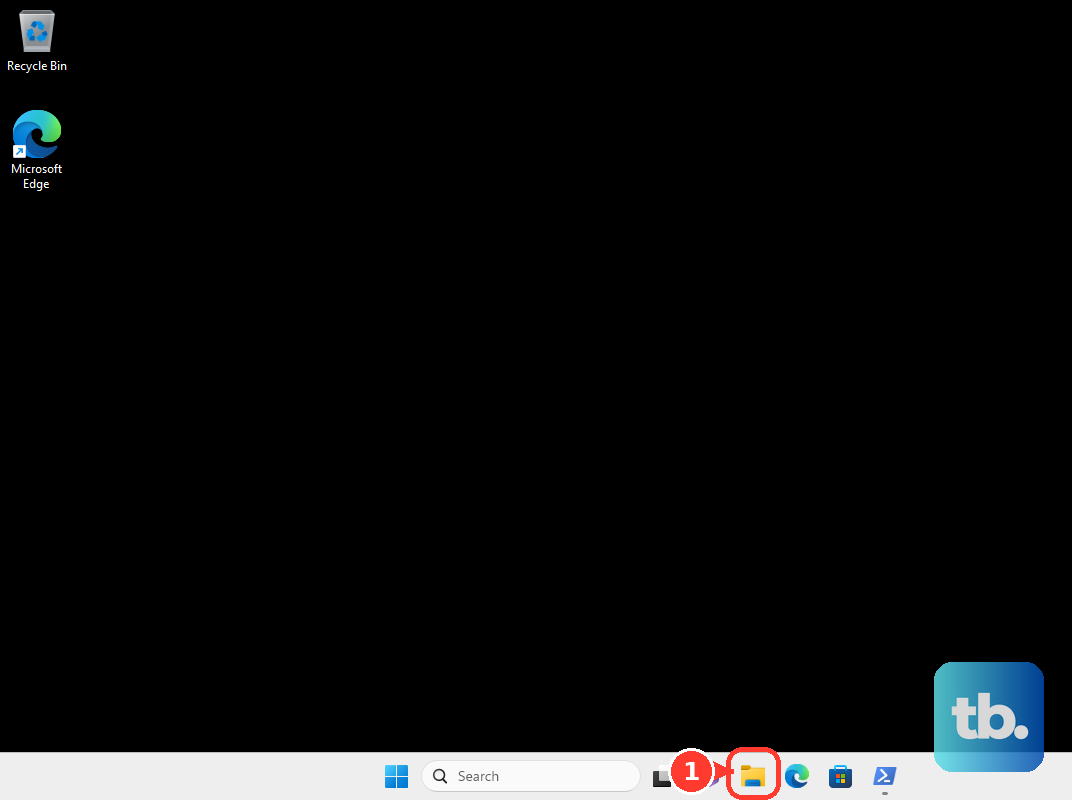
Locate the picture you want as your wallpaper.
Right-click the image file.
Select Set as desktop background. This replaces Spotlight with your picture and removes its desktop item.
The selected image becomes the replacement background, so Spotlight’s rotating pictures stop. This route also depends on your computer allowing background changes.
Set your wallpaper from Photos
Choosing a background in Photos replaces Spotlight and removes its desktop item.
Open your desired picture in Photos.
Select the three-dot menu.
Choose Set as.
Select Background to use the picture as your desktop wallpaper.
If you already have the image open in Photos, you can apply it from there. As with the File Explorer option, the picture takes the place of Spotlight rather than continuing its wallpaper rotation.
Apply a theme with a different background
A theme that replaces Spotlight with a picture or slideshow also removes the Spotlight item. Applying a theme can change colors and sounds too, so this option suits a broader desktop makeover.
Go to Settings > Personalization > Themes.
Select an existing theme that uses a picture or slideshow background.
Open Background to see the theme’s background selection. A theme that still uses Windows spotlight keeps the desktop item.
The background included in the theme determines whether Spotlight remains active. Selecting a different theme only removes the item when that theme replaces the Spotlight background.
Disable desktop Spotlight on managed devices
On Windows 11 Enterprise, Education, and applicable IoT Enterprise/LTSC editions, a device management (MDM) service such as Microsoft Intune can disable desktop Spotlight availability. This policy does not apply to Home or Pro.
In your MDM service, configure the user policy ./User/Vendor/MSFT/Policy/Config/Experience/AllowSpotlightCollection.
Set the value to 0.
This disables desktop Spotlight rather than simply hiding its desktop item. It therefore does not preserve Spotlight’s rotating desktop wallpapers in the way that hiding all desktop icons does.
The separate Turn off all Windows spotlight features policy has a broader effect and also affects other Spotlight experiences. For a restriction specifically on desktop Spotlight, use the AllowSpotlightCollection policy.
Frequently Asked Questions
Can I hide only Learn about this picture and keep the other desktop icons?
Microsoft’s Settings instructions don’t document a toggle for hiding only the Spotlight item. A registry workaround appears in a Microsoft Q&A forum answer, but it isn’t part of Microsoft’s support documentation.
Will turning off Spotlight on the lock screen remove the desktop item?
No. Lock-screen Spotlight is a separate setting from your desktop background.
Why can’t I change the background on my work computer?
Your organization can restrict background changes. Contact your IT team if personalization settings are restricted.
Do I need to download anything to remove it?
No. The methods above use features built into Windows and Microsoft Photos.