Bing is not one switch hiding inside Windows. It shows up as a removable app, a browser search engine, a homepage, a web app, an extension, Windows spotlight content, or signed-in search history.
Start with the place where Bing appears, then use the matching fix below to remove that piece and stop it from coming back. The Windows steps target Windows 11 because Windows 10 support ended on October 14, 2025.
1. Uninstall Bing apps from Windows
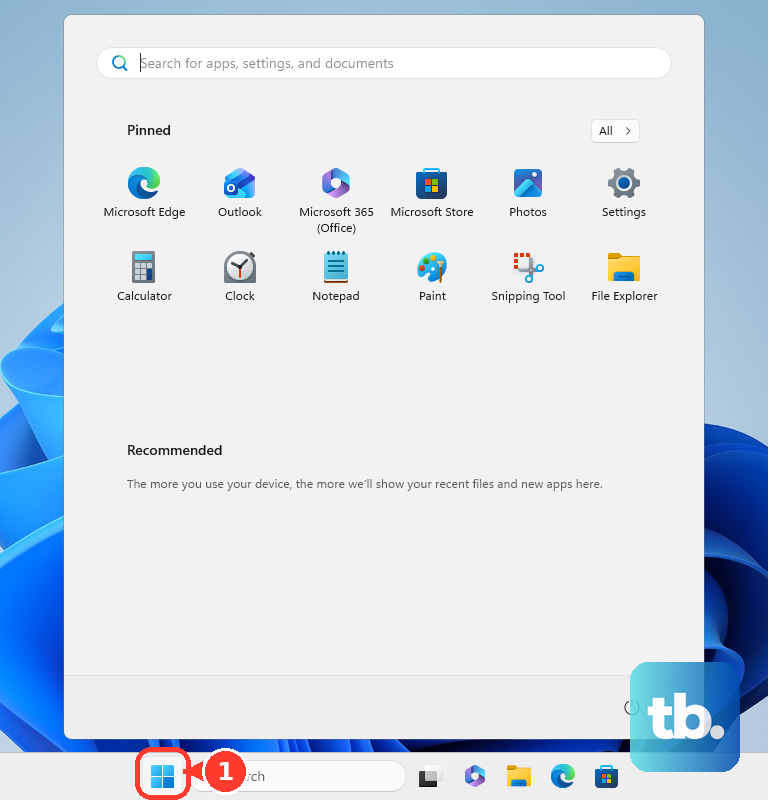
Open Start.
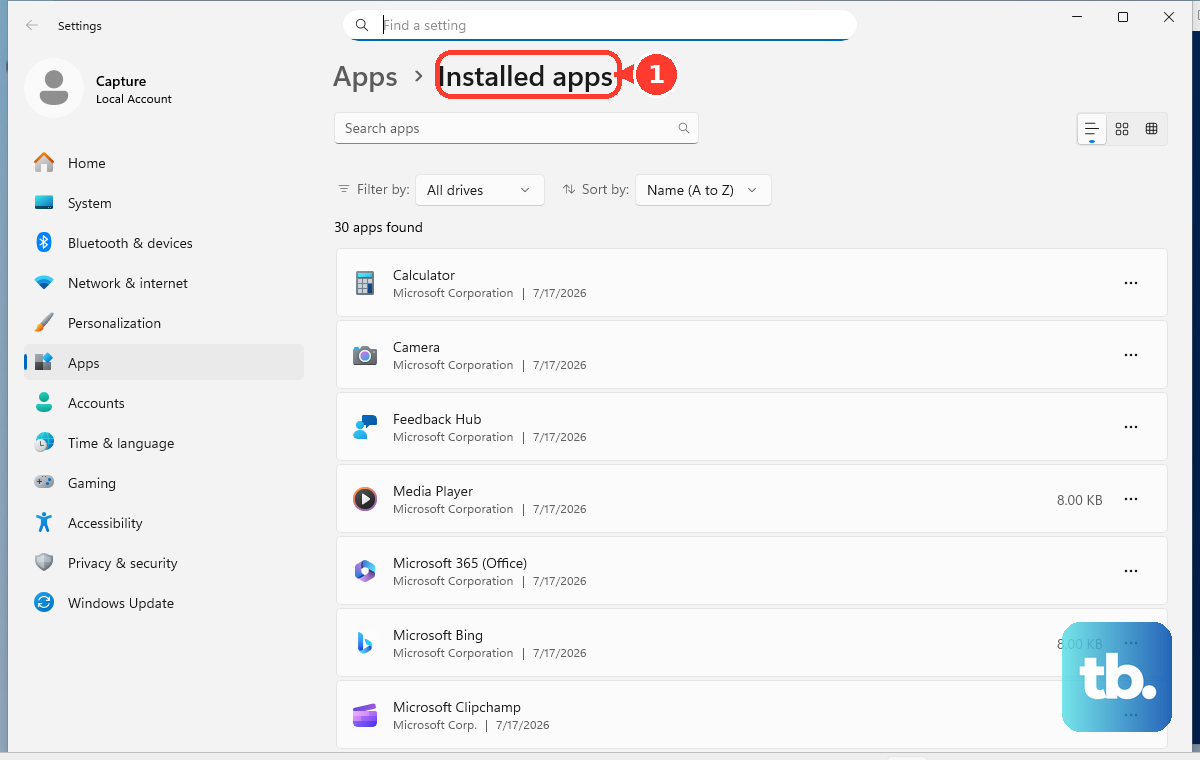
Select Settings > Apps > Installed apps.
Search for Bing Wallpaper, Bing, or Copilot when Copilot is the Bing/Copilot item on the PC.
Select More (...) next to the app.
Select Uninstall.
Follow the Uninstall prompts on screen.
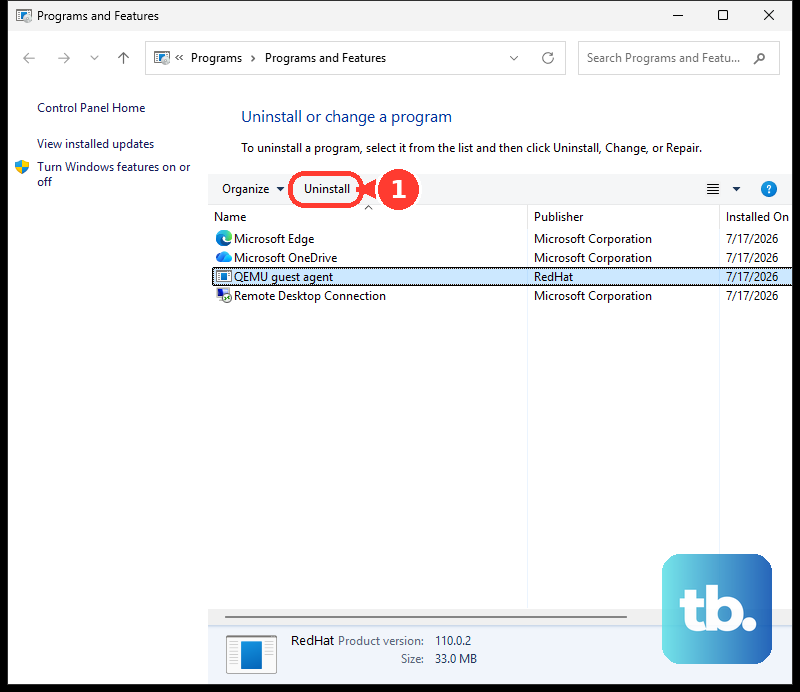
For a desktop program listed outside Installed apps, open Search on the taskbar, enter Control Panel, then open Programs > Programs and Features, right-click the program, and select Uninstall or Uninstall/Change.
2. Block web results in Windows Search
This fixes web results from the Windows taskbar search box on Windows 11 Enterprise, Education, and IoT Enterprise PCs. Microsoft does not list Windows 11 Pro as a supported edition for this policy, so the setting can show up in the editor on Pro without taking effect.
Press Windows key + R.
Type gpedit.msc and press Enter.
Open Computer Configuration > Administrative Templates > Windows Components > Search.
Open Don't search the web or display web results in Search.
Choose Enabled.
Select Apply, then OK.
3. Change Edge searches away from Bing
Edge address-bar searches use the engine selected at Settings and more (...) > Settings > Privacy, search, and services > Search and connected services > Address bar and search > Search engine used in the address bar.
Search once from the address bar with the engine you want, then open that path and choose it from the menu.
If the engine is missing, visit a site that supports OpenSearch, search from the address bar, and return to the same setting.
4. Stop Bing from opening in Edge
Open Edge.
Select Settings and more (...) > Settings > Start, home, and new tab page.
Turn on Show home button on the toolbar.
Choose New tab page or select Enter URL and enter the page you want.
For Bing installed as an Edge app, open edge://apps.
Select Details on the Bing app card.
Select Uninstall.
Select Uninstall again to confirm.
Set both when Bing opens from the Home button and from searches.
5. Remove Bing extensions from Edge
This fixes Edge pages or searches controlled by an installed extension.
Open Edge.
Select the Extensions icon.
Select More actions (...) next to the Bing-related extension.
Select Remove from Microsoft Edge.
Select Remove to confirm.
If the icon is hidden, open Extensions > Manage Extensions, find the extension under Installed extensions, and select Remove.
6. Take Bing out of Chrome
Open Chrome and select More (...).
Go to Settings > Search engine.
Under Search engine, select Change.
Choose the engine you want from the Search engine list.
Open Manage search engines and site search.
Next to a Bing site-search shortcut, select More (...), then choose Delete or Deactivate.
Open Settings > On startup, then choose Open the New Tab page, Continue where you left off, or remove Bing from Open a specific page or set of pages.
Open Settings > Appearance > Show Home button, then choose New Tab page or a custom page.
For a Bing-related extension, right-click its icon and choose Remove from Chrome, or use More (...) > Extensions > Manage extensions > Remove.
If Bing returns unexpectedly, open Settings > Reset settings > Restore settings to their original defaults > Reset settings.
7. Switch Firefox or Safari away from Bing
This fixes Bing searches in Firefox and Safari on Mac.
In Firefox, open Menu > Settings > Search.
Use Default Search Engine to choose the search engine you want.
Under Additional search engines, turn off Bing or select the trash can for a search engine you added.
To remove a Firefox search extension, open Menu > Add-ons and themes > Extensions, select the three-dot menu next to the extension, and select Remove.
In Safari on Mac, open Safari > Settings > Search > Search engine and choose a new engine.
To replace a Safari homepage, open Safari > Settings > General, then replace the Homepage field.
To remove a Safari extension, open Safari > Settings > Extensions, select the extension, then select Uninstall.
For a Bing web app created by Safari, open Finder > Go > Home > Applications, then drag the app to the Trash.
8. Clean up Bing images and search history
Open Start > Settings > Personalization > Background.
Open Personalize your background.
Choose Picture, Solid color, or Slideshow instead of Windows spotlight. Bing Wallpaper is not one of the choices in this list. It is a separate app that changes the background on its own, so uninstall it from Settings > Apps > Installed apps if daily images keep coming back.
Open Settings > Personalization > Lock screen.
Under Personalize your lock screen, choose Picture or Slideshow instead of Windows spotlight.
Turn off Get Fun Facts, Tips, Tricks, and More on Your Lock Screen.
On Bing.com, open Settings and quick links and turn off Show homepage image.
For Bing homepage videos, open Settings and quick links > Settings > More > Homepage > Videos and panoramas, then choose Don't play automatically or Show a still image.
Open Start > Settings > Privacy & security > Search permissions.
Under History, select Clear device search history.
For cloud search history, open the Microsoft privacy dashboard or Bing Search History while signed in with a personal Microsoft account, then select Delete for search activity. Microsoft retired work and school search history on Bing.com in March 2025.
9. Skip old Bing removal tricks
Do not use Windows Vista or Windows 7 Bing Desktop steps, Internet Explorer search-provider changes, or BingSearchEnabled as current Windows 11 Bing removal fixes.
For current Windows 11, use Settings > Apps > Installed apps for removable apps, the browser settings above for search and startup pages, Settings > Personalization > Background and Settings > Personalization > Lock screen for Microsoft daily images, and Computer Configuration > Administrative Templates > Windows Components > Search for policy-based web-search control.
On work or school PCs, locked search or Edge settings are controlled by the organization.
Frequently Asked Questions
Is there one Uninstall button for Bing in Windows 11?
No single Windows component exists. The Uninstall button appears only for separately installed apps, desktop programs, Copilot, or browser web apps.
Does changing Edge address-bar search also change the new tab search box?
Edge has an admin policy that makes the new-tab search box use the address bar. On managed devices, the organization controls that behavior.
Why is Bing locked as the default search engine?
A work or school policy controls search settings when the menu is locked. The administrator has to change the Edge or Windows Search policy.
How do I remove Bing from Edge on iPhone or Android?
Open Edge mobile menu (...) > Settings > General > Default search engine, then select the engine shown. If it is missing, visit that search engine in Edge and return to the same setting.
Does clearing Bing search history change my default search engine?
No. It removes device or signed-in Microsoft/Bing search activity. Browser search engines, Home buttons, startup pages, and extensions stay separate.