When Bluetooth stops working on a Windows PC, a corrupt or outdated driver is the usual cause, and reinstalling it fixes most cases. Devices that refuse to pair, audio that crackles, random disconnects, and a Bluetooth toggle that vanishes after an update all point back to the same driver layer.
This guide covers Windows 11 and Windows 10 with current 2026 menu paths. Start with the first fix, which works for most people, and move down only if Bluetooth is still broken. Each method is independent, so you can stop as soon as your devices reconnect.
Quick Reference
Use this table to jump to the fix that matches what you are seeing. The numbered fixes below escalate from fastest to most involved.
| What you see | Fix to try first |
|---|---|
| Bluetooth was working, now nothing connects | Fix 1 (uninstall and auto reinstall) |
| Bluetooth broke right after a driver or Windows update | Fix 2 (roll back driver) |
| You want the newest stable driver | Fix 3 or Fix 6 (manufacturer download or Windows Update) |
| Bluetooth toggle is gone from Settings | Fix 4 (Bluetooth Support Service) |
| Bluetooth is missing from Device Manager entirely | Fix 8 (restore a missing adapter) |
| Connects but keeps dropping | Fix 5 and Fix 9 (power management and re-pair) |
Fix 1 Uninstall and Reinstall Through Device Manager
This is the fastest and most reliable reset. Uninstalling the adapter and restarting forces Windows to install a clean copy of the driver from scratch, which clears the corruption behind most Bluetooth failures.
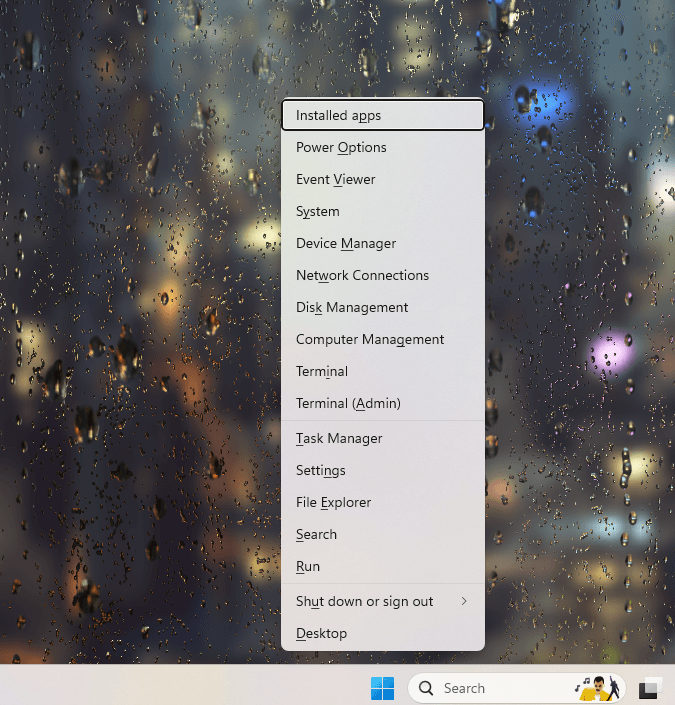
Open Device Manager, then remove the adapter:
- 1.Right-click the Start button and select Device Manager
- 2.Expand the Bluetooth section
- 3.Right-click your Bluetooth adapter (the name may include the word radio) and select Uninstall device
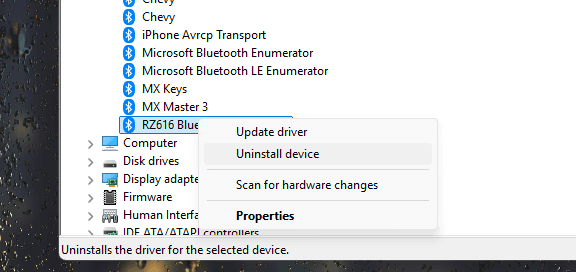
- 1.If the box Attempt to remove the driver for this device appears, leave it unchecked for a clean reinstall, then select Uninstall
- 2.Restart your PC
Windows reinstalls the Bluetooth driver automatically on the next start. If it does not return, reopen Device Manager and use the menu:
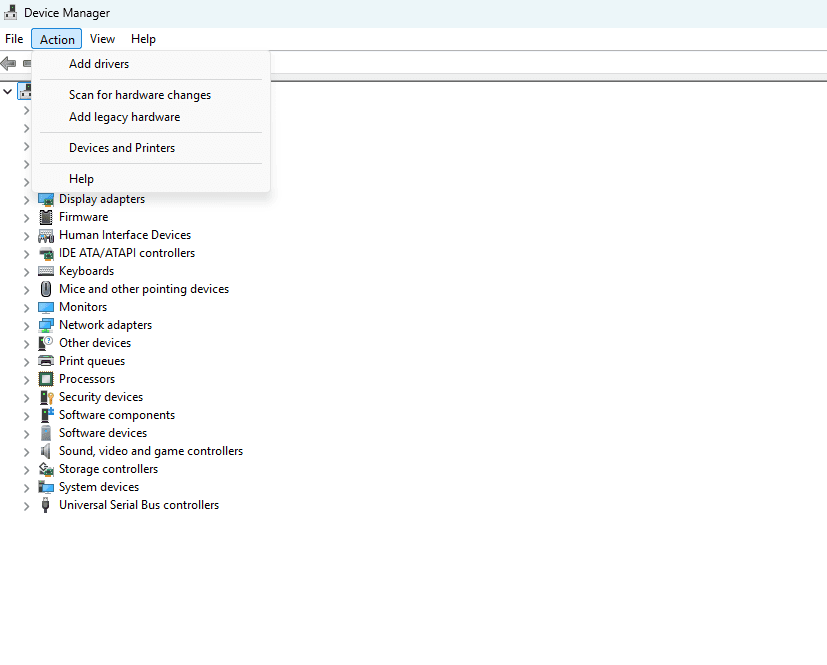
- 1.Select the Action menu, then choose Scan for hardware changes
- 2.Wait for the Bluetooth adapter to reappear under the Bluetooth section
Fix 2 Roll Back the Driver
If Bluetooth broke right after a driver or Windows update, the new driver is the likely culprit and rolling back to the previous version often restores it instantly. This option only works if Windows still has the older driver stored.
- 1.Open Device Manager and expand Bluetooth
- 2.Right-click your Bluetooth adapter and select Properties
- 1.Open the Driver tab
- 2.Select Roll Back Driver and follow the prompts
- 3.Restart your PC
If Roll Back Driver is greyed out, no previous version is saved. In that case download an older stable driver from your PC or adapter maker, covered in Fix 3.
Fix 3 Download the Driver From the Manufacturer
Manufacturer drivers are the most compatible and often newer than what Windows offers. Download from your laptop or desktop maker first, since they tune the driver to your exact hardware.
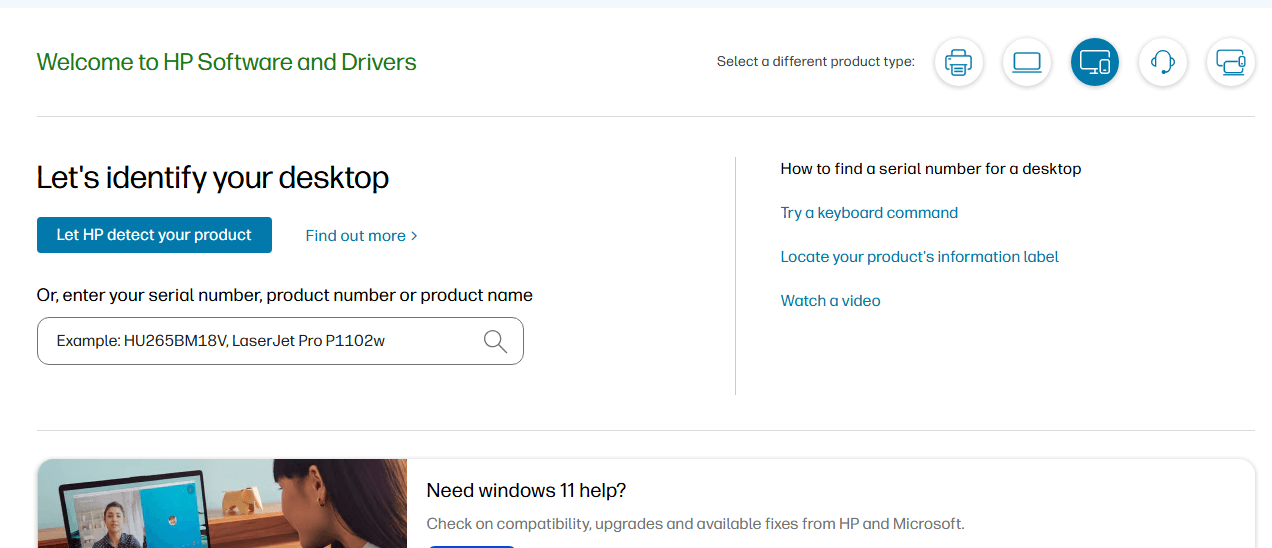
For prebuilt PCs, go to your maker's support site, identify your model, then open the drivers or downloads section:
- Dell: dell.com/support
- HP: support.hp.com
- Lenovo: support.lenovo.com
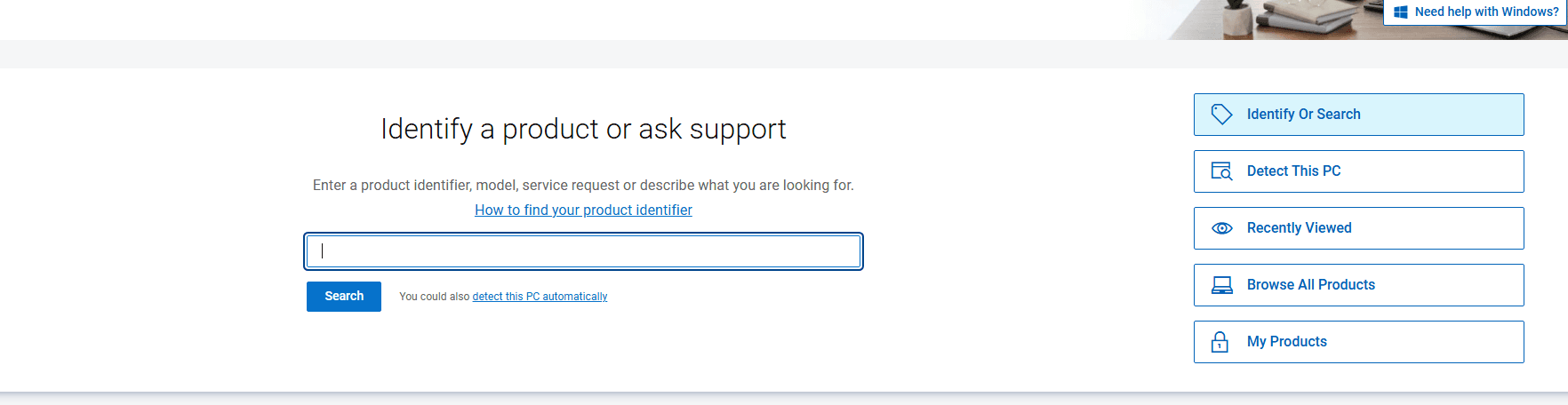
On the support page, enter your model or service tag, filter to the networking or Bluetooth category, then download and run the installer. Restart when it finishes.
If you built your own PC or use a USB Bluetooth dongle, get the driver from the chipset maker instead. Intel adapters are common, and their drivers are at intel.com/support. Search for your adapter model, download the latest package, and run it as administrator.
Fix 4 Restart the Bluetooth Support Service
The Bluetooth Support Service runs Bluetooth in the background. If it stops, the Bluetooth toggle can disappear from Settings even when the driver is fine, so restarting the service is the right move when the toggle is missing.
- 1.Press Windows + R, type
services.msc, and press Enter - 2.Find Bluetooth Support Service in the list
- 3.Right-click it and select Restart (or Start if it is stopped)
To keep it from stopping again, set it to launch on its own. Right-click the service, select Properties, set Startup type to Automatic, then select Apply and OK. Restart your PC.
Fix 5 Stop Windows From Powering Off the Adapter
To save battery, Windows can switch off the Bluetooth adapter, which causes random disconnects and devices that drop after the PC wakes from sleep. Turning this setting off keeps the adapter powered.
- 1.Open Device Manager and expand Bluetooth
- 2.Right-click your Bluetooth adapter and select Properties
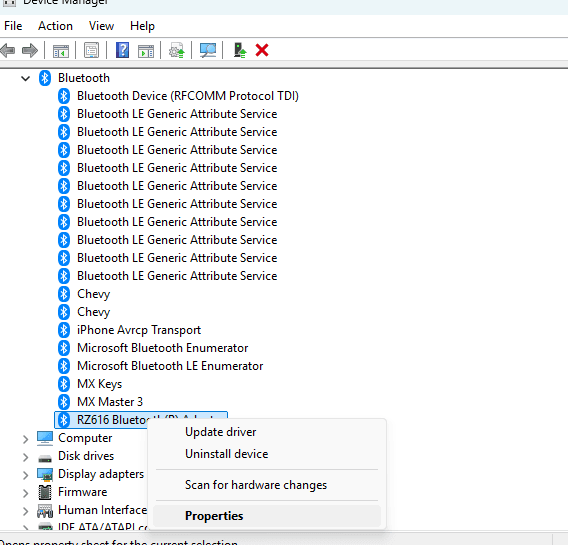
- 1.Open the Power Management tab
- 2.Uncheck Allow the computer to turn off this device to save power
- 3.Select OK, then restart your PC
If the Power Management tab is not present, your adapter does not expose this option, and you can move to the next fix.
Fix 6 Update Bluetooth Through Windows Update
Windows Update installs recommended Bluetooth drivers automatically and stores manufacturer driver releases as optional updates. Checking here is a safe way to get a vetted newer driver without hunting on a support site.
In Windows 11, go to:
Settings > Windows Update > Check for updates
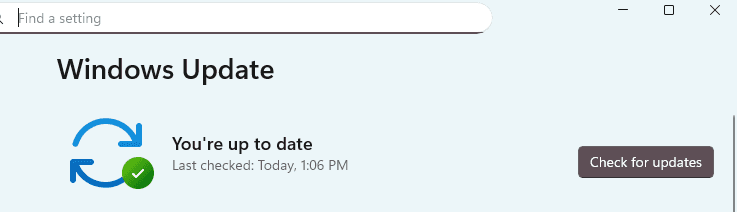
If nothing installs, look for optional driver updates at Settings > Windows Update > Advanced options > Optional updates. Expand Driver updates, select any Bluetooth entry, then choose Download and install.
In Windows 10, go to Settings > Update & Security > Windows Update > Check for updates, then open View optional updates and the Driver updates section to install any Bluetooth driver listed.
Fix 7 Run the Bluetooth Troubleshooter
Windows includes a built-in troubleshooter that detects and repairs common Bluetooth and driver faults on its own. It is quick and a good step before deeper changes.
In Windows 11, go to:
Settings > System > Troubleshoot > Other troubleshooters
Find Bluetooth and select Run, then follow the prompts and restart if asked.
In Windows 10, go to Settings > Update & Security > Troubleshoot, select Additional troubleshooters, choose Bluetooth, and select Run the troubleshooter.
Fix 8 Restore a Missing Bluetooth Adapter
If Bluetooth has no entry in Device Manager and no toggle in Settings, the adapter may be hidden, disabled in firmware, or dropped after an update. Start by unhiding it.
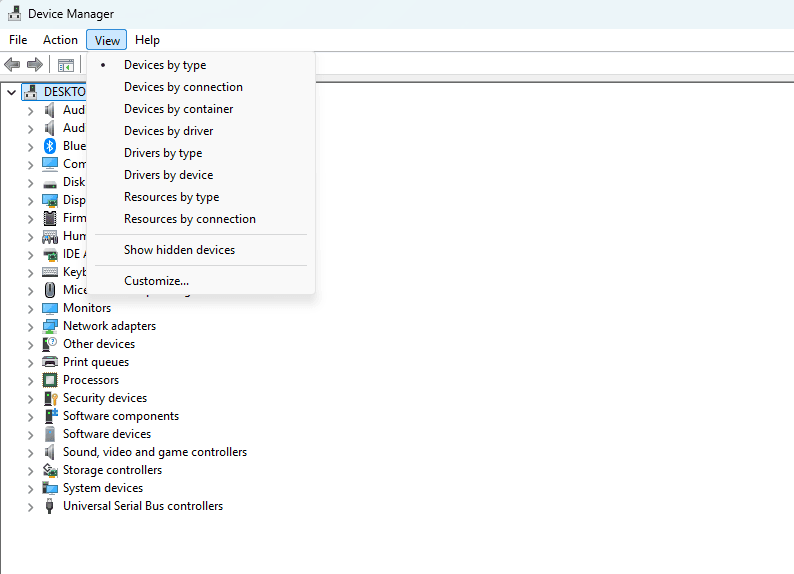
- 1.In Device Manager, select the View menu and choose Show hidden devices
- 2.Look under Bluetooth, Network adapters, and Other devices for the adapter
- 3.If you find it greyed out, right-click and select Enable device
If the adapter still does not appear, confirm Bluetooth is not blocked. Make sure Airplane mode is off in Quick Settings, and check your firmware or BIOS setup screen for a wireless or Bluetooth option that may be disabled. Reinstalling the driver from Fix 3 after enabling it in firmware usually brings the adapter back.
Fix 9 Remove and Re-pair the Device
Sometimes the driver is healthy but a single saved device has a corrupt pairing. Removing and re-adding it gives that device a clean connection.
In Windows 11, open:
Settings > Bluetooth & devices > Devices
Select the three dots next to the problem device, choose Remove device, then put the device in pairing mode and use Add device to pair it again.
In Windows 10, go to Settings > Devices > Bluetooth & other devices, select the device, choose Remove device, then select Add Bluetooth or other device to re-pair. Keep the two devices within a few feet of each other while pairing.
Keep Bluetooth Stable Going Forward
Most repeat Bluetooth problems come from skipped driver updates and interference. Checking Windows Update regularly and leaving recommended driver updates enabled prevents the slow drift into a broken state.
Bluetooth shares the crowded 2.4 GHz band with Wi-Fi, microwaves, and many wireless accessories, so keep your PC and devices away from those when range or audio gets choppy. Creating a restore point before a major update also gives you a fast way back if a new driver misbehaves.
Frequently Asked Questions
Why did my Bluetooth disappear after a Windows update?
An update can replace a working Bluetooth driver with one that is not compatible with your adapter, which removes the toggle or the Device Manager entry. Rolling back the driver in Fix 2 or restarting the Bluetooth Support Service in Fix 4 usually restores it.
Does Windows 10 still get Bluetooth driver updates after end of support?
Windows 10 reached end of support on October 14, 2025, so Microsoft no longer ships new feature or driver updates through Windows Update for it. You can still install Bluetooth drivers manually from your PC or adapter maker, which is the most reliable source on Windows 10 now.
How do I reinstall Bluetooth without internet?
Use Fix 1, since uninstalling the adapter and restarting makes Windows reinstall the driver it already has stored, no connection needed. If that fails, download the driver on another device, copy it over by USB, and run the installer.
What is the difference between uninstalling and rolling back the driver?
Uninstalling removes the current driver so Windows installs a fresh copy of the same version, which fixes corruption. Rolling back swaps the current driver for the previous version you had, which is the better choice when a recent update caused the problem.
Why does my Bluetooth keep disconnecting?
The most common cause is Windows powering down the adapter to save battery, which you stop in Fix 5. Interference on the 2.4 GHz band and an outdated driver are the next likely causes, so updating the driver and moving away from Wi-Fi gear often clears it.
How do I find my Bluetooth adapter in Device Manager?
Right-click the Start button, select Device Manager, then expand the Bluetooth section, where the adapter is the entry that often includes the maker name or the word radio. If the section is missing, use Show hidden devices from Fix 8.
First published September 5, 2025. Last updated June 4, 2026.