Your Apple TV has frozen, an app won't load, or the menus have slowed to a crawl. A restart takes seconds, and you can do it from the menus, the remote, the power cord, your iPhone or several other controllers.
Restart Apple TV from Settings
If your remote still moves around the screen, the quickest fix is the restart option built into the Settings app.
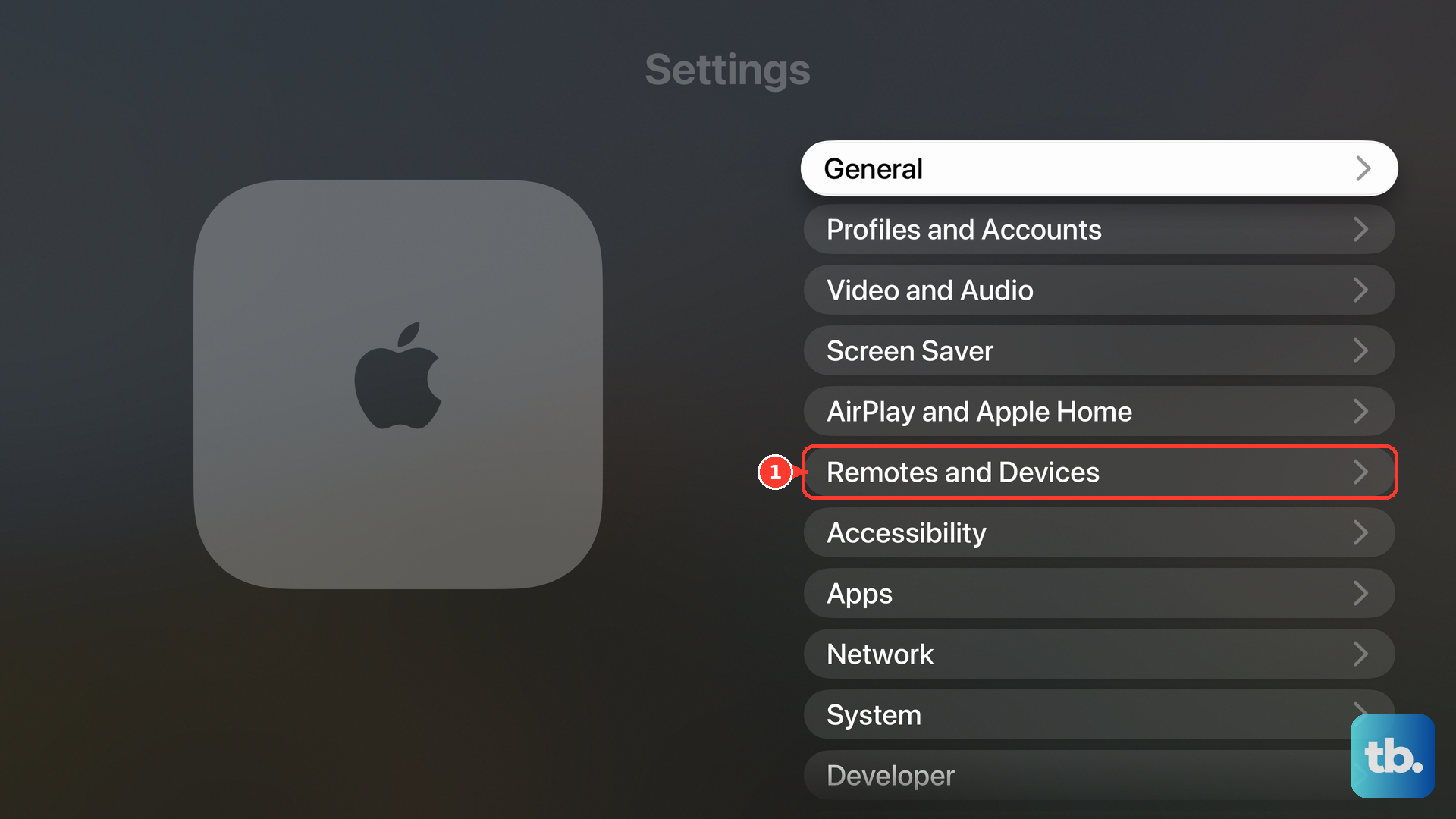
Open Settings, go to System, and select Restart.
The Apple TV shuts down and starts back up on its own. Apple lists this as the standard method on Apple TV 4K running tvOS 26 and tvOS 27.
Use the Siri Remote Button Shortcut
Find the Back and TV buttons on your remote. Second- and third-generation Siri Remotes and Apple TV Remotes have both.
Press and hold Back and TV at the same time.
Keep holding until the status light on the Apple TV flashes rapidly.
Let go of both buttons, and the box restarts.
On a first-generation Siri Remote or Apple TV Remote, which has no Back button, hold Menu and TV together instead. Older tutorials sometimes call the TV button Home.
Don't hold TV and Volume Down, because that combination restarts the remote, not the Apple TV.
Unplug the Power When Nothing Responds
When the screen is frozen and the remote does nothing, pull the Apple TV's plug from the electrical outlet.
Leave it unplugged for five seconds, then plug it back in. The box boots up fresh, just as it would after a restart from Settings > System > Restart.
Reboot with Your iPhone or iPad
This works when your remote is lost or dead but the Apple TV still responds.
Connect your iPhone or iPad to the same Wi-Fi network as the Apple TV.
Open Control Center and tap Apple TV Remote.
If the control is missing, add it through Control Center > Add Controls > Add a Control > Remote. On iOS 17 or earlier, go to Settings > Control Center and tap the Add button next to Apple TV Remote.
Choose your Apple TV from the list.
Enter the four-digit passcode if the TV shows one.
Swipe and tap your way to Settings > System > Restart on the TV screen.
You can also open Apple TV Remote from your Home Screen or App Library and follow the same path.
Try Other Remotes You Already Own
If your Siri Remote has gone missing, several other controllers can reach the Restart menu.
An Apple Watch works. Open Remote on the paired watch, pick your Apple TV, then swipe and tap through Settings > System > Restart.
Your TV or receiver remote can control Apple TV over HDMI-CEC if your TV supports it. Where you turn on HDMI-CEC depends on your TV maker's menus.
A universal infrared remote also works. Set it up in Settings > Remotes and Devices > Learn Remote, or enter the Apple TV code from the remote's maker, then use it to go to Settings > System > Restart.
Restart with Siri or a Keyboard
These methods help if the clickpad is hard for you to use.
Turn on Settings > General > Siri > On-Screen Actions.
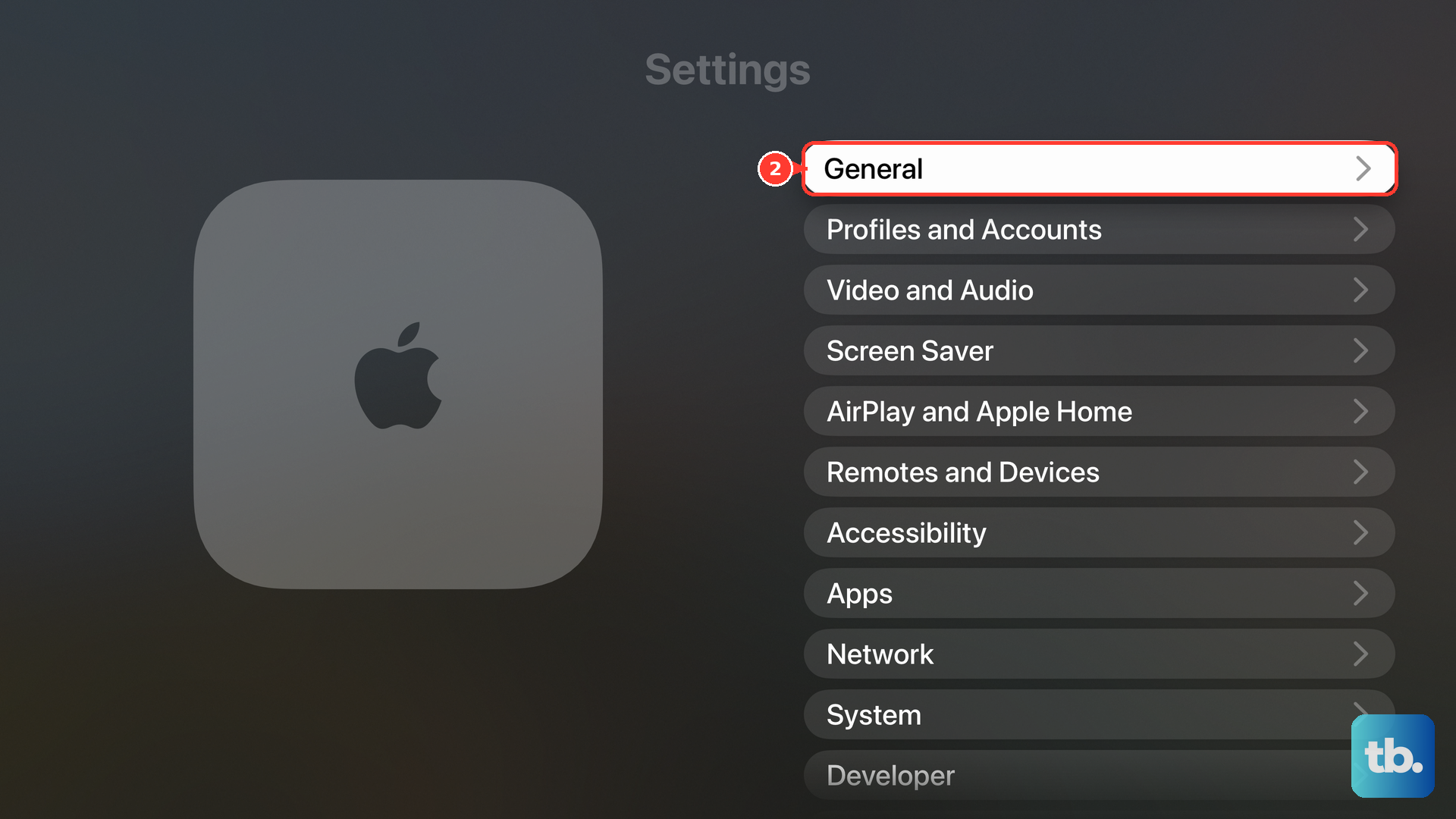
With Settings open, press the Siri button and say "System."
Once that menu loads, press the Siri button again and say "Restart."
To use a Bluetooth keyboard instead, connect it and turn on VoiceOver.
Press Control-Option-Right Arrow or Control-Option-Left Arrow to move between items.
Press Control-Option-Space to select each item on the way to Settings > System > Restart.
Handle Managed Apple TVs and Stubborn Apps
Some Apple TVs in offices and schools are supervised by an IT administrator. The administrator can restart them from Apple Configurator with Actions > Advanced > Restart Device or through their device-management service, so ask your IT team if the box is locked down.
If a restart doesn't fix things, force quit just the misbehaving app. Double-press TV, highlight the app, swipe up on the clickpad or touch surface, then open it again. Avoid Reset and Reset and Update unless you want to erase your Apple TV, because they aren't reboots.
Frequently Asked Questions
Does putting Apple TV to sleep reboot it?
No. Sleep and the remote's Power button don't restart the box. To restart it, use Settings > System > Restart, hold the remote shortcut, or unplug it for five seconds.
Will rebooting my Apple TV delete my apps or settings?
No. A restart doesn't erase anything. Only Reset and Reset and Update erase data.
Is there a reboot button on the Apple TV box itself?
No. Apple TV has no dedicated reboot button. If the remote won't respond, unplug the power cord for five seconds.
Can I ask Siri or HomePod to reboot my Apple TV?
Apple doesn't document a Siri or HomePod command that reboots Apple TV. On the Apple TV, turn on On-Screen Actions, then say "System" and "Restart" to move through the menu.