Rearranging apps on iPhone starts with edit mode on the Home Screen. From there, you can move icons, make folders, clean up pages, or reset the layout when everything feels out of place. Here are the current iPhone controls that handle it.
Move an app on the Home Screen
Use this when the app is already visible on one of your Home Screen pages.
- 1.Touch and hold any app icon, then tap Edit Home Screen.
- 2.Drag the app to another spot on the same page, including the Dock at the bottom of the screen.
- 3.To move it to another page, drag it to the right edge of the screen and pause until the next page appears.
- 4.On iPhone X and later, tap Done. On iPhone 8 and earlier, press the Home button.
Use the empty space method
You do not have to start from an app icon. Go to the Home Screen, then touch and hold the Home Screen background until the apps and widgets begin to jiggle.
Drag an app or widget to another location on the page. You can place it near the top, bottom, or side of the screen, or drag it across to another Home Screen page.
When you are finished, press the Home button on an iPhone with a Home button, or tap the Home Screen background on other iPhone models. If the icons do not start jiggling, touch and hold an app icon and tap Edit Home Screen instead.
Move apps to another page
Use this when your apps are spread across multiple Home Screen pages or you want a new page for a separate group of apps. Start by touching and holding an app until the apps jiggle.
Drag the app to the right edge of the screen, then wait a moment for the next page to appear.
When page dots are visible, dots to the left or right of the bright dot mean another page exists in that direction.
When there are no dots to the right, dragging an app to the right side creates a new Home Screen page. Starting in iOS 16, Search appears at the bottom instead of dots until you scroll through pages.
Build folders for related apps
Folders are the cleanest way to group apps you use for the same thing.
- 1.Go to the Home Screen and touch and hold the background until the apps begin to jiggle.
- 2.Drag one app onto another app to create a folder.
- 3.Drag additional apps into that folder.
- 4.To rename the folder, touch and hold it, tap Rename, then enter a new name.
- 5.Tap Done when you are finished.
Move apps out of folders
Open the folder that contains the app you want to move. Touch and hold the app until the apps begin to jiggle, then drag it from the folder back to the Home Screen.
A folder disappears automatically when you remove every app from it. Home Screen folders do not change how apps are organized in the App Library.
If an app will not leave the folder cleanly, move it to an open spot on the Home Screen first, then rearrange it again from there.
Use App Library to keep the Home Screen cleaner
To move an app from App Library to the Home Screen, swipe left past all your Home Screen pages until you reach App Library. Touch and hold the background until the apps jiggle, then touch and hold the app you want and drag it left.
To remove an app from the Home Screen without deleting it, touch and hold the app, tap Remove App, then tap Remove from Home Screen. The app stays in App Library.
To delete an app from iPhone, touch and hold it on the Home Screen, tap Remove App, then tap Delete App. In App Library, touch and hold the app, tap Delete App, then tap Delete.
For future downloads, go to Settings > Home Screen & App Library and choose Add to Home Screen or App Library Only. Apps in App Library are organized into categories intelligently, based on how you use them, and the apps you use most appear near the top. You can add an app from App Library to the Home Screen, but you cannot move it to another App Library category.
Manage whole Home Screen pages
Touch and hold an empty area on the Home Screen.
Tap the dots near the bottom of the screen.
Thumbnail images of your Home Screen pages appear with checkmarks below them. To hide a page, tap its checkmark to remove it. To show a hidden page again, tap to add the checkmark back. Then tap Done on an iPhone with Face ID, or press the Home button on other iPhone models.
To reorder pages, touch and hold a page and drag it to the position you want, then tap Done twice on an iPhone with Face ID, or press the Home button twice on other iPhone models. To remove a page without deleting its apps, tap the circle under the page, tap the Remove button, then tap Remove; the apps remain in App Library.
Tip: hide or reorder pages when you want a cleaner Home Screen without moving every individual app.
Change the look of your Home Screen layout
Changing icon size or appearance does not move apps, but it can make a busy Home Screen easier to scan. Go to the Home Screen, touch and hold the background until the icons begin to jiggle, tap Edit at the top of the screen, then choose Customize.
Tap the Large App Icon button to make icons bigger. You can also use Dark, Auto, Clear, or Tinted options while you are adjusting the layout.
If changing the look does not make the Home Screen easier to use, reset the layout instead.
Reset the Home Screen layout
Open Settings.
Go to General > Transfer or Reset iPhone.
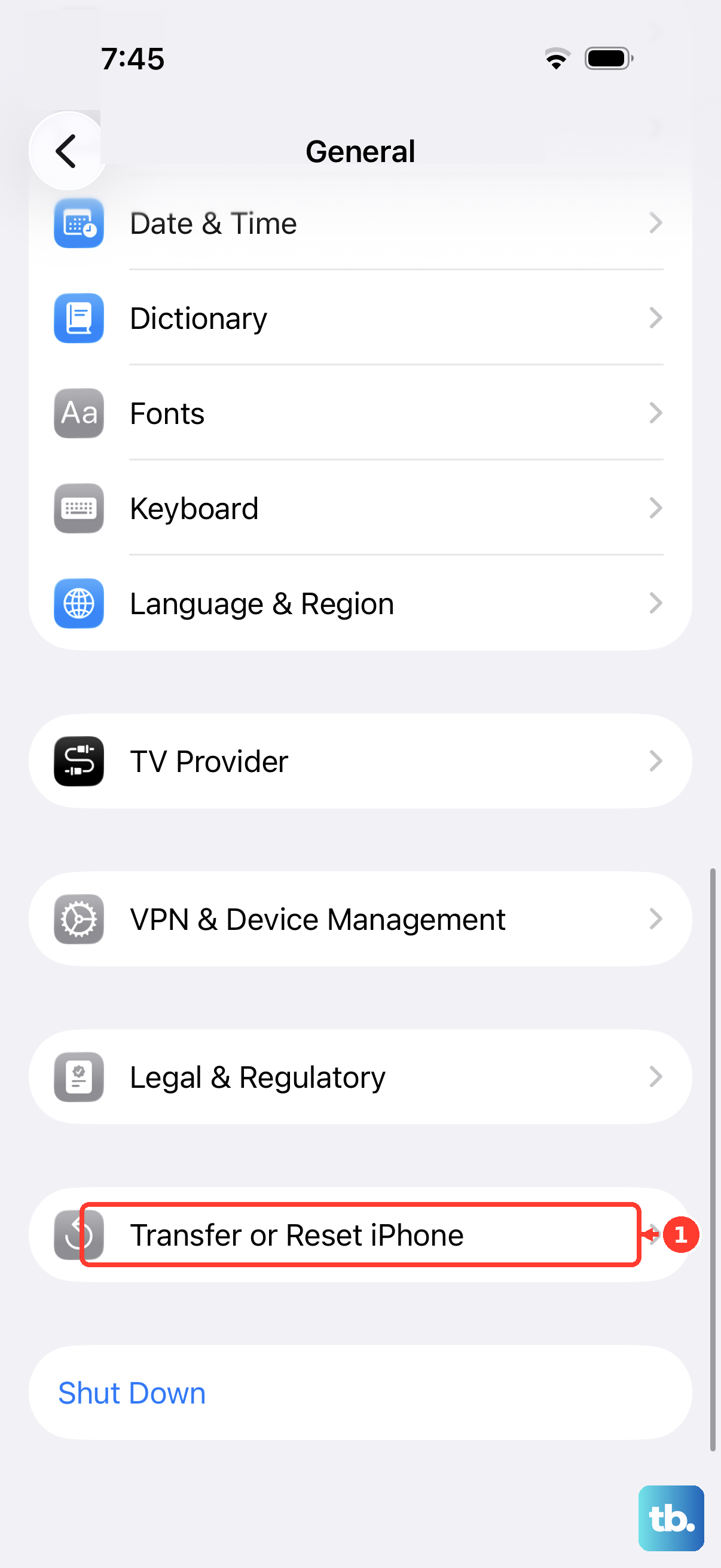
Tap Reset.
Tap Reset Home Screen Layout, then tap Reset Home Screen.
Tip: this removes folders and arranges downloaded apps alphabetically after the built-in apps.
Frequently Asked Questions
Can I rearrange App Library categories on iPhone?
No. Apps in App Library are organized into categories intelligently, based on how you use them, with the apps you use most near the top. You can add an app from App Library to the Home Screen, but you cannot move it to another App Library category.
Why can’t I rearrange apps on my work or school iPhone?
A supervised iPhone can use device management to lock the Home Screen layout. When that policy is enforced, contact the organization that manages the device.
Can I rearrange iPhone apps from iTunes on a computer?
No. The old iTunes Apps tab method is not a current Apple-supported way to rearrange iPhone apps. Use the iPhone Home Screen and App Library controls instead.
Can VoiceOver users rearrange iPhone apps?
Yes. With VoiceOver on, you can drag icons after the three rising tones, or use VoiceOver’s Move actions to place an app before, after, or into a folder.