
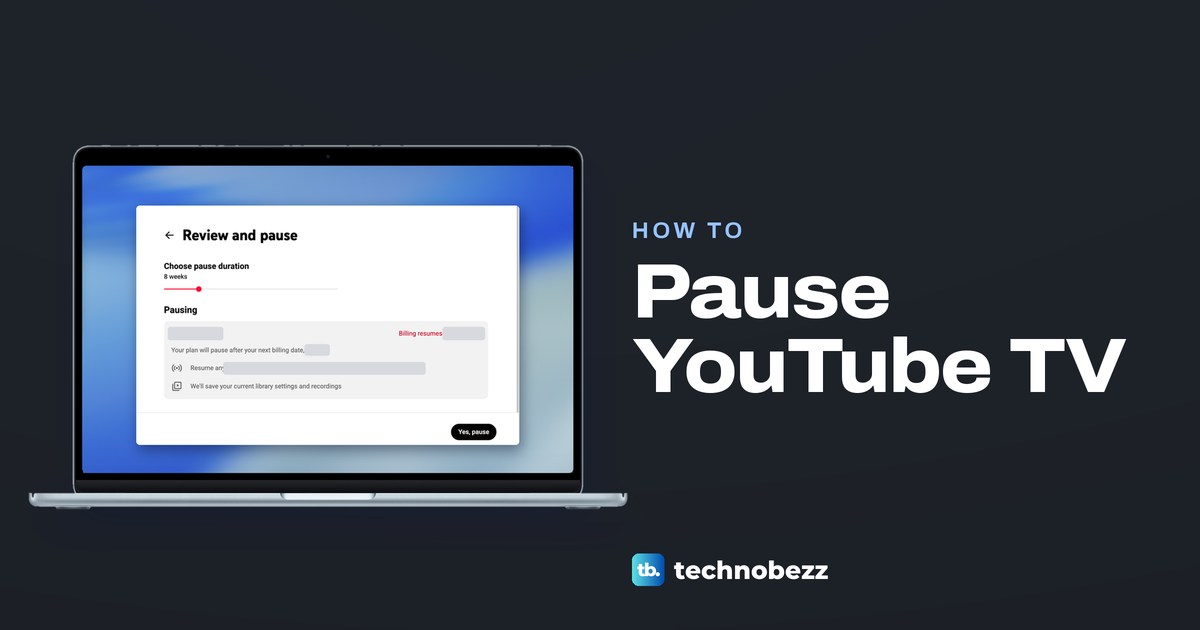
To pause YouTube TV, open tv.youtube.com in a browser, select your profile picture, then Settings > Membership > Manage, select Pause, set the length on the slider and select Yes, pause. Google lets you pause for 4 weeks to 6 months. The pause starts when your current billing cycle ends, and billing restarts on its own the day it finishes.
Pausing a YouTube TV membership is not the same as canceling it. You keep watching until the period you paid for runs out, your recordings stay in the Library under their usual 9-month limit, and you do not have to sign up again afterwards. One catch appeared on the Manage plan page we opened: a note that current offers or discounts end if you pause.
The short version
- On the web: profile picture > Settings > Membership > Manage > Pause, then Yes, pause.
- How long: 4 weeks to 6 months, set on a slider before you confirm.
- Billing: the pause starts after your current billing cycle and ends with an automatic charge at your normal monthly price.
- Recordings: nothing new records while paused, and older recordings keep their usual 9-month expiry.
- No Pause button: plans billed by a phone or internet provider cannot be paused, and only the family manager can pause a shared plan.
Pause YouTube TV in a web browser
Google's main route runs in a browser, on a computer or a phone. Go to tv.youtube.com and sign in with the Google account that pays for YouTube TV. Select your profile picture at the top right, then choose Settings from the menu that opens.
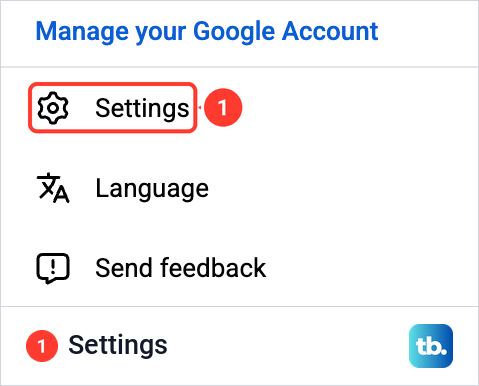
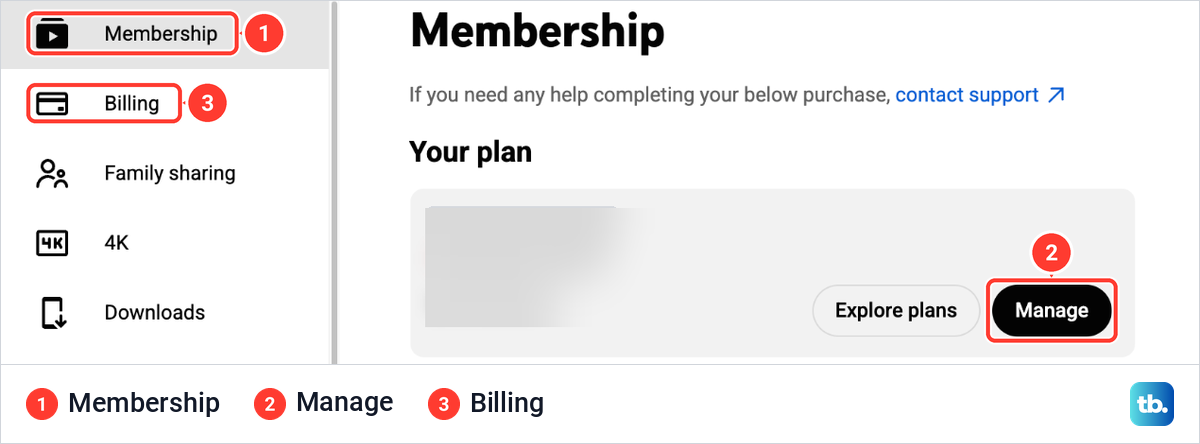
Settings opened on Membership for us, the first item in a menu on the left that also holds Billing and Family sharing. The Your plan card had two buttons, Explore plans and Manage. Explore plans is for moving to a different plan, so select Manage.
Manage opened a page called Manage plan, with the line Switch, pause, or cancel under the title. Its Options list has three rows: Switch plans, Pause your membership with a Pause button, and Cancel your membership with a Cancel button. Each step on this page took a few seconds to load for us, starting as a blank page, so give it a moment before you reload.
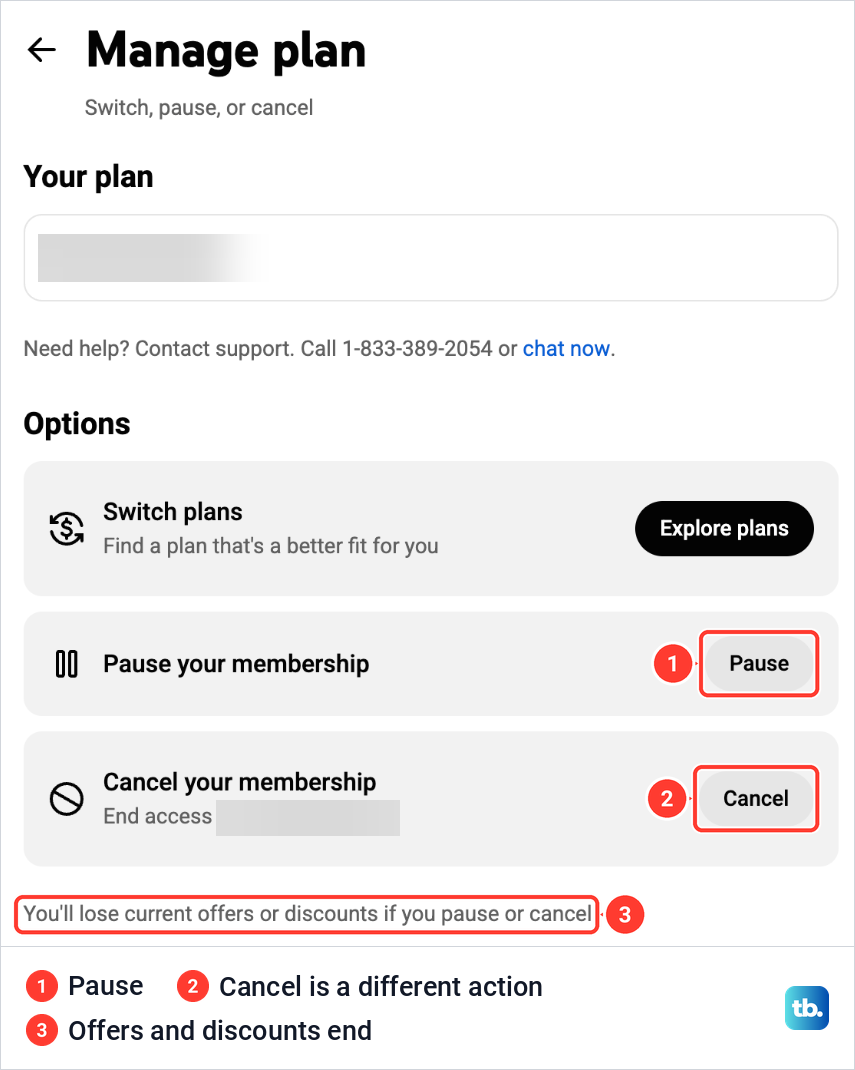
Read the line under the options before you go on. On our screen it said You'll lose current offers or discounts if you pause or cancel, so a promotional price you signed up with may not survive a pause. If that price matters to you, ask YouTube TV support before you continue, then select Pause, not Cancel.
Pause does not pause anything by itself. When we selected it, YouTube TV opened a page called Review and pause, with a slider under Choose pause duration and a Pausing card below it. The card listed the plan with a red Billing resumes date, the line Your plan will pause after your next billing date, and a promise to save your current library settings and recordings.
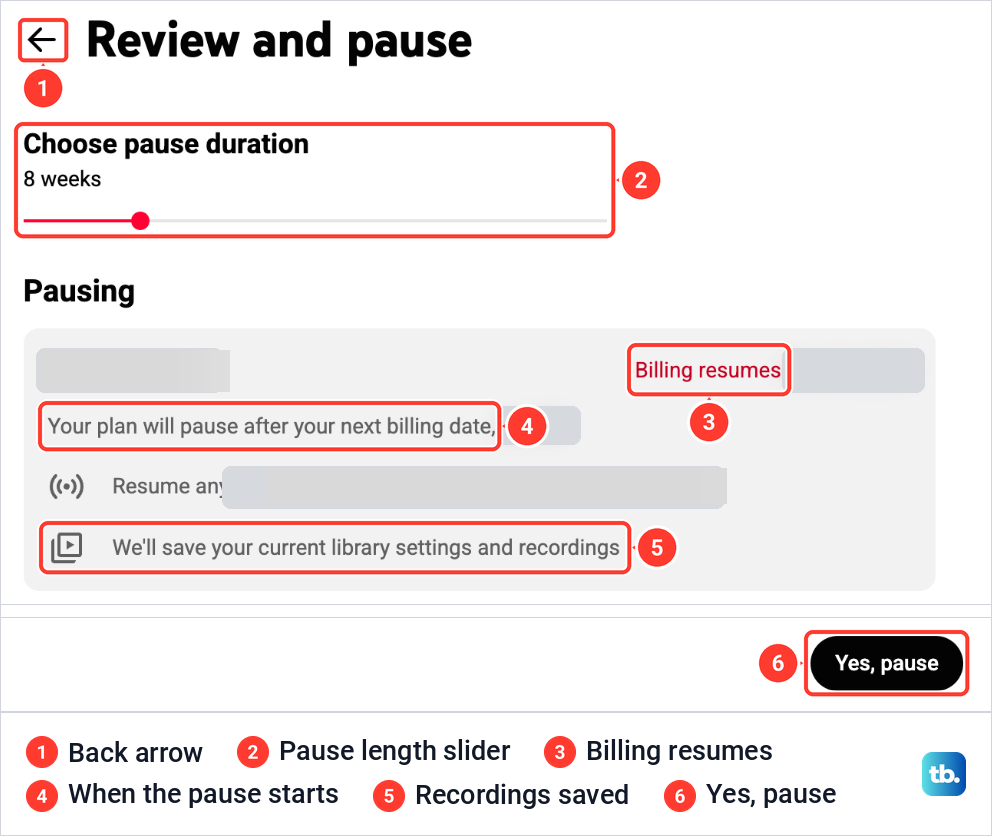
The black Yes, pause button at the bottom right is the click that sets the pause, the step Google's help calls Pause. The back arrow at the top left is the way out if you change your mind: we left with it, and the Membership page still showed the same plan with its Manage button afterwards.
Choose how long to pause
Google allows a pause of 4 weeks to 6 months, chosen with the slider in weeks. When Review and pause opened for us, the slider stood at 8 weeks. That is only where it started on our screen, not a fixed length, so drag it to the length you actually need.
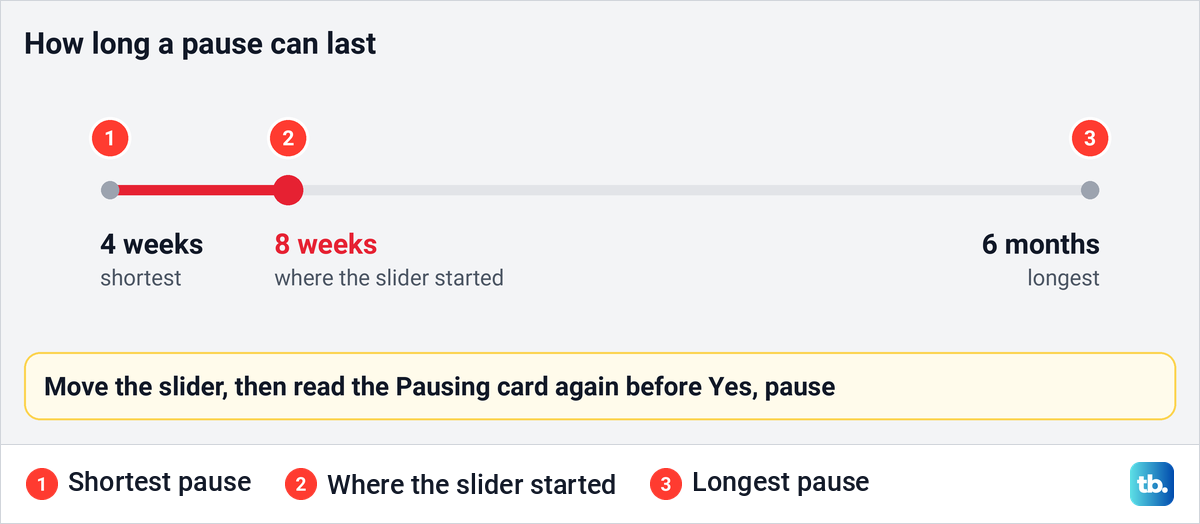
Once the slider is where you want it, check the Pausing card before you confirm. The Billing resumes date is when YouTube TV starts charging you again, and the line about your next billing date tells you when the pause begins.
If you are unsure how long you need, lean toward the longer pause. Google lets you resume early at any time, but a pause cannot be extended once it is set. Ending a pause and starting a new one means a new billing date in between, which is likely to cost you a month you did not plan for.
When the pause starts and when billing returns
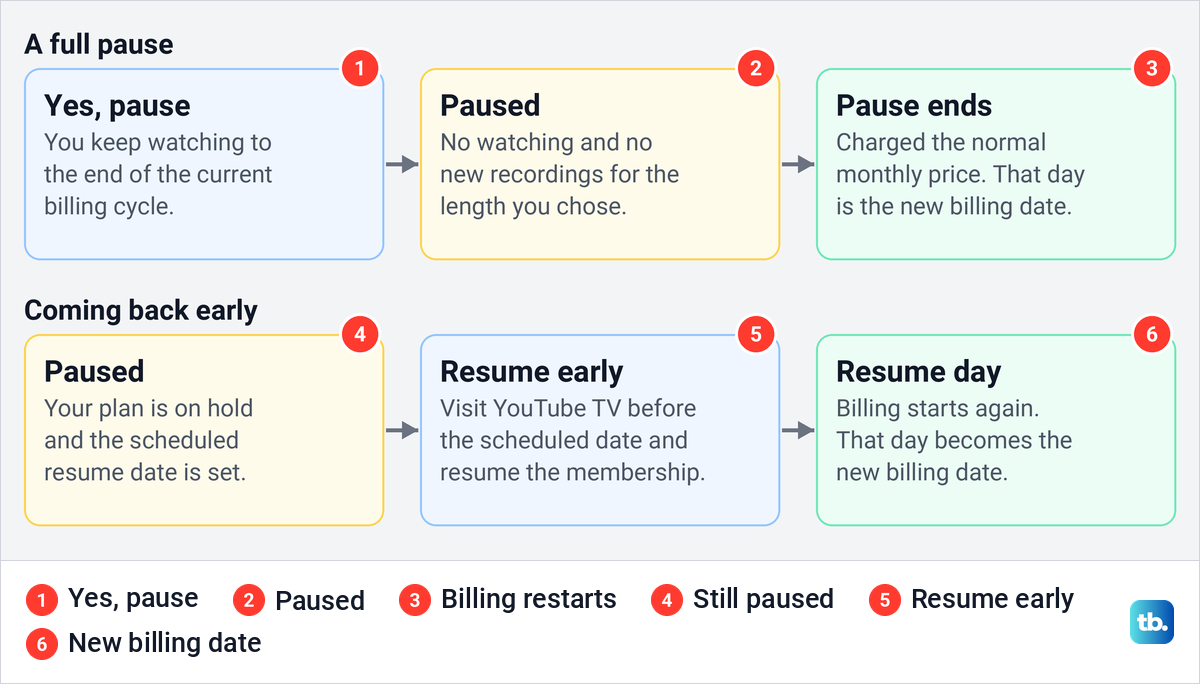
A pause does not start the moment you confirm it. Google says the membership is paused after the end of your current billing cycle, and you keep watching until the end of the period you already paid for.
While the membership is paused, YouTube TV cannot be watched and nothing new is recorded. When the pause ends, Google charges your normal monthly price automatically, and that day becomes your new billing date. Google's help does not mention a reminder before that charge, so put the Billing resumes date in your calendar if you might decide to cancel instead.
The table below starts from your situation, including the cases where pausing works differently or not at all. The last column says what changes once you pause.
| Your situation | What to do | What changes |
|---|---|---|
| Google bills you, on the web | tv.youtube.com > profile picture > Settings > Membership > Manage > Pause > Yes, pause | The pause starts after this billing cycle, and billing returns on its own at the end |
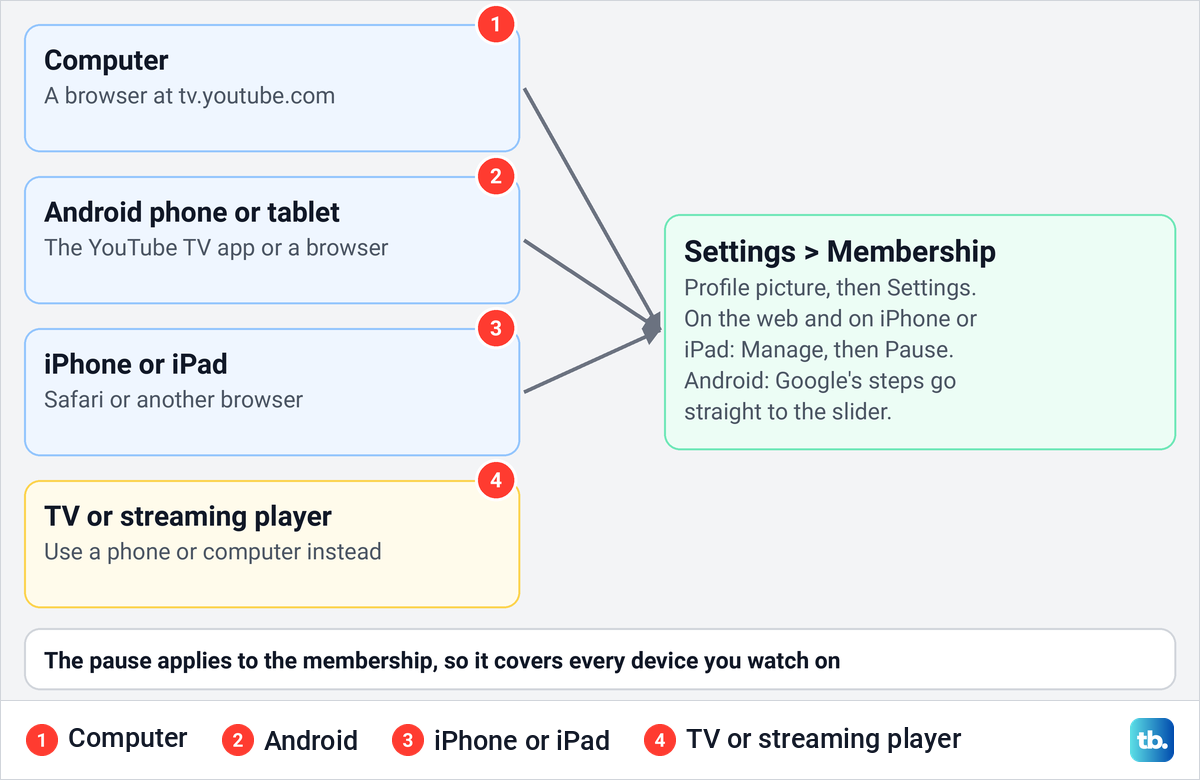
| Android phone or tablet | The YouTube TV app or a browser: profile photo > Settings > Membership, then the slider and Pause | The same pause rules as on the web |
| iPhone or iPad | Safari or another browser at tv.youtube.com: Settings > Membership > Manage > Pause membership | The same pause rules, through a browser rather than the app |
| You watch on a TV or streaming player | Pause from a phone or computer browser instead | The pause covers every device on the membership |
| A phone or internet provider bills you | Expect no Pause option, and check the bill before changing anything | Google says these plans cannot currently be paused |
| Free trial or add-on networks | Read the Billing resumes line and each add-on under Membership before Yes, pause | Add-on trials bill separately from the base plan |
| NFL Sunday Ticket Season Pass | Check the installments, and remove next season's renewal before you pause if you do not want it | Installments are a full-season commitment, and the renewal cannot be removed while paused |
What happens to your recordings
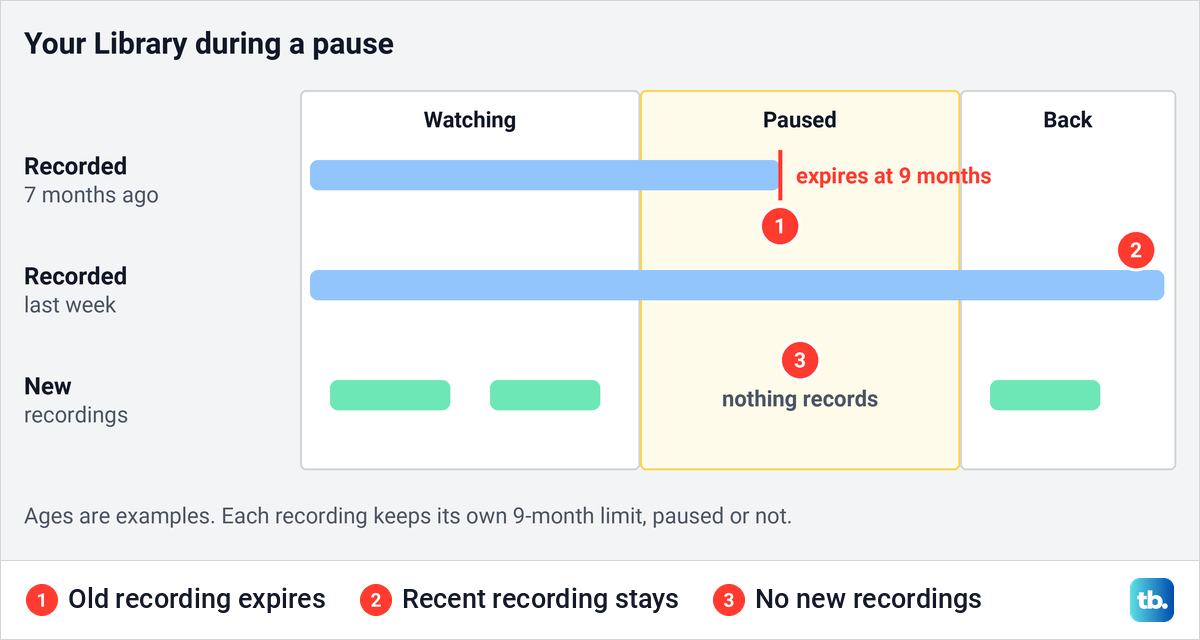
Recordings already in your Library are kept through the pause, and our Review and pause page promised to save your current library settings and recordings. Google adds one condition: recordings are still subject to the standard 9-month expiration date. A game you recorded months ago can therefore expire while the membership is paused, and it will be gone when you come back.
Nothing new is recorded during the pause, even for shows you set to record. If something in the Library is close to its limit, watch it before your billing cycle ends, since you keep access until then. Our guide to recording shows in your YouTube TV Library explains what goes into the Library in the first place.
Check add-ons and NFL Sunday Ticket first
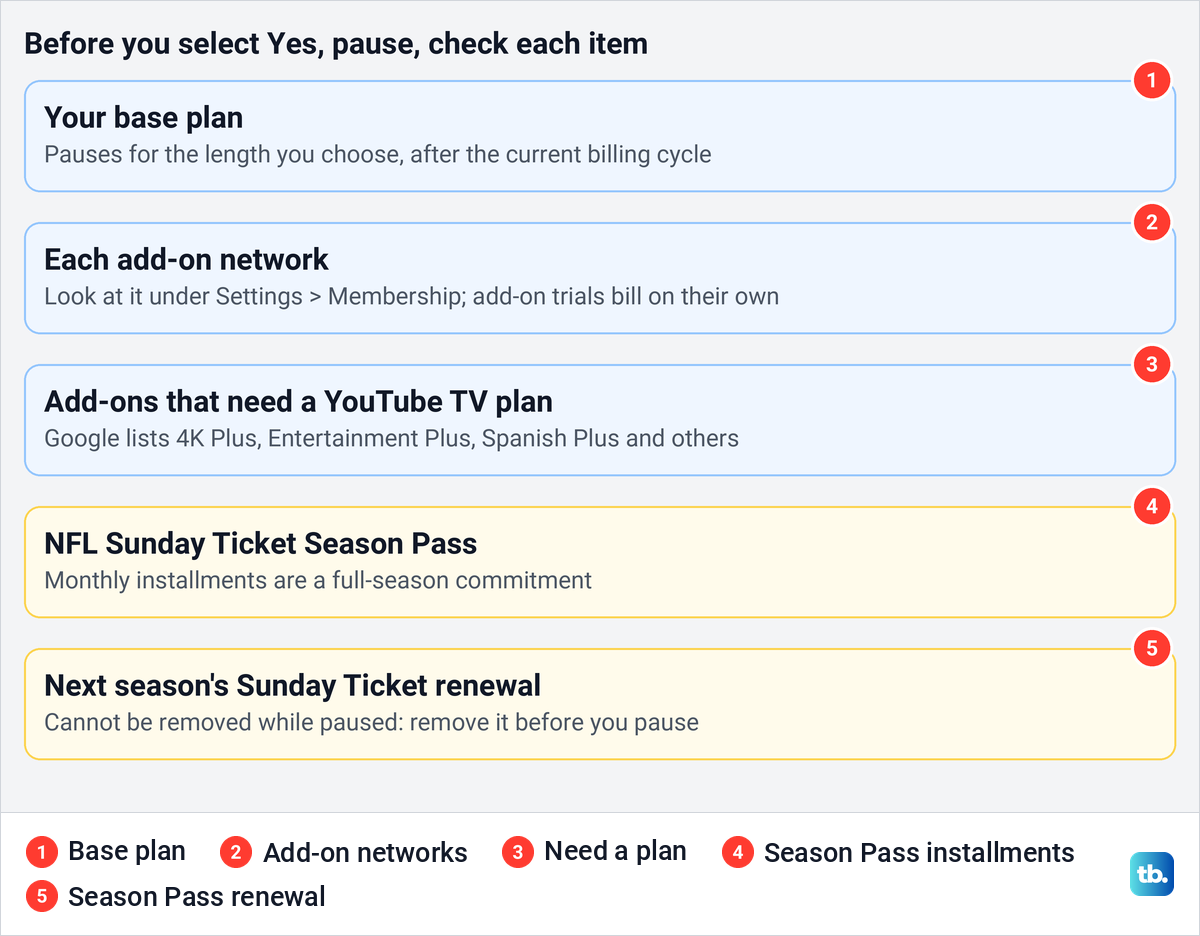
Google's pause steps describe the base plan and do not say what happens to add-on networks, so check each one before you confirm. Add-ons are listed under Settings > Membership, where Google says you remove a network with CANCEL next to it and then Yes, Cancel. Add-on trials have their own sign-up and billing, separate from the base plan.
Some add-ons only work alongside a YouTube TV plan. Google names 4K Plus, NFL RedZone with Sports Plus, Entertainment Plus, Spanish Plus and NFL Sunday Ticket as add-ons that need the subscription kept active. If you pay for one of them, look at its status and your future billing dates in Billing after you confirm the pause.
NFL Sunday Ticket needs the most care. Google says monthly installments on a Season Pass are a full-season commitment that cannot be stopped mid-season. It also says you cannot cancel next season's renewal while YouTube TV is paused, so if you do not want that renewal, remove it before you pause. Google's steps are Remove next to NFL Sunday Ticket under Your Add-ons, then Yes, Cancel on the next page.
Pause YouTube TV during a free trial
Google's free trial page says you can cancel or pause your membership at any time. When a trial ends with no change, the account switches to a paid membership at the plan's standard price plus any add-ons, and that date becomes the monthly billing date. Trial lengths vary by plan, and Settings > Membership shows how many days are left.
Google does not spell out how a pause lines up with the end of a trial. So check the two Pausing card lines described above, the pause start and Billing resumes, before you select Yes, pause. Add-on network trials have their own billing, so check those separately.
Pause YouTube TV from a phone or TV
On an Android phone or tablet, Google lists the YouTube TV app alongside a browser. Its steps follow the same outline: profile photo, Settings, Membership, then the slider and Pause. Google's Android list goes from Membership straight to the slider, so if a Manage button appears first, select it.
On an iPhone or iPad, Google's instructions use a web browser rather than the app. Open Safari or another browser, go to tv.youtube.com and sign in, then follow profile photo, Settings, Membership, Manage and Pause membership. Google's iPhone page gives the limit as up to 6 months, the same ceiling as on a computer.
On a smart TV, Roku or other streaming player, use a phone or computer instead. Google gives pause steps for a computer, Android and iPhone or iPad, not for a TV app. The pause applies to the whole membership, so pausing from your phone stops viewing on the TV as well.
Resume YouTube TV early
You do not have to wait for the date you picked. Google says you can resume at any time before the scheduled resume date by visiting YouTube TV, and the day you resume becomes your new billing date. Google's help does not name the button for it, so start where you paused: profile picture, Settings, Membership. If you find no way to resume there, contact YouTube TV support by chat or phone, and Google's help lists +1 833-389-2054.
A pause cannot be extended. Google's answer is to resume and then pause again, but a new pause only starts after the billing cycle that begins when you resume. So if you resume and pause again, expect to pay for the billing cycle in between.
If YouTube TV will not play after you resume, work through our steps to troubleshoot YouTube TV playback problems before you contact support. If the membership ended rather than paused, you will need to sign up for YouTube TV again, and Google warns that a restart may not bring back promotional prices or earlier recordings.
Why the Pause option is missing
Start with the account. The membership belongs to one Google account, so if Membership shows no plan, you may be signed in with another one; here is how to sign in to the YouTube TV account that pays. If you cannot get into that account, recover the Google account without the old phone or email first.
On a shared plan, Google says only the family manager can make membership decisions, so a family member cannot pause it for the group. Ask the person whose invitation you accepted to pause it. Our guide to fixing YouTube TV family sharing problems covers the family group rules and what the manager controls.
A phone or internet provider bill is the other common reason. Google says plans billed through a mobile carrier or internet provider cannot currently be paused, though they can still be canceled with the usual YouTube TV steps. If you are not sure who charges you, find who charges your card on the bank statement before assuming Google bills you.
If none of this explains a missing Pause button, the Manage plan page we opened offered a support phone line and a chat link. Google's help says its support team can talk through options to pause.
Check that your pause is scheduled
Do not judge the pause by whether you can still watch. You keep access until your current billing cycle ends, so YouTube TV playing the next day is expected. The firmer check is the date of your next charge.
Open Billing in the Settings menu, where Google says you can check future billing dates. Because the pause starts after the cycle you have already paid for, the next charge for your plan should fall on the Billing resumes date you saw before confirming. Keep any email Google sends about the change, and contact support if the dates do not match.
Pause or cancel YouTube TV
Pause is for a break with a known end, such as the months between football seasons. Canceling is for leaving: Google says you keep access to the end of the paid period, and recorded programs in your library expire 21 days after that. If you want the membership to end rather than restart automatically, follow our guide to cancel your YouTube TV subscription.
Mix-ups happen on the Manage plan page, where Pause and Cancel sit one under the other. Selecting Cancel by mistake does not cancel straight away: it opened a Review and cancel page for us, with a Pause instead link beside the Yes, cancel button.
How we tested this guide
We tested this on YouTube TV on the web in Chrome, going through each screen up to the Review and pause page and its Yes, pause button.
Frequently Asked Questions
How long can you pause YouTube TV?
Google allows 4 weeks to 6 months, set on a slider before you confirm. The pause starts after your current billing cycle ends, so the break begins later than the day you set it.
Does YouTube TV charge you while paused?
Not for the base plan. The pause starts after a billing cycle you have already paid for, and Google charges your normal monthly price automatically when the pause ends. Add-on trials and NFL Sunday Ticket installments have their own billing, so check them separately.
Can you watch your recordings during a pause?
No. YouTube TV cannot be accessed while paused, so the Library is out of reach until you resume, and any recording that passes its 9-month limit in the meantime expires.
Can you resume YouTube TV before the date you chose?
Yes. Google says you can resume at any time before the scheduled date by visiting YouTube TV, and the day you resume becomes your new billing date.
Can you extend a YouTube TV pause?
No. Google says paused memberships cannot be extended, but you can resume and then pause again, with the new pause starting after a billing cycle.
Why can't I find the Pause button?
Plans billed by a phone or internet provider cannot be paused, and on a shared plan only the family manager can pause. Also check that you are signed in to the Google account that pays, and contact YouTube TV support if none of these applies.