You tap into a call and need your voice gone for a moment, or your iPhone starts ringing when you need silence. Those are separate controls: Mute turns off your live microphone, while Silent mode, Focus, and call filtering quiet incoming alerts. Start with the live-call mute steps, then use the sections below for rings, FaceTime, AirPods, Apple Watch, and Mac.
Mute your microphone during a Phone call
Use this when you are already on a regular Phone call and do not want the other person to hear you. Mute turns off your microphone only; it does not end the call or silence the other person.
If the call controls are open, tap Mute. Your audio stops going through while the call stays connected.
If you see only the call banner, swipe down on the call banner.
Tap Mute from the expanded call controls.
Tap Mute again when you are ready to speak. The microphone turns back on and the call continues.
Use hold only when you mean hold
The Mute button also exposes hold during a Phone call. If the call is showing as a call banner, swipe down on the call banner, then touch and hold Mute.
Hold is not microphone mute. Use a normal tap on Mute when you only want to stop the other person from hearing you.
If touch-and-hold gives you the wrong result, return to the call controls and use a single tap on Mute instead.
Silence one incoming call without answering
Use the hardware buttons when the phone is ringing and you only want that one alert to stop.
- 1.Wait for the incoming Phone call screen or call banner to appear.
- 2.Press the side button or either volume button.
- 3.Leave the call unanswered if you do not want to take it.
- 4.Tap the on-screen answer control before voicemail if you still want the call.
Turn on Silent mode for rings and alerts
This fixes loud ringtones and alerts, not your microphone during an active call.
On an iPhone with an Action button, open Settings.
Tap Sounds & Haptics.
Turn Silent mode on.
On an iPhone with a Ring/Silent switch, flip the Ring/Silent switch toward the back of the iPhone to turn Silent mode on.
Flip the Ring/Silent switch toward the front of the iPhone to turn Silent mode off.
Set the Action button to Silent mode
Use this on supported iPhone models with an Action button when you want a physical shortcut for quieting ringtones and alerts. It still does not mute your microphone during a live call.
Open Settings.
Tap Action Button.
Swipe to Silent Mode.
Press and hold the Action button to turn Silent mode on.
Press and hold the Action button again to turn Silent mode off.
Stop calls from interrupting you with Do Not Disturb
Use Do Not Disturb when you want incoming calls, alerts, and notifications quiet for a while.
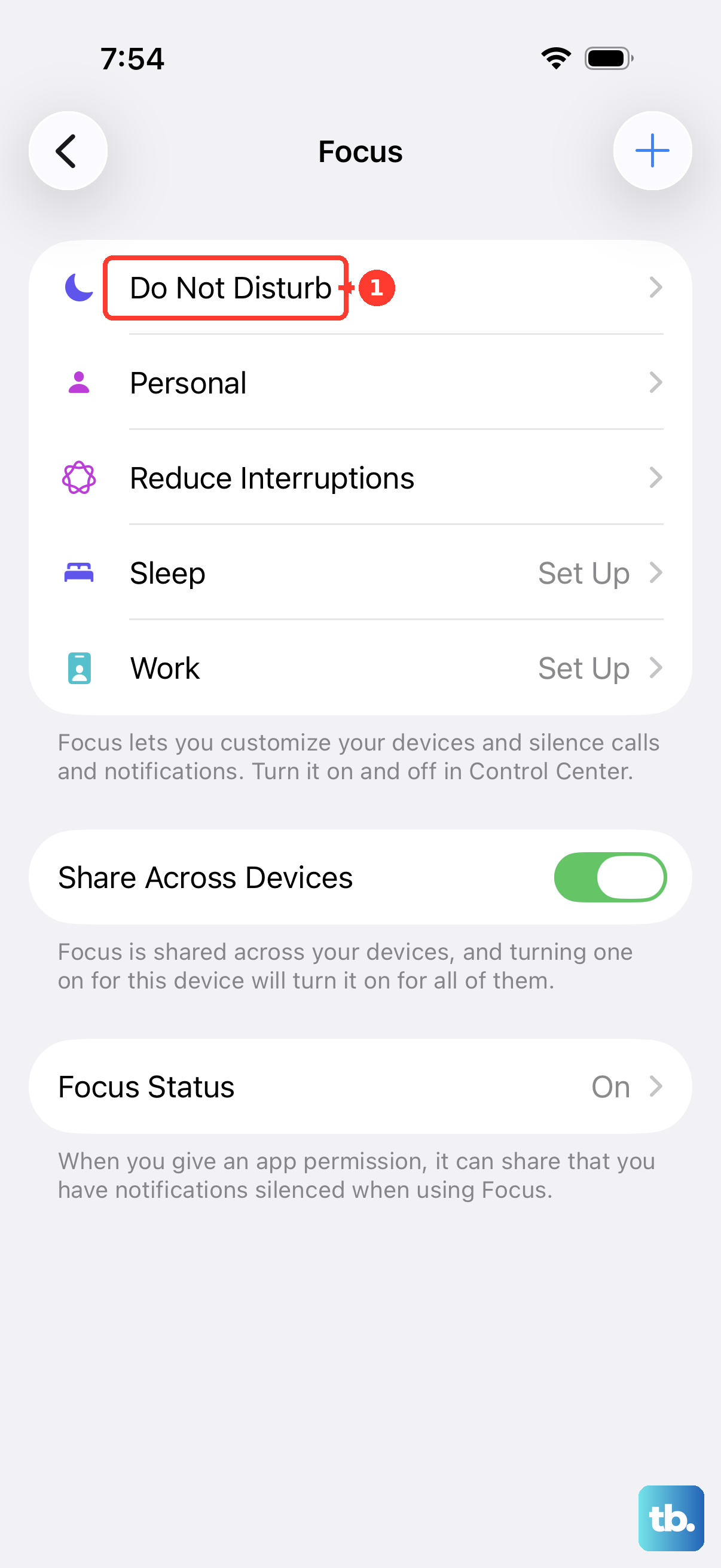
- 1.Open Control Center.
- 2.Tap Focus.
- 3.Tap Do Not Disturb to turn it on.
- 4.To use the expanded Focus menu, touch and hold the button showing Focus, Do Not Disturb, or another Focus option.
- 5.Tap Do Not Disturb in that menu to switch it on or off.
Silence unknown callers and spam
Unknown and spam call settings help when repeated interruptions come from people who are not in your contacts. For Phone calls, open Settings, tap Apps, then tap Phone.
To screen unknown callers before the phone rings, scroll to Screen Unknown Callers, then select Ask Reason for Calling. Call Screening arrived in iOS 26 and runs only in the languages and regions Apple lists, so the option is missing if your iPhone language and region are not on that list. Standard calling and data rates can apply, and roaming calls are not screened.
To silence unknown Phone callers automatically, go to Screen Unknown Callers and choose Silence. Calls from unsaved numbers are silenced and sent to voicemail.
For carrier-identified spam, scroll to Call Filtering and turn on Spam. Supported spam or fraud calls are silenced, sent to voicemail, and moved to Spam.
If those settings do not stop the interruptions you care about, turn on Do Not Disturb or block the specific contact instead.
Mute FaceTime calls on iPhone
This fixes your microphone during a FaceTime audio or video call.
During the FaceTime call, tap the screen to show the controls.
Tap the Microphone switch button to turn your sound off.
Tap the Microphone switch button again to turn your mic back on.
To stop unknown FaceTime callers from ringing through, open Settings.
Tap Apps.
Tap FaceTime.
Turn on Silence Unknown Callers.
Deleting the FaceTime app does not completely stop FaceTime calls, because FaceTime calls can still work through Contacts and Phone. Use FaceTime settings or blocking instead.
Mute from AirPods Apple Watch or Mac
The most common accessory issue is using the wrong physical control for mute instead of ending or declining a call.
With AirPods 3, AirPods 4, or AirPods Pro connected during a Phone or FaceTime call, press the stem once on either AirPod to mute or unmute. Some apps show a mic on or off message.
To change the AirPods press behavior, wear your AirPods and open Settings on iPhone.
Tap the name of your AirPods near the top of the screen.
Tap End Call or Mute & Unmute.
Choose Press Once or Press Twice.
With AirPods Max, press the Digital Crown during a call to mute or unmute. The same AirPods settings area lets you switch the press behavior for End Call and Mute & Unmute.
On Apple Watch, open the Phone app during an iPhone-relayed call and tap Mute. For an incoming call alert on Apple Watch, cover the display for at least three seconds to mute that watch alert, not the iPhone microphone.
On Mac, iPhone phone calls can be relayed through Continuity. On iPhone, go to Settings > Apps > Phone > Calls on Other Devices, turn on Allow Calls on Other Devices, and choose the Mac. The Mac and the iPhone also need to be signed in to the same Apple Account, be on the same Wi-Fi network, and have FaceTime turned on with your phone number selected, and the iPhone needs to be nearby.
During the relayed call on Mac, click Mute in the Phone app, which is available in macOS Tahoe 26 or later. On an earlier macOS version, take the relayed call in FaceTime and mute it there instead.
Frequently Asked Questions
Can I mute my iPhone microphone before answering a call?
No. The iPhone microphone mute control appears during an active call. Before answering, you can silence the ring with the side button or either volume button, or use Do Not Disturb to quiet incoming calls.
Does Silent mode mute me during a call?
No. Silent mode silences ringtones and alerts. To mute yourself during a live Phone call, use the on-screen Mute button.
Can Siri mute an active iPhone Phone call?
No supported Siri command directly toggles the active Phone-call Mute button. Siri can turn Do Not Disturb on or off and can decline announced calls.
What is the difference between silencing unknown callers and blocking a contact?
Silencing unknown callers quiets calls from unsaved numbers and sends them to voicemail. Blocking a contact or number stops future calls and messages from that specific person or number.