A huge unread count doesn't mean you have to open every email. Gmail's desktop website lets you select unread conversations across pages and mark them as read together. On Android and iPhone, you can do the same cleanup in batches with a few extra taps.
Mark every unread email as read on a computer
On Gmail's desktop website, search for is:unread. To include unread messages in Spam and Trash, use in:anywhere is:unread instead.
Click the Select checkbox above the results. This selects only the displayed page, so there's one more selection step for a larger backlog.
For results spanning multiple pages, click the selection-banner link Select all conversations that match this search when it appears. The banner's wording varies between messages and conversations.
Click Mark as read in the toolbar. Gmail applies the action to your selection, including results beyond the first page when you've expanded it.
Limit the cleanup to your inbox
Open Inbox on Gmail's desktop website.
Click the Select checkbox above the message list.
Click the banner link to select every conversation in that view, such as Select all 2,000 conversations in Inbox. The number and destination reflect your selected view.
Click Mark as read in the toolbar.
Tip: Use the same sequence in Promotions, a label, or All Mail, but remember that All Mail excludes Spam and Trash.
Clear unread mail on Android or iPhone
Bulk selection clears unread batches in the Gmail app on Android, iPhone, and iPad.
Open the message list you want to clear.
Tap a sender's profile image to begin selecting messages.
Tap the checkbox beside Select all.
Scroll down to reach additional messages.
Tap the Select all checkbox again to add those messages.
Repeat that scrolling-and-selection sequence for each additional batch you want to include.
Tap Mark as read at the top right.
Narrow the cleanup to specific messages
Only clearing newsletters or older mail? In the Gmail search box, combine is:unread with label:, category:, from:, or before:, followed by the label, category, sender, or cutoff date you want. Then use the desktop selection steps above to mark the matches as read.
For a visual alternative, run a search and click the Is unread chip. Click Select, expand the selection through the banner for matches beyond the displayed page, and click Mark as read.
Search operators also work in the mobile app. Enter your search there, then use the batch-selection sequence above to clear the matching messages.
Catch unread messages left behind
Selecting only the displayed page or current mailbox view leaves unread messages outside that selection untouched.
Run a fresh desktop search for in:anywhere is:unread to find remaining unread messages, including those in Spam and Trash.
Click the Select checkbox above the results.
For results extending beyond the page, expand the selection with Select all conversations that match this search when the banner offers it.
Click Mark as read.
In the mobile app, scroll down to reach more messages.
Tap Select all again to include them. Google specifies neither a fixed batch size nor unlimited mailbox selection with one tap.
Tap Mark as read to clear the additional selection.
Automate future unread cleanup
A desktop Gmail filter can clear existing matches and automatically mark future matching arrivals as read, even when the app isn't open.
- 1.Open Show search options in Gmail.
- 2.Enter criteria covering only the messages you want handled automatically.
- 3.Click Create filter.
- 4.Check Mark as read.
- 5.Check Also apply filter to matching conversations to include the existing backlog.
- 6.Click Create filter to save the rule.
Frequently Asked Questions
Can I use a keyboard shortcut to mark selected emails as read?
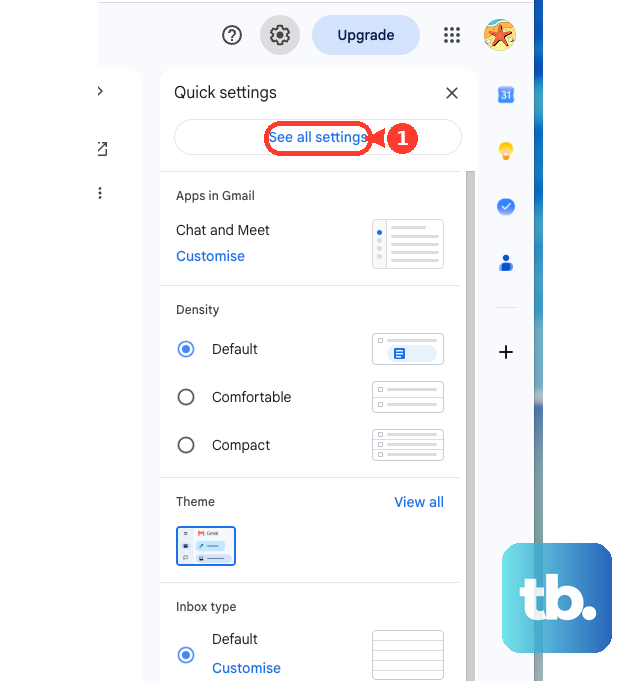
Yes. On desktop Gmail, open Settings > See all settings. Under Keyboard shortcuts, choose Keyboard shortcuts on, then click Save Changes. In the message list, press * then a to select displayed conversations, or * then u to select unread conversations. Expand the selection across pages separately when needed, then press Shift+i to mark it as read.
Does this work with a work or school Gmail account?
Yes. The desktop search, selection, and Mark as read workflow applies to both personal Gmail and Google Workspace accounts.
Can I mark all Gmail messages as read from an Android notification?
No. A notification's Mark as Read action handles the notified mail, not the entire mailbox. To use it for that mail, reveal the notification's available actions and tap Mark as Read.