Tiny iPhone keys turn normal typing into a mess of wrong letters and backspacing. Apple does not include a separate size slider for the built-in iPhone keyboard. The fastest fix is Display Zoom, and you also have landscape typing, Accessibility Zoom, large-key keyboard apps, and Bluetooth keyboards when you need more room.
Make the iPhone keyboard bigger with Display Zoom
Open the Settings app. Tap Display & Brightness. Tap Display Zoom.
Select Larger Text. Tap Done. Tap Use Zoomed.
Display Zoom enlarges the whole iPhone interface, including the onscreen keyboard, so icons, menus, and app layouts get bigger too.
Turn the iPhone sideways for a wider keyboard
Use landscape typing when you want wider keys without changing the entire display. It works in apps that support rotation, including Mail, Messages, Notes, and Safari.
Open Control Center and tap the Portrait Orientation Lock button so it is off. Close Control Center. Turn your iPhone sideways while the keyboard is open. The keyboard spreads across the wider screen in supported apps.
Restore the full keyboard if it is stuck on one side
This fixes a keyboard that shrank because one-handed typing is active. Open any app where you enter text. Touch and hold the Emoji button or the Switch Keyboard key.
Tap the centered default keyboard layout button. Tap the right or left edge of the one-handed keyboard to return it to the centered full-width layout instead.
Use Accessibility Zoom over the keyboard
Accessibility Zoom magnifies the keyboard area without permanently changing the keyboard layout.
- 1.Go to Settings > Accessibility > Zoom.
- 2.Turn on Zoom.
- 3.Turn on Follow Focus and Smart Typing.
- 4.Tap Zoom Region, then choose Full Screen Zoom or Window Zoom.
- 5.Adjust Maximum Zoom Level.
- 6.Double-tap with three fingers to turn Zoom on, or triple-tap with three fingers to open the Zoom menu.
Make Zoom quicker to switch on
After Zoom is set up, assign it to a shortcut for faster typing sessions. Go to Settings > Accessibility > Accessibility Shortcut, choose Zoom, then triple-click the side button or Home button when you need magnification.
For Control Center, open Control Center, tap the Add button, choose Add a Control, and add an accessibility or vision control. Use that control to toggle Zoom.
Siri turns accessibility features on or off, including Zoom. On supported models, go to Settings > Action Button and choose an accessibility action such as Zoom.
Try a large-key keyboard app
A third-party keyboard is the closest option to a true bigger-key iPhone keyboard, and each app controls its own key size features.
- 1.Download a large-key keyboard from the App Store, such as Big Keys Keyboard, Bigger Keyboard, or Mega Key.
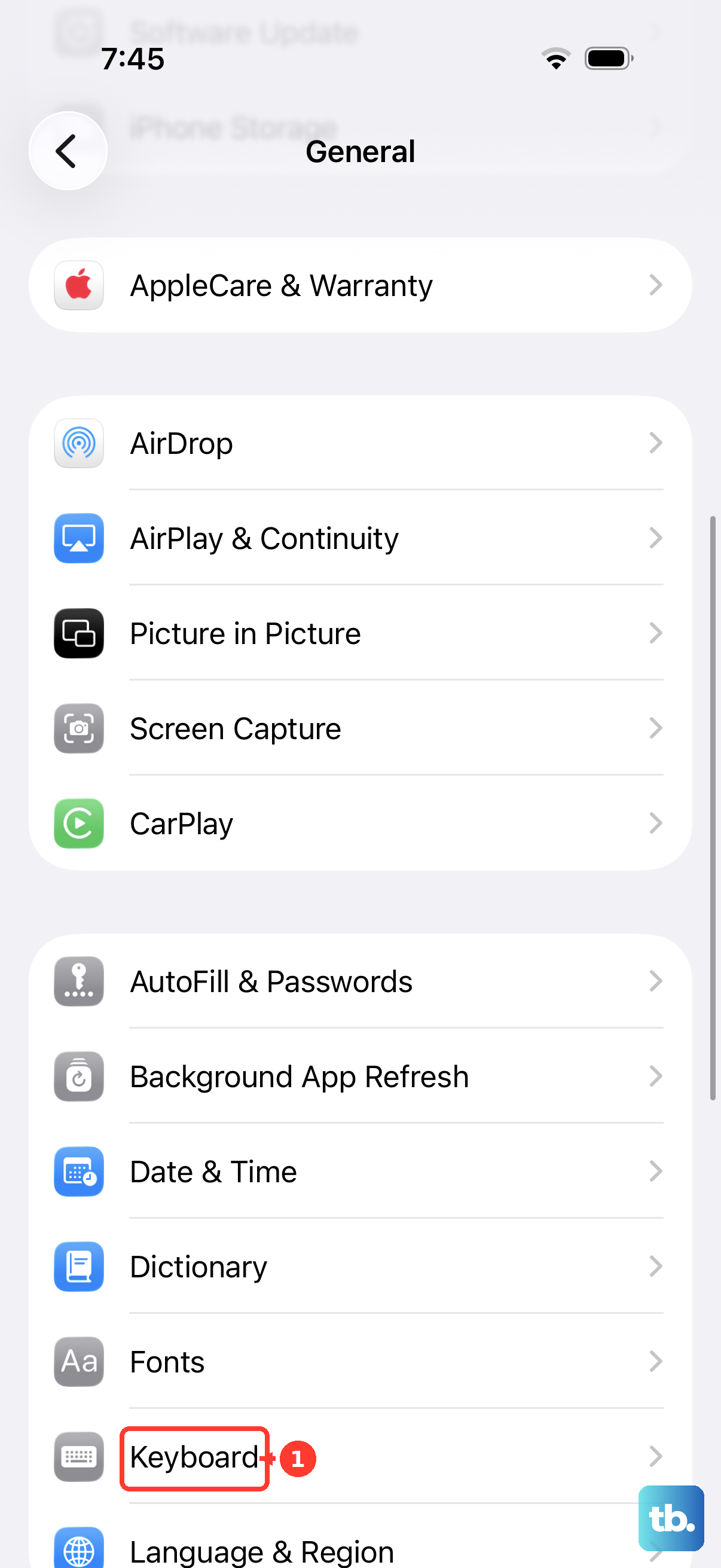
- 2.Open Settings > General > Keyboard > Keyboards.
- 3.Tap Add New Keyboard.
- 4.Choose the keyboard app you installed.
- 5.While typing, touch and hold the Emoji button or Switch Keyboard key, then tap the keyboard you want.
Use a physical keyboard when screen keys are not enough
This fixes cramped typing by skipping the onscreen keyboard entirely. Turn on your Bluetooth keyboard and make sure it is charged. Open Settings.
Tap Bluetooth. Turn on Bluetooth. Select the keyboard when it appears under Other Devices.
Check limits on work or school iPhones
A managed iPhone blocks third-party keyboards in some work or school apps when your organization restricts how app data is handled. A large-key keyboard app then appears in personal apps but not inside managed apps.
Apple device management does not add a consumer keyboard-size setting. It controls some keyboard-related features, but it does not create a built-in iPhone keyboard size slider.
If a large-key keyboard app does not appear on a managed iPhone, use Display Zoom, landscape typing, or Accessibility Zoom instead.
Skip old iPhone keyboard resize tricks
Microsoft SwiftKey resize controls do not apply to iPhone. Microsoft says SwiftKey does not offer keyboard resizing on iOS, so use Settings > Display & Brightness > Display Zoom instead.
Gboard for iPhone includes features such as GIFs, emoji search, glide typing, Google Search, and voice input. It does not provide an official iPhone keyboard-height control.
Settings > Accessibility > Display & Text Size > Larger Text changes font size in supported apps, not the iPhone keyboard size. Settings > Accessibility > Keyboards & Typing includes keyboard accessibility options, not an onscreen keyboard resize control.
Frequently Asked Questions
Can I make only the built-in iPhone keyboard bigger?
No. Apple does not provide a separate keyboard-only size slider for the built-in iPhone keyboard. Display Zoom enlarges the whole interface, including the keyboard.
Why did my iPhone keyboard suddenly get smaller?
One-handed keyboard is active. Touch and hold the Emoji button or Switch Keyboard key, then choose the centered default keyboard layout.
Does Larger Text make the iPhone keyboard bigger?
No. Larger Text changes font size in supported apps. For keyboard enlargement, use Display Zoom, landscape typing, Accessibility Zoom, or a large-key keyboard app.
Which iPhone keyboard app has bigger keys?
App Store options include Big Keys Keyboard, Bigger Keyboard, and Mega Key. Each app controls its own layout and sizing features.