You open DS router, but you're not sure which address or account to enter. DS router is Synology’s mobile management app; the browser interface is Synology Router Manager, or SRM. Start with the local login options below, then use the remote connection or recovery steps that match your situation.
Log in through the DS router app
Use this method when your phone is connected to your Synology Router’s network. It applies to DS router 2.x on Android and iPhone.
Connect your phone to the router’s network. Open DS router. The app automatically fills in the router’s gateway IP address. If you need to supply the address yourself, enter the router’s gateway IP address manually.
Enter your router account’s username and password to log in. Use the account created during router setup. Your Synology Account handles cloud services and does not replace the router’s administrator credentials.
Use a browser on your computer
Sign in to SRM from a computer connected to the router.
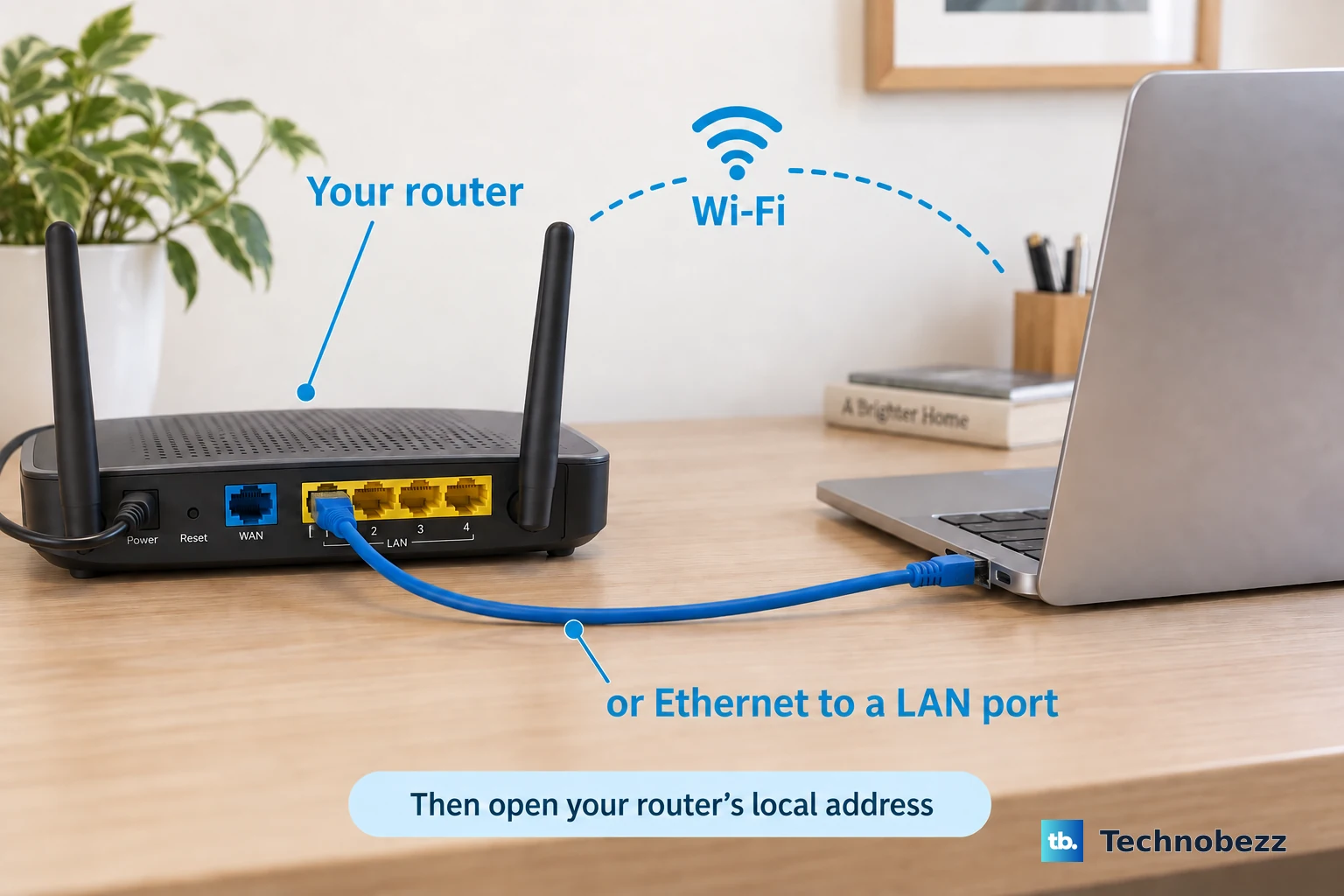
- 1.Connect your computer to the router’s Wi-Fi or a LAN port.
- 2.Open your browser and enter router.synology.com in the address bar. If that address does not open, enter the router’s local IP address and management port. The default-address examples are http://192.168.1.1:8000 and https://192.168.1.1:8001; substitute your router’s actual address and any customized management port.
- 3.Enter your router username and password.
- 4.Click Sign in.
Connect remotely with QuickConnect or another address
Open DS router when you’re away from home. Tap the plus (+) icon to open the connection screen for an existing router.
Enter your router’s QuickConnect ID as the address if QuickConnect is already configured. A previously configured DDNS hostname or a reachable external IP address also works when the router permits external management. Enter your router account’s username and password to sign in.
For browser access instead, open https://quickconnect.to/YOUR_ID, replacing YOUR_ID with your QuickConnect ID. For configured DDNS or public-IP access, open the address using its management protocol and port, such as https://HOSTNAME:8001. Enter your router credentials on the browser login page. Click Sign in.
Tip: If you forgot your QuickConnect ID, sign in to the Synology Account user portal to look it up.
Restore access when the login screen will not open
Being connected to a network does not mean that network permits router management. In SRM 1.3, the Primary Network always allows access to SRM.
Switch to the router’s Primary Network Wi-Fi or an Ethernet port assigned to it. On the RT2600ac and RT6600ax, LAN 2 is reserved for the Primary Network. Retry the login address.
Disconnect an outbound VPN if it is interfering with local access. Try the login address again after disconnecting the VPN.
For remote access that has not been enabled, sign in locally first. To configure QuickConnect, open Network Center > Internet > QuickConnect & DDNS in SRM.
For remote public-IP or DDNS management, open Control Panel > System > SRM Settings in an existing administrator session. Select Allow external access to SRM. The remote management service must also be reachable.
If the login screen still will not open, try Synology Assistant to locate the router’s management address, particularly when its management ports have changed.
Clear credential and verification blocks
Use these checks when the login screen opens but you cannot get past it. Signing in to your Synology Account does not bypass SRM authentication.
If Synology Assistant located the router, open the management address it found. Enter the username and password created for the router. There is no universal admin/admin or admin-with-a-blank-password login; current setup requires you to create an administrator account.
At a two-step verification prompt, enter the account’s six-digit code from its authenticator app. If you have lost access to that app, click Lost your phone? at the verification prompt.
Email notifications must already be configured under Control Panel > Notification. Synology limits emergency codes to five per user. Enter the emergency code sent to your email.
For an Auto Block restriction, open Settings > Security > Auto Block in another working administrator session in DS router. Open the allow/block-list control. Use Add allowed IP address to allow the affected device’s IP address.
Set up an account for a new router
Choose Set up new router in DS router for a new or factory-reset router. If the app already manages other routers, tap + on the login page instead.
Open your phone’s Settings > Wi-Fi. Join the network named on the router’s label. Alternatively, select Scan QR code to connect to router in the setup flow.
Return to DS router. Complete the administrator-account, Wi-Fi, and Internet setup.
For browser setup instead, connect your computer to the router by Ethernet or its labeled Wi-Fi network. Open router.synology.com or http://192.168.1.1. Complete the setup flow, including creating your administrator username and password. Common usernames such as admin are invalid during this setup.
Tip: Follow your router’s label for its initial Wi-Fi network name, because the name differs between models.
Recover a forgotten administrator login with a soft reset
A four-second soft reset restores a route to administrator access.
Hold the router’s RESET button with a paper clip for four seconds. This procedure applies to the RT6600ax, WRX560, RT2600ac, MR2200ac, and RT1900ac. Holding the button for ten seconds performs a factory reset that wipes system configurations.
Connect a computer to the router by Ethernet after the reset. Open router.synology.com in your browser. Click Connect.
Configure the administrator account. Click Next. Finish the setup wizard. Click Start managing now.
Frequently Asked Questions
Can I enable QuickConnect from the DS router app?
Yes. While signed in to the router, open Settings > Account Management > Synology Account > Sign In. Sign in to your Synology Account, or use Create an account if needed. Then open Settings > Account Management > QuickConnect and turn on Enable QuickConnect.
How do I allow router management from another local network?
In an existing SRM administrator session, open Network Center > Local Network > Network. Select the network, click Edit, and open General. Tick Allow managing Synology Router through this network. This setting applies to SRM 1.3 in wireless router mode; wireless AP mode has restrictions.
Can SRM redirect HTTP connections to HTTPS?
Yes. In an administrator session, open Control Panel > System > SRM Settings and select Automatically redirect HTTP connections to HTTPS. You can also configure the management ports there.
Where can I get the official DS router app?
Open Synology’s Products A–Z directory and find Mobile Applications > DS router App. DS router is available for Android and iOS.