Git needs to be installed before many editors, terminals, and developer tools can use it on Windows.
The simplest fix is the official Git for Windows installer, and the fastest terminal route is winget.
Use the method below that matches how you want Git to run on your PC.
1. Use the official Git for Windows installer
This fixes the standard native Git install for most Windows PCs.
Go to git-scm.com/install/windows.
Select Click here to download for the latest x64 build.
For ARM64, open Other Git for Windows downloads, choose Standalone Installer, then select Git for Windows/ARM64 Setup.
For x64 from the download list, open Other Git for Windows downloads, choose Standalone Installer, then select Git for Windows/x64 Setup.
Open the downloaded setup file.
Follow the Git Setup wizard to finish installing Git.
2. Install Git with winget
Open Command Prompt or PowerShell.
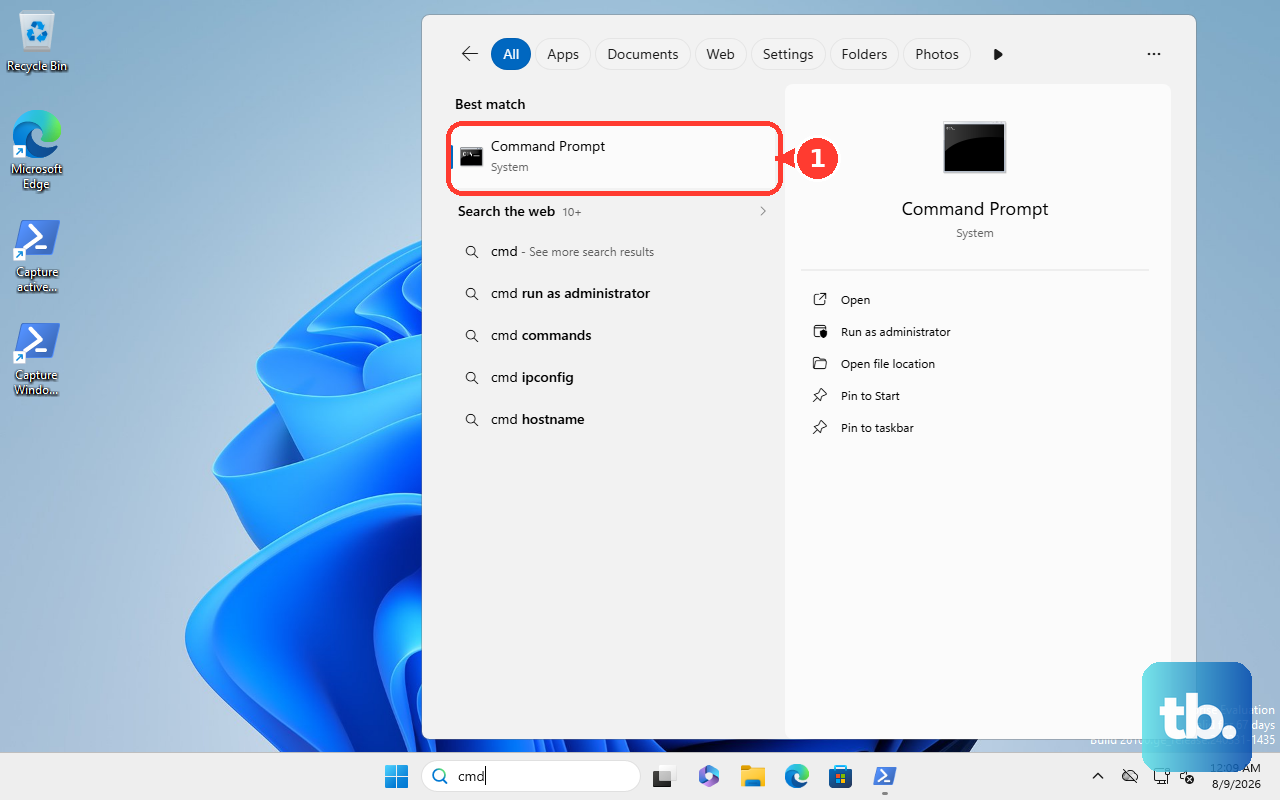
Run winget install --id Git.Git -e --source winget.
Use Microsoft’s exact-match form winget install --id Git.Git -e when the default winget source is already configured.
3. Repair winget when Windows does not recognize it
Winget comes through Microsoft Store > App Installer on Windows desktop versions.
Install or update App Installer from the Microsoft Store, then open PowerShell and run Add-AppxPackage -RegisterByFamilyName -MainPackage Microsoft.DesktopAppInstaller_8wekyb3d8bbwe to register it.
After that, run Command Prompt or PowerShell > winget install --id Git.Git -e --source winget.
4. Choose interactive or silent winget install
Open Command Prompt or PowerShell.
Run winget install --id Git.Git -e --source winget --interactive to open the Git Setup wizard.
Use Git Setup when you want to choose options such as PATH and credential-helper settings.
Run winget install --id Git.Git -e --source winget --silent to suppress installer windows.
Open Command Prompt or PowerShell as administrator for a machine-wide install.
5. Run portable Git for Windows
Go to git-scm.com/install/windows.
Open Other Git for Windows downloads.
Select Portable ("thumbdrive edition").
Choose Git for Windows/x64 Portable or Git for Windows/ARM64 Portable.
Download the portable package.
Extract or run the portable package instead of using the setup wizard.
Pick this edition for a portable Git copy, not for a normal installed Windows app.
6. Add Git through Chocolatey or Scoop
This fixes installation for Windows users who already manage apps with Chocolatey or Scoop.
For Chocolatey, install Chocolatey from chocolatey.org/install.
Open an elevated PowerShell or terminal when Chocolatey requires it.
Run choco install git.install or choco install git.
For Scoop, install Scoop from scoop.sh or the Scoop GitHub instructions.
Open PowerShell.
Run scoop install git.
7. Pick GitHub Desktop or WSL for specific workflows
For a GitHub Desktop GUI workflow, go to desktop.github.com/download.
Select Download for Windows.
Open Downloads, then double-click the GitHub Desktop setup file.
Use GitHub Desktop for GUI clone, commit, and push workflows.
Install Git for Windows separately when you want git commands on the Windows PATH.
For Git inside Windows Subsystem for Linux on Windows 11 or Windows 10 version 2004 (build 19041) or later, open PowerShell as administrator and run wsl --install when WSL is not installed, then restart Windows.
Open the installed distribution terminal, Ubuntu by default.
Run sudo apt-get install git on Ubuntu or Debian, or use that distribution’s own package manager on other distributions.
WSL installs Git inside Linux, not native Windows git.exe.
8. Remove Git from Windows later
Use Start > Settings > Apps > Installed apps, find Git, select More, then choose Uninstall.
From the app list, use Start > All apps, right-click Git or Git Bash, then select Uninstall.
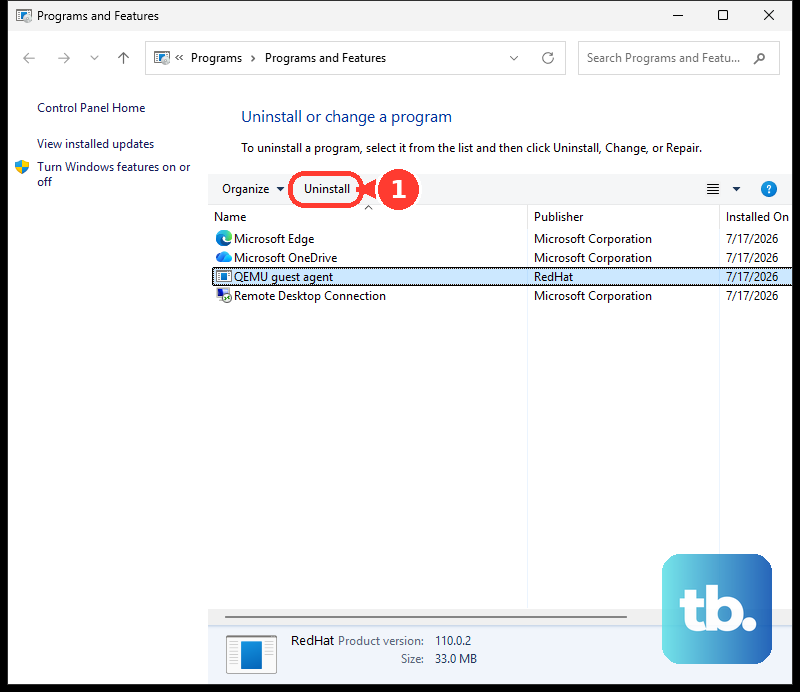
For classic desktop installs, open Control Panel > Programs > Programs and Features, right-click Git, then choose Uninstall or Uninstall/Change.
9. Avoid outdated or managed-device shortcuts
Skip older instructions that tell you to download a current 32-bit Git for Windows installer.
Use the current Git for Windows/x64 Setup or Git for Windows/ARM64 Setup installer when your device supports it.
On work or school PCs, follow your organization’s Microsoft Intune deployment or winget policy controls.
Use Visual Studio’s built-in Git UI for clone, commit, and push workflows inside Visual Studio.
Install Git for Windows when you want to run git commands at the command line.
Frequently Asked Questions
What is the easiest way to install Git on Windows?
Use the official Git for Windows installer from git-scm.com/install/windows. Select the x64 download, open the setup file, and finish the Git Setup wizard.
Can I install Git on Windows without opening a browser?
Yes. Open Command Prompt or PowerShell and run winget install --id Git.Git -e --source winget.
Does portable Git work like the normal installer?
Portable Git gives you a portable Git for Windows copy. Use the normal standalone installer when you want Git installed as a regular Windows app.
Does GitHub Desktop replace Git for Windows?
GitHub Desktop fits GUI clone, commit, and push workflows. Install Git for Windows separately when you need git commands available at the command line.
Is there still a 32-bit Git for Windows installer?
Current Git for Windows installers are no longer available for 32-bit platforms starting with version 2.49.0. Use current x64 or ARM64 builds on supported PCs.