Windows Media Player is still available on Windows 11, but it is not always sitting where older Windows users expect it. For most PCs, the right fix is the current Microsoft Store app. If you want the older player, or you use a Windows 11 N edition, the install path is different. Start with the Store version first, then use the Legacy or Media Feature Pack steps only when they match your PC.
1. Install the current Windows Media Player app
This is the main route for Windows 11. Microsoft links the current Windows Media Player app through its Store listing, and the Store handles the download and install.
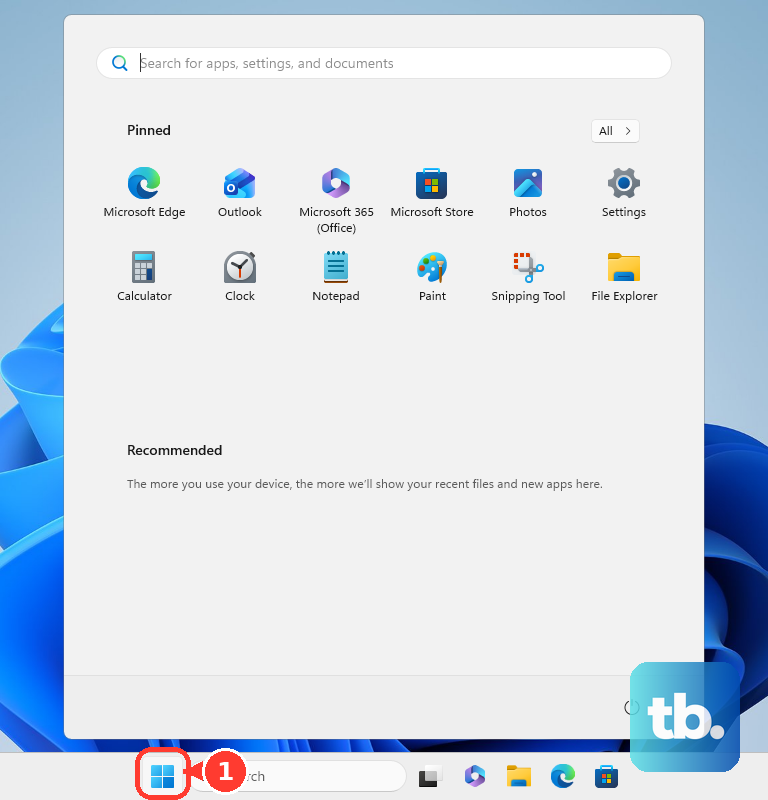
Open Start, select Microsoft Store, search for Windows Media Player, and select Windows Media Player by Microsoft. Then select Get or Install.
If you are using Microsoft’s web listing instead, open the Windows Media Player page. Select Get, Install, or Open in Microsoft Store.
2. Open it before reinstalling anything
Open Start, search for Windows Media Player, and select Windows Media Player from the results. Check the app list before changing Windows features, because Windows Media Player can already be on the PC, especially after Windows or Store updates. If the older optional app is installed, Windows can show it as Windows Media Player Legacy. That is a separate app from the current Microsoft Store version.
3. Reinstall it from your Store library
Use this when you had the Store app before and it disappeared after a reset, cleanup, or account change. Open Microsoft Store, select Library or My Library, find Windows Media Player, and select the Download icon. From the web account page, go to Order history, find Windows Media Player, and select Install.
4. Add Windows Media Player Legacy instead
Use this only when you specifically want Windows Media Player Legacy. Microsoft lists it as an optional feature in some editions of Windows 11, and DVD playback is not included. Open Start, go to Settings, select System, and open Optional Features.
Select View features, search for Windows Media Player Legacy, check Windows Media Player Legacy, and select Next. After that, select Add.
If your Windows 11 build puts that page somewhere else, open Settings > Apps > Optional features. From there, continue from View features.
5. Install Media Feature Pack on Windows 11 N
Open Start, go to Settings, select Apps, and open Optional features. Select View features next to Add an optional feature, select Media Feature Pack, and select Install. Restart your PC.
Windows 11 N editions leave out Windows Media Player and related media technologies until Media Feature Pack is added. Use this Windows 11 path for N editions. The old downloadable Windows 10 Media Feature Pack page is not the Windows 11 install route.
6. Use WinGet when you prefer Terminal
WinGet installs the same Microsoft Store app from the command line and gives you the exact Store package ID before installing.
- 1.Open Start.
- 2.Search for Windows Terminal or Command Prompt.
- 3.Open Windows Terminal or Command Prompt.
- 4.Run winget search "Windows Media Player" --source msstore.
- 5.Confirm the Microsoft Store product ID is 9WZDNCRFJ3PT.
- 6.Run winget install --id 9WZDNCRFJ3PT --source msstore.
WinGet is supported on Windows 11 and on modern Windows 10 installs with App Installer available.
7. Fix the app after it installs
Start with the Store update, then update Windows itself, and repair the app only if it still misbehaves. Open Microsoft Store, select Library, and select Get updates or Check for Updates. For automatic Store updates, select your Profile, open Store Settings, and turn App updates on.
Next, update Windows itself: open Start, go to Settings, and select Windows Update. Select Check for updates, select Download & install, and restart when Windows prompts you.
If the app still misbehaves, repair it from Windows settings: open Start, go to Settings, select Apps, and open Installed Apps. Select Windows Media Player, select the three dots, open Advanced options, and select Repair. Select Reset if repair does not fix it. Reset removes custom settings and preferences, but Microsoft says it does not delete your media files or library.
8. Set Windows Media Player as the default
Open Start, go to Settings, select Apps, and open Default apps. Search for a file extension such as .mp4, .wmv, or .wma, then select Windows Media Player for that file type.
Installing Windows Media Player does not automatically assign every music and video format to it. You can also select Windows Media Player under Set defaults for applications. Then choose each supported file type or link type you want it to open.
9. Avoid old installer downloads
Skip standalone Windows Media Player 12 installers from third-party download sites. Microsoft’s current Windows 11 routes are Microsoft Store for the current app, Optional Features for Windows Media Player Legacy, and Media Feature Pack through Optional features on Windows 11 N.
On work, school, or family-managed PCs, Microsoft Store installs and Optional Features can be hidden or blocked by policy. Ask the person or organization managing the PC to enable the app or media feature.
Frequently Asked Questions
Is Windows Media Player still available in Windows 11?
Yes. Windows 11 supports the current Windows Media Player app from Microsoft Store, and Windows Media Player Legacy is available as an Optional Feature on supported installs.
Why is Windows Media Player missing on Windows 11 N?
Windows 11 N leaves out Windows Media Player and related media technologies until you install Media Feature Pack from Optional features and restart the PC.
Does Windows Media Player Legacy play DVDs?
No. Microsoft notes that DVD playback is not included with Windows Media Player Legacy.
Can WinGet install Windows Media Player?
Yes. Run winget search "Windows Media Player" --source msstore, confirm product ID 9WZDNCRFJ3PT, then run winget install --id 9WZDNCRFJ3PT --source msstore.