Windows 11 gives you several help paths, but the right one depends on what is broken. A missing setting, a failed update, a remote support session, and a PC that will not start all need different tools. Start with the fastest built-in options, then move to Microsoft Support, Quick Assist, Copilot, or recovery tools when the problem needs more than a quick answer.
1. Start With Windows Search
Use this first when you need a setting, app, file, or quick Microsoft help result. It is the fastest way to get from a plain question to the right Windows screen.
Select the Search box on the taskbar. Enter your question or keywords, such as network, printer, display, or update. Then choose the matching app, file, setting, or web help result.
2. Open Get Help
Select Start, then type get help into the search box. Select Get Help from the results, and describe the issue.
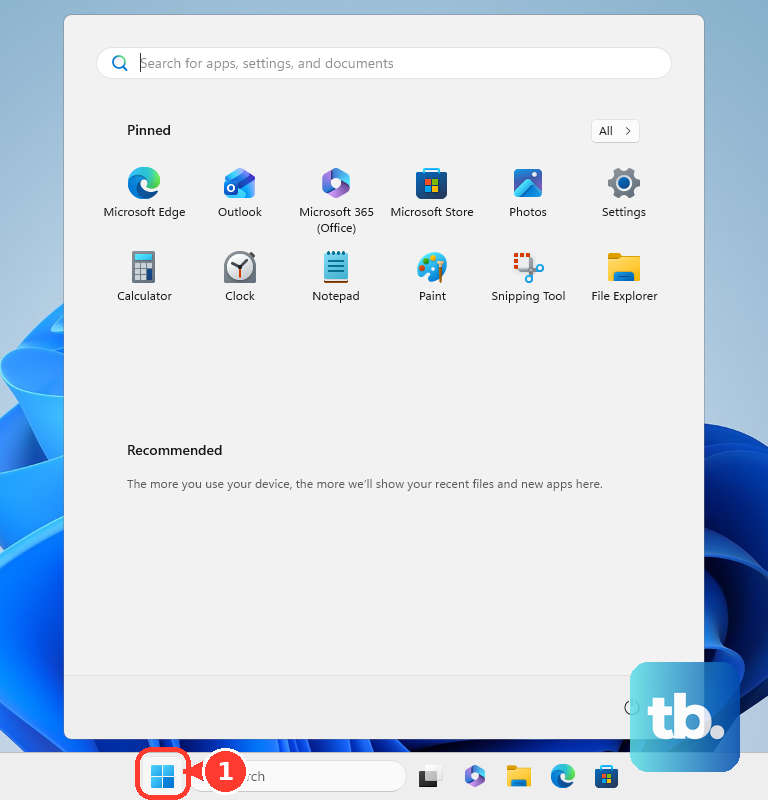
For everyday Windows questions, Microsoft’s built-in support app is the direct place to start. Get Help supports personal Microsoft accounts and work or school accounts, and personal account users also get support request options from inside the app. You can also open Settings and select the Get help link on the Home page.
3. Run the Right Troubleshooter
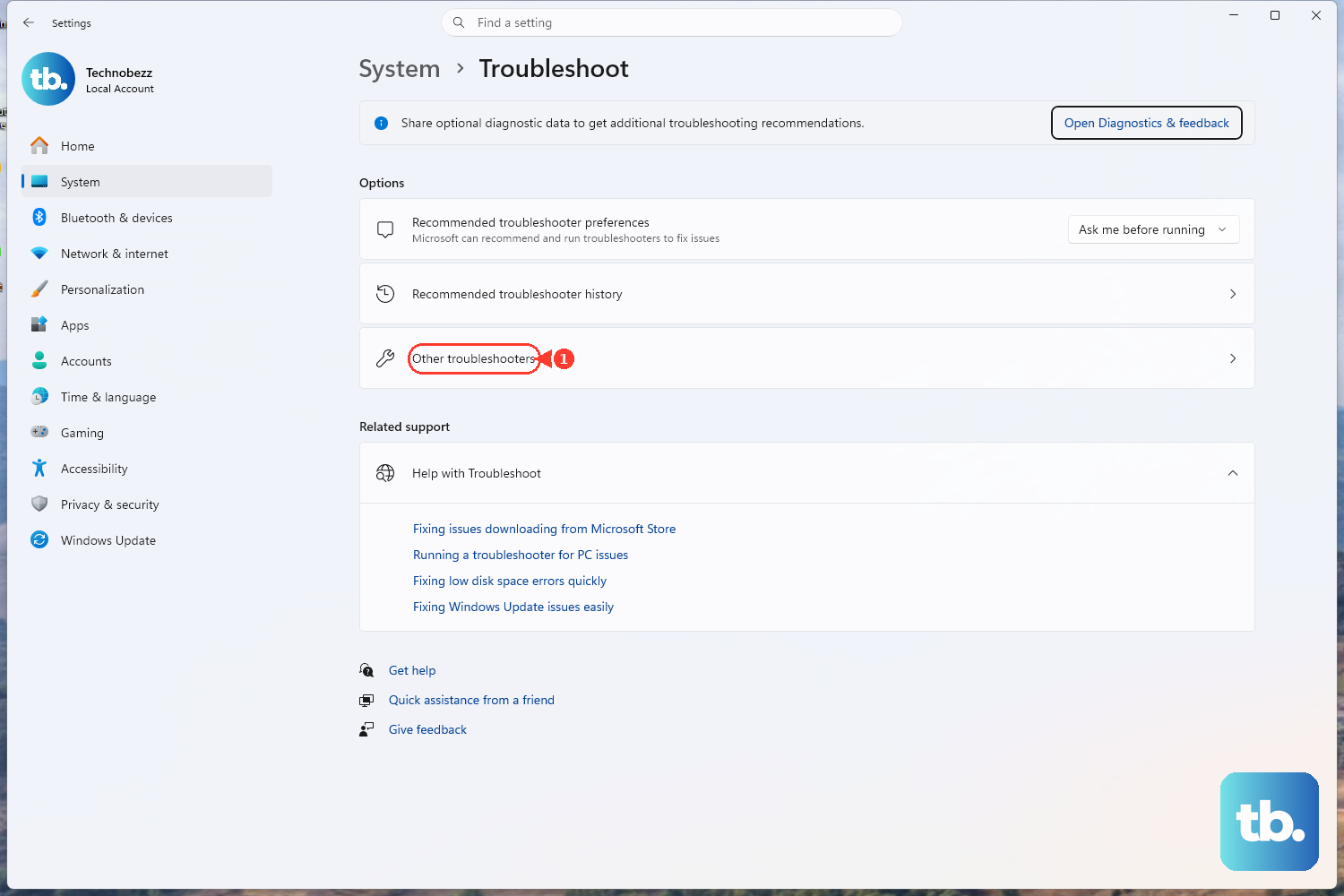
Use this route when the problem is tied to Windows, Microsoft 365, Classic Outlook, Classic Teams, or Copilot.
Open Settings, select System, then select Troubleshoot. After that, select Other troubleshooters and choose the troubleshooter that matches the issue. If a Get Help troubleshooter appears, select Start.
Skip old instructions that tell you to download Microsoft Support and Recovery Assistant. Microsoft replaced that route with troubleshooters integrated into Get Help.
4. Browse Microsoft Support
Open support.microsoft.com/windows. Choose a category such as Installation & updates, Drivers & devices, Network & internet, Files & storage, Security & privacy, Troubleshoot & repair, Accessibility, or Hardware. Then open the Microsoft help page that matches your problem.
Use Microsoft’s Windows help and learning page when you want official Windows help by topic instead of hunting through random results.
5. Contact Microsoft Support
Use Microsoft Support when Search, Get Help, and troubleshooters do not solve the problem. The browser route and the app route both lead through Microsoft’s support flow.
Open Get Help and describe the issue. Select Contact Support when the app sends you there, then select the affected product or service. Select the next options shown on screen, and select Confirm.
Choose the contact option Microsoft shows, such as Chat with a support agent in your web browser, Provide your phone number and a support agent will call you, or Submit a repair request.
To start in a browser, open support.microsoft.com/contactus, sign in if prompted, select Windows, and follow the self-help prompts. Microsoft ties contact choices to your product, account, region, and issue type.
6. Share Your Screen With Quick Assist
Select Start, type Quick Assist, then select Quick Assist. You can also press Ctrl + Windows logo key + Q.
Enter the 6-digit code in Code from assistant, then select Submit. Select Allow to share your screen. Select Allow again only when you want to give full control. Select Leave when the session is finished.
Quick Assist is for remote help from someone you trust, including a friend, family member, workplace helper, or Microsoft support agent who needs to see your screen.
If Quick Assist is missing, open Microsoft Store, search for Quick Assist, select Quick Assist, then select Get or Install.
7. Ask Copilot for Settings Help
Copilot is useful when you know what you want to change but not which Windows setting controls it.
Open Copilot from the taskbar or Start. You can also press the Copilot key or Windows key + C. Ask a settings question, such as Make my screen easier to read or Help me focus by reducing distractions, then follow the Windows Settings path Copilot gives you.
Copilot on Windows requires the Copilot app and sign-in with a personal Microsoft account. To ask about something on your screen, select + in the Copilot Composer, choose Take a Screenshot, select the part of the screen, type your question, and submit it.
8. Repair Startup From Recovery
From Windows, open Settings > System > Recovery, then next to Advanced startup, select Restart now. From the sign-in screen or Start menu, hold Shift while selecting Power > Restart. From installation media, boot from the media, select Next, select Repair my PC, then select Next.
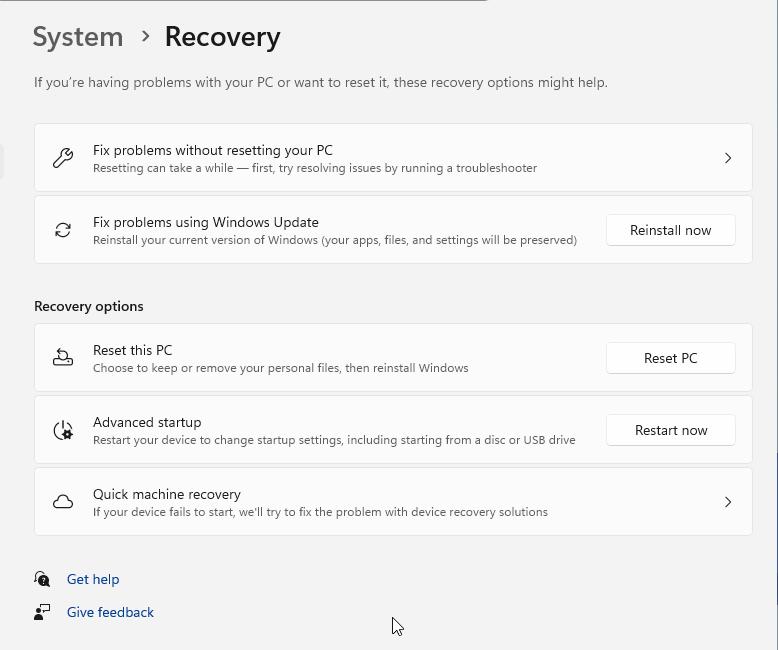
When Windows 11 will not start normally, help apps are out of reach, so use Windows Recovery Environment instead. For startup problems, select Troubleshoot > Advanced options > Startup Repair, then follow the prompts.
9. Skip Outdated Help Shortcuts
Do not use the old Windows help paths that still appear in older tutorials. Microsoft lists Tips and the standalone Cortana app in Windows as deprecated, and Microsoft Support and Recovery Assistant has been replaced by Get Help troubleshooters.
For current Windows 11 help, use Search, Get Help, Settings troubleshooters, Microsoft Support, Quick Assist, Copilot, and Windows Recovery Environment.
Frequently Asked Questions
What is the fastest way to get help in Windows 11?
Use the taskbar Search box first. Type your question or keywords, then choose the matching setting, app, file, or Microsoft web help result.
Can I chat with Microsoft Support for Windows 11?
Yes. Start in Get Help or at Microsoft’s Contact Us page. Microsoft shows the chat, phone, or repair options tied to your account, region, product, and issue.
Is Quick Assist safe to use?
Quick Assist is built for remote help from someone trusted. Enter only a code from a person or verified Microsoft support agent you contacted, and give full control only when you want that person controlling the PC.
Should I use Feedback Hub to get immediate help?
No. Feedback Hub is for sending Windows problems and suggestions to Microsoft. Use Get Help or Microsoft Support when you need help now.