Spotify does not use a big Add Friend button for personal profiles, so the process can feel harder than it is. The current profile action is Follow, and that is the practical way to add friends on Spotify. Here is the clean path to find people, share profiles, and make sure activity settings are not hiding everyone afterward.
Search for your friend and follow their profile
Use this when you know your friend’s Spotify name and their profile appears in search. It works on Spotify mobile, tablet, desktop, and the web player for standard Free and Premium accounts. Managed accounts for young listeners are the exception, because their profiles cannot be searched for or followed by other users.
Open Search and enter your friend’s name.
Choose Profiles below the search bar. On mobile, type the name and tap enter first so the filters appear.
Select the right profile from the results.
Choose Follow. Spotify uses Follow for user profiles instead of a separate Add Friend button.
Use a shared profile link
If search brings up too many similar names, ask for the exact profile link.
- 1.Ask your friend to open their Spotify profile.
- 2.Have them open Share and send you the profile link.
- 3.Open the link in Spotify on mobile, tablet, desktop, or the web player.
- 4.Select Follow on their profile.
Share your own profile so friends can follow you
Open your Spotify profile on mobile or tablet.
Tap the 3 vertical dots on iOS or the 3 horizontal dots on Android.
Choose Share, then send your profile through a social app or messaging app, copy a link, or use a Spotify Code.
On desktop, right-click your profile or select the 3 horizontal dots next to it.
Choose Share, then select Copy Link.
Tip: send the link directly to the person you want to connect with so they land on the correct profile.
Scan a Spotify Code for a profile
Use this when you are with your friend in person and want to skip name search. Spotify Code scanning works on mobile and tablet, and the phone needs camera access.
On the sender’s profile, tap the 3 horizontal dots on iOS or the 3 vertical dots on Android.
Choose Show Spotify Code.
On the recipient’s phone, open Search and tap the search bar.
Tap the camera, choose SCAN, point the camera at the Spotify Code, open the profile, and tap Follow.
Turn on follower and following lists
Use these profile visibility settings when you want your follower and following lists to appear on your public profile.
- 1.On mobile, tap your profile picture, then open Settings and privacy.
- 2.Go to Privacy and Social.
- 3.Turn Followers & following on.
- 4.On desktop, tap your profile picture, open Settings, and scroll to Social, where the control appears as Show my follower and following lists on my public profile. Spotify’s description of that desktop entry tells you to turn it on from the mobile settings, so if the desktop control does not stick, switch it on as Followers & following under Privacy and Social on mobile instead.
Fix missing listening activity
The most common cause is that Listening activity is turned off for you or for the friend you followed.
On mobile, tap your profile picture, open Settings and privacy, go to Privacy and social, then turn Listening activity on.
Choose Who can see your activity if you want to adjust the audience.
On desktop, tap your profile picture, open Settings, go to Listening Activity and insights, then turn Listening activity on.
This setting applies across devices. Friends and followers only appear in listening activity areas when they have enabled their own Listening activity too.
Check friend activity after following someone
Following a profile does not guarantee that activity appears right away, because activity surfaces depend on listening activity settings.
On mobile, tap your profile picture at the top and scroll to the carousel with friends’ profile pictures. You can also scroll to Messages and tap a chat.
On desktop, tap Listening Activity at the top next to your profile picture.
If this method fails, ask the person to turn on Listening activity and confirm that you followed the correct profile.
Use Messages as a friend discovery surface
Spotify Messages can surface suggested friends, but it does not replace following a profile. Suggestions can include people you have shared content with, created a Blend or collaborative playlist with, joined a recent Jam with, or share a Family or Duo plan with.
To start a chat on mobile, tap your profile picture, go under Messages, and tap New message. To share content, tap Share, then select a friend from your suggested list or send an invite link.
The first time you message someone, they receive a message request and can accept, block, or delete it. For group messages, tap your profile picture, scroll to Messages, tap Create group, choose friends from your suggested list, then tap Create group again.
If you do not want Messages, tap your profile picture, open Settings and privacy, go to Privacy and social, scroll to Social features, and turn Messages off.
Skip old Facebook friend methods and managed accounts
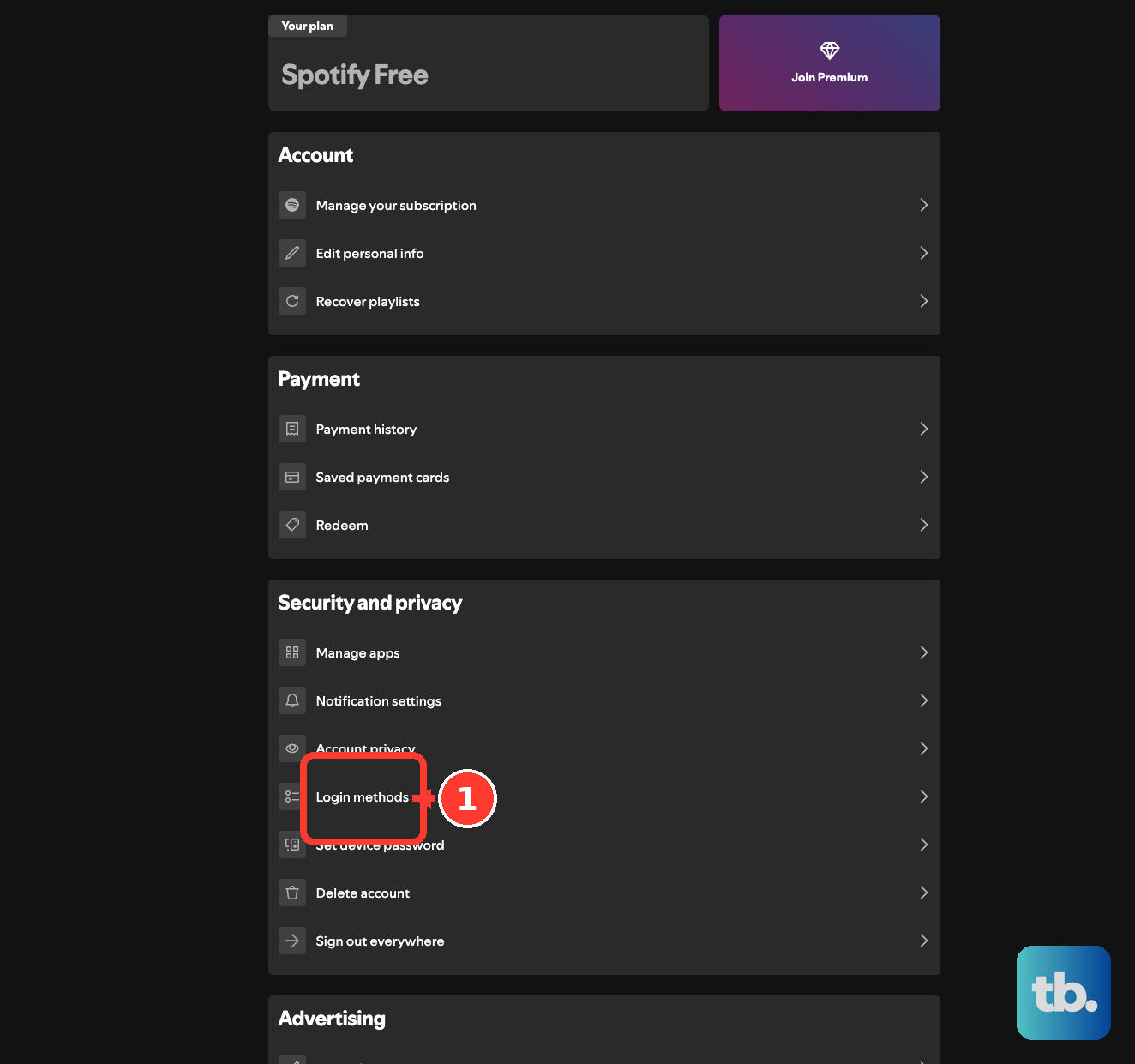
Older Spotify instructions often pointed people toward Facebook for finding friends. Spotify no longer lets accounts add Facebook as a new login method, so Facebook is not a current setup path for adding friends.
If your Spotify account already had Facebook connected and it still appears under login methods, Continue with Facebook can display your Facebook name and photo and help find friends. Accounts that signed up with or previously connected Facebook also have privacy choices for Facebook display name, Facebook profile picture, and Facebook Friends data.
Managed accounts for young listeners work differently, and the restriction is not limited to Premium Family. A managed account can be on Spotify’s free, ad-supported plan or on a Premium Family plan, and on either plan the profile cannot be followed or searched for by other users, so normal friend-follow steps do not apply.
If this method fails, use Search, a direct profile link, or a Spotify Code instead.
Frequently Asked Questions
Is adding a friend on Spotify the same as following them?
Yes. Spotify’s current profile action is Follow, so following a person’s profile is the practical way to add them as a friend.
Can I follow friends on Spotify without Premium?
Yes. Profile search, profile links, sharing your profile, Spotify Codes, and profile following apply to standard Free and Premium accounts. Managed accounts for young listeners are the documented exception, because their profiles cannot be searched for or followed by other users.
Why can’t I find my friend by searching their name?
Use a direct profile link or Spotify Code. Search can show many profiles with similar names, so a shared link or scan takes you to the exact profile.
Can my followers automatically see what I play?
No. Listening activity has to be turned on, and the other person also needs their own listening activity enabled for activity surfaces to show them.