Your squad can't hear you in Helldivers 2, and you need to find out where your voice is getting lost. Start with the headset, then use a Windows recording test to narrow down the problem. These Windows 11 fixes cover microphone permissions, Steam audio routing, Bluetooth headsets, and SteelSeries Sonar.
Start with the headset’s mute control and connection
A muted headset or loose microphone connection stops your voice before it reaches the game. Disengage the headset’s Mute button. Its location, and any keyboard mute shortcut, depend on your hardware.
Reconnect the microphone or headset securely, then position the microphone correctly for speaking. For a USB microphone, connect directly to the computer instead of a hub. On a desktop, try a rear USB port instead of a front port.
With an analog microphone, check the device manual for the correct microphone socket. Test another microphone if the connection still fails. This helps isolate a problem with the original hardware.
Find out whether Windows can hear you
This check catches the wrong input device and microphone volume that's too low. Open Settings > System > Sound > Input > Choose a device for speaking or recording. Select the microphone you intend to use. Pay attention here if a webcam, controller, or virtual microphone adds other inputs.
Open the selected microphone’s properties and select Start test. Speak into the microphone, then select Stop test when you finish speaking.
Choose Play to listen to the recording. If your voice is too quiet, increase Input volume on the microphone’s settings page. Repeat the recording test after adjusting the level. Once Windows records your voice successfully, focus on desktop-app permissions and Steam or game audio routing.
Allow microphone access and enable your recording device
Open Start > Settings > Privacy & security > Microphone. Turn on Microphone access.
Enable Let apps access your microphone. Enable Let desktop apps access your microphone. Helldivers 2 is a desktop game, so it has no individual switch in the Store-app list.
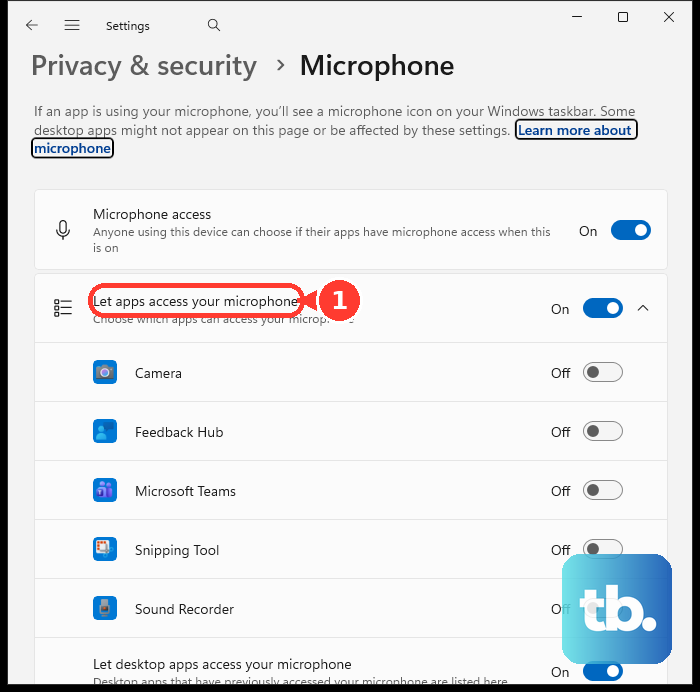
If your recording device is disabled, open Settings > System > Sound > Advanced > More sound settings > Recording. Select your microphone and open Properties. Set Device usage to Use this device (enable).
Point Steam and Game Bar at your microphone
Arrowhead recommends checking device selection in both Steam and Game Bar.
- 1.Open Steam > Settings > Voice.
- 2.Under Voice Input Device, choose your microphone, or select Default to use the default input.
- 3.With Helldivers 2 running, press Windows + G to open Game Bar.
- 4.Select your intended audio devices in Game Bar.
- 5.Test voice chat with your squad.
Correct your SteelSeries Sonar routing
Use these fixes if you already route your microphone through SteelSeries GG and Sonar. Other microphones do not require Sonar.
Open SteelSeries GG > Sonar > Mixer, then select your physical microphone as the input. If Sonar displays its yellow defaults warning, select Click to auto set defaults.
To set the recording default through Windows instead, open Settings > System > Sound > Advanced > More sound settings > Recording. Make Sonar Microphone the default recording device.
To address Windows enhancement conflicts with Sonar, open Settings > System > Sound > Input. Select your microphone. If it has an Audio Enhancements control, set it to Off.
Return to Sonar and test the microphone again.
Reconnect a Bluetooth headset or use a separate microphone
Follow the connection checks if your headset disconnects or disappears; use the final step if activating its microphone spoils playback.
- 1.Charge the headset, then turn it off and back on.
- 2.Open Settings > Bluetooth & devices and turn Bluetooth off and back on.
- 3.If it still won't connect, open Devices, find the headset, and select More options > Remove device > Yes. Pair it again.
- 4.If discovery fails, set Device settings > Bluetooth devices discovery to Advanced.
- 5.For a connection that still fails, open Settings > System > Troubleshoot > Other troubleshooters > Bluetooth > Run and follow the diagnostic prompts.
- 6.If playback quality deteriorates when the headset microphone activates, connect a separate microphone. Select it under Settings > System > Sound > Input, keeping the Bluetooth headset for playback. This is Arrowhead’s workaround for affected headsets.
Repair Windows audio when recording still fails
If Windows still cannot record your voice, start with its audio diagnostic. Open Settings > System > Troubleshoot > Other troubleshooters > Audio > Run.
Follow the diagnostic prompts. For driver updates, open Start > Settings > Windows Update > Check for updates. Install available audio-driver updates, then restart your PC.
If an audio-driver update caused the failure and a previous driver is available, open Device Manager > Sound, video and game controllers. Open the affected device’s Properties > Driver > Roll Back Driver. Follow the rollback prompts.
When updating does not resolve the problem, open Device Manager > Sound, video and game controllers. Right-click the affected audio device. Select Uninstall device. Confirm the removal.
Restart your PC so Windows can reinstall the driver. If recording still fails, test another microphone to isolate the hardware. If Windows records successfully but Helldivers 2 remains silent, try the game repair steps below.
Check Helldivers 2’s installed files
This targets problems with the game’s installed files as a general repair step. Open your Steam Library and right-click HELLDIVERS 2. Select Properties.
Open Installed Files and select Verify integrity of game files. Wait for the check to finish, then test voice chat again.
Reset local settings before contacting Arrowhead
Arrowhead recommends clearing its local application data as a later general repair step. Back up the folder first to protect your settings from the reset.
Close Helldivers 2, then press Windows + R. Enter %appdata% to open the application-data location. Open the Arrowhead folder.
Copy its contents to a backup folder before removing anything. Once the backup is complete, remove the contents of the original Arrowhead folder. Relaunch Helldivers 2, then test your microphone.
If the reset fails and Windows still records your voice successfully, open Arrowhead’s Submit a request form. Complete Your email address, Subject, Game, What platform are you playing on?, and Description, including your microphone model, Windows version, successful Windows recording result, and the fixes you have tried.
Frequently Asked Questions
Should I use the old Recording Audio troubleshooter?
Microsoft lists the legacy Recording Audio troubleshooter among the MSDT troubleshooters that are redirected to the Get Help platform, not among the ones being retired, so it no longer opens as a standalone MSDT wizard. Use the current Windows audio diagnostic instead of following instructions for the old wizard.
Will disabling Hands-free telephony fix my Bluetooth microphone?
No. Arrowhead recommends this only as an audio-quality workaround when you have another microphone selected for voice chat. Disabling it removes the headset’s hands-free microphone functionality.
Do the headset’s Game and Chat playback defaults control microphone recording?
Those settings control playback and receiving chat. For headsets with separate endpoints, open the Windows Sound dialog’s Playback tab. Set the headset’s Game endpoint as the default device and its Chat endpoint as the default communications device. Endpoint names depend on the headset.
Should I reinstall Helldivers 2 if nothing else works?
Arrowhead recommends reinstallation after simpler checks fail as a general game repair. In Steam’s Library, right-click HELLDIVERS 2 and choose Manage > Uninstall. Then select the game in your Library and reinstall it.