Xbox party chat on iPhone usually breaks in one of four places: the party session, microphone access, audio routing, or Xbox account settings. Your friends hear nothing, invites disappear, or the app opens under the wrong profile. Start with the fastest party checks, then move through the iPhone and Xbox settings that control voice chat.
Try the quickest party checks first
Begin inside the Xbox app, because a stuck party session often blocks voice before the iPhone itself is the problem.
- 1.Open the official XBOX app from Microsoft Corporation on your iPhone.
- 2.Start or join an Xbox party. To join a friend's party, select the Headset icon.
- 3.In the party, tap the Microphone icon next to your gamertag and make sure you are not muted.
- 4.Select Leave party, then join the party again.
- 5.If you are the party host, move hosting to another person, then try party chat again.
Allow Xbox to use your microphone
Open Settings on your iPhone.
Tap Privacy & Security, then tap Microphone.
Turn on XBOX. When Xbox is off here, the party opens but your voice does not reach anyone.
If XBOX is missing from the list, open the Xbox app and join a party so the app requests microphone access.
After changing the setting, select Leave party, then rejoin so the app uses the new permission.
Tip: if the microphone setting is locked on a child iPhone, a parent needs to allow microphone changes in Screen Time.
Make sure your iPhone microphone works
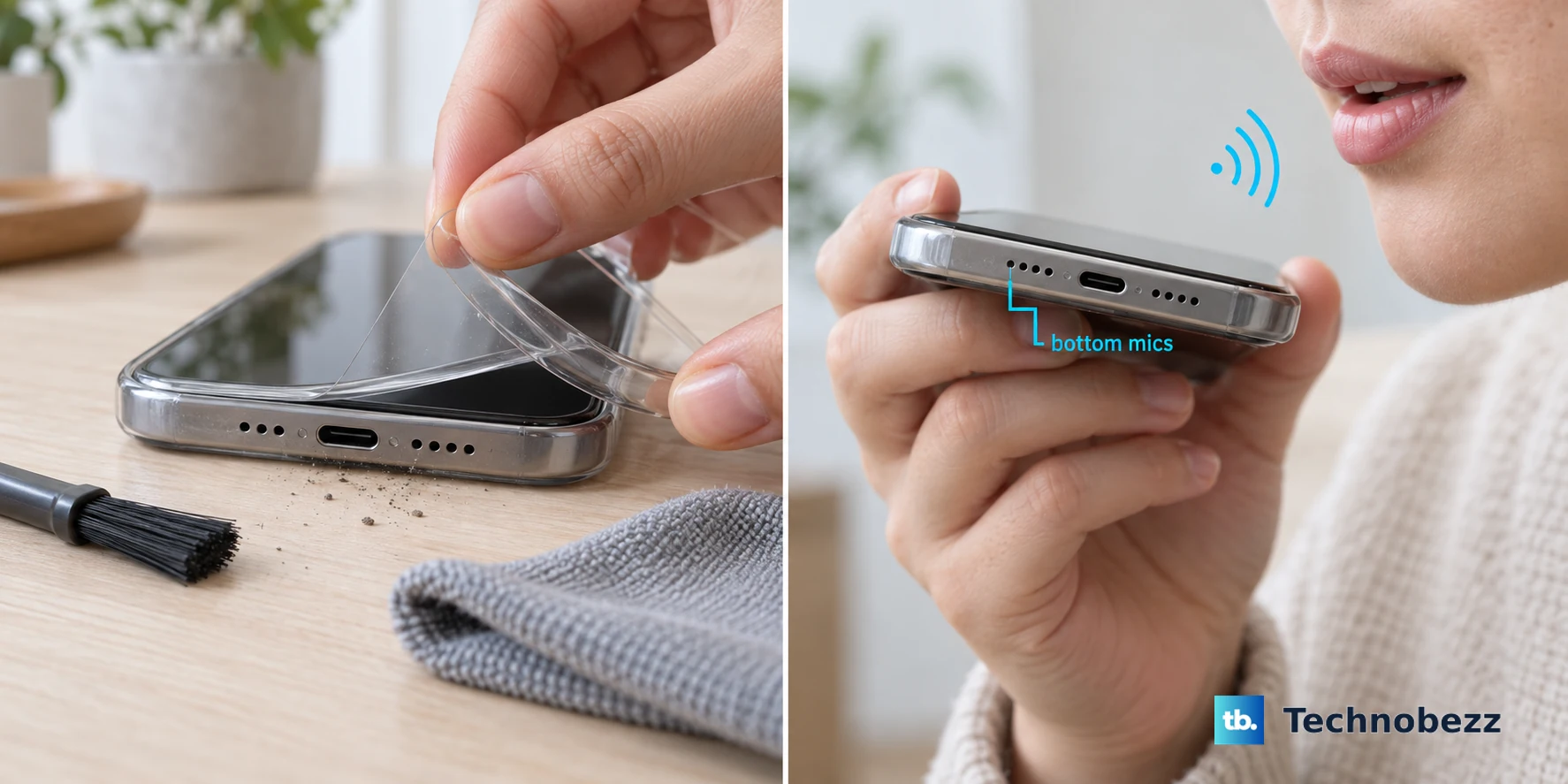
A blocked or failing microphone looks exactly like an Xbox party chat bug. Remove any case, film, or screen protector covering the microphone openings, then clear visible debris.
Open Voice Memos, tap Record, speak toward the bottom of the iPhone, stop the recording, and play it back. Then open Camera, record a short video while speaking near the top of the iPhone, switch cameras, record another video, and play both videos back.
If your voice is missing or badly distorted in those tests, fix the iPhone microphone problem first. If the microphone works in Apple apps, try the audio input and headset checks next.
Wrong audio routing breaks party chat
The most common cause with AirPods, Bluetooth headphones, controllers, wired mics, or other audio devices is that Xbox is listening to the wrong input.
While you are in the Xbox party, open Control Center. On an iPhone with Face ID, swipe down from the top-right corner. On an iPhone with a Home button, such as an iPhone SE or iPhone 8, swipe up from the bottom edge. Tap the app controls for the active call, then use Mic Mode under Audio & Video.
Choose Automatic or Standard first. Voice Isolation and Wide Spectrum work in certain third-party apps on iPhone XR, iPhone XS models, and later with iOS 15 or later. Automatic Mic Mode requires iOS 18 or later.
If more than one audio device is connected, open Control Center, tap the app controls, tap the device next to Audio Input, and select the microphone or headset you want to use.
Fix headset connection problems
Turn your Bluetooth headset off, then turn it back on.
Open the iPhone Bluetooth settings, unpair the headset, then pair it with the iPhone again.
For remote play or cloud gaming voice situations, connect the headset to the mobile device when you need the iPhone microphone path. A headset connected only to the Xbox controller does not give the Xbox app the same microphone route.
Rejoin the Xbox party after reconnecting the headset so the app uses the refreshed audio route.
Tip: test once without a headset to separate a headset routing problem from an Xbox app or account problem.
Update, restart, or reinstall the Xbox app
Use these app-level fixes after you have checked mute, microphone access, and audio routing.
- 1.Open the App Store, search for XBOX, and select the Xbox app by Microsoft Corporation.
- 2.Tap Update if an update is available, or Open if the app is already current.
- 3.Confirm your iPhone is running iOS 15.1 or higher, because the current Xbox mobile app requires iOS 15.1 or later.
- 4.Close Xbox from the app switcher, restart the iPhone, then reopen XBOX.
- 5.If the problem continues, touch and hold XBOX, choose Remove App, tap Delete App, then reinstall it from the App Store.
Turn on Xbox invite notifications
This applies when party chat works after you join manually, but Xbox party invites are missing, delayed, or hidden.
Open Settings, tap Apps, choose XBOX, tap Notifications, and turn on Allow Notifications. You can also use Settings, Notifications, XBOX, then Allow Notifications.
Next, check Focus. Go to Settings, tap Focus, choose the active Focus such as Do Not Disturb, Personal, Sleep, or Work, then open Apps. Use Allow Notifications From, tap Add Apps, and select XBOX.
Review account, privacy, and family settings
Sign out when the Xbox app shows the wrong friends, missing parties, or a profile that does not match the account you use on Xbox. In the Xbox app, select your profile picture, choose Sign out, then sign back in with the Microsoft account tied to your Xbox profile.
For communication blocks, review Xbox privacy settings. On an Xbox console, press the Xbox button, then go to Profile & system, Settings, Account, Privacy & online safety, Xbox privacy, View details & customize, and Communication & multiplayer. Check Others can communicate with voice, text, or invites and You can communicate outside of Xbox with voice & text.
If the account is managed by a family organizer, the organizer can review social and communication settings in the Xbox Family Settings app, unblock Xbox in Microsoft Family Safety, or adjust app and game limits. For school or business-managed iPhones, ask the administrator before resetting network settings or removing profiles.
If these settings are already open and correct, try the network checks before deleting the app again.
Use network fixes and skip outdated advice
Check Xbox service status before changing more settings. If Xbox services show an alert for parties, chat, sign-in, invites, or app services, wait for service recovery instead of repeatedly changing your iPhone setup.
Switch networks when the service is normal. Open Settings, tap Wi-Fi, turn on Wi-Fi, and choose a network with a blue checkmark. Make sure Airplane Mode is off.
If you use VPN or security filtering software, turn those features off in their app or remove the app, then restart the iPhone. As a last resort, go to Settings, General, Transfer or Reset [device], Reset, and Reset Network Settings.
Skip older fixes that tell iPhone users to clear the Xbox app cache through an Android-style Storage menu, use the old Xbox Game Pass mobile app, or follow Xbox 360 party chat privacy paths. Current replacements are restarting or reinstalling the Xbox app, using the supported Xbox mobile app, and reviewing current Xbox Communication & multiplayer settings.
Frequently Asked Questions
Why can I hear my Xbox party but they cannot hear me on iPhone?
The usual causes are mute inside the party, XBOX microphone permission being off, or the wrong input being selected in Control Center.
Does the Xbox app support party chat on iPhone?
Yes. The Xbox mobile app supports starting and joining Xbox parties with friends on iPhone, iPad, Xbox Series X|S, Xbox One, and Windows PC.
What iOS version do I need for the Xbox mobile app?
The current Xbox mobile app requires iOS 15.1 or higher on iPhone.
Can I clear the Xbox app cache on iPhone?
No current iPhone setting clears the Xbox app cache like Android or Windows. Restart Xbox, update it, delete it, or redownload it instead.