You try to eject your USB drive, but Windows says it can't stop your “Generic volume” device. Open files and background tasks keep drives busy, but Windows 11 also has a specific case where disconnecting after this error is allowed. Start with closing files, then check whether that exception applies before tracking down the blocker.
Close anything using the drive and retry
Let file transfers, backups, scans, and other work accessing the external drive finish. Save open documents stored on the drive. Close applications using its files, including media players or backup tools. Close File Explorer windows displaying the drive's contents.
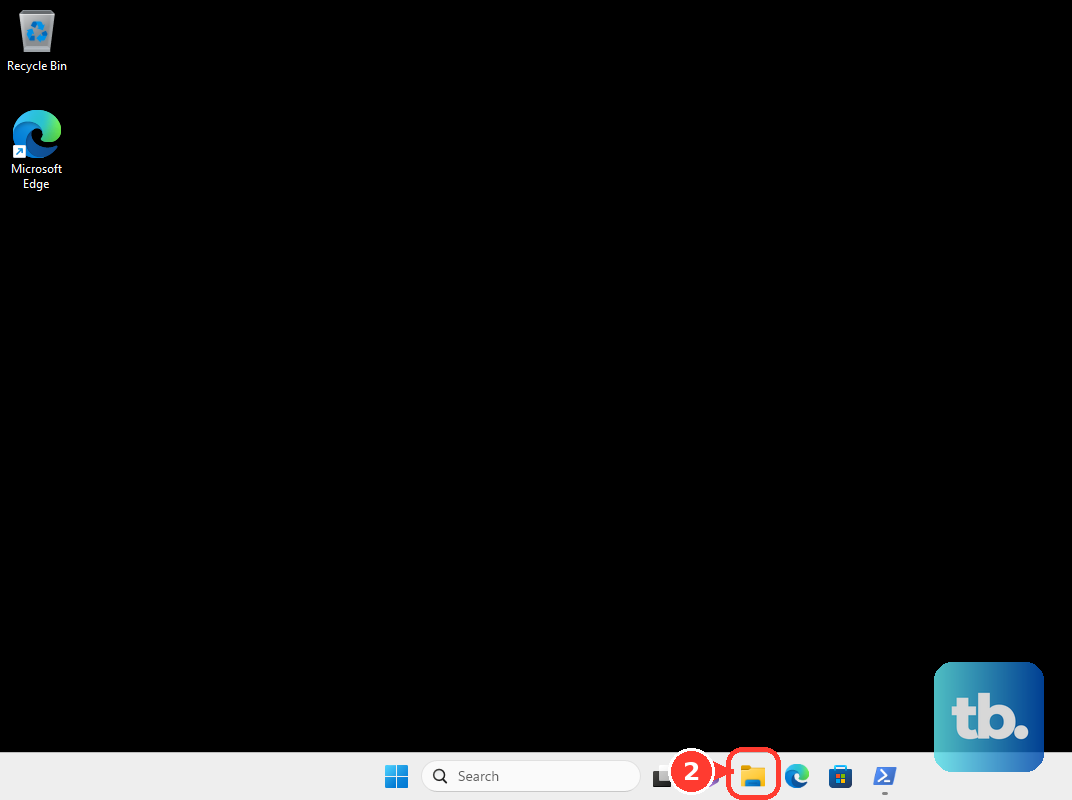
Open Show hidden icons on the taskbar if the safe-removal icon is hidden. Right-click Safely Remove Hardware and Eject Media, then select Eject <device> for your external drive. Disconnect it after the Safe To Remove Hardware notification appears. Switching eject menus does not release files that an application still has open.
When Quick removal lets you disconnect safely
For an NTFS-formatted USB drive on Windows 11 version 24H2 or later, Microsoft permits disconnecting after this error when Quick removal is enabled and all disk activity has finished. This applies to USB flash drives and external USB hard drives.
Right-click Start and select Disk Management. In the lower pane, right-click the external disk's label and select Properties. Check that you have selected the disk you intend to remove.
Open Policies. If that tab is missing, open Hardware, select the removable disk, and open its Properties to reach the policy setting. Select Quick removal.
Apply the setting. This disables Windows write caching; Quick removal has been the default since Windows 10 version 1809. Finish every transfer, save, backup, and other operation accessing the disk.
With Quick removal set and every transfer finished, Windows keeps supported external storage ready to remove at any time, so you can disconnect it without the Safely Remove Hardware process. Microsoft's Windows 11 24H2 guidance applies that specifically to this error on NTFS USB drives; it describes that scenario rather than adding extra requirements. If the drive is set to Better performance, or you cannot confirm that disk activity has stopped, continue below or shut down before unplugging.
Restart Windows Explorer if it holds the drive
This targets a drive held open by Windows Explorer. Wait for all File Explorer copy operations to finish. Press Ctrl+Shift+Esc to open Task Manager. Find Windows Explorer in the process list.
Right-click Windows Explorer, then select Restart. Retry removal through the taskbar's Safely Remove Hardware and Eject Media menu using Eject <device>.
Find the blocking app with Resource Monitor
Use the built-in Resource Monitor when closing the obvious apps has not cleared the error.
- 1.Press Win+R, enter
resmon, and press Enter. - 2.Open CPU, then expand Associated Handles.
- 3.Search for part of a file or folder name stored on the external drive.
- 4.Check Image and PID to identify the application holding it open.
- 5.Save that application's work and close it normally. If it will not close, right-click its process and select End Process. Forced termination risks losing unsaved work.
- 6.Retry removal through Safely Remove Hardware and Eject Media > Eject <device>.
Other ways to reach the removal controls
A missing eject icon needs a different fix from a busy drive. With the removable device connected on Windows 11, right-click the taskbar and open Taskbar settings > Other system tray icons. Turn on Safely Remove Hardware and Eject Media.
On Windows 10, right-click the taskbar and open Taskbar settings > Notification area > Select which icons appear on the taskbar. Enable Windows Explorer: Safely Remove Hardware and Eject Media. Retry removal through the taskbar's Safely Remove Hardware and Eject Media > Eject <device> menu.
For devices listed in Windows 11 Settings, open Start > Settings > Bluetooth & devices > Devices. Under Other devices, expand the correct hardware device and select Remove beside Remove this device. Wait until the device disappears before disconnecting.
Still blocked? Shut down before unplugging
Removing the drive while the PC is off is a safe fallback when ejection keeps failing.
- 1.Save your work.
- 2.Select Start > Power > Shut down.
- 3.Wait for shutdown to finish.
- 4.Disconnect the external drive while the PC is off.
Frequently Asked Questions
Does “Generic volume” refer to my sound settings?
No. Volume here means a storage volume, such as one on a USB flash drive or external hard drive. Audio settings do not resolve this removal error.
Does an empty file-lock search mean the drive is safe to unplug?
No. File-lock searches do not detect every device-level blocker. An empty result alone does not establish that the drive is idle or safe to disconnect.
Can I eject the drive from File Explorer instead?
Yes, when the drive offers that action. Open File Explorer > This PC. Right-click the removable drive. Select Eject. Wait for successful removal before unplugging. The option is not available for every external HDD or SSD, and open files still block removal.