Your laptop’s Wi-Fi switch won’t turn on, or the option has disappeared altogether. A disabled adapter, hardware switch, or driver problem can leave wireless unavailable. Start with the controls below, then follow the Windows 11, Mac, or Chromebook fixes that match your laptop.
Check the Wi-Fi toggle and hardware controls
On Windows 11, click the taskbar network icon or airplane icon to open Quick Settings. Turn Airplane mode off if it is enabled. Then click the Wi-Fi tile to turn wireless on.
On a Mac, open Apple menu > System Settings > Wi-Fi. Turn Wi-Fi on.
On a Chromebook, select the time at the bottom right. Select Not Connected, then turn Wi-Fi on.
Check your laptop’s manual for the location of a physical wireless switch, if your model has one. Move that switch to its on position.
On an HP laptop equipped with a wireless-signal or airplane-symbol key, press that key. Wait 10 seconds before checking the wireless indicator. Press the key again if the first press disabled wireless. Use your model’s documented wireless key: the key number and need for Fn depend on the laptop.
Try Settings and restart the laptop
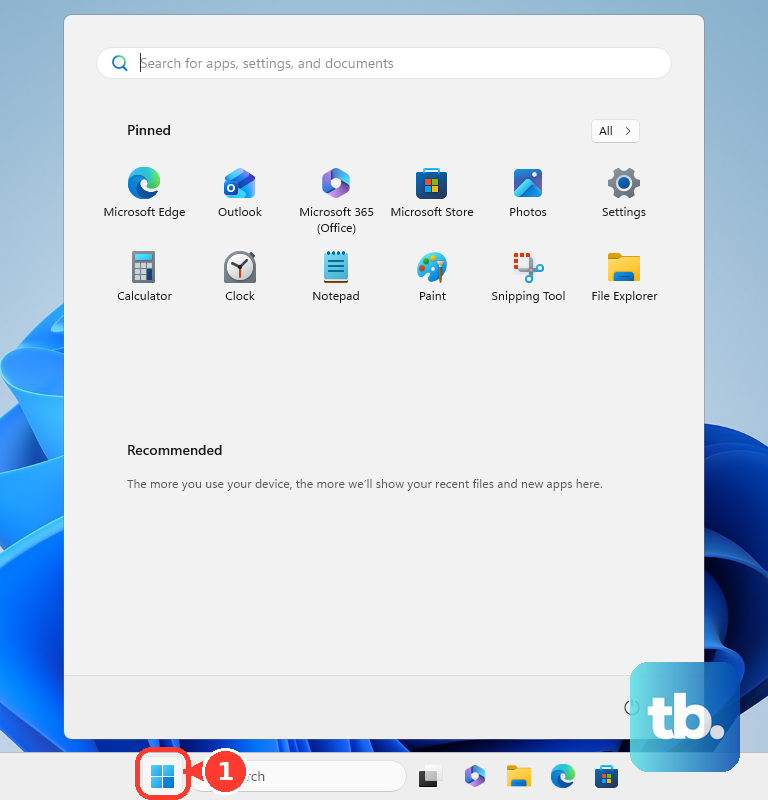
On Windows, open Start > Settings > Network & internet > Wi-Fi. Set Wi-Fi to On.
If the switch still refuses to cooperate, open Settings > Network & internet > Airplane mode. Switch Airplane mode to On, then back to Off. Return to Wi-Fi and set it to On; Microsoft recommends this sequence for Surface Wi-Fi problems.
Save your work before restarting. On Windows, choose Start > Power > Restart; on a Mac, choose Apple menu > Restart. On a Chromebook, turn it off and then back on.
If restarting Windows does not help, try the complete shutdown ASUS recommends. Open Start > Power, then hold Shift while selecting Shut down. Turn the laptop on again afterward.
Enable a disabled Windows wireless adapter
Use this fix when Windows detects the wireless adapter but has disabled it. Start with the adapter’s own enable control.
Open Settings > Network & internet > Advanced network settings. Select Enable beside Wi-Fi if the adapter is disabled.
For the alternative route, open Device Manager from the right-click menu on Start. Expand Network adapters, then select Enable device from your wireless adapter’s right-click menu if that option appears.
Record any warning symbol or error shown for the adapter. If the adapter is missing entirely, move to the driver checks below.
Run Windows diagnostics and restart its wireless service
These steps target Windows networking faults and the service that handles wireless connections. Open Microsoft’s Wi-Fi troubleshooting page. Select Run the troubleshooter in Get Help, then follow the diagnostic prompts in Get Help, Microsoft’s current troubleshooting platform.
For the Settings route, open Start > Settings > System > Troubleshoot > Other troubleshooters. Select the network troubleshooter. If Wi-Fi remains unavailable, press Windows + R to open Run. Enter services.msc.
Press Enter. Select Restart from the right-click menu on WLAN AutoConfig, using an administrator account if Windows requests authorization. Then try turning Wi-Fi on again.
Repair the wireless driver
A driver change is the first thing to check when Wi-Fi stops working immediately after an update. For that situation, open Device Manager > Network adapters. Select Properties from your wireless adapter’s right-click menu.
Open the Driver tab. Select Roll Back Driver. This requires an administrator account and a retained previous driver; if the button is unavailable, continue with the update options below. Choose a reason.
Select Yes, then restart if Windows requests it. To check for an updated driver instead, connect through Ethernet or another working internet connection.
Open Settings > Windows Update. Select Check for updates. Open Advanced options > Optional updates. Select the applicable wireless driver, if one is offered.
Choose Download and install, then restart after installation. If Windows offers no suitable driver, or the adapter is missing from Device Manager, download the matching wireless driver from your laptop manufacturer. Match the laptop model, adapter, operating system, and processor architecture; use another device for the download if necessary.
Transfer the download to the affected laptop if you used another device. Extract the downloaded driver package. For an adapter listed under Device Manager > Network adapters, select Update driver from its right-click menu. Select Browse my computer for drivers.
Select the extracted driver folder and complete the installation prompts. If a listed adapter still fails, save a replacement driver before uninstalling it. Select Uninstall device from the adapter’s right-click menu in Device Manager > Network adapters.
Select Uninstall to confirm, then restart the laptop. Windows attempts to reinstall the driver; keep the downloaded replacement ready in case that attempt fails.
Stop Windows from powering down the adapter
If Wi-Fi disappears after sleep, check the adapter’s power-saving setting. This option applies only to drivers that expose a Power Management tab.
Open Device Manager > Network adapters. Select Properties from your wireless adapter’s right-click menu. Open Power Management.
Skip this change if the tab is absent. Clear Allow the computer to turn off this device to save power.
There’s also a specific docking fix for the Dell Pro 14 Plus PB14255. If Wireless Radio Control is enabled in that model’s BIOS and Wi-Fi remains disabled after disconnecting an Ethernet-equipped dock, install BIOS version 1.17.0 or newer from the model’s Drivers & Downloads page.
If Wi-Fi still will not turn on, try the Windows network reset at the end.
Restore Wi-Fi on a MacBook or Chromebook
On a Mac whose wireless hardware is available but whose Wi-Fi network service is missing, open Apple menu > System Settings > Network > Action menu > Add Service. Set Interface to Wi-Fi. Enter a Service Name, then select Create.
For macOS updates, connect through a working connection such as Ethernet. Open Apple menu > System Settings > General > Software Update. Install the offered update. macOS receives compatible system updates rather than a separate generic Wi-Fi driver.
On a Chromebook, open time > Settings > About ChromeOS > Diagnostics. Inspect Connectivity and save the test details for support. Connect through Ethernet to check for updates while Wi-Fi is unavailable.
Open time > Settings > About ChromeOS. Select Check for updates. Update availability depends on the Chromebook’s eligibility. Install the offered update.
Restart the Chromebook after installation. If Wi-Fi remains unavailable, back up files in Downloads before a hardware reset; the reset can delete some files in that folder. Check Google’s hardware-reset instructions for model exceptions before using the following sequence, which applies to most Chromebooks.
Turn off the Chromebook. While holding Refresh, tap Power. Release Refresh when startup begins. Keep diagnostic results for support: a diagnostic test does not restore an undetected wireless radio.
Reset Windows networking after the other fixes
Network reset clears network configuration; afterward, reconfigure any VPN clients or virtual-network software that require it.
- 1.Open Settings > Network & internet > Advanced network settings.
- 2.Select Network reset.
- 3.Choose Reset now.
- 4.Select Yes to confirm.
- 5.Allow Windows to restart.
- 6.Try turning Wi-Fi on again.
Frequently Asked Questions
Will flushing DNS fix a Wi-Fi switch that will not turn on?
No. IP and DNS resets address networking problems after Wi-Fi is operating. They do not directly turn on a disabled wireless radio.
Why can’t I enable Wi-Fi on my work or school laptop?
Organizational policy can block Wi-Fi on managed Windows devices or restrict network configuration on managed Chromebooks. Contact your IT helpdesk to review those controls.
Does an Apple silicon Mac need an SMC reset for this?
No. Apple says Apple silicon Macs do not need a separate SMC key-reset procedure.
What should I do if Wi-Fi is still missing after these fixes?
On a Surface, open the Surface app, describe the problem, and select Get Help. Include adapter errors and diagnostic results. On a Mac, use Apple Diagnostics to investigate suspected hardware trouble: shut down, then disconnect unnecessary peripherals. On Apple silicon, hold Power until Options appears, then hold Command-D. On an Intel Mac, hold D during startup; try Option-D if necessary. Record the results for service.