Your Mac asks you to select a Wi-Fi network to activate, but there’s no network list, or no Wi-Fi menu at all. The next move depends on whether the menu is missing, one network is missing, or Wi-Fi connects but activation fails. Start with the menu bar, then follow the connection and Recovery steps that match what you see.
Look for Wi-Fi in the corner of the screen
The network selector sits in the menu bar, outside the activation window.
Click the Wi-Fi icon in the upper-right corner of the screen.
Select your network.
Enter its password when requested.
In Recovery, choose Turn Wi-Fi On if Wi-Fi is disabled. Both Apple silicon and Intel Recovery have these controls.
If Wi-Fi is already enabled but no usable network appears, choose Turn Wi-Fi Off.
Reopen the Wi-Fi menu and choose Turn Wi-Fi On.
Select your network again.
If the menu itself is missing, move to Ethernet or reopen Recovery below. Toggling Wi-Fi and joining a network manually both require that menu.
Ethernet gives activation another connection
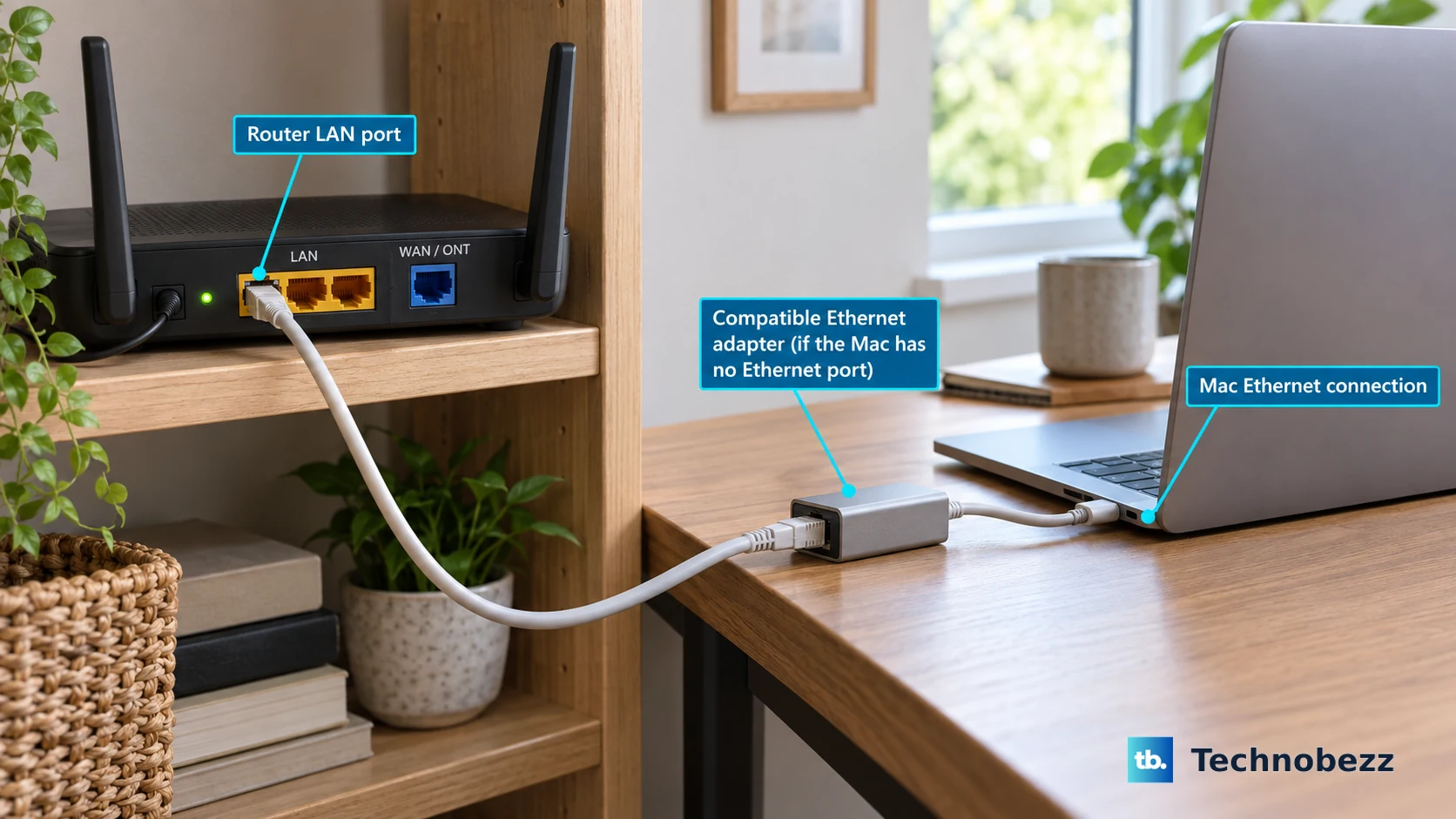
Ethernet gives you a way to retry activation without the wireless menu. Connect a router’s LAN port to your Mac’s Ethernet port.
If your Mac has no Ethernet port, connect through a compatible Ethernet adapter. Recovery compatibility matters; Apple does not guarantee support for every USB Ethernet adapter.
Retry activation with the cable connected.
If activation still fails over Ethernet, restart into Recovery next.
Restart into the right Recovery mode
Reopen Recovery to check its Wi-Fi controls again; restarting does not guarantee that a missing menu will return. Choose Apple menu > Shut Down if available. If the Mac is unresponsive, hold the power or Touch ID button for up to 10 seconds.
On Apple silicon, press and hold power from the off state until Loading startup options or Options appears. Release the button. Select Options > Continue.
On Intel, turn on the Mac while holding Command-R; for Internet Recovery, use Option-Command-R or Shift-Option-Command-R instead. Release the keys at the Apple logo or spinning globe.
Open the Wi-Fi menu and select your network. For a temporary Intel Internet Recovery failure, try another network or try again later.
If only your network is missing, join it manually
Enter a hidden or unlisted network manually when the Wi-Fi menu works.
- 1.Open the Wi-Fi menu in the upper-right corner.
- 2.Choose Join Other Network.
- 3.Enter the network’s exact name.
- 4.Enter its password when requested.
- 5.After connecting, retry activation.
Check your router and wireless signal
A hidden network name or weak reception explains a missing home network even when the Wi-Fi menu works.
Move the Mac closer to the router.
Reduce obstructions between the Mac and router.
Move nearby USB 3 or Thunderbolt 3 devices and hubs away from the Mac.
Turn off unused USB 3 devices to reduce interference.
Check whether another device connects to the same network.
If that device also fails to connect, restart the router using its manufacturer’s procedure.
For a router you manage, open its manufacturer’s app or configuration webpage. Router menu names vary, so use the manufacturer’s instructions to locate the following controls.
Enable network-name broadcasting by disabling Hidden network or enabling SSID broadcasting, depending on the available control.
Enable all supported bands and radio modes.
Set channel selection to automatic.
Use one unique network name across bands.
Keep wireless security enabled. Select WPA3 Personal, WPA2/WPA3 Transitional, or WPA2 Personal (AES) where needed for compatibility.
Try a Personal Hotspot or another network
Networks requiring browser sign-in or enterprise authentication do not reliably provide internet access in Recovery. Open the Wi-Fi menu and select another internet-connected network without those requirements.
For an iPhone or cellular iPad with carrier-supported hotspot service, enable Settings > Personal Hotspot > Allow Others to Join. Keep that screen open.
On the Mac, select the phone or tablet’s network name from the Wi-Fi menu and enter the displayed Wi-Fi Password. This requires working Recovery Wi-Fi; a hotspot does not replace a missing menu.
If an iPhone 12 or later hotspot stays invisible, enable Settings > Personal Hotspot > Maximize Compatibility. Keep that screen open while retrying from the Mac. If it remains missing, restart both devices, then toggle the Mac’s Wi-Fi off and on.
When activation still will not finish
Use these checks when Wi-Fi connects but activation fails, or wireless access remains unavailable after reopening Recovery. Persistent trouble across connections is the point to move beyond router adjustments.
If another network works, ask your internet provider or network administrator to investigate the original connection.
On a work, school, or other managed network, ask the administrator to allow Apple’s documented device-setup traffic, including TCP port 443 access to albert.apple.com, its setup dependencies, and DNS resolution.
For Wi-Fi that remains unavailable after restarting Recovery, shut down the Mac before running Apple Diagnostics.
Disconnect unnecessary peripherals.
On Apple silicon, hold power until Options appears.
Then hold Command-D until the Mac restarts.
On Intel, hold D at startup instead, or use Option-D if needed.
Follow the diagnostic prompts.
Choose Run Offline if offered.
Record any reference codes.
Contact Apple for service if the problem remains unresolved. Diagnostics identifies faults; it does not bypass activation.
Reserve firmware revival for Apple silicon or T2 Macs with firmware or persistent installation faults. It is not a specific remedy for a missing Wi-Fi menu. Apple’s procedure uses another Mac running macOS 14 or later and Finder.
For that escalation, follow Apple’s model-specific firmware revival instructions. A firmware restore erases the affected Mac and does not remove networking or ownership requirements.
Frequently Asked Questions
Can I use System Settings to add Wi-Fi during activation?
No. Adding a Wi-Fi service or resetting its configuration with a new network location requires access to the full macOS desktop. Those settings are unavailable in the Recovery activation interface.
Will downloading or reinstalling macOS fix the missing activation connection?
Downloading macOS alone does not resolve an unavailable activation connection. Use Apple’s download and installation instructions once connectivity and activation permit installation.
What if the Mac asks for the previous owner’s Apple Account?
That is Activation Lock. For an offline Mac, its owner can sign in at icloud.com/find, select the Mac, and choose Remove This Device. Organization-owned Macs should go through IT. Apple also offers an Activation Lock support request with proof of purchase. Removing the lock does not restore Wi-Fi discovery.
Can I connect my iPhone by USB instead of using Ethernet?
Apple documents USB Personal Hotspot for normal computer use, without promising availability during Recovery activation. For activation, use a Wi-Fi hotspot when the Recovery Wi-Fi menu works, or connect through compatible Ethernet hardware.