Your Windows 10 PC should show nearby Wi-Fi networks from the taskbar and in Settings, but the Wi-Fi option can disappear or your network name can stay hidden. Start with the fast controls, then move through Windows, driver, router, and reset fixes in the order most people need them.
Windows 10 is past general support. For security updates, use Windows 10 version 22H2 with ESU, an eligible LTSC release, another supported servicing path, or upgrade through Windows Update when your PC qualifies.
Start with the Wi-Fi switch and taskbar
Use this when Wi-Fi has vanished from the taskbar list or the Wi-Fi tile is off. It also fits laptops with a physical wireless switch or keyboard radio key.
Select the Network icon on the taskbar. If it is hidden, select the Up arrow first. Select Wi-Fi so it turns on. Choose your Wi-Fi network, select Connect, enter the network password, and select Next.
On laptops, turn on the physical wireless switch or wireless radio key. Some Lenovo models use Fn+F5, F5, or a wireless radio switch.
On Dell Windows 10 laptops, open the system tray network controls and click the Wi-Fi tile until it changes from gray to blue. If it stays gray, check the physical wireless switch.
Turn off Airplane mode in Settings
Open Start > Settings > Network & Internet > Wi-Fi. Turn Wi-Fi on.
Open Settings > Network & Internet > Airplane mode. Turn Airplane mode off.
You can also select the taskbar network area and select Airplane mode to turn it off from the flyout. After that, reopen the network list and turn Wi-Fi back on if Windows leaves it off.
Check whether Windows sees the adapter
If Wi-Fi is missing completely, confirm that Windows still detects the wireless hardware.
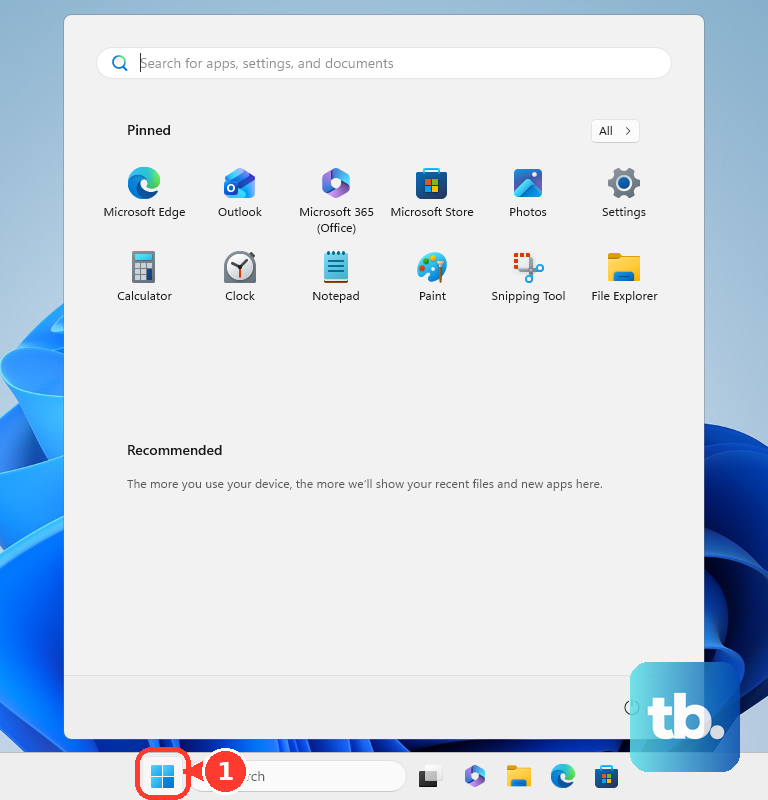
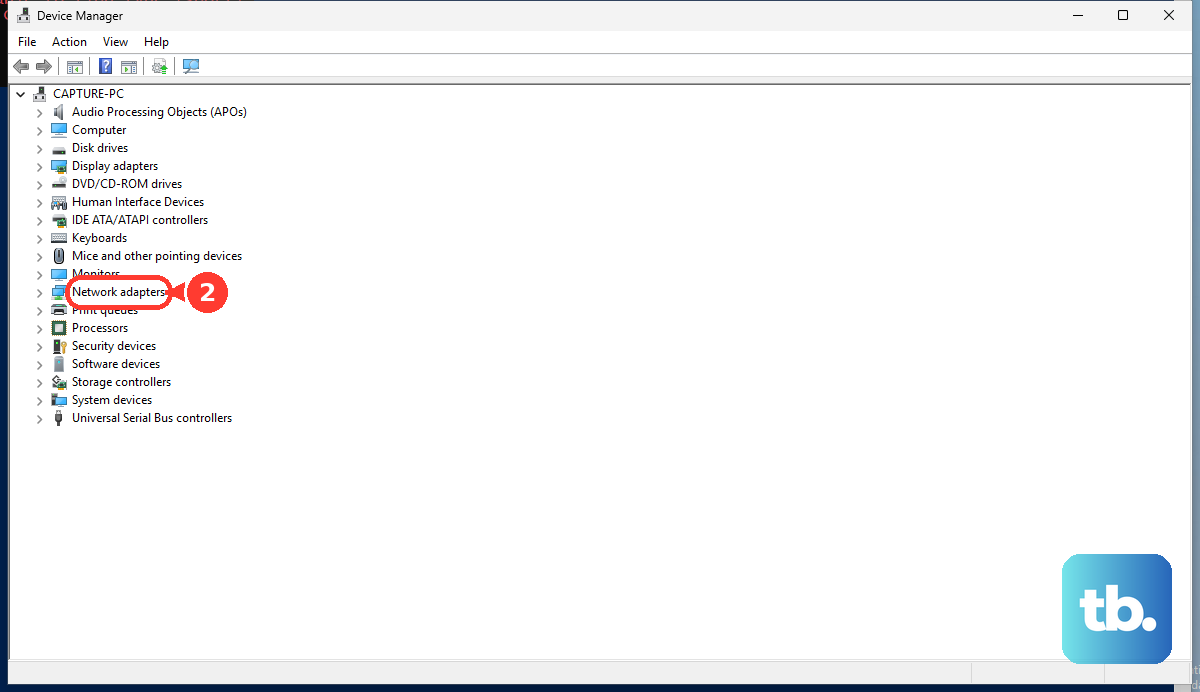
- 1.Select Start, type device manager, and select Device Manager.
- 2.Expand Network adapters.
- 3.Look for an adapter with wireless in the name.
- 4.If the adapter is disabled, right-click it and select Enable device.
- 5.Select Start > Power > Restart, then check Wi-Fi again.
Restart WLAN AutoConfig
This fixes the Windows service that scans for wireless networks and manages Wi-Fi profiles. Press Win + R. Type services.msc and press Enter.
Find WLAN AutoConfig. Right-click WLAN AutoConfig and select Restart. Open the taskbar network list and check whether nearby Wi-Fi networks are listed.
Run the Windows 10 Network troubleshooter
Open Start > Settings > Network and Internet > Status. Scroll down and select Network troubleshooter.
In Troubleshoot Problems, follow the on-screen instructions. Windows 10 uses this Settings troubleshooter path for network issues.
Use the taskbar network flyout, Windows 10 Settings, Device Manager, services, and the Windows 10 Network troubleshooter for this problem. Windows 11 uses a different Get Help app troubleshooter path.
Refresh the driver and Windows updates
Use this when Wi-Fi disappeared after an update, a driver change, or a restart. Before removing any network adapter driver, download the latest Wi-Fi driver from your PC maker as a backup.
Open Device Manager. Expand Network adapters. Right-click the wireless adapter and select Uninstall device.
Check Delete the driver software for this device, then select Uninstall. Some Windows 10 builds label the same checkbox Attempt to remove the driver for this device. Select Start > Power > Restart.
For Dell PCs, open Dell Support Drivers & Downloads, enter the Service Tag or allow detection, open the Network category, download the latest wireless driver, install it, and restart. On non-Dell PCs, use the official support page for your exact PC model and install the matching wireless network adapter driver.
Then open Start > Settings > Update & Security > Windows Update > Check for updates, install available updates, and restart when prompted.
Fix the router or hidden network name
The most common router-side cause is that the Wi-Fi radio or SSID broadcast is turned off. Move the Windows 10 PC closer to the router or access point, then reopen the taskbar network list. Five full signal bars indicate the strongest signal.
If your router shows separate 2.4 GHz and 5 GHz network names, select the other network name from the taskbar list, select Connect, and enter the password.
On supported TP-Link routers, press the physical Wi-Fi button and confirm the Wi-Fi lights turn on. In the TP-Link web interface at tplinkwifi.net, open Advanced > Wireless > Wireless Settings and enable the 2.4G/5G Wireless Radio. On older TP-Link interfaces, open Wireless > Basic Settings, turn on Wireless, and turn on Enable SSID Broadcast.
If the TP-Link network is hidden, turn off Hide SSID in wireless settings. A hidden network name does not appear during scans and must be joined manually by network name and password.
Adjust adapter band and power settings
Use these adapter settings when your PC sees some Wi-Fi networks but misses yours, or when Wi-Fi disappears after sleep or low-power use.
- 1.Open Device Manager, expand Network adapters, right-click the wireless adapter, select Properties, then open Advanced.
- 2.Look for Wireless Mode or Band, and set it so the adapter allows your network frequency.
- 3.Open Power Management for the adapter and clear Allow the computer to turn off this device to save power.
- 4.Open Control Panel > Hardware and Sound > Power Options, select your plan, then select Change plan settings and Change advanced power settings.
- 5.Expand Wireless Adapter Settings and set Power Saving Mode to Maximum Performance.
Reset networking after the basics fail
Open Search, type command prompt, and select Run as administrator > Yes. Run netsh winsock reset. Run netsh int ip reset. Run ipconfig /release.
Run ipconfig /renew. Run ipconfig /flushdns. If Wi-Fi is still missing, select Start, enter settings, and open Settings > Network & internet > Status > Network reset.
Select Reset now > Yes and wait for the PC to restart. Network reset removes installed network adapters and settings, so set up VPN clients and virtual switches again after the restart. On a work or school PC, contact IT before changing managed Wi-Fi profiles, hidden networks, filters, or scan behavior.
Frequently Asked Questions
Why is Wi-Fi missing from Windows 10 Settings?
Windows is not detecting the wireless adapter, the adapter is disabled, Airplane mode is on, or WLAN AutoConfig needs a restart.
Why does my Windows 10 PC see other networks but not mine?
Your router is out of range, using a band the adapter does not support, hiding the SSID, or not broadcasting Wi-Fi.
Should I reset the network first?
No. Use Network reset after checking Wi-Fi, Airplane mode, Device Manager, WLAN AutoConfig, drivers, and the router because it removes network adapters and settings.
Does Windows 10 still get Wi-Fi fixes?
Windows 10 is past general support. Security updates require an eligible ESU, LTSC, or other supported servicing path, or an upgrade to Windows 11 through Windows Update when eligible.