Your Samsung phone is connected to Wi-Fi, but calls still fail. Start with the Wi-Fi Calling switch and your internet connection, then check activation, software, and network settings. Try an ordinary call after each change so you can stop when calling works.
Check the Wi-Fi Calling switch first
Wi-Fi Calling requires a compatible Galaxy phone, an active SIM or eSIM, and support from your carrier and plan. Enable it under Settings > Connections > Wi-Fi Calling.
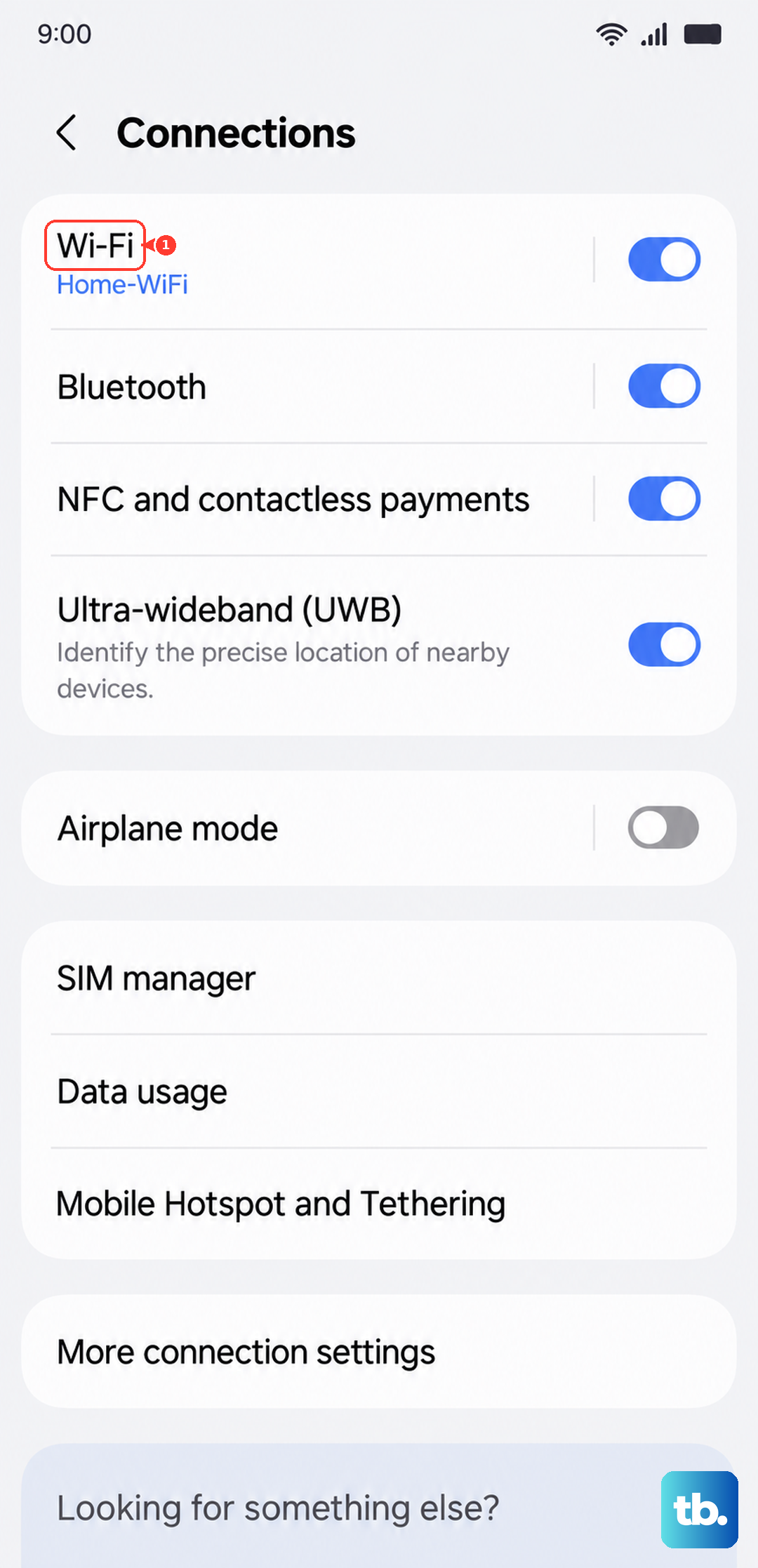
If it is already enabled, toggle Wi-Fi Calling off and back on.
Complete the activation prompts that appear.
If the setting is missing under Connections, look under Phone > More options (the three dots) > Settings > Wi-Fi Calling. Availability depends on the carrier, region, and firmware. The carrier checks below cover an option that is missing from both locations.
Make sure the Wi-Fi connection can carry calls
A Wi-Fi connection without working internet access cannot support Wi-Fi Calling.
Connect to your network under Settings > Connections > Wi-Fi. Wi-Fi and Wi-Fi Calling are separate settings, and both must be enabled.
On EE, reconnect to public Wi-Fi each time you visit, because it usually does not keep you logged in.
For poor call quality, move closer to the router.
Pause streaming to reduce congestion.
Disconnect other busy devices if the network remains congested.
On Google Fi, enable Airplane mode under Settings > Connections > Airplane mode to test internet access without cellular data.
Reconnect to Wi-Fi under Settings > Connections > Wi-Fi.
Open several websites in your browser.
If browsing works but calls fail, join another Wi-Fi network under Settings > Connections > Wi-Fi.
Try an ordinary call on that network.
Turn Airplane mode off afterward to restore cellular service.
For T-Mobile, use broadband with at least 2 Mbps upload and download. T-Mobile excludes satellite internet and cellphone hotspots from its supported Wi-Fi Calling connections.
Finish activation and correct your emergency address
These checks address activation blocked by incomplete emergency information or carrier setup.
During activation, enter the emergency information your carrier requests.
Tap Save if requested.
To correct an existing registration, open Settings > Connections > Wi-Fi Calling > Emergency Address.
Complete the carrier’s form. Its fields and capitalization vary by carrier.
For T-Mobile, sign in to T-Mobile.com. Valid E911 registration is required for Wi-Fi Calling.
Open Account > Profile Settings > Select Line > Line Settings > E911 Address for the affected line.
Enter that line’s primary usage address.
Select Save changes.
For Verizon activation, connect to Verizon or working Wi-Fi.
Enable Wi-Fi Calling under Settings > Connections > Wi-Fi Calling.
Accept the Terms & Conditions.
Confirm your US emergency address.
If activation fails, ask Verizon to investigate HD Voice provisioning. HD Voice is enabled by default on current smartphones.
For newly activated Google Fi service, complete the activation prompts in the Google Fi app.
Check the app’s home screen for a pending number-transfer notice. Calls require both activation and the transfer to be complete.
Restart your phone and install updates
Restart the phone through Quick settings > Power icon > Restart > Restart. On newer Galaxy layouts, open Quick settings with a two-finger swipe down from the top right.
If the phone is frozen, hold the Side key and Volume down together for more than seven seconds, until it restarts.
If calling still fails after the restart, check for an update under Settings > Software update > Download and install. Depending on the model and carrier, the labels are System updates, Check for system updates, or Check for software updates.
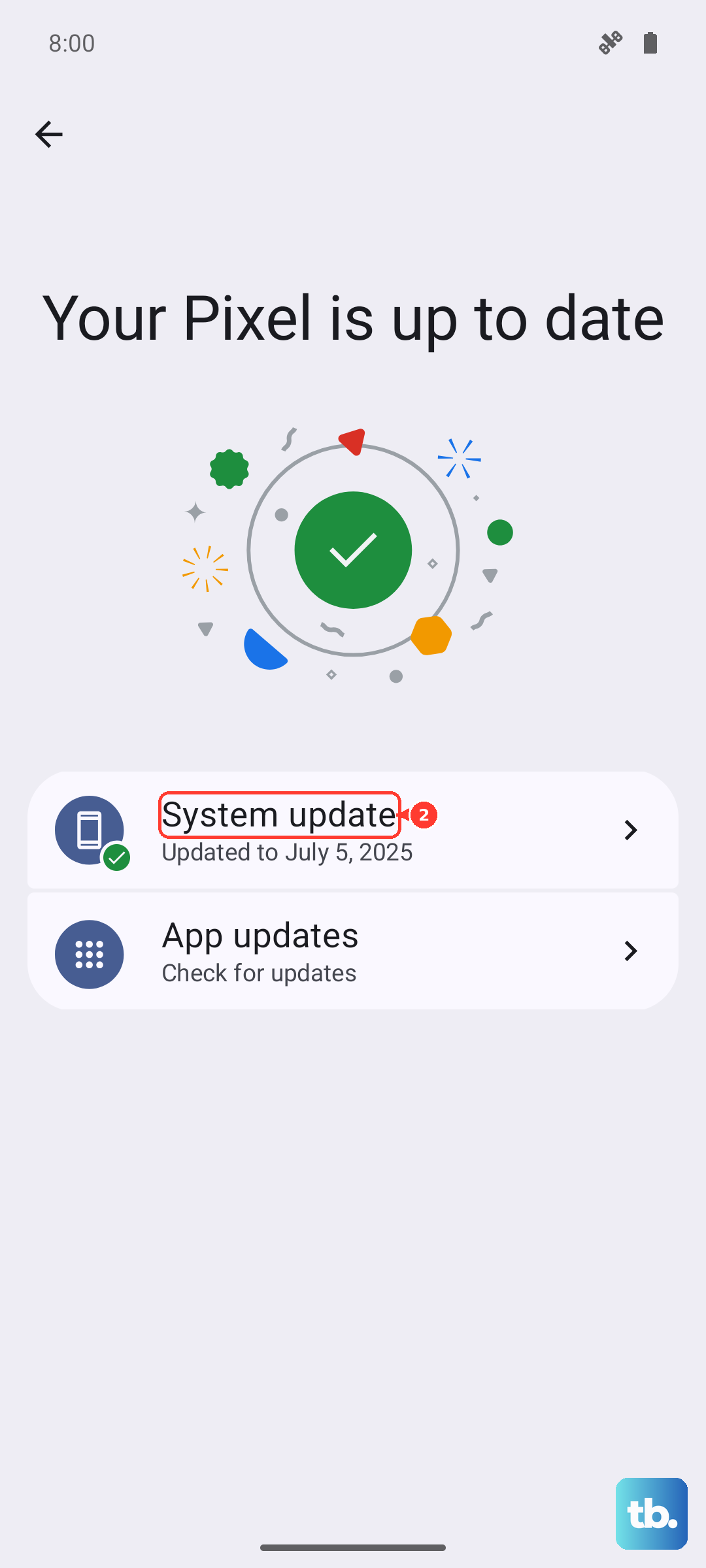
Follow the prompts to download and install an available update.
Reconnect to Wi-Fi before resetting network settings
Open Settings > Connections > Wi-Fi. Have the network password ready before removing the saved connection.
Press and hold the affected network.
Select Forget network.
Reconnect to the network using its password.
If the problem continues on your home network, restart the router by disconnecting and reconnecting its power.
Reconnect your phone to Wi-Fi.
Try another call.
For a persistent Wi-Fi connection problem, open Settings > General management > Reset > Reset Wi-Fi and Bluetooth settings.
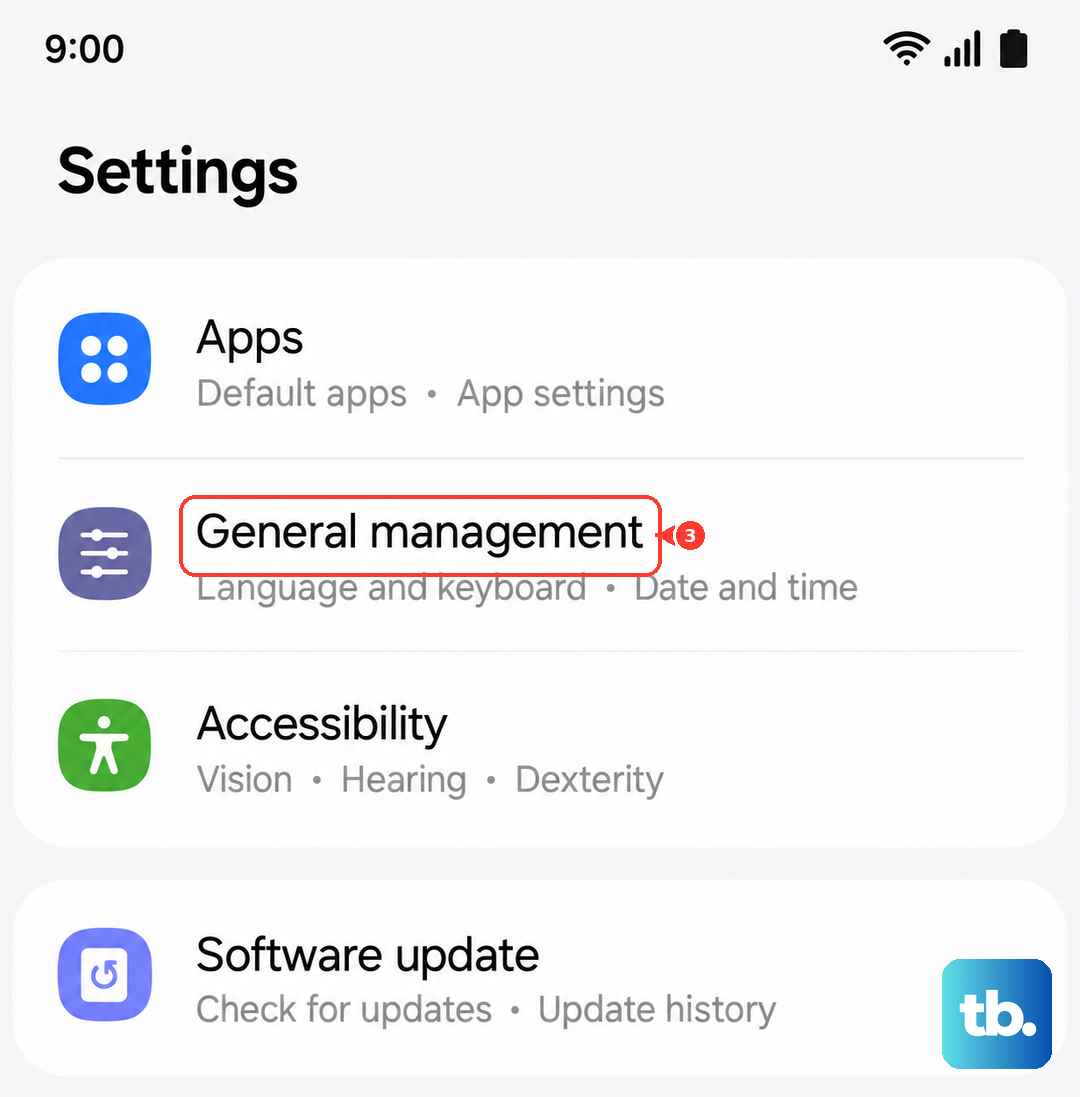
Tap Reset settings. This removes saved Wi-Fi connections and Bluetooth pairings.
Rejoin your Wi-Fi network.
Pair your Bluetooth accessories again.
Test calling.
If Wi-Fi itself works but calling still fails, open Settings > General management > Reset > Reset mobile network settings. This resets cellular configuration without erasing apps or personal data.
Tap Reset settings.
Tap Reset to confirm.
Choose the reset that matches the failing connection, and test calling before moving to the other reset.
Check for an app interfering with the connection
Use these checks when trouble starts after installing an app or the underlying Wi-Fi connection remains unreliable. Safe mode helps identify Wi-Fi problems caused by downloaded apps.
Open Quick settings.
Tap the Power off icon.
Touch and hold Power off.
Select Safe mode.
Test the Wi-Fi connection. If it works in Safe mode, recently installed apps need investigation.
Restart the phone to exit Safe mode.
Open Settings > Apps > Filter and sort > Installed by you > Ok to find downloaded apps.
Select a suspected recent app.
Tap Uninstall.
Tap OK to confirm.
Retest calling before removing another app.
On Google Fi, disconnect an active VPN using its app’s disconnect control. The control’s label depends on the VPN app; Google identifies VPN interference as a cause of Fi Wi-Fi Calling trouble.
Retest calling with the VPN disconnected.
Search for Google Fi in Google Play.
Tap Update if offered.
Place your test call through the Phone app supplied with the device or Google’s Phone app. These are the dialers supported by Google Fi.
Get help for a persistent failure
Carrier checks and diagnostics address account, network, and device problems that remain after the phone checks.
Contact your carrier if Wi-Fi Calling remains missing, will not activate, or still fails. Request a check of device and account support, provisioning, and APN configuration.
If calls fail only on one Wi-Fi network, contact the internet provider. For AT&T, request a check against its Wi-Fi Calling network requirements, including the network equipment’s firmware.
On Google Fi, open Google Fi > Support > Connectivity issues > Phone Call issues.
Run the connection diagnostic.
If the problem remains, upload the diagnostic report.
Contact Fi support about the unresolved failure.
For a repeatable failure, open Samsung Members > Support > Error Reports within five minutes of the failure.
Select the relevant category.
Set Frequency.
Describe what happened, including whether calling fails on more than one Wi-Fi network.
Select Send system log data.
Send the error report.
Keep Samsung Members open while it generates the logs.
If carrier assistance does not resolve the failure, request Samsung service to investigate hardware problems.
Frequently Asked Questions
Why does my Samsung phone use cellular service when Wi-Fi Calling is enabled?
Carriers can prefer cellular service when the signal is adequate, so a missing Wi-Fi Calling icon alone does not establish a fault. Open Settings > Connections > Wi-Fi Calling > Calling Preference if your carrier provides it. Select the Wi-Fi preference offered. A Roaming network preference or When Roaming setting does not necessarily control domestic calls.
Can I test Wi-Fi Calling with Airplane mode?
T-Mobile supports a Wi-Fi-only calling test on compatible devices. Enable Airplane mode under Settings > Connections > Airplane mode. Reconnect through Settings > Connections > Wi-Fi. Enable Settings > Connections > Wi-Fi Calling. Place an ordinary call. Turn Airplane mode off afterward to restore cellular service. This test does not replace carrier activation.
What if only certain incoming calls fail?
Open Phone > More options > Settings > Block numbers. Tap the red Minus icon beside a number to unblock it. For redirected calls, open Phone > More options > Settings > Supplementary services > Call forwarding. Select the unintended forwarding option. Tap Disable. Forwarding controls depend on your carrier and phone; these checks address call filtering and redirection.
Do I need to factory reset my Samsung phone?
Samsung’s Wi-Fi Calling troubleshooting prioritizes network resets. A factory reset erases personal data and does not guarantee a Wi-Fi Calling fix. Complete carrier troubleshooting before considering one, and back up your data first.