WhatsApp messages arrive on your Samsung phone, but there's no sound. Start with the phone's volume controls, then check notification permissions and muted chats. If messages appear only after you open WhatsApp, head straight to the background delivery section below.
Start with sound mode and notification volume
This fixes alerts silenced by Mute, Vibrate, or low notification volume. Select Sound under Settings > Sounds and vibration.
Raise the Notifications slider under Settings > Sounds and vibration > Volume. Raising media volume alone does not change notification volume. Tap an audible preset under Settings > Sounds and vibration > Notification sound to preview and select it. This controls WhatsApp's sound when it uses the system default; app-specific tones have separate settings.
Allow WhatsApp to make a sound
Enable Allow notifications under Settings > Notifications > App notifications > WhatsApp. Allow Sound and vibration if that option appears on the screen.
Enable Manage notification categories for each app under Settings > Notifications > Advanced settings. On software with this switch, leaving it off hides the category controls. Return to Notifications > App notifications > WhatsApp > Notification categories.
Tap the category for the messages that arrive silently. WhatsApp supplies the names, which vary for messages, groups, and custom chats. Enable Allow notifications for that category, then select Alert.
Tap Sound and choose an audible tone. Repeat these adjustments for each affected message, group, or custom-chat category. Check these Samsung controls even when WhatsApp already has a tone selected, because device restrictions override the app's settings.
Choose WhatsApp's message and group tones
Use this when Samsung allows audible alerts but WhatsApp's selected tone needs changing. Messages and groups have separate sound settings. Open WhatsApp's More options menu, the three vertical dots, then go to Settings > Notifications.
Tap Notification tone under Messages. Select an audible tone, then tap Save. Repeat the tone selection under Groups.
For missing send-and-receive sounds while a conversation is open, enable Conversation tones on the same notification settings screen. These sounds also depend on notification volume and the phone being in Sound mode.
Unmute individual chats and groups
A muted conversation silences that chat even when other WhatsApp messages make a sound. Open the affected chat, tap the person's or group's name, then open Notifications.
Turn off Mute. For groups, use the setting under Messages. If incoming group calls are also silent, turn off Mute under Calls.
To change the conversation's sound, tap Notification tone. Choose an audible tone, then tap Save.
If several silent conversations belong to the same muted list, open WhatsApp's More options > Settings > Lists. Select the affected list, then turn off Mute.
Stop Do not disturb from silencing alerts
Turn off Do not disturb under Settings > Notifications > Do not disturb. Review the schedules on that screen if sound repeatedly stops at particular times, and disable any unwanted schedule.
To keep Do not disturb enabled while allowing WhatsApp, open Settings > Notifications > Do not disturb > App notifications > Allow selected apps > Add apps, where these controls are available. Select WhatsApp.
On phones supporting modes, open Settings > Modes and Routines > Modes. Select the mode that activates when the problem occurs. Inspect its Do not disturb, Restrict app usage, and Other actions settings for notification restrictions.
For an automation that silences the phone, open Routines. Select the routine, tap Edit, then change the action responsible for silencing notifications. Tap Save. If silence returns at the same time each day, revisit schedules and modes even after manually restoring sound.
Restore background delivery when messages arrive late
These checks address messages that arrive late or only after you open WhatsApp. Open a website in your phone's browser to test internet access. If the website does not load, restore your Wi-Fi or mobile-data connection before testing WhatsApp again.
Turn off Power saving under Settings > Battery > Power saving. Open Settings > Device care > Battery > Background usage limits > Sleeping apps. Some versions place these controls under Battery and device care > Battery.
Touch and hold WhatsApp if it is listed, then tap Remove. Repeat the removal in Deep sleeping apps if WhatsApp appears there too.
To prevent automatic sleeping, open Background usage limits > Never sleeping apps > +, where available. Select WhatsApp, then tap Add. Extra background activity comes with a risk of higher battery consumption.
For delays on cellular data, turn off Data saver under Settings > Connections > Data usage > Data saver. To retain Data saver instead, enable WhatsApp under Allowed to use data while Data saver is on, labeled Apps that can always use data on some phones.
Enable Allow background data usage under Settings > Connections > Data usage > Mobile data usage > WhatsApp.
Check the phone's audio when other sounds are missing
If audio is missing outside WhatsApp too, check the phone's sound controls and speaker output. Turn off Mute all sounds under Settings > Accessibility > Hearing enhancements. Disconnect wired audio accessories to test the phone's speaker.
Turn off Bluetooth in Quick settings to test without wireless audio accessories. Remove any case or accessory obstructing the speaker openings. If sound is still missing, run the speaker test under Samsung Members > Discover > Diagnostics > Phone diagnostics > Speaker. Diagnostics are also accessible from Support.
Restart and refresh WhatsApp's settings
Open Quick settings, tap the power icon, then tap Restart to troubleshoot a temporary audio or system fault.
Check for a WhatsApp update through Settings > Apps > WhatsApp > App details in store. Tap Update if offered.
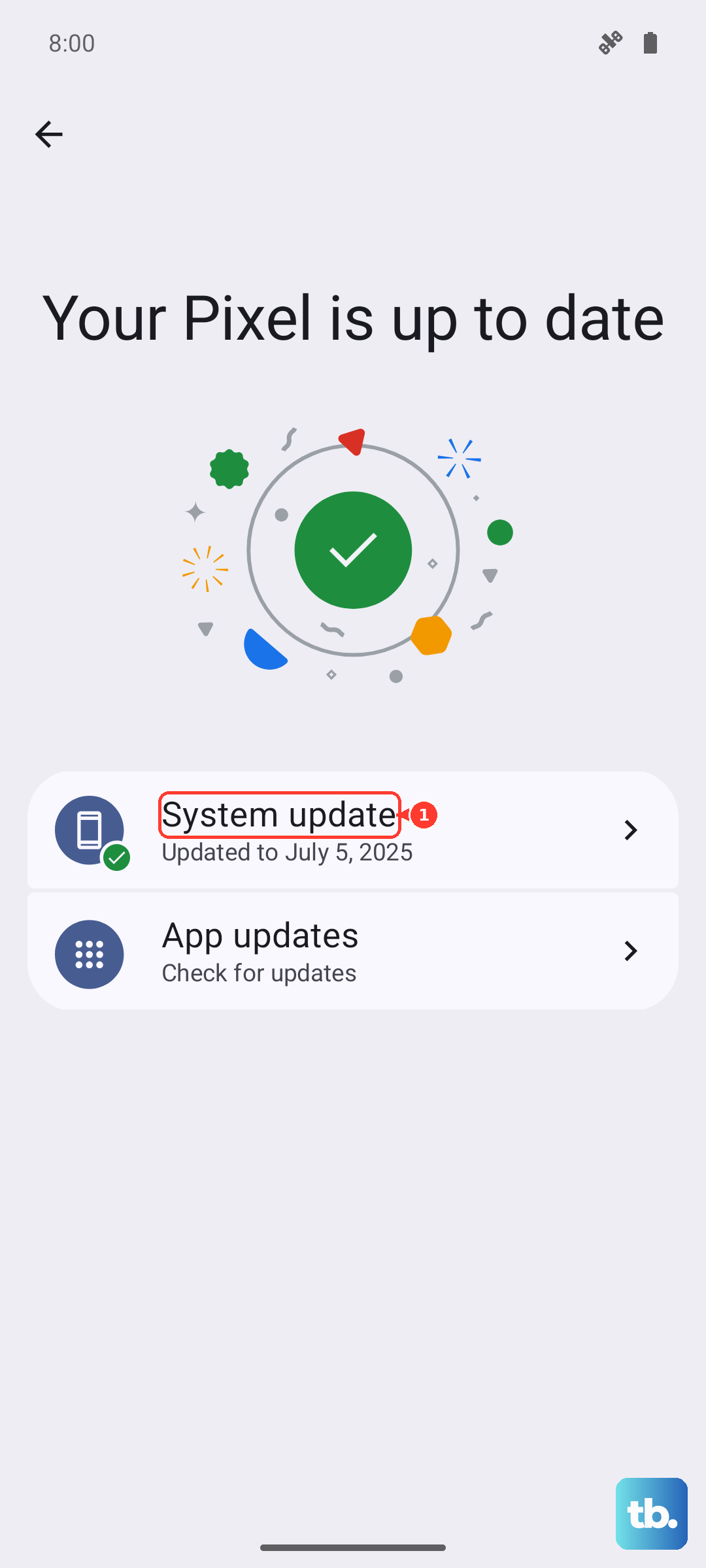
Check for Samsung software updates under Settings > Software update > Download and install. Carrier versions also use the label Check for updates. Install any available system update.
Tap Clear cache under Settings > Apps > WhatsApp > Storage. This is general app troubleshooting, with no guaranteed effect on notification sound.
For a remaining WhatsApp-only problem, select Reset notification settings under WhatsApp's More options > Settings > Notifications > More options. This resets notification preferences; it does not guarantee a sound repair. Tap Reset, then choose your preferred message and group tones again using the tone controls above.
For a fault you can reproduce after these checks, touch and hold Samsung Members. Select Error reports, then select the relevant category. Describe the problem, including whether alerts arrive silently or messages arrive late, then tap Send.
Finish these notification checks before considering a reset that removes app data or erases the phone.
Frequently Asked Questions
Can Safe mode test WhatsApp notification sounds?
No. Safe mode disables downloaded WhatsApp, so incoming WhatsApp notifications cannot be tested there. Use it to test built-in audio when the phone has wider sound problems.
Could my Galaxy Watch be keeping notifications off my phone?
For Galaxy Z Flip7 or Flip7 FE paired with Watch8, Watch8 Classic, or Watch Ultra, select Always show on both under Galaxy Wearable > Watch settings > Notifications instead of Smart device selection. The phone's sound settings must still permit audio. Review Sync Do not disturb with phone on the same screen for unwanted synchronization.
Why are notifications delayed for WhatsApp inside Secure Folder?
Secure Folder restricts background activity while locked unless it is allowed. With the latest Secure Folder version, enable Allow background activity while locked under Secure Folder > More options > Settings. Then enable Allow notifications for WhatsApp under Secure Folder > More options > Settings > Notifications > App notifications > WhatsApp.
Will Reset all settings reset WhatsApp's notification preferences?
No. Samsung's Reset all settings preserves downloaded-app settings, apps, personal data, and accounts. WhatsApp's Reset notification settings command is separate.