WhatsApp images disappear from Gallery or Photos when saving is off, the file has not downloaded, photo access is blocked, or the folder is hidden. Start with the setting that controls new incoming media, then move through per-chat settings, permissions, storage, and app repair.
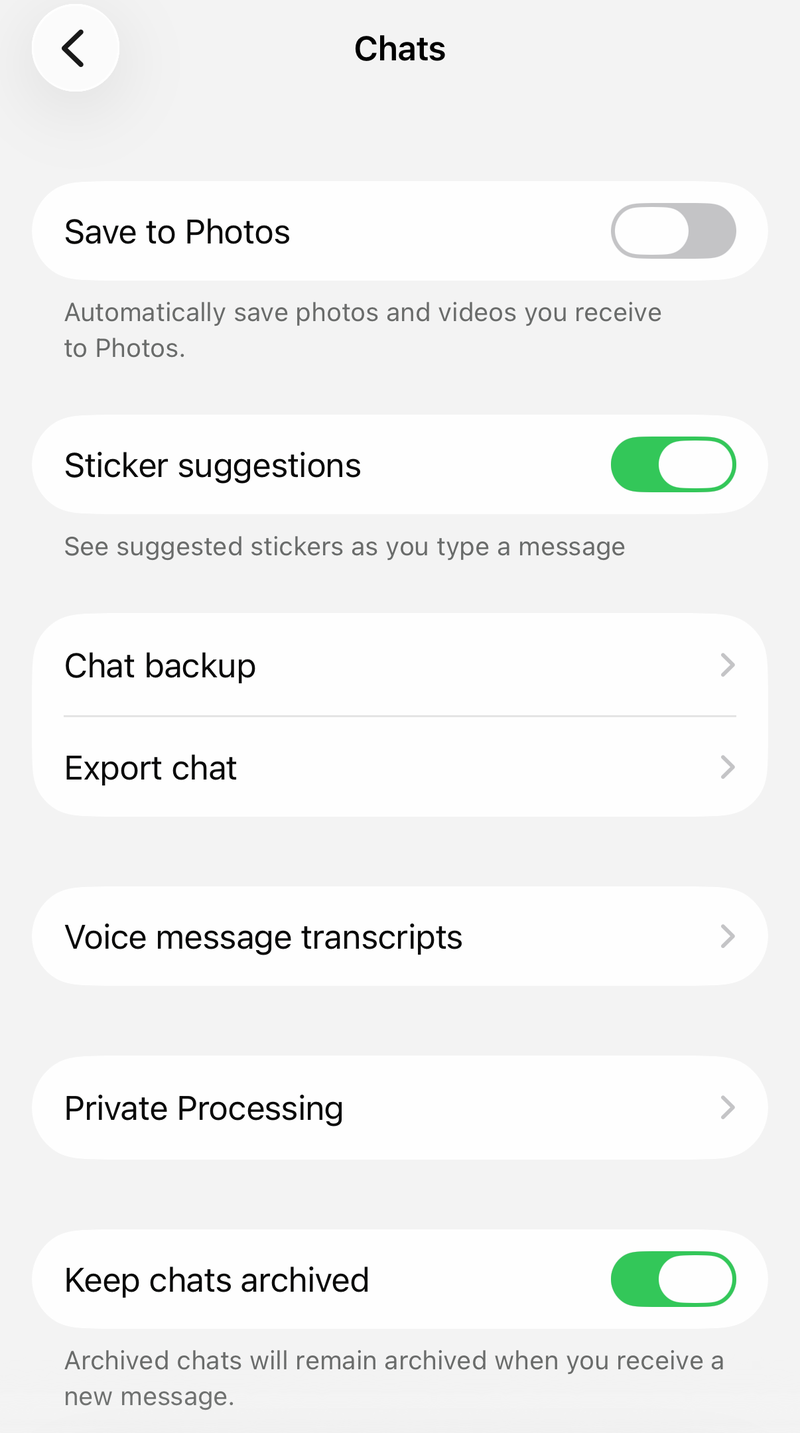
Turn on WhatsApp saving for new images
Start here because this setting controls whether new WhatsApp images appear in your phone gallery.
- 1.On Android, open WhatsApp, tap More options, then go to Settings and Chats.
- 2.Turn on Media visibility.
- 3.On iPhone, open WhatsApp, tap Settings or your profile picture, then open Chats.
- 4.Turn on Save to Photos.
Fix one missing chat
A single contact or group has its own media setting, so one conversation can stop sending images to Gallery or Photos while the rest of WhatsApp works normally.
On Android, open the individual or group chat from the Chats tab, tap the contact or group name, then tap Media visibility, Yes, and OK.
On iPhone, open the individual or group chat, tap the contact or group name, then tap Save to Photos. Choose Always for that chat, or choose Default when the global Save to Photos setting is already on.
If this method fails, download one missing image manually inside WhatsApp and check whether it appears after the file saves on the phone.
Download the photo first
This fixes photos that appear in WhatsApp but have not been saved to the device. Open the WhatsApp chat that contains the missing picture, then tap the blurred image or the image with the download marker. After the download finishes, open your gallery app and check the WhatsApp Images album or folder.
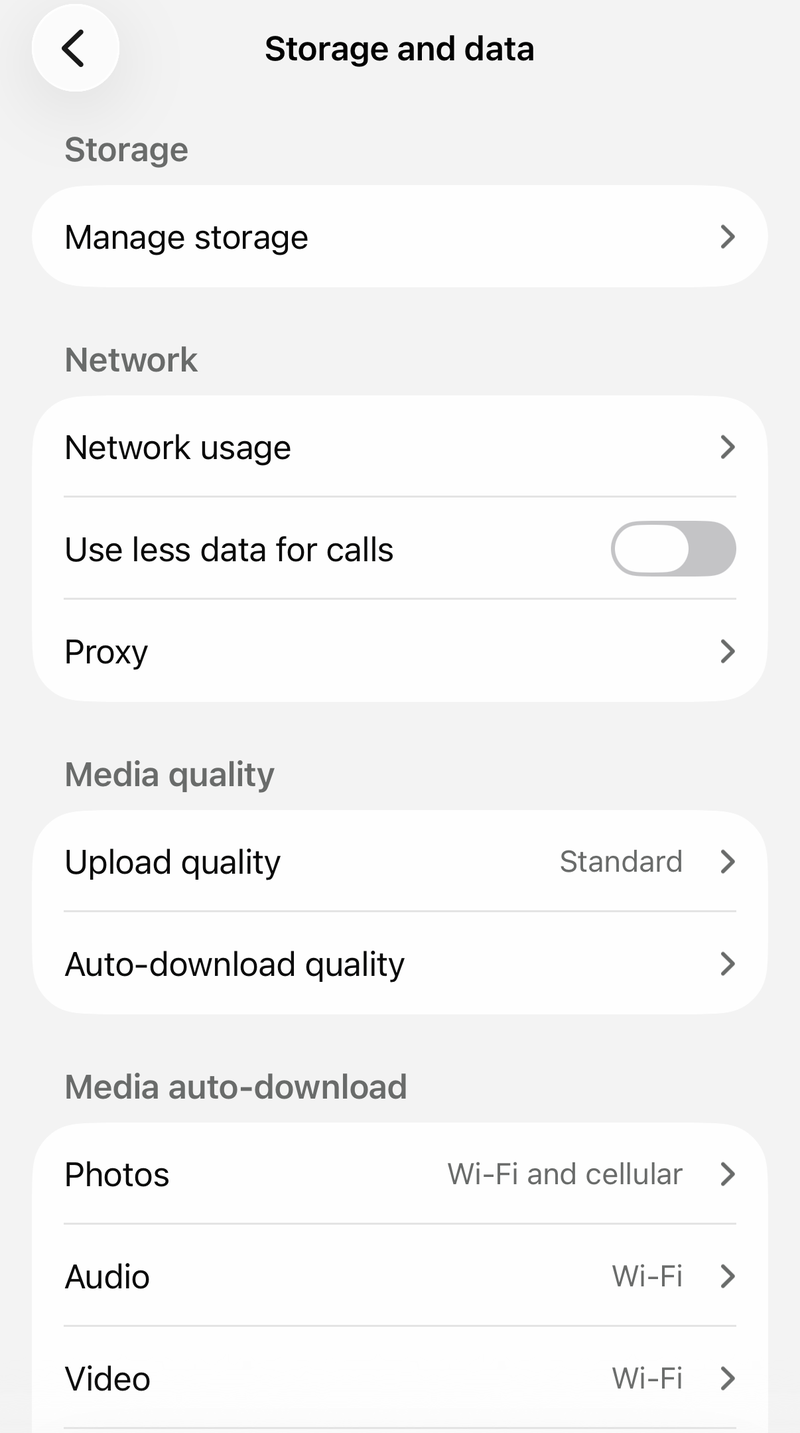
To make future photos download automatically on Android, open WhatsApp, tap More options, then go to Settings, Storage and data, and Media auto-download. Next, tap When using mobile data, When connected on Wi-Fi, or When roaming. Select Photos, then tap OK.
On iPhone, open WhatsApp, tap Settings or your profile picture, then open Storage and data. In Media auto-download, tap Photos and choose the network option you want.
Allow photo access
On Android, open Settings and tap Apps. Select WhatsApp; tap See all apps first when WhatsApp is not shown right away. Open Permissions, tap Photos and videos, then choose Allow.
If your Android phone shows Unused app settings, turn off Pause app activity if unused for WhatsApp. After that, recheck Permissions and Photos and videos.
On iPhone, open Settings, then go to Privacy & Security, Photos, and WhatsApp.
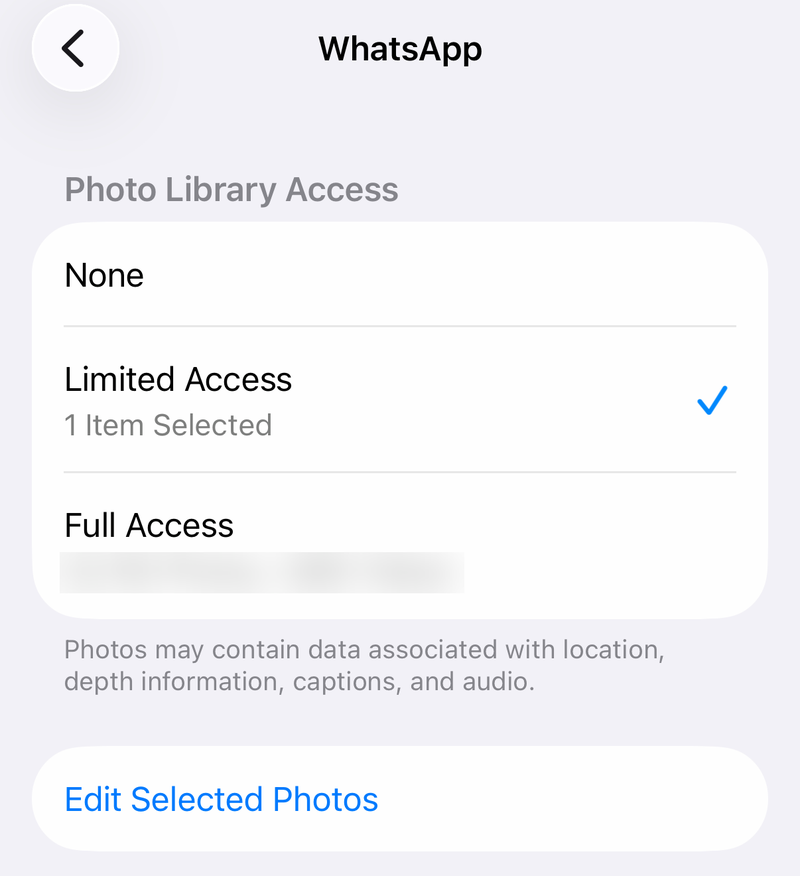
Choose Full Access. For selected access, choose Limited Access and include the relevant photos. After changing permissions, reopen WhatsApp and download the missing image again.
Remove the hidden Android file
Android hides WhatsApp media from Gallery when a .nomedia file sits inside the WhatsApp images folder. WhatsApp uses that file as a supported way to hide media, and deleting it lets Gallery show the files again.
Open a file manager on your Android phone and go to Images, then WhatsApp Images, or open your current WhatsApp media folder. Delete the .nomedia file or folder there.
Restart the phone, or close and reopen your Gallery or Photos app so it refreshes the folder. If this method fails, clear WhatsApp cache and make sure the phone or SD card has enough free storage.
Free storage and refresh WhatsApp
Check that your phone has enough available storage. If your Android phone uses an SD card, free space on the SD card. Turn off read-only mode on the SD card, then reopen WhatsApp and download the missing image again.
On Android, open Settings and tap Apps. Select or search for WhatsApp, then open Storage and tap Clear cache.
Restart your Android phone. On Pixel 6 and later, press and hold Power and Volume up, then tap Restart. On Samsung Galaxy, open Quick settings, tap the Power icon, then restart the phone or power it off and back on.
On iPhone X or later, hold either volume button and the side button until the power-off slider appears, drag it, wait 30 seconds, then hold the side button until the Apple logo appears.
Use Clear cache on Android, not Clear data, unless your chats and media are backed up and you intend to reset WhatsApp.
Check Google Photos folders
This fixes cases where WhatsApp saved the file to the phone, but the WhatsApp Images folder is not being backed up to your Google Account. Google Photos displays every photo and video stored directly on the device whether or not backup is on, so if the picture is missing from the app altogether, go back to the download, permission, and .nomedia steps above. Use the steps below when the file is on the phone but missing from your Google Photos backup.
Open Google Photos on Android and sign in. Tap your profile picture or initial, then open Photos settings and tap Backup.
Under Settings, tap Back up device folders. Turn on the WhatsApp Images folder, the WhatsApp Video folder, or Back up all device folders.
When your Android phone supports Google Photos access inside the default gallery app, open the default gallery app and go to Settings. Follow the on-screen instructions to allow Google Photos to share data with that gallery app.
Handle managed phones and old labels
On a child, school, or work-managed phone, Photos or media permissions can be restricted outside WhatsApp. A parent or device admin must allow WhatsApp photo access first; after that, use Settings, Apps, WhatsApp, Permissions, and Photos and videos on Android, or Settings, Privacy & Security, Photos, and WhatsApp on iPhone.
Older iPhone instructions use Save to Camera Roll. The current WhatsApp iPhone label is Save to Photos in Settings, Chats and inside each chat's Contact Info or Group Info.
Advanced chat privacy stops people in a chat from saving media to their device gallery automatically, so a chat with it on will not deliver pictures to Gallery or Photos. In an individual chat, either participant can change it. Open the chat, tap More options, then View contact and Advanced chat privacy, and turn it off.
In a group, only a group admin can change it, and the setting applies to every member. Open the group, tap More options, then Group info and Group permissions, and turn on Edit group settings. Go back to the Group info page, tap Advanced chat privacy, and turn it off.
Advanced chat privacy is not available in chats with businesses that use Meta to store their messages and reply on their behalf.
Repair WhatsApp as a last resort
Use these only after the settings, permissions, downloads, storage, and folder fixes above have failed.
- 1.Update WhatsApp from the official store. On Android, find WhatsApp Messenger in the Google Play Store and tap Update; on iPhone, open the Apple App Store page for WhatsApp Messenger and tap Update.
- 2.Back up WhatsApp before reinstalling. Reinstalling without a usable backup can lose chats and media.
- 3.Uninstall and reinstall WhatsApp from the official mobile download page or your phone's app store.
- 4.On Android, tap Restore when WhatsApp prompts you during setup.
- 5.On iPhone, verify your phone number and Apple ID, then tap Restore Chat History.
Frequently Asked Questions
Why are my WhatsApp images not showing in Gallery even though I can see them in the chat?
The image has not downloaded to the phone, or WhatsApp is blocked from saving it to Gallery or Photos. Tap the image to download it, then check Media visibility on Android or Save to Photos on iPhone.
Will turning on Media visibility bring back old WhatsApp photos?
Media visibility affects newly downloaded incoming media. For older Android photos hidden by a .nomedia file, delete the .nomedia file from the WhatsApp Images folder and refresh Gallery.
Why do photos from one WhatsApp group not appear but others do?
That group has its own media setting. Open the group info screen and set Media visibility to Yes on Android, or set Save to Photos to Always on iPhone.
Does WhatsApp Web save images to my phone Gallery?
No. WhatsApp Web and Desktop download photos to the computer, not to the phone's Gallery or Photos app.