Your Mac volume keys should mute, lower, and raise sound without sending you into menus. When they stop working, the cause is usually a top-row keyboard setting, the wrong sound output, a Bluetooth device, or a utility intercepting the keys. Start with the quick fixes below, then move into the deeper Mac checks only if the keys still do nothing.
1. Make the Top Row Control Volume Again
Check Keyboard settings first; this is the fastest fix when F10, F11, and F12 behave like regular F-keys.
Choose Apple menu > System Settings > Keyboard, click Keyboard Shortcuts, then select Function Keys.
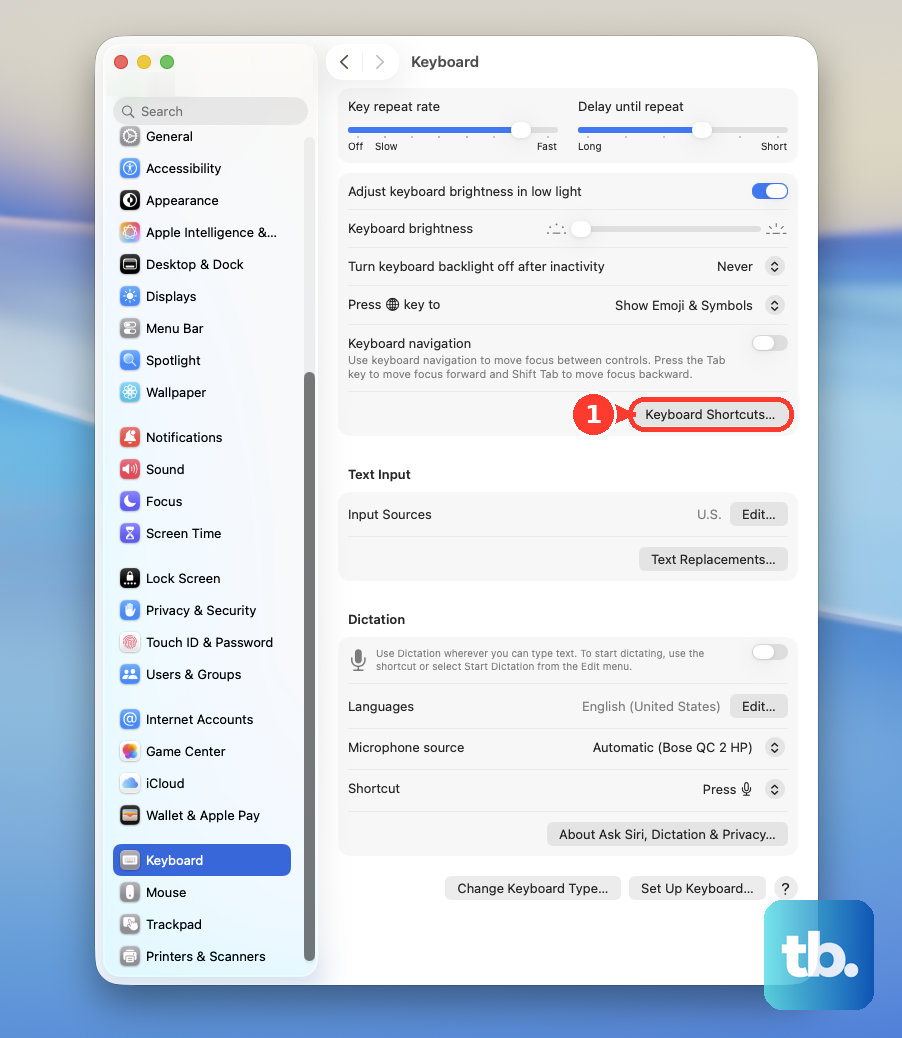
Turn off Use F1, F2, etc. keys as standard function keys.
Press F10, F11, and F12 again.
If you keep that setting turned on, press Fn or Globe with F10, F11, or F12 whenever you want mute, volume down, or volume up.
2. Use the Sound Slider to Confirm Audio Works
Before digging into keyboard fixes, confirm that macOS can still change the volume on screen: click Control Center in the menu bar, then drag the Sound slider.
If that works, your Mac audio is responding and the problem is with the keys, keyboard settings, shortcut behavior, or a connected device. For a quicker fallback, choose Apple menu > System Settings > Menu Bar. Select Sound, then choose Always Show or Show When Active. Then click the Sound icon in the menu bar and drag the volume slider when you need it.
3. Pick the Right Sound Output
Choose Apple menu > System Settings > Sound.
Next, click Output.
Select the device you want to use.
After that, drag Output volume.
Make sure Mute is not selected.
Volume keys can look broken when your Mac is sending audio somewhere you did not expect, such as headphones, a display, AirPlay, Bluetooth, or USB audio. Test the volume keys again after choosing the output device.
4. Adjust External Displays and Bluetooth Devices
External displays and Bluetooth audio can move volume control away from the Mac keyboard.
Some displays, TVs, receivers, and external audio devices control volume themselves. When sound is routed to one of those devices, use the device buttons, remote, or on-screen controls instead of the Mac keyboard.
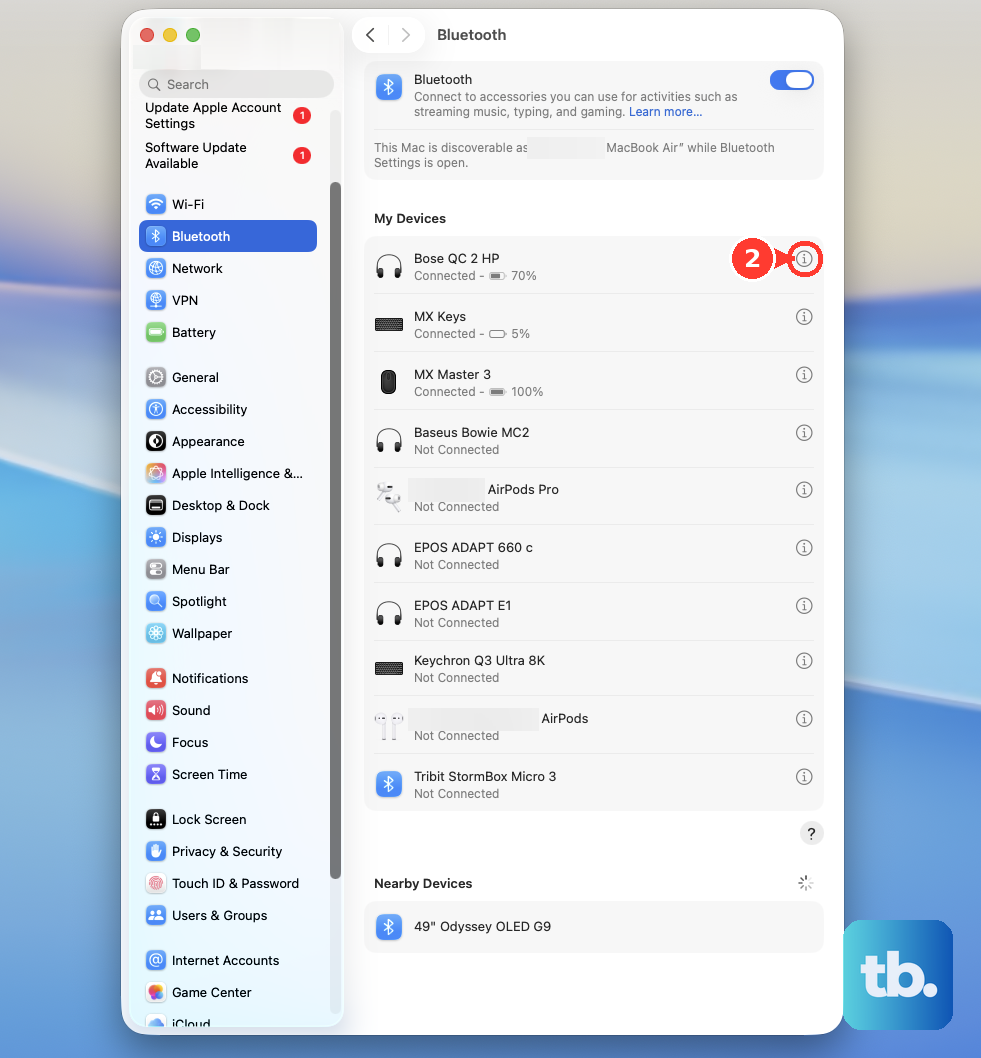
Check the route first: go to Apple menu > System Settings > Sound > Output and see where audio is being sent. For Bluetooth headphones or speakers, choose Apple menu > System Settings > Bluetooth. Click the Info button next to the audio device, then choose Disconnect or Forget This Device. Return to Sound > Output, select the Mac speakers or another output, and test the keys again.
5. Unmute the App or Safari Tab
If the keys work in other places but one app stays silent, open that app and check its own speaker, mute, call, player, meeting, or output-device controls. In Safari, click the speaker icon in the tab or the Smart Search field to mute or unmute that tab or site.
This fixes the case where system volume works, but browser audio is muted inside Safari.
6. Clear Shortcut and Utility Conflicts
A stuck modifier key, remapped shortcut, or third-party keyboard/audio utility can change what the volume keys do.
Choose Apple menu > System Settings > Accessibility > Keyboard.
Then review Sticky Keys and related keyboard options.
Go to System Settings > Keyboard > Keyboard Shortcuts > Modifier Keys.
Check the modifier-key mappings.
If your shortcuts were customized or imported, return to Keyboard Shortcuts and click Restore Defaults.
Then quit or disable keyboard remappers, audio routers, menu-bar volume utilities, drivers, and macro tools. If one of those apps caused the problem, remove it.
For an app installed from the web, open Finder > Applications, drag the app to the Trash, then choose Finder > Empty Trash. For an App Store app, click the Apps icon in the Dock, click and hold the app until it jiggles, then click the Close button.
7. Restart and Test Safe Mode
Restart first: choose Apple menu > Restart, then test the volume keys before opening keyboard or audio utilities.
A restart reloads the keyboard, audio, and user-session services. If the issue returns, boot in Safe Mode.
- 1.On Apple silicon, shut down the Mac.
- 2.Press and hold the power button until Loading startup options appears.
- 3.Select a volume, press and hold Shift, then click Continue in Safe Mode.
- 4.On Intel, turn on or restart the Mac, then immediately press and hold Shift until the login window appears.
- 5.Log in and test the volume keys.
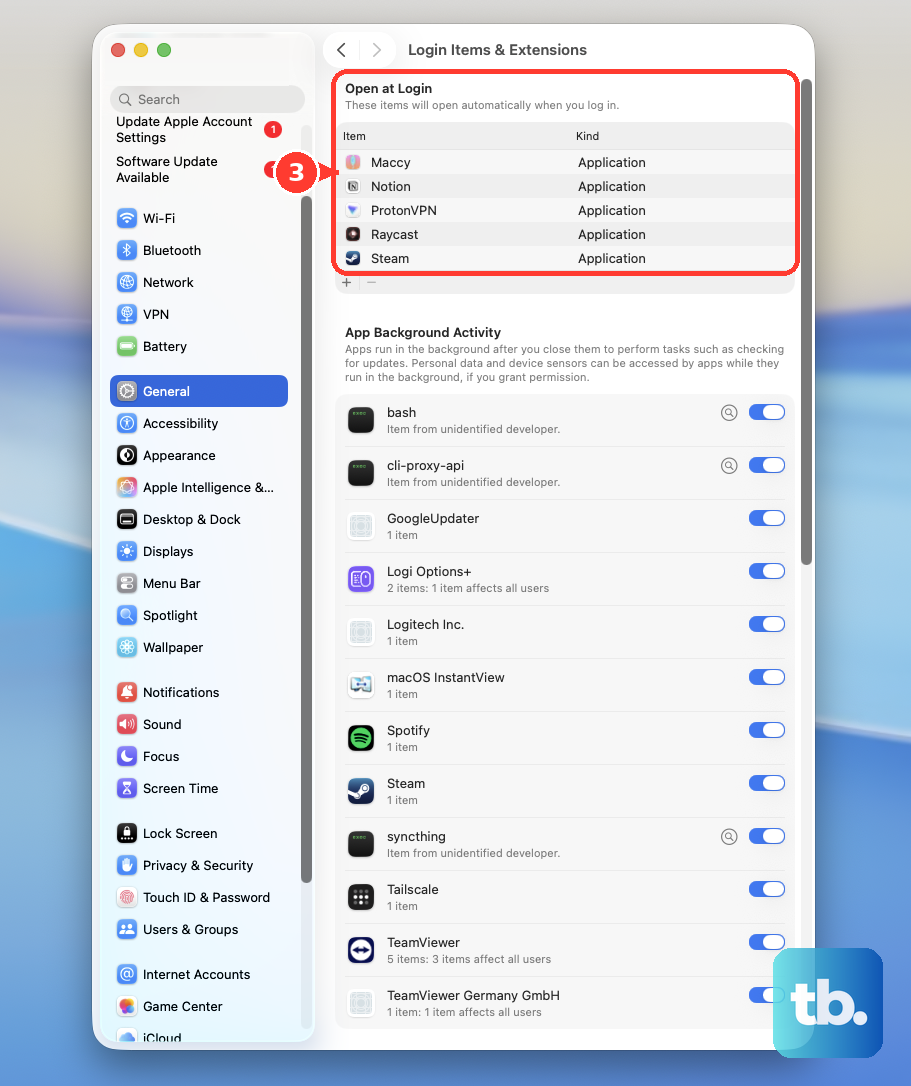
Next, check startup items. Choose Apple menu > System Settings > General > Login Items & Extensions. Under Open at Login, select an item and click the Remove button. Under App Background Activity, turn off items you do not need, then restart and test again.
8. Update macOS and Use Intel Only Resets
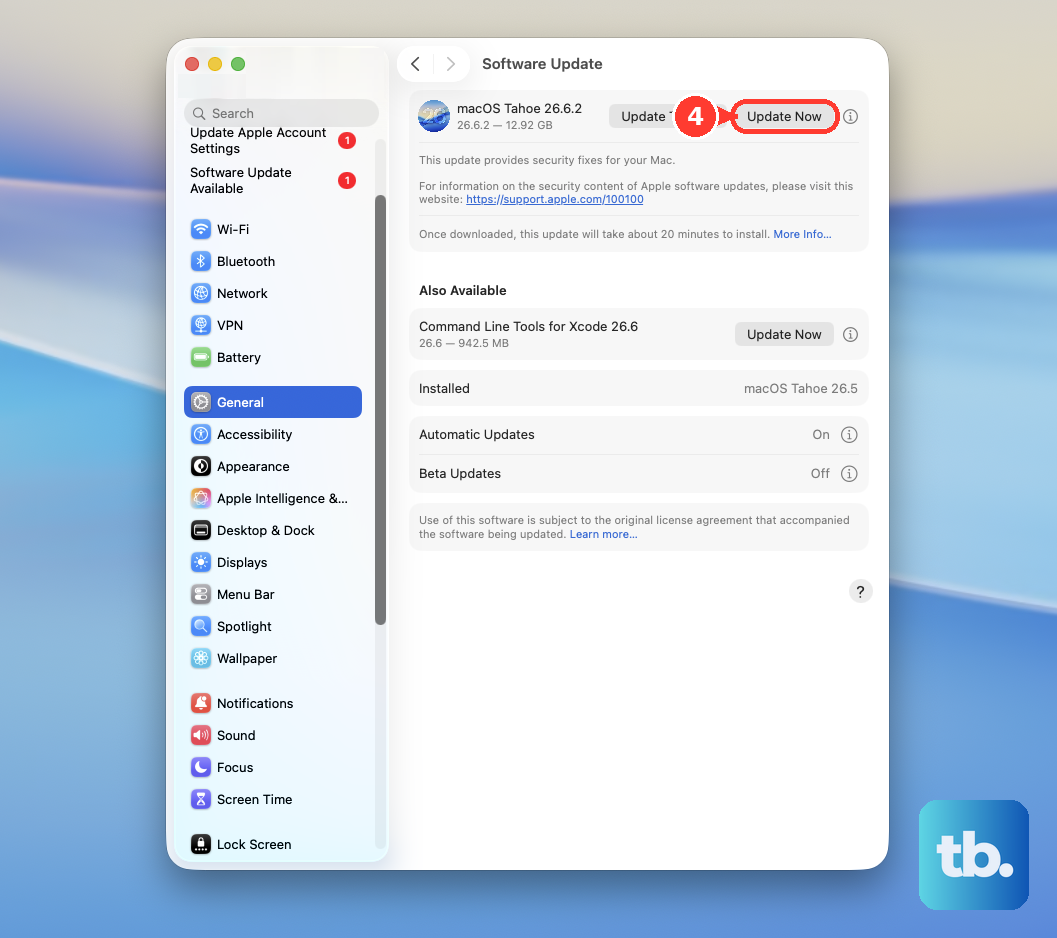
Choose Apple menu > System Settings > General > Software Update. If an update appears, click Update Now or Upgrade Now, then follow the onscreen instructions.
On an Intel Mac, reset NVRAM when volume-related settings or keyboard behavior still remain wrong after the settings checks above. Shut down the Mac, turn it on, then immediately hold Option + Command + P + R for about 20 seconds.
On Apple silicon, there is no NVRAM reset to perform; Apple says the NVRAM reset steps do not apply to Apple silicon Macs and are not needed on those computers.
Reset the SMC only on Intel Macs, and only after simpler fixes fail. Use Apple's model-specific SMC steps for your Intel Mac. Apple silicon Macs do not use a manual SMC reset; restart, or shut down and start up.
If the volume keys fail only in Windows on an Intel Mac with Boot Camp, install or repair Apple's Windows support software. In macOS, open Applications > Utilities > Boot Camp Assistant, then choose Action > Download Windows Support Software.
9. Run Hardware and Managed Mac Checks
When the same physical keys keep failing, test with an external keyboard or another macOS user account. If the keys fail across users and keyboards after the settings checks above, run Apple Diagnostics.
Disconnect unnecessary external devices.
On Apple silicon, shut down the Mac.
Then press and hold the power button until startup options appear, then press Command + D.
On Intel, turn on the Mac and immediately press and hold D.
Follow the onscreen instructions.
For a school or work Mac, choose Apple menu > System Settings > General > Device Management. If the Mac is managed, contact the administrator before removing profiles or changing policy-controlled settings.
If the keys still fail across settings, users, and keyboards, use Apple's Mac repair/service flow.
Frequently Asked Questions
Why do my Mac volume keys only work when I press Fn?
Your Mac is using the top-row keys as standard function keys. Turn off Use F1, F2, etc. keys as standard function keys in System Settings > Keyboard > Keyboard Shortcuts > Function Keys, or keep pressing Fn or Globe with F10, F11, and F12.
Why are the Mac volume keys greyed out with an external monitor or TV?
The external display, TV, receiver, or audio device controls its own volume. Check System Settings > Sound > Output, then adjust volume with the device buttons, remote, or on-screen controls.
How do I change Mac volume in smaller steps?
Press Option + Shift + Volume Up or Option + Shift + Volume Down. macOS uses smaller volume increments with that shortcut.
Can I change Mac volume without the keyboard?
Yes. Use the Sound slider in Control Center, add Sound to the menu bar from System Settings > Control Center, or use Siri to turn volume up, down, or mute.
What should I do if only one app has no sound?
Use the app's own mute, speaker, call, player, meeting, or output-device controls. In Safari, click the speaker icon in the tab or Smart Search field to unmute the tab or site.