Your USB Type C to HDMI adapter should put your laptop, phone, or tablet on the big screen with one connection. When the display stays black, shows no signal, or never appears, the break is in the port, adapter, cable, input, driver, or device permission. Start with the checks that prove the hardware path, then use the fix for your device.
Confirm the USB C port sends video
Not every USB-C port carries video, even when it charges the device and accepts the same connector. Check the computer, phone, tablet, and adapter specs for DisplayPort Alternate Mode, HDMI Alternate Mode, MHL, Thunderbolt, or USB4 video support.
Plug the USB-C to HDMI adapter directly into a USB-C port that supports the matching video mode. On Windows, there is no manual switch for USB-C video; Windows uses the supported mode automatically.
If this method fails, move the adapter to another USB-C port marked with Thunderbolt, DisplayPort, or a display icon, then remove any hub or dock and connect the adapter straight to the device.
Check the cable, adapter, and HDMI input
A weak link anywhere in the physical HDMI chain stops the picture, so prove every part of it before you change any settings.
Disconnect extra accessories from the computer or phone.
Reseat the USB-C adapter, HDMI cable, and monitor power cable firmly at both ends.
Use the monitor or TV buttons, joystick, remote, or on-screen menu to choose the active HDMI port under Input, Source, or HDMI.
If the display includes a port version setting, set the HDMI version according to the display manual.
Use a different HDMI cable, then test the monitor with another computer.
When the PC has another video output, test that output to separate a display problem from a USB-C adapter problem.
Choose the right Windows display mode
Press Windows logo key + P, then choose Extend or Duplicate first when the monitor is connected but blank. Use Second screen only after the external display shows a picture.
Open Start > Settings > System > Display > Multiple displays, then select Detect. Windows checks again for the HDMI display.
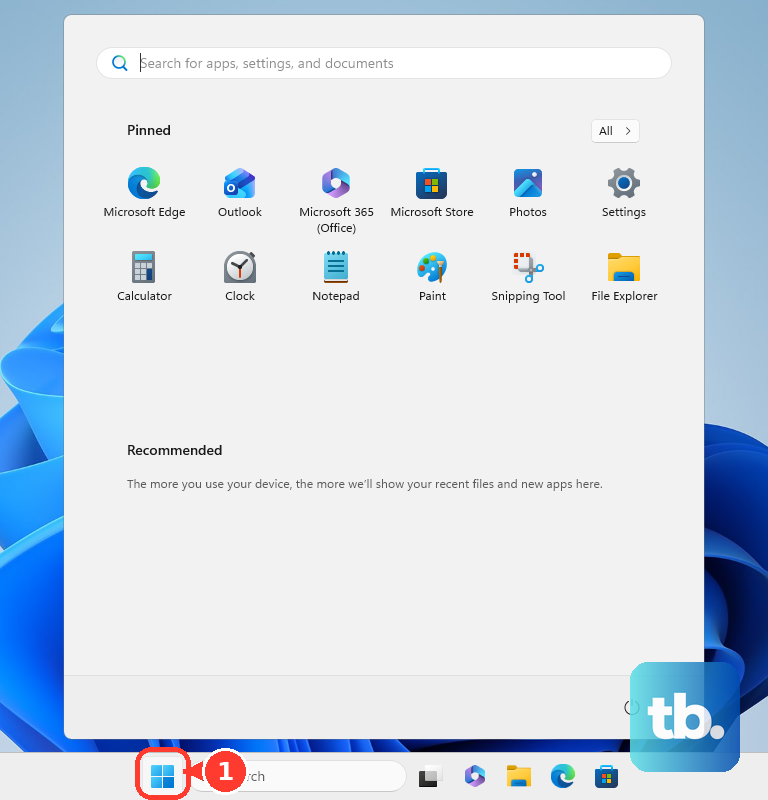
When the setup worked before and then stopped, select Start > Power > Restart. If the display stays blank, select Start > Power > Shut Down, wait for the computer to power off, then turn it back on.
Wake a blank Windows display
This fixes a Windows display path that stopped responding after sleep, a driver hiccup, or a blank external screen.
Press Windows logo key + Ctrl + Shift + B.
Wait for the screen to flicker or the system to beep.
Test the HDMI display again.
If nothing changes, restart Windows from Start > Power > Restart.
Update or roll back Windows display drivers
Use these Windows driver checks after you confirm the adapter, HDMI cable, and display work.
On Windows 11, open Start > Settings > Windows Update > Advanced options.
Turn Receive updates for other Microsoft products on.
Under Additional options, open Optional updates, select relevant display, USB, dock, or graphics driver updates, then choose Download and install.
On Windows 10, open Start > Settings > Update & Security > Windows Update > Advanced options.
Turn Receive updates for other Microsoft products when you update Windows on.
Go back to Windows Update, select Check for updates, then open View optional updates.
Select the display, USB, dock, or graphics drivers, and choose Download and install.
Restart the PC after the updates finish.
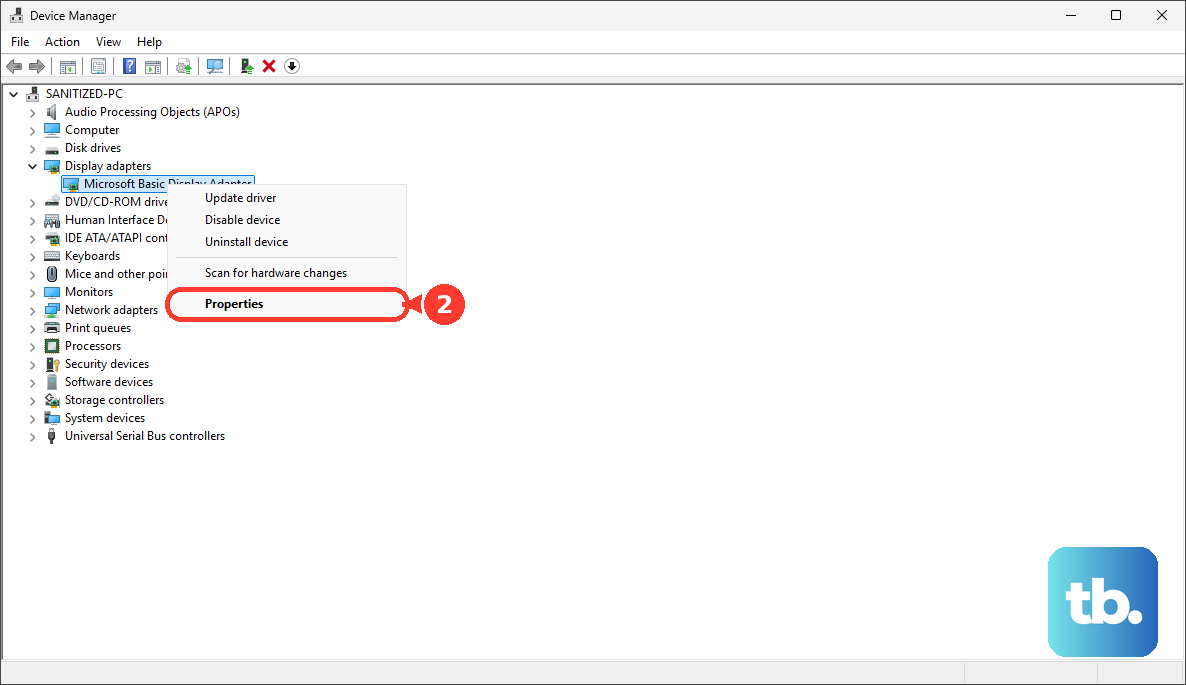
If the problem began after an update, open Device Manager, expand Display adapters, open the display adapter Properties, choose Driver, then use Roll Back Driver.
Fix USB C to HDMI on Apple devices
Use this section for Mac, iPhone, and iPad USB-C to HDMI problems. Apple devices need the right adapter, connection order, display limits, and accessory permission.
For the Apple USB-C Digital AV Multiport Adapter, unplug the adapter.
Plug the HDMI cable and any power cable into the adapter first, then plug the adapter into the Mac or iPad.
Wait up to 10 seconds for video.
On Mac, connect the display directly instead of through a hub or dock. Use an adapter compliant with DisplayPort Alt Mode, Thunderbolt 3, or Thunderbolt 4, then check the Mac model's supported display count, maximum resolution, and refresh rate.
To manually detect a Mac display, open Apple menu > System Settings > Displays, hold Option, then click Detect Displays.
On Apple silicon Mac laptops, unlock the Mac and click Allow when macOS asks to allow the USB accessory.
For iPhone, use iPhone 15 or later models that support external displays. For 4K at 60Hz, use a USB-C to HDMI adapter or cable that supports HDMI 2.0.
Unlock the iPhone or iPad before connecting the adapter so wired accessories can be allowed.
Use Chromebook or Samsung settings
Update ChromeOS, then use a USB-C cable rated SuperSpeed USB 5 Gbps or higher when ChromeOS says the cable does not support displays.
Choose certified USB cables or Works With Chromebook certified peripherals. Google lists DisplayPort, DVI, HDMI, USB-C, and VGA monitors as compatible Chromebook peripherals.
On compatible Samsung Galaxy phones and tablets, connect the USB-C end of the HDMI adapter to the device.
Connect the HDMI cable to the TV or monitor.
Select the correct HDMI input on the TV or monitor.
Tap Start when the Galaxy device prompts you.
For Samsung DeX, swipe down with two fingers to open Quick settings, then tap the DeX desktop-shaped icon.
If the display mirrors instead of launching DeX, open Settings > Connected devices > Samsung DeX > Connected display > Extend.
When a Samsung DeX image is cut off or distorted, adjust the monitor or TV picture size settings.
In DeX mode, use Settings > Samsung DeX > Screen zoom or Font size to resize the external display.
Tip: after the HDMI cable works on another TV or monitor, use wireless DeX as the fallback on compatible Samsung devices and displays.
Handle DisplayLink docks separately
Use DisplayLink steps only for adapters, docks, and monitors with a DisplayLink chipset.
Check the product manual or device body for DisplayLink branding before installing DisplayLink software.
On Windows, install DisplayLink software through Windows Update or from the official Synaptics DisplayLink Windows downloads page.
On macOS, install the current DisplayLink Manager from the official Synaptics DisplayLink macOS page.
On macOS Ventura and later, open System Settings > Privacy & Security > Screen Recording, turn DisplayLink Manager on, authenticate, then choose Quit & Reopen.
On macOS Catalina 10.15 through Monterey, which run a legacy DisplayLink Manager build, open System Preferences > Security & Privacy > Screen Recording and turn DisplayLink Manager on.
On Catalina, choose Quit Now, then reopen the app; on Big Sur and later the app restarts on its own.
Power-cycle the DisplayLink dock by unplugging all cables, reconnecting power if required, reconnecting USB, then reconnecting the video cable.
Ask IT to unblock managed devices
Use this when the laptop, Chromebook, phone, or tablet belongs to a workplace or school. Organization policies can block USB devices, video adapters, docks, or required driver installation.
Ask your IT administrator to review the device policy and approve the adapter, dock, or driver.
On managed Windows devices, administrators can review device installation restrictions in Microsoft Intune or Group Policy.
On supervised Apple devices, administrators can control accessory connection behavior.
For current macOS DisplayLink troubleshooting, use Synaptics' official DisplayLink macOS Software page and the current DisplayLink Manager.
Frequently Asked Questions
Why does my USB-C to HDMI adapter charge but not show video?
The USB-C port supports charging without video output. Use a port or device that supports DisplayPort Alternate Mode, HDMI Alternate Mode, MHL, Thunderbolt, or USB4 video.
Is there a Windows setting to turn on USB-C HDMI video?
No. Windows uses the supported USB-C video mode automatically. Use Windows logo key + P, Display settings, and driver updates to fix detection or display mode issues.
Why does my monitor say no signal with a USB-C to HDMI adapter?
The display is on the wrong HDMI input, the HDMI cable is loose or faulty, or the adapter is connected through a hub that is not passing video correctly.
Do DisplayLink fixes apply to every USB-C to HDMI adapter?
No. DisplayLink steps apply only to DisplayLink-based USB graphics docks, adapters, and monitors. Ordinary USB-C to HDMI adapters use the device's USB-C video output.