Roblox’s “Failed to download or apply critical settings” error leaves you stuck before an experience opens. Start with an outage check and a restart, then tackle the connection, security, or installation problem that matches your symptoms. Test Roblox after each change so you know when to stop.
Check Roblox Status and restart your computer
Open Roblox Status. Check the Website, Player, Games, Asset Delivery, and Game Join indicators for a matching incident. Review the incident history for related failures. If there’s a matching outage, wait for recovery before retrying Roblox.
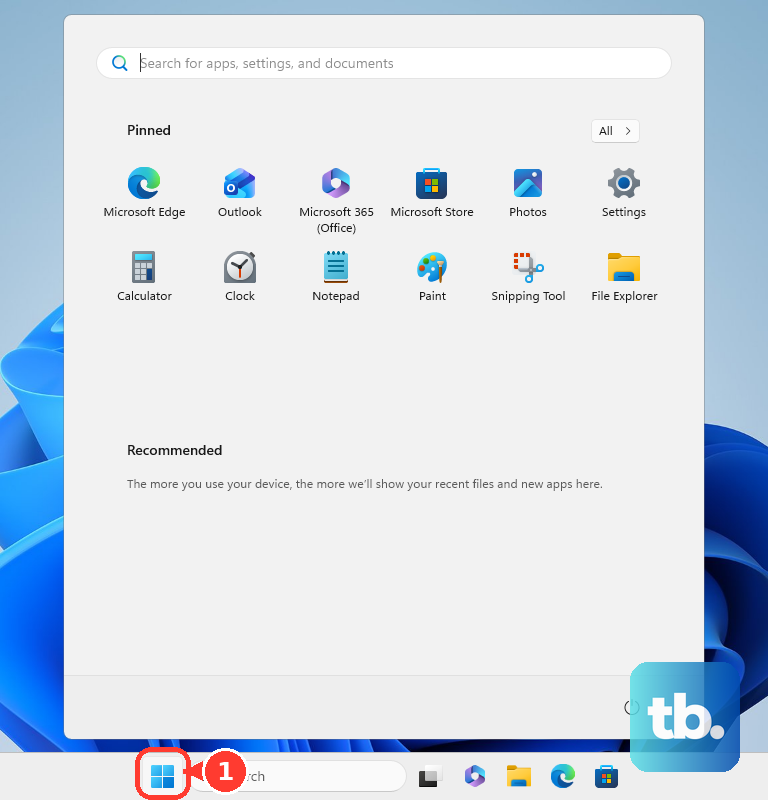
If there’s no matching outage, close your applications. Restart your computer. On Windows, select Start > Power > Restart.
Launch Roblox again. Save reinstalling for later, Roblox recommends a restart first.
Retry a failed browser launch
This addresses trouble opening the installed player from Roblox.com. Open an updated supported browser: Chrome, Firefox, or Edge on Windows; Chrome, Firefox, or Safari on macOS. Sign in to Roblox.com. Open the experience you want to play.
Select Play. If a program-selection prompt appears, choose Roblox. Confirm your selection. The experience opens in the installed player.
In Firefox on macOS, the prompt needs a few extra steps the first time. Check Always use this application to open roblox-player links, then select Choose to open a Finder window. Press Command-Shift-G, enter /Applications/Roblox.app/Contents/MacOS/Roblox.app, and press Return.
Select Roblox.app, then select Open. In the Choose an application dialog, select Roblox.app, then select Open Link. Future Play clicks should open Roblox directly.
If launching still fails, try another supported browser. For a problem isolated to Chrome, open More > Extensions > Manage extensions. Turn off a suspected extension or ad blocker.
Retry launching Roblox. Re-enable extensions one at a time, testing Roblox between changes to identify the conflict.
Restore your connection when other sites fail too
If other sites won’t load either, start with the computer’s connection. On an offline Windows PC, turn on Wi-Fi using the taskbar network icon.
Turn off Airplane mode under Settings > Network & Internet > Airplane mode. On laptops with a physical Wi-Fi switch, that switch also needs to be on.
Connect the computer to a router LAN port using Ethernet to test the wired connection. You’ll need an Ethernet port or a compatible adapter; Roblox recommends this test to isolate wireless problems.
For continuing connection trouble on Windows 11, select Run the troubleshooter in Get Help on Microsoft’s Wi-Fi troubleshooting page. Follow the Network and Internet diagnostics for the broader connection problem.
Allow Roblox through blocking security software
A firewall block or antivirus false positive interferes with Roblox’s connection or operation. On Windows, open Windows Security > Firewall & network protection > Allow an app through firewall. Select Change settings, approving administrator access if prompted. On a managed computer, ask the administrator to make restricted changes.
Select Roblox in the application list. If it’s missing, select Allow another app. Choose Roblox’s installed executable. Permit Roblox on the network profile you use.
Save the change. If your antivirus flagged the official Roblox installation, update the security software. Report the detection to the security vendor as a false positive.
Add the official Roblox installation to that product’s permitted-app or exception list. The controls depend on your security software. Close any running auto-clickers or other game launchers. Roblox identifies these as examples of programs that interfere with its player.
Retry Roblox after the relevant change. Keep the firewall enabled; Microsoft recommends an app exception for blocked software.
Replace damaged Roblox installation files
Reinstalling replaces damaged or missing player files. Close other programs. For the Windows player installed from the website, sign in to Roblox.com. Start with a reinstall over the existing installation, as Roblox recommends.
Open an experience. Select Play. Follow the installation prompts to reinstall Roblox.
If the error persists, uninstall the desktop player. On Windows 11, select Start > Settings > Apps > Installed apps > Roblox > More > Uninstall. The desktop-program alternative on Windows 10 or 11 is Control Panel > Programs > Programs and Features > Roblox > Uninstall.
For persistent corruption after uninstalling, open File Explorer.
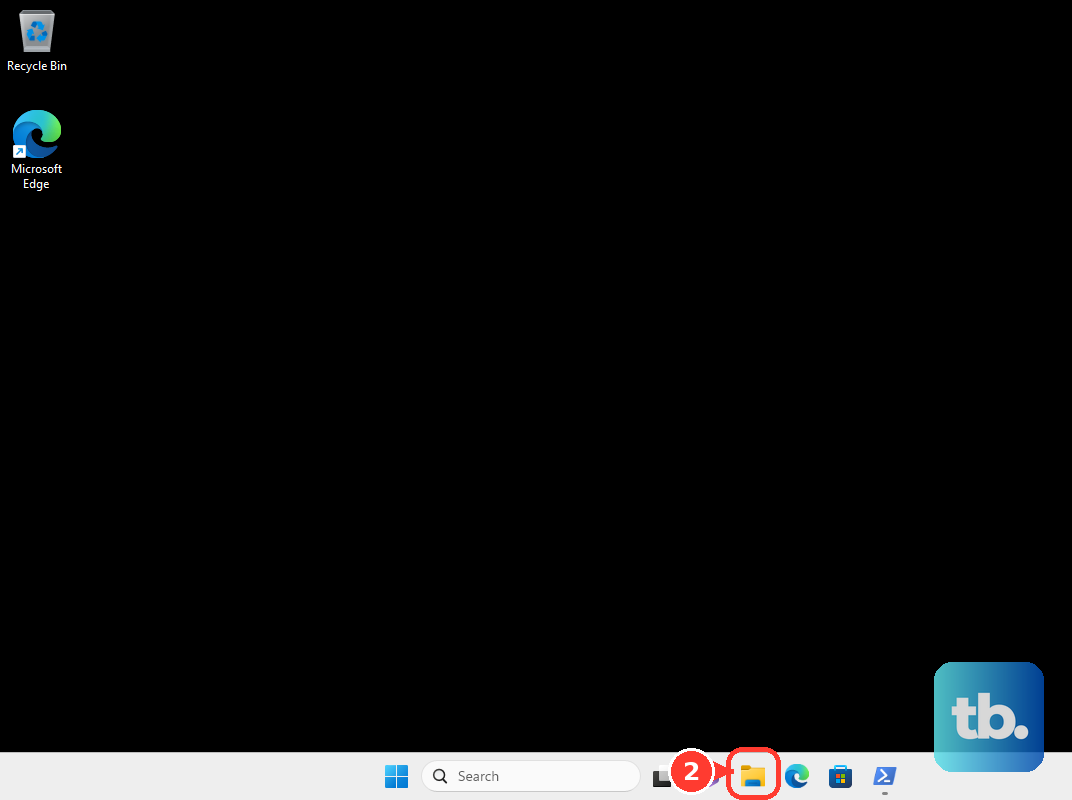
Navigate to C:\Users\<your Windows username>\AppData\Local. Move any Studio projects you deliberately saved inside the Roblox folder to another folder before deleting it. Delete the leftover Roblox folder. This cleanup applies to the website-installed Windows desktop player.
Restart the computer. Repeat the Roblox.com installation sequence above.
On a Mac, press Command-Option-Esc if Roblox is still running. Select Roblox. Select Force Quit. Move Roblox from Finder > Applications to Trash.
Remove Roblox from Trash. Return to Roblox.com. Open an experience.
Select Play. Follow the installation prompt to reinstall the Mac player.
Replace the old Microsoft Store app
The light-gray-icon Roblox app is the old Microsoft Store client, which Roblox says will eventually stop working. Find Roblox - Windows in Microsoft Store. Look for the blue icon. Install the replacement app.
Sign in with your existing Roblox account. Complete the required Xbox-account linking. After signing in successfully, uninstall the old light-gray-icon app.
Use Roblox - Windows when following older advice to switch to the Store version. It’s an officially supported installation option, but changing apps does not resolve an underlying network restriction.
Get help when the error keeps returning
Compare your computer with Roblox’s supported-platform requirements. Roblox lists 64-bit Windows 10 or 11 and macOS 10.13 or later; Linux is unsupported. Move to a supported installation or device if yours doesn’t meet those requirements.
On a school, workplace, or filtered network, ask the network administrator to review Roblox access. Relevant domains include clientsettings.api.roblox.com, setup.roblox.com, and setup.rbxcdn.com; experience launches do not support proxies.
If the applicable fixes haven’t resolved the error, select Contact Roblox Customer Support in Roblox’s General Connection Problems help page. Include your Roblox username, complete error message, device model, operating system version, steps that reproduce the failure, and recent device or network changes. Copy the full error text into your request so Support has the exact message you’re seeing.
Frequently Asked Questions
Will changing DNS fix the Roblox critical settings error?
Use a DNS change for a DNS resolution problem. Roblox does not identify it as a universal fix for the critical-settings message. A system DNS change affects the computer’s connection beyond Roblox.
Should I restart my router if the whole connection is failing?
Yes. Disconnect power from the router and modem. Wait at least 30 seconds. Reconnect the modem first and wait for it to settle. Reconnect the router and wait for connectivity, then retry Roblox. A combined modem/router needs one power cycle. This is a restart, not a factory reset.
What if Roblox also shows a clock or HTTPS error?
Correct an inaccurate Windows clock for related HTTPS and system-time errors. Open Start > Settings > Time & language > Date & time. Turn on Set time automatically. Select the correct Time zone, or enable Set time zone automatically. Then retry Roblox.
How do I clear Chrome data when Roblox.com itself fails?
Open More > Delete browsing data. Choose All time. Select Cookies and other site data and Cached images and files. Select Delete data, then retry Roblox.com. Be ready to sign in again after clearing cookies. This addresses website or browser-launch trouble.