Your Vizio TV opens Netflix, freezes on an error screen, or refuses to play a show. The fix depends on what is failing: Netflix service status, the TV app, the home network, the Netflix account, or support for an older Vizio model. Start with the quick checks first, then move into network, account, firmware, and reset steps.
1. Check Netflix service status first
Before changing TV settings, check whether Netflix is down. Open help.netflix.com/en/is-netflix-down on a phone or computer. If Netflix reports an interruption, wait and try Netflix again later. If Netflix says the service is up, continue with the Vizio TV fixes below.
2. Reload Netflix from the error screen
When Netflix loads far enough to show an error screen, use Netflix's built-in reload option. On the Netflix error screen, select More Details, then select Reload Netflix. Try Netflix again.
If the app stays stuck, select Exit on the error screen. Another option is to choose More Details > Exit Netflix. Open Netflix again, and retry playback.
3. Restart the Vizio TV cleanly
A restart clears temporary TV and app glitches without erasing your settings. Unplug the TV power cord from the wall or TV, wait at least 5 seconds, plug it back in, and turn the TV on.
For a settings restart, press Menu or the gear icon. Choose System > Admin & Privacy > Restart TV or Soft Power Cycle. On other models, use System > Reset & Admin > Soft Power Cycle or All Settings > Admin & Privacy > Restart TV.
For Netflix connection errors, use the longer power cycle. Unplug the TV, press the device power button once, wait 1 minute, plug it back in, and turn it on. Leaving the TV unplugged for 3 minutes is also a Netflix-supported power cycle.
4. Test the TV internet connection
Press Menu on the Vizio remote. Open All Settings > Network > Test Connection. If the TV shows no connection or no download speed, open All Settings > Network > Wireless Access Points. Select your Wi-Fi network name and enter the password.
Older Vizio menus use Menu > Network > Network Test or Menu > Network > Test Connection. If the TV is connected to Wi-Fi but apps still cannot reach the internet, open Menu > All Settings > Network > Manual setup > DHCP. Turn DHCP on. If DHCP is already on, turn it off, then turn it back on.
5. Restart the modem and router
If Netflix says it cannot connect, restart the home network before changing more TV settings.
- 1.Turn off or unplug the Vizio TV.
- 2.Unplug the modem and router from power for 30 seconds.
- 3.Plug in the modem and wait until the indicator lights stop blinking.
- 4.If the router is separate, plug it in and wait for it to finish starting up.
- 5.Turn the TV back on and try Netflix.
Then open fast.com on a phone or computer connected to the same home internet. That tests the connection directly to Netflix.
6. Sign out of Netflix and back in
Use this when Netflix opens but keeps failing after a restart, especially after account changes. From the Netflix home screen, press Back on the remote to open the menu. If the menu is at the top, move left to your profile icon, then select Get Help > Sign out > Yes.
If the menu is on the left, move to the bottom. Select Get Help > Sign out > Yes. If Get Help, Settings, or Sign out is missing, open Netflix.
Press Up, Up, Down, Down, Left, Right, Left, Right, Up, Up, Up, Up on the remote. On the menu that appears, select Sign out, Start Over, Reset, or Deactivate. Sign in again.
7. Update the TV and find Netflix again
Press Menu. Open Admin & Privacy > Check for Updates. If your TV uses a different menu, open Menu > All Settings > Admin and Privacy > Check for Updates or System > Admin and Privacy > Check for Updates. If an update appears, let the TV install it.
To find Netflix, press Input, then choose VIZIO Home. As another path, press the V key or Home key. Scroll to Apps, select App Search, and type Netflix.
To adjust the home screen app row, open VIZIO Home Screen > Left Arrow > Apps > Home Screen Apps. Do not follow old uninstall, reinstall, or Netflix cache-clear instructions for current Vizio SmartCast and Vizio Home TVs. Vizio says apps cannot be deleted from the lineup, and current Vizio support does not document a per-app Netflix cache clear path.
8. Clear account blocks or use a fallback
If Netflix opens but stops at an account message, match the exact screen on your Vizio TV. For a Netflix Household block, select Update Netflix Household from the blocked message. Alternatively, open Get Help or Settings > Manage Netflix Household. Follow the on-screen steps, then confirm by email or text.
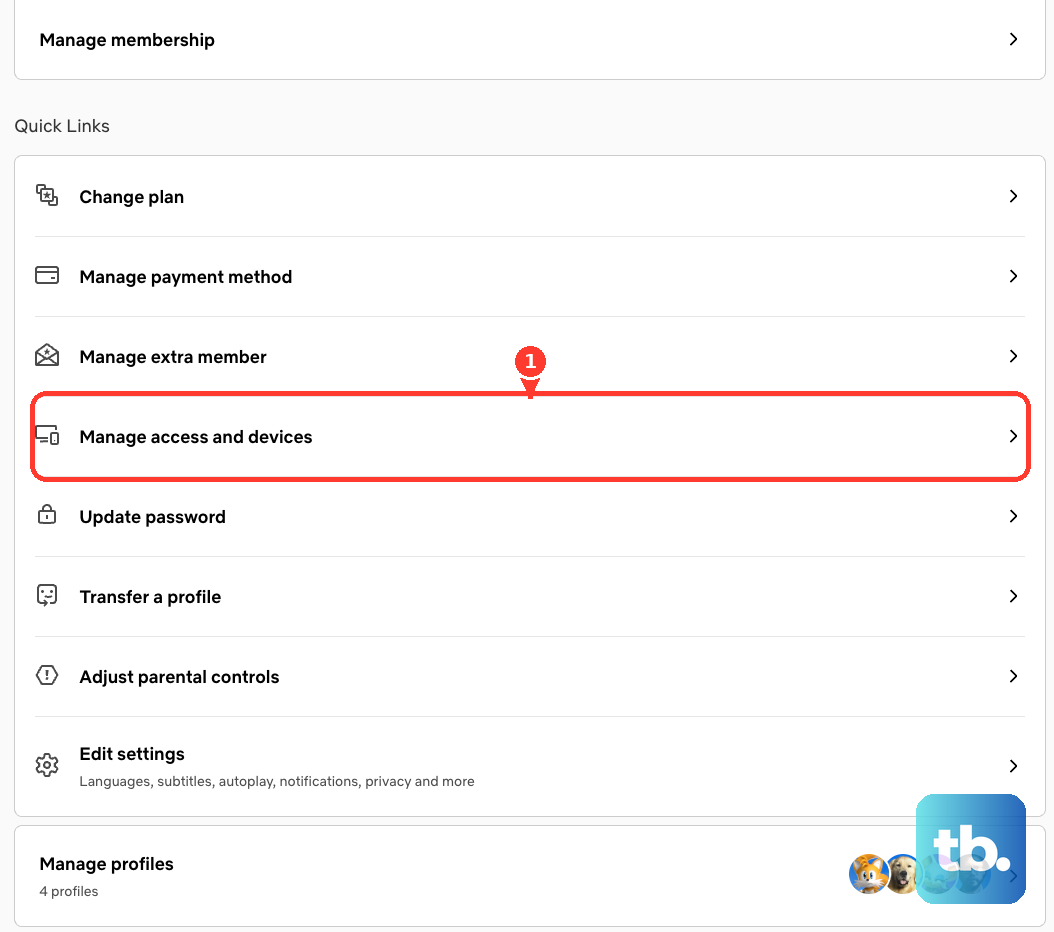
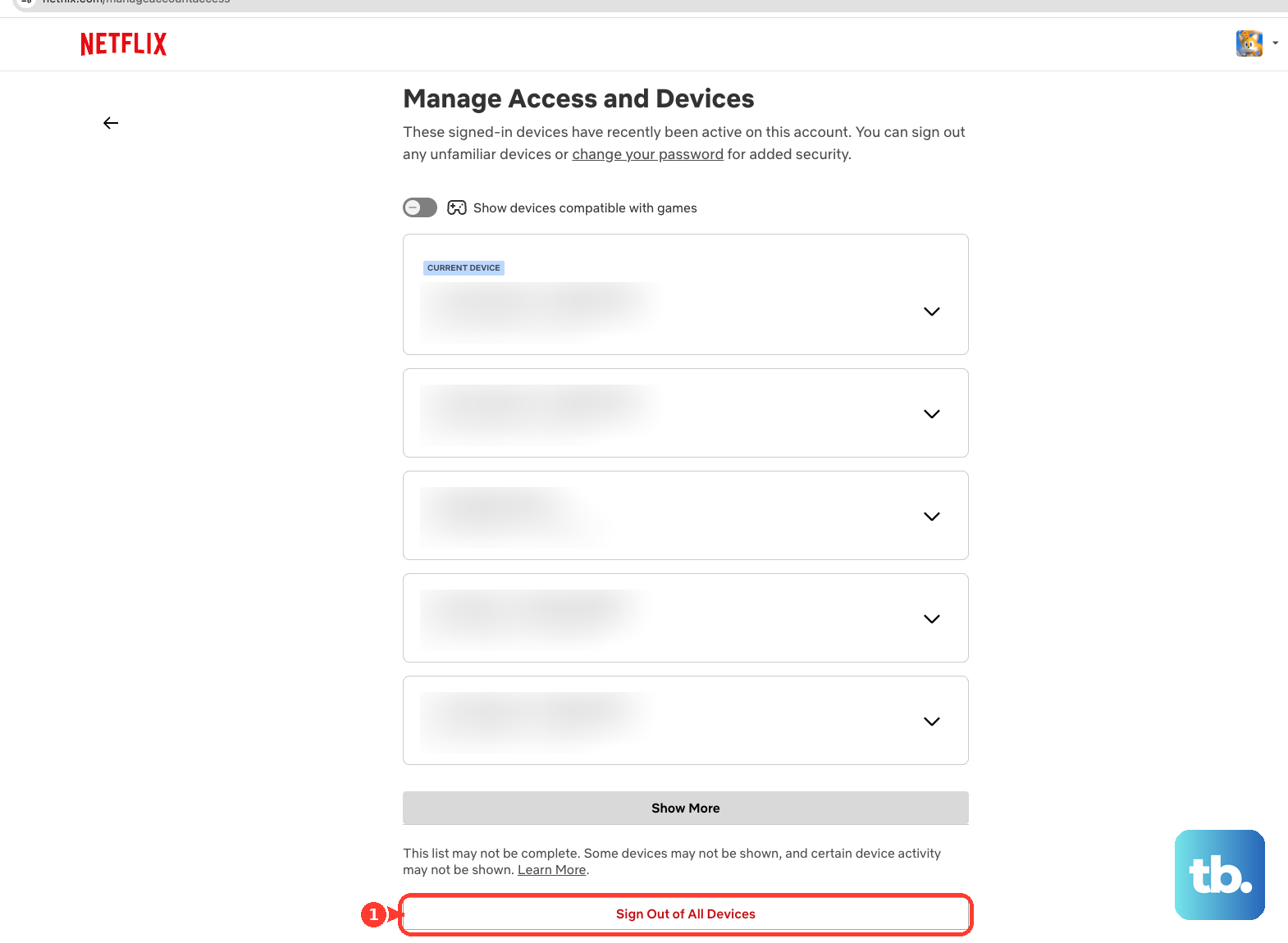
When traveling, select I'm Traveling on the Netflix Household error screen to request a temporary access code. Use a non-Kids profile. For unfamiliar devices, open Netflix's Manage Access and Devices page. Select the down arrow next to a device, then sign it out.
To remove every device, select Sign Out of All Devices. Confirm Sign Out. For an account already in use error, stop Netflix playback or close the Netflix app on another device. Wait 5 to 10 minutes, then try the Vizio TV again.
Upgrade the Netflix plan to allow more simultaneous streams. If Netflix says Netflix is no longer available on this device, or shows R40, R12, or R25-9, connect a Netflix-compatible streaming stick, cable box, or game console by HDMI. Use Netflix there. Netflix says some TVs and TV streaming devices made before 2015 are no longer supported.
For a current Vizio TV that still supports Netflix, factory reset is the final TV-side step because it erases settings, app logins, and preferences. Press Menu or the gear icon. Use Admin & Privacy > Reset to Factory Settings, System > Admin & Privacy > Reset to Factory Settings, or All Settings > Admin & Privacy > Reset to Factory. Enter the system PIN when prompted; the default PIN is 0000 unless you changed it.
Highlight Reset, then press OK. Set up the TV again and sign back into Netflix.
You can also cast from the Netflix mobile app, but only on a Standard or Premium plan and only to select cast-enabled Vizio TVs. Netflix says ad-supported plans cannot cast or mirror. Open Netflix on your phone or tablet and sign in.
Tap the Cast icon. Select the Vizio TV, then choose something to play. Netflix says AirPlay is not supported, and Netflix casting must be done from the Netflix app rather than the Vizio mobile app (formerly SmartCast Mobile).
Frequently Asked Questions
Why does Netflix work on my phone but not on my Vizio TV?
That points to the TV app, the TV's network connection, the account state on the TV, or TV firmware. Test the Vizio TV connection, restart the TV, update firmware, then sign out of Netflix and sign back in.
Can I delete and reinstall Netflix on a Vizio Smart TV?
Not on current Vizio SmartCast and Vizio Home TVs. Vizio says apps cannot be deleted from the lineup, so use app search, restart the TV, update firmware, or factory reset as the supported options.
What should I do when Netflix says my Vizio TV is not part of the Netflix Household?
Select Update Netflix Household from the blocked message, or open Get Help or Settings > Manage Netflix Household. Follow the on-screen steps and confirm by email or text when prompted.
What if my older Vizio TV no longer supports Netflix?
Use a Netflix-compatible streaming stick, cable box, or game console connected by HDMI. Netflix says some TVs and TV streaming devices made before 2015 are no longer supported.