Your Android messaging app can fail in several ways: texts refuse to send, MMS media will not download, notifications go silent, or the app opens and freezes. The fastest fixes start with the phone and app state, then move through default SMS settings, carrier connection, RCS, MMS, updates, and device-specific blocks. Follow the sections in order and stop as soon as messages work again.
Restart the phone first
A restart clears a temporary phone or app process without changing your messages, settings, or account. On most Android phones, press the phone's Power button for about 30 seconds until the phone restarts.
If the power menu appears, tap Restart, then tap Restart again. Open the messaging app after the phone comes back on and send a test text.
If the messaging app still will not open, send, or receive, force stop it next and clear its cache.
Clear stuck app data
The most common app-level cause is stuck temporary data inside Messages or Google Messages.
Open Settings, go to Apps, choose Google Messages or Messages, then tap Force stop. Reopen the app and test it.
If it still fails, return to Settings > Apps > Google Messages or Messages > Storage or Storage & cache, then tap Clear cache.
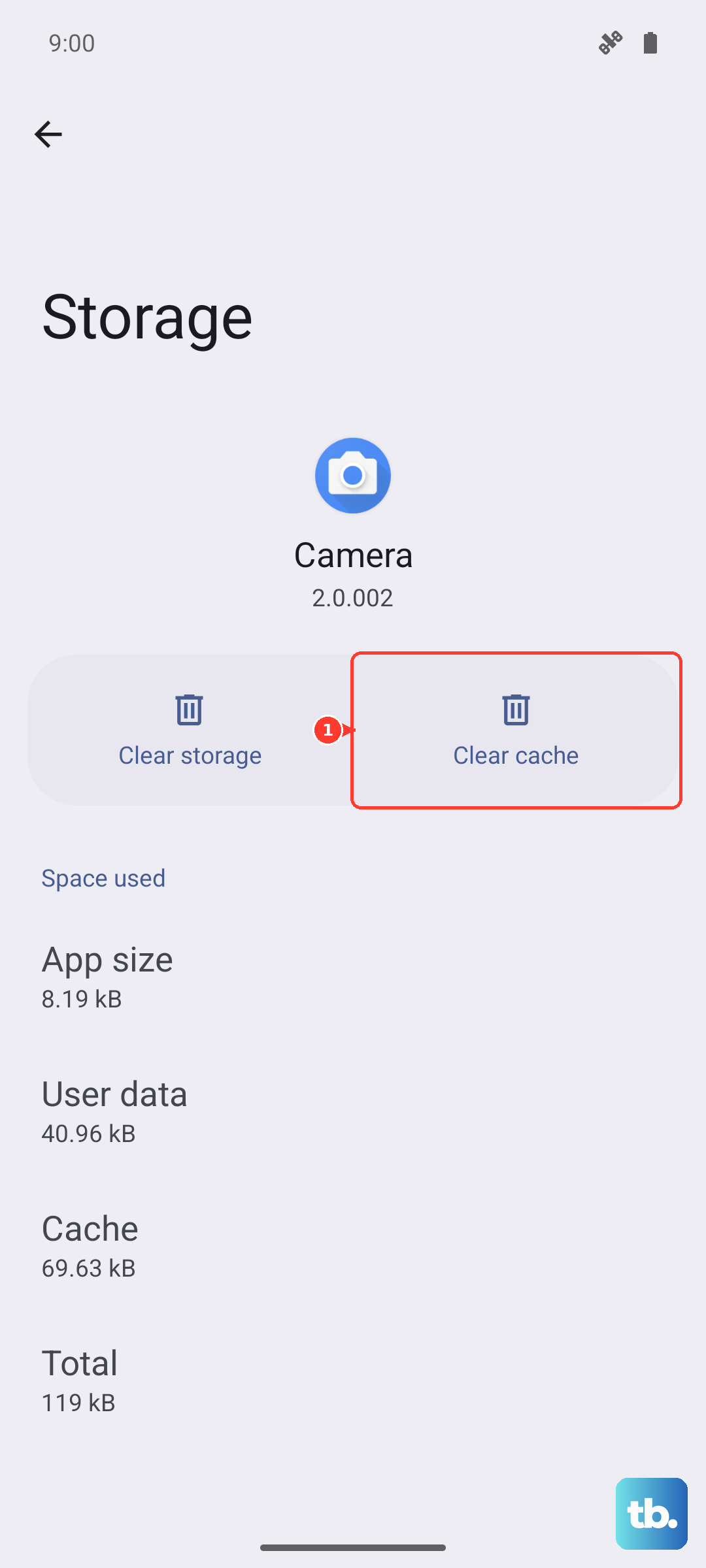
Use Clear storage or Clear data only after that, because app data can be removed or rebuilt.
Make Google Messages the default app
Open Settings and tap Apps. Open Default apps, tap SMS app, then select Google Messages.
When Google Messages prompts you instead, open Google Messages, tap Set default SMS app, select Google Messages, then tap Set as default. After changing the default app, send one regular text before troubleshooting RCS or MMS.
Check signal, SIM, and data
Use this when messages sit on sending, MMS will not download, or RCS will not connect. SMS, MMS, and RCS depend on the SIM, carrier support, plan balance, and usable signal.
Check that the SIM is inserted properly, confirm your carrier supports SMS, MMS, or RCS, and make sure your plan or credit balance can send messages.
Check the signal bars. If the phone has no coverage, move to a stronger signal area or contact the carrier.
Refresh the connection from Settings > Network & internet or Connections > Airplane Mode. Turn Airplane Mode on, wait 10 seconds, then turn Airplane Mode off.
For RCS, MMS, or Messages for web trouble, switch connections. Turn Wi-Fi off and mobile data on; if that fails, turn mobile data off and Wi-Fi on.
You can also swipe down from the top of the screen, touch and hold Internet, then tap Reset. Active calls can end when you use this reset.
Fix MMS, group texts, and short codes
This fixes picture messages that will not download, group replies that split into separate texts, and short-code replies blocked by Android.
Open Google Messages and tap your Profile photo or Initial. Open Settings, then tap Advanced. Turn on Auto-download MMS, then turn on Auto-download MMS when roaming when media messages need to download while roaming.
For group-message trouble, go to Google Messages > Profile picture or Initial > Messages settings > Advanced > Group messaging, then choose Send an MMS reply to all recipients (group MMS).
When Google Messages says Can't reply to this short code, open Settings > Apps > Special apps access > Premium SMS, then select the app that requests access. Outbound-only and alphanumeric short codes still cannot receive replies.
Repair RCS chats
Use this when Google Messages works for basic SMS but RCS chats stay disconnected, will not sync, or stop receiving messages after a device or app change. RCS requires Android 5.0 or higher plus carrier and region support.
Open Google Messages, tap your Profile picture or Initial, then go to Messages settings > RCS chats. Check the RCS status shown there.
If the status says RCS chats has been disabled by your carrier, contact your carrier first. After the carrier resolves it, tap Retry; if it still will not connect, tap Details > Submit feedback.
When messages are not coming through or RCS will not sync, turn RCS chats off and back on from Google Messages > Profile picture or Initial > Messages settings > RCS chats. Google advises toggling RCS only when switching devices or apps, not receiving messages, or dealing with a lost or broken device.
If the old phone is unavailable, use Google's RCS deactivation web portal. Enter your phone number, choose Send code, enter the 6-digit verification code, then choose Deactivate.
Restore alerts and permissions
Notification problems often look like messaging failures because texts arrive silently. Open Settings > Notifications > App notifications, use the All apps dropdown when needed, select Google Messages or Messages, then turn notifications on.
You can also fix it from an existing alert. Swipe down, touch and hold the message notification, tap Settings, then turn on the notifications you want.
Inside Google Messages, tap your Profile photo or Initial, open Settings > Notifications, and turn on Incoming messages. Keep default alerts working by leaving Default settings notifications on.
For a third-party SMS app, check SMS permission in Settings > Apps > See all apps > the messaging app > Permissions > SMS > Allow. You can also use Settings > Security & Privacy > Privacy > Permission manager > SMS, then select the app and choose the permission setting.
Update Messages and Android
Update the app first, then Android itself.
- 1.Open Google Play Store, tap the profile icon, then go to Manage apps & device.
- 2.Under Updates available, tap See details, then tap Update next to Google Messages. To update everything at once, tap Update all.
- 3.To use the Play listing directly, open the official Google Messages page and tap Install, Update, or Open as shown.
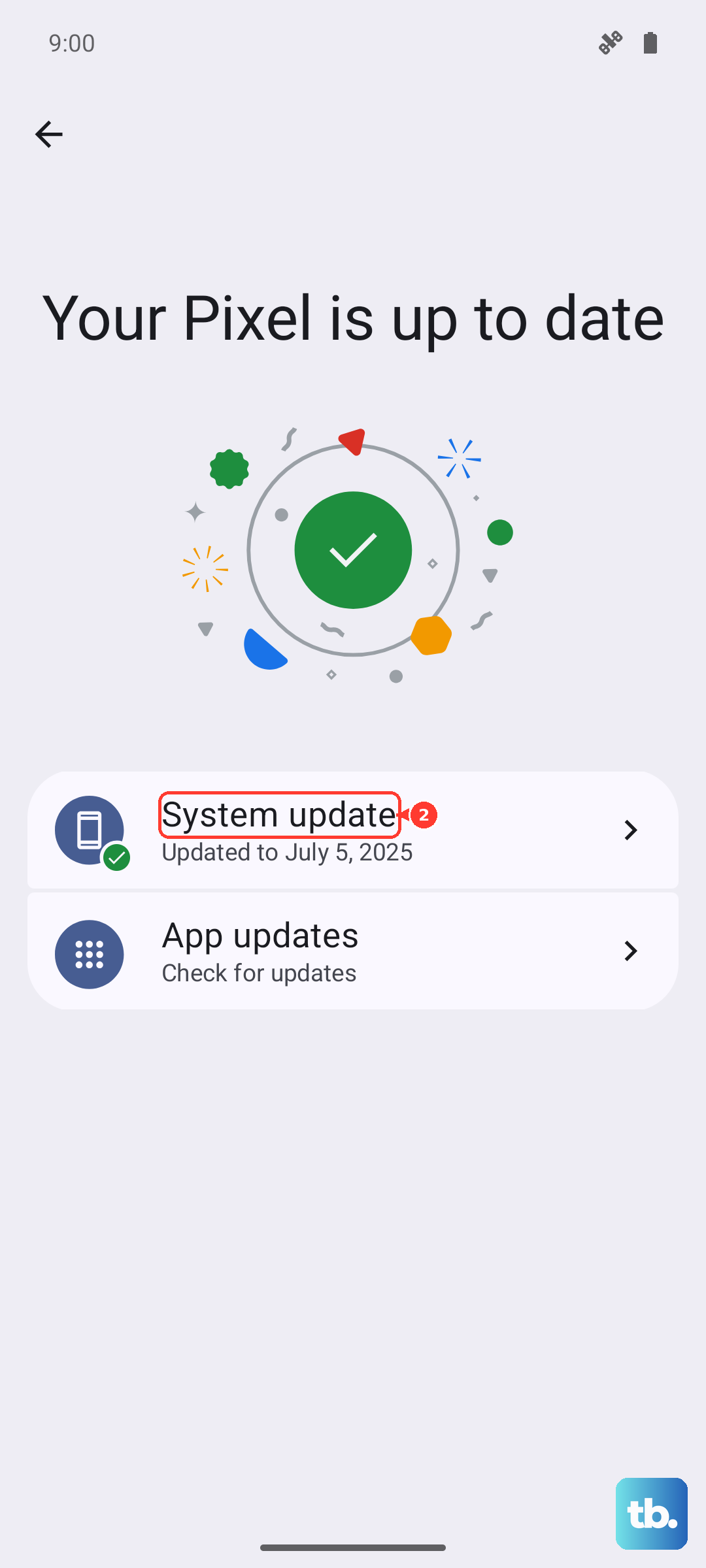
- 4.For Android itself, open Settings > System > Software update, then follow the update status on the screen.
- 5.If your phone shows system updates under About phone or About tablet, open that first and continue with the update steps shown.
Handle Samsung and switcher issues
The most common device-specific cause in 2026 is Samsung Messages discontinuation on US Galaxy devices running Android 12 or newer.
On those Galaxy phones, open Samsung Messages and tap Switch on the in-app notification. You can also open or download Google Messages from Play Store, tap Switch, then use Set default SMS app and select Google Messages.
Samsung says Samsung Messages remains available and functional on Android 11 or older. After switching, touch and hold the Samsung Messages icon, tap Remove, locate Google Messages, touch and hold it, tap Add to Home, then drag it to the home screen or dock position you want.
If you moved from iPhone and messages still route incorrectly, turn iMessage off on the old iPhone from Settings > Apps > Messages > iMessage > Off. Apple also tells you to turn off FaceTime from Settings > Apps > FaceTime. Then restart group chats with iPhone users. If the iPhone is unavailable, use Apple's deregister iMessage web tool linked from Google's help page and complete phone-number verification.
On a child's supervised device, Family Link app blocks, limits, permissions, or allowed-contact rules can block texts. On a company or school-managed Android phone, IT policy can enforce the default messaging app, block outgoing SMS, configure network settings, install or remove apps, or manage permissions, so contact the organization that manages the device.
Older instructions still mention QR pairing for Google Messages for web in the US, but Google Account pairing is the current US path. Use Google Messages > Device Pairing, choose Google Account pairing, sign in to Messages for web with the same Google Account, then tap the emoji on the phone that matches the one shown on the computer.
Frequently Asked Questions
Why is my Android messaging app not sending texts?
Start with the default SMS app and carrier checks. Google Messages must be selected as the SMS app, and your SIM, carrier support, plan balance, and signal all need to be working.
Will clearing the messaging app cache delete my texts?
Clearing cache targets temporary app data. Clear storage or Clear data is a bigger reset and can remove or rebuild app data, so use it only after cache and force stop do not help.
Why do messages fail only with one person?
Google recommends deleting and re-adding that contact, checking whether you blocked them, verifying the phone number, and adding the country code when needed, such as +1 for US numbers.
What should I do if nothing fixes the messaging app?
Update Google Messages and Android, then test in Safe mode for a conflicting downloaded app. A factory reset is the last resort after backing up your data.