Your AirPods show Setup Incomplete, and Find My setup still needs attention. Start with the connection and account settings Apple requires, then reconnect your AirPods if the warning stays. Save the factory reset for after the simpler checks.
Give setup a moment to finish
Wait a few minutes before retrying setup to allow pairing to finish. Connect your iPhone or iPad to Wi-Fi or cellular data. Pairing without internet access can leave Find My features unavailable.
For AirPods with a charging case, take the earbuds out. Open Settings > Bluetooth on your iPhone or iPad. Turn on Bluetooth.
Return both earbuds to their charging case. Close the lid briefly. Reopen the lid.
Allow roughly a minute for registration. Keep your iPhone or iPad connected to the internet throughout the next setup attempt.
Bring your iPhone or iPad up to date
This completes the software-update requirement in Apple's setup checklist. Back up your iPhone or iPad. Connect it to power. Join a Wi-Fi network.
Open Settings > General > Software Update. Select Download and Install for the latest release offered for your device. Complete the onscreen prompts.
If wireless updating fails, connect the backed-up device to a Mac running macOS Catalina or later. Open Finder. Select your iPhone or iPad in the sidebar. Open General.
Click Check for Update. Click Download and Update. Follow the onscreen prompts.
For the Windows alternative, connect your iPhone or iPad to a PC compatible with the Apple Devices app. Open Apple Devices. Select your iPhone or iPad.
Open General. Select Check for Update if needed. Choose Update.
Finish your Apple Account setup
Use these checks if your device lacks a passcode, two-factor authentication, or iCloud Keychain, or shows an account-settings alert. Apple includes all of them in its setup requirements.
Open Settings. If Update Apple Account Settings appears, tap it. Complete the alert's prompts.
For a device without a passcode, open Settings > Face ID & Passcode or Settings > Touch ID & Passcode. On devices without biometric authentication, use Settings > Passcode.
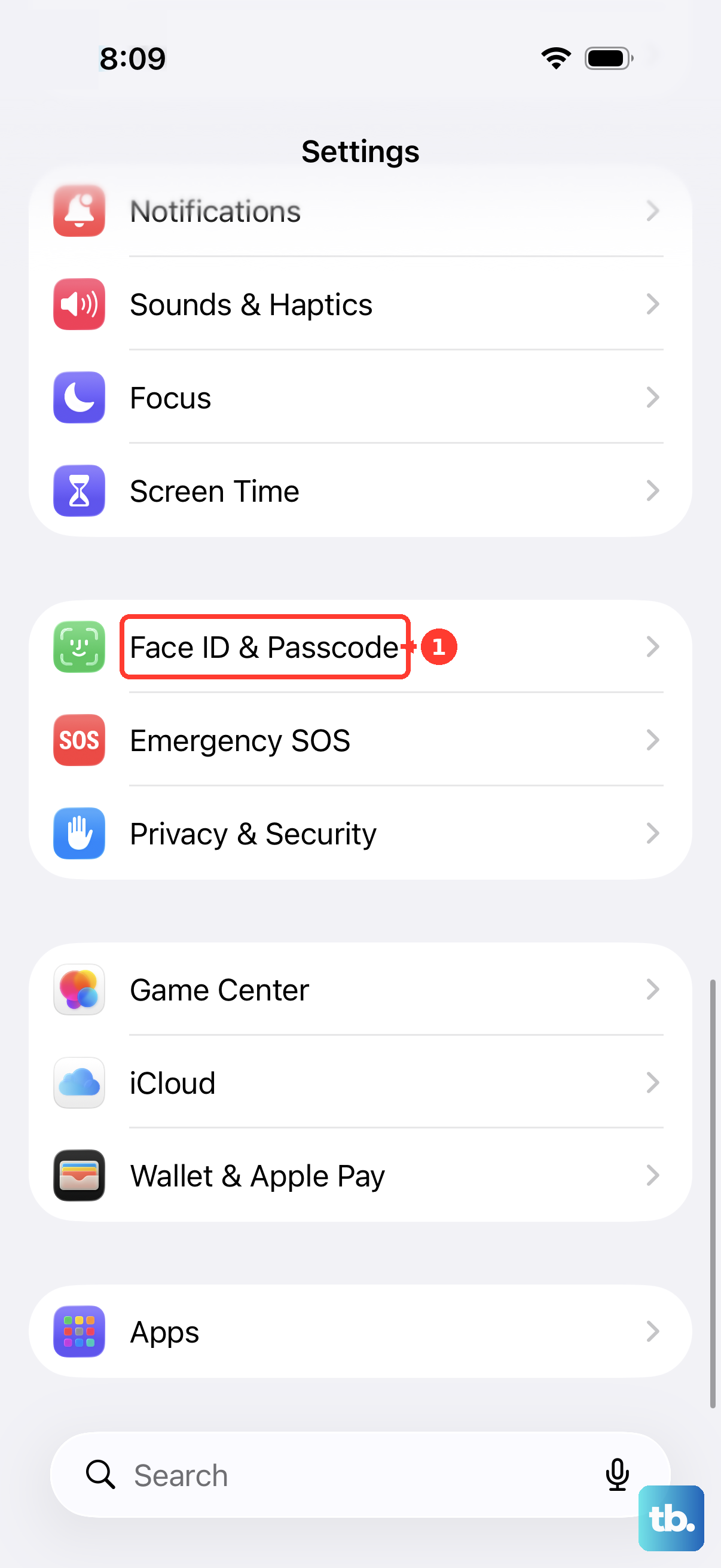
Tap Turn Passcode On. Enter a new passcode. Enter it again to confirm.
Next, open Settings > [your name] > Sign-In & Security. Enable Two-Factor Authentication if your account does not already use it. Complete the verification prompts.
For iCloud Keychain, open Settings > [your name] > iCloud. Select Passwords under Saved to iCloud. Enable Sync this [Device].
Enter your device passcode or Apple Account password when requested. Two-factor authentication is required for iCloud Keychain.
Enable both Find My settings
On your iPhone, open Settings > [your name] > Find My > Find My iPhone. Enable Find My iPhone and Find My network. On an iPad, select and enable Find My iPad instead.
With your AirPods connected, open Settings > Bluetooth > More Info beside their name. Open Find My and enable Find My network. In the alternate layout, Find My network sits directly on the AirPods details screen.
The AirPods-specific network setting applies to AirPods 3, AirPods 4 with ANC, AirPods 5 with Wireless Charging Case, all AirPods Pro, and AirPods Max. Apple's supported-model list excludes AirPods 1 and 2, AirPods 4 without ANC, and AirPods 5 without Wireless Charging Case.
Leave Find My network enabled. Turning it off leaves a setup requirement unmet and disables network finding.
Remove the unfinished registration and reconnect
If the checks above do not clear the alert, remove the incomplete Find My registration and set up again.
- 1.Put both earbuds in their case and close the lid.
- 2.Open Find My > Devices and select your AirPods.
- 3.Choose Remove or Remove This Device.
- 4.Return to your iPhone or iPad Home Screen.
- 5.Open the case near your device while the device has internet access.
- 6.Complete the setup prompts, ending with Done.
Check the connection if pairing fails
Put both earbuds in the charging case and check that both are charging. Then wear them and open Control Center > AirPlay. Select your AirPods if listed and test audio; successful playback does not prove that Find My registration is complete.
If they are missing or cannot connect, close both earbuds in the case for 15 seconds, then reopen it. For AirPods 4, AirPods 5, or AirPods Pro 3, double-tap the case front until the light flashes white. For AirPods 1, 2, or 3, or AirPods Pro 1 or 2, hold the rear setup button until the light flashes white.
Keep the open case beside your iPhone or iPad and complete the pairing prompts. For AirPods Max, remove them from the Smart Case and hold them near your iPhone or iPad within 60 seconds. Alternatively, hold the listening mode button for approximately five seconds until the light flashes white, then select your AirPods Max in Settings > Bluetooth.
Try the reset for your AirPods model
A factory reset is the next troubleshooting step for a connection that still fails after pairing again. For earbuds, close both AirPods in their charging case for 30 seconds. If they remain listed on your iPhone or iPad, open Settings > Bluetooth.
Tap More Info beside your AirPods. Select Forget This Device. Confirm the removal. Open the charging case.
For AirPods 1, 2, or 3, or AirPods Pro 1 or 2, hold the rear setup button for approximately 15 seconds until the light flashes amber, then white. For AirPods 4, AirPods 5, or AirPods Pro 3, double-tap the case front while the status light is on.
On those front-control models, double-tap again when the light begins flashing white. Double-tap a third time when the flashing speeds up. Amber flashes followed by white indicate that the reset is complete.
Reconnect your AirPods with the open case near your iPhone or iPad. If the reset never produces a flashing white light, close the case for 20 seconds. Reopen the case. Repeat the reset sequence for your model.
Reconnect with the open case near your iPhone or iPad.
For AirPods Max, charge the headphones to at least 50% first. Try a restart by holding the listening mode button and Digital Crown, releasing them when the light flashes amber. If the restart does not help, hold both controls for approximately 15 seconds until the light flashes amber, then white. Pair your AirPods Max again.
Clear a previous owner's account association
Used AirPods that report another person's Apple Account still have a Find My ownership association blocking setup with yours.
Ask the associated account owner to open Find My > Devices > [AirPods] > Details on their iPhone or iPad. Have them choose Remove or Remove This Device. Have them confirm with Remove.
For the browser alternative, have the owner sign in at iCloud Find Devices. Have them select the AirPods from the device list. Have them choose Remove or Remove This Device.
Set up the AirPods with your account after the owner removes them. A factory reset does not remove Find My Lock, and Apple says it cannot remove that lock for you.
If a separate AirPods Mismatch alert appears, check that the earbuds belong together. Different-generation earbuds or an earbud from another person's pair require a matching component.
Use Find My to locate the missing matching earbud. If necessary, obtain a matching replacement through Apple.
Resolve blocked settings and get further help
If account settings are grayed out, check Settings > Screen Time > Content & Privacy Restrictions. When All Restrictions is enabled, go to Privacy Restrictions > Allow Changes to Settings > Accounts > Allow. Enter the Screen Time passcode when requested.
A parent or guardian must authorize changes on a child's managed device. For a school or work device, ask the administrator to review Allow Find My Device, iCloud Keychain, Modify account settings, and Modify Bluetooth settings so the required setup settings are available.
If the alert persists after the checks, reconnection, and model-specific reset, open Apple's AirPods service and repair page and select Get started. Describe the pairing and Find My problem, then follow the offered troubleshooting or service options.
Frequently Asked Questions
Why does Find My say it cannot add another item?
Find My has a 32-item limit that counts AirPods under Devices as well as entries under Items. If you receive an explicit item-limit error, remove an unneeded accessory from its owning account and retry setup. That capacity error is separate from the Setup Incomplete alert.
Will updating AirPods firmware clear the message?
Apple does not identify a particular firmware release as a universal fix for this alert. For general connection troubleshooting, connect your AirPods by Bluetooth to an updated iPhone, iPad, or Mac connected to Wi-Fi. Connect the charging case to power. Leave both earbuds inside with the lid closed for at least 30 minutes, within Bluetooth range.
What should I do after replacing an earbud or charging case?
For AirPods 1–4 and AirPods Pro 1–3, put both earbuds in the case. Connect the case to power. Close it and wait 20 minutes. Open it. If the light does not flash white, perform the reset for your model. Once white flashes appear, close the case. If an existing Bluetooth entry remains, open Settings > Bluetooth > More Info beside the AirPods and select Forget This Device. Reopen the case near your iPhone or iPad at the Home Screen. Select Connect, then Done. Apple's replacement procedure does not yet list AirPods 5.
Do I need to reset my iPhone's network settings?
Not for this alert alone. Apple supports resetting network settings for a separate Wi-Fi or internet problem after simpler network troubleshooting fails. The reset removes saved Wi-Fi passwords and other network settings.