A stuck system update can leave your phone, tablet, or computer frozen on a download, a verification error, or a restart screen. Start with the normal updater, then move through connection, storage, repair, and recovery fixes in the order that solves the most common update failures.
Start with the normal update screen
Use the built-in updater first.
- 1.On iPhone or iPad, open Settings > General > Software Update > Download and Install, then keep the device plugged in and on Wi-Fi.
- 2.On Android or Pixel, open Settings > System > Software updates and follow the onscreen instructions.
- 3.On Samsung Galaxy, open Settings > Software update or System updates, then tap Download and install, Check for system updates, or Check for software updates.
- 4.On Windows 11, open Start > Settings > Windows Update > Check for Windows updates, then choose Download & install.
- 5.On Mac, open Apple menu > System Settings > General > Software Update, then click Update, Upgrade, or Restart Now.
- 6.On Chromebook, select the time, open Settings > About ChromeOS > Check for updates, then restart when prompted.
Stabilize power and internet
This fixes update downloads that will not start, stalled downloads, and verification errors tied to the connection. Plug the device into power before trying the update again. For Pixel and many Android devices, charge to at least 75 percent before a large update.
Move the device to a stable Wi-Fi connection. On iPhone or iPad, retry the same Wi-Fi network when update-server or verification messages appear, then use another network if the message returns.
On Windows 11, open Start > Settings > Network & Internet > Wi-Fi and confirm the network status. Reconnect to Wi-Fi or Ethernet, then return to Windows Update.
On Chromebook, restart the device if the update will not download. If the Chromebook is using phone or mobile data, disconnect from it and switch to Wi-Fi or Ethernet.
Make enough room for the update
Low storage stops system updates before they finish. On iPhone or iPad, open Settings > General > iPhone Storage or iPad Storage, then tap Enable next to Offload Unused Apps.
On Windows 11, go to Start > Settings > System > Storage, turn on Storage Sense, open Cleanup recommendations, review the suggested files, and choose Clean up.
On Samsung Galaxy, press and hold an unused app icon and choose Uninstall. You can also open Settings > Apps, choose the app, tap Uninstall, and confirm with OK.
For Samsung cache cleanup, open Settings > Apps, choose an app, tap Storage, then tap Clear cache. For device cleanup, open Settings > Battery and device care > Optimize now > Done. Use Clear data only when you want to erase that app's saved data.
Remove a bad download
A corrupted or incomplete update file is the most common cause when the download finishes but the installation still fails. On iPhone or iPad, open Settings > General > iPhone Storage or iPad Storage.
Find the update in the app list and tap it. Tap Delete Update. Return to Settings > General > Software Update and download the latest update again.
On Windows 11, press Win + R, type services.msc, and press Enter. Right-click Windows Update and choose Stop. Open C:\Windows\SoftwareDistribution and delete the files and folders inside. Return to Services, right-click Windows Update, and choose Start.
On Mac, start from macOS Recovery, open Disk Utility, and repair the startup disk. Delete the damaged or unverifiable installer, then download the installer from Apple again.
Run the built-in repair tools
Use this method after a normal retry fails, especially on Windows or Samsung Galaxy devices that keep showing update errors after storage and Wi-Fi are handled. On Windows 11, open Start > Settings > System > Troubleshoot > Other troubleshooters > Windows Update > Run.
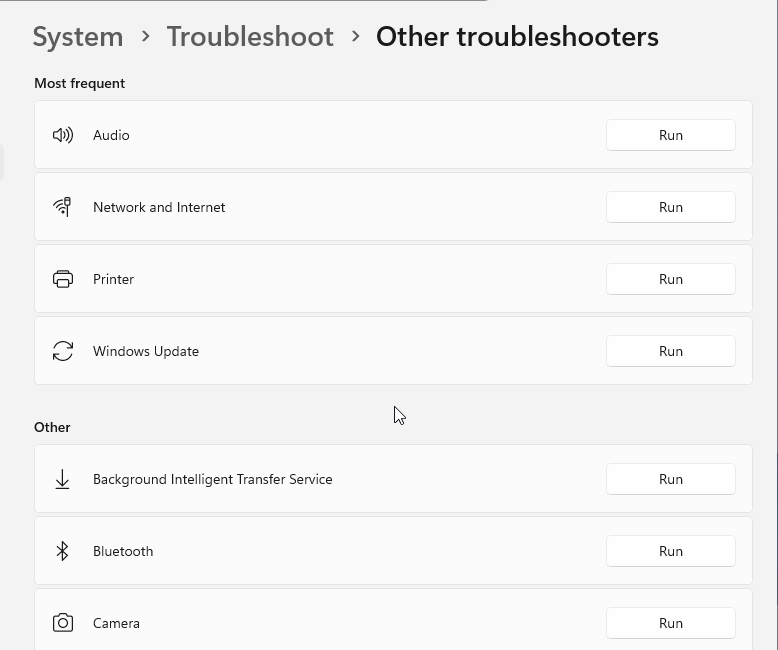
Follow the onscreen instructions. Open the Get Help app and describe the update problem to run Microsoft's automated diagnostics.
Press Win + R, type services.msc, and press Enter. Right-click Windows Update and choose Start. If the service is disabled, open Properties, set Startup type to Automatic, choose Start, then select Apply and OK.
On Samsung Galaxy, turn the phone off completely, turn it back on, and wait a few minutes while the system settles and optimizes apps.
For a Galaxy cache-partition reset, turn off the device, hold Volume Up + Power, release when Android Recovery appears, highlight Wipe cache partition with Volume Down, press Power, choose Yes, then select Reboot system now.
Switch to a computer update path
When wireless updating keeps failing, use the vendor-supported computer updater.
- 1.For iPhone or iPad on a Mac with macOS Catalina or later, open Finder, connect the device, select it in the sidebar, open General, then choose Check for Update and Download and Update.
- 2.For iPhone or iPad on Windows, use the latest Apple Devices app or iTunes, select the device, then choose Check for Update or Download and Update.
- 3.If an iPhone or iPad computer update fails, update the Mac or PC, connect directly to a computer USB port, unlock the device, tap Trust, and try another Apple-certified USB cable or another USB port.
- 4.For Pixel, connect the phone to a computer with a USB cord, open Pixel Update and Software Repair, and follow the onscreen instructions.
- 5.For compatible Windows 11 x64 PCs, use Windows 11 Installation Assistant, run it as administrator, choose Accept and Install, then select Restart Now.
Repair Windows system files
On Windows 11, run deeper repairs after the normal troubleshooter fails. Search for command prompt. Choose Run as administrator. Approve with Yes.
Type chkdsk /f C: and press Enter. Restart if Windows asks. Open Command Prompt as administrator again.
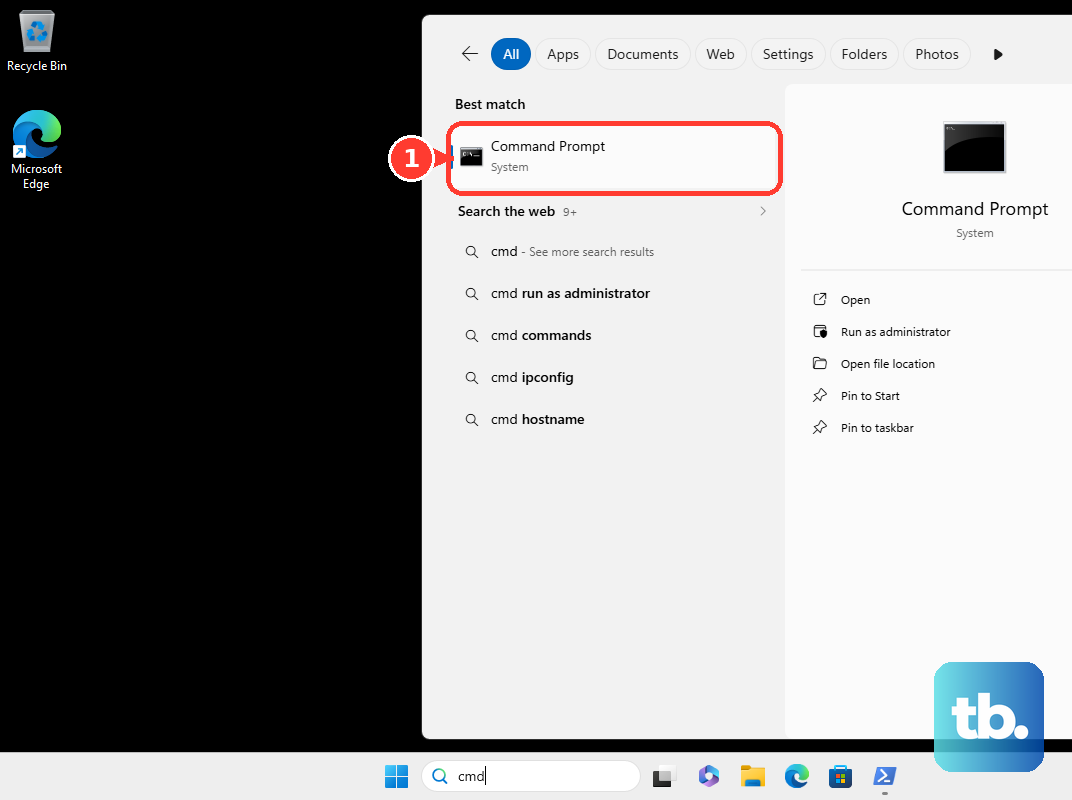
Run DISM.exe /Online /Cleanup-image /Restorehealth. Run sfc /scannow. Wait for verification to reach 100 percent, then try Windows Update again.
If Windows Update files still look broken, rename the SoftwareDistribution and catroot2 folders from an administrator Command Prompt only when you are comfortable with command-line steps.
Tip: Check the clock too. Open Start > Settings > Time & language > Date & time, turn on Set time automatically, and use Sync now.
Recover or reinstall the operating system
Use recovery when the updater is broken, the operating system will not install cleanly, or the device keeps failing after the ordinary fixes. On Mac, start from macOS Recovery, choose the option to install or reinstall macOS, click Continue, and follow the onscreen instructions.
On a Mac with Apple silicon, shut down, hold the power button until Loading startup options or Options appears, then choose Options > Continue. On an Intel Mac, shut down, press power, then immediately hold Command-R until the Apple logo or spinning globe appears.
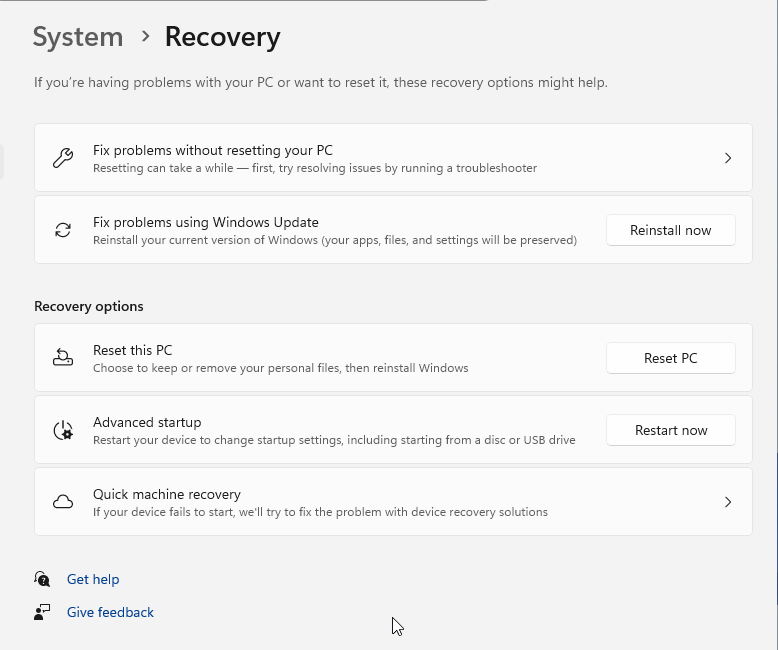
On Windows 11, open Start > Settings > System > Recovery, then use Reinstall now under Fix problems using Windows Update. For a full reinstall or clean install on a compatible x64 PC, use Microsoft's official Create Windows 11 Installation Media download.
On Chromebook, sign out, press and hold Ctrl + Alt + Shift + r, select Restart, then choose Powerwash and Continue. If ChromeOS has a serious problem, use the official Chromebook Recovery Utility to create recovery media and reinstall ChromeOS.
If recovery fails, move to the matching last-resort path: Apple provides Revive Mac for rare persistent installation issues on Apple silicon or T2 Macs, Pixel offers Erase all data (factory reset) in Settings > System > Reset options, and Chromebook uses the Chromebook Recovery Utility.
Check device limits and managed settings
This fixes cases where the update button is missing, the repair option is unavailable, or updates are controlled by someone else. On Chromebook, open Settings > About ChromeOS > Additional details. Check Update schedule for the automatic update date or an administrator-managed update message.
On Windows 11, Fix problems using Windows Update can be missing for more than one reason. It is unavailable on PCs managed by your work or school, and it also requires Windows 11 with the 2022 annual update plus the February 2024 optional update or later installed, so check for pending Windows updates before assuming the PC is managed.
Contact your organization if the PC is enrolled or update policies control when updates install. On Apple and Android company devices, administrator update rules control update timing. Personal update fixes do not override a work policy.
Older Windows 10 instructions point to Start > Settings > Update & Security > Windows Update, but Microsoft ended Windows 10 support on October 14, 2025.
For most consumers, the current route is Windows 11 on compatible hardware. If your PC cannot run Windows 11, Microsoft's Windows 10 Consumer Extended Security Updates program keeps enrolled Windows 10, version 22H2 PCs receiving security updates through October 12, 2027, but it delivers security fixes only, not feature updates or technical support.
Frequently Asked Questions
Why does my system update keep failing after it downloads?
The downloaded update file is damaged, the device is short on storage, or the update service is stuck. Delete the failed update on iPhone or iPad, clear the Windows Update cache on Windows 11, or repair the Mac startup disk before downloading again.
Can I fix a phone update without erasing everything?
Yes. Try Wi-Fi, power, storage cleanup, deleting the failed update, and the computer update path first. Pixel factory reset erases data, so use it last.
Why is my Chromebook no longer getting updates?
Check Settings > About ChromeOS > Additional details > Update schedule. It shows the automatic update date or an administrator-managed update message.
Should I uninstall a Windows update if my PC has problems after installing it?
Use Settings > Windows Update > Update history > Uninstall updates only when a specific installed update is causing the problem. Microsoft warns against removing security updates unless necessary.