Your SteelSeries Arctis Nova 1 microphone stops working when the cable is reversed, the headset is muted, the wrong input is selected, or the app is blocked from using the mic.
The Nova 1 is an analog 3.5 mm headset, so your computer can list it as a Realtek or sound-card input instead of a SteelSeries device.
Start with the hardware checks, then move through Windows, Sonar, apps, Mac, and console settings in the order below.
1. Check the cable direction and headset mute
The Nova 1 cable is directional: plug the 5-conductor end into the headset.
Then plug the 4-conductor end, the side with the nub, into your PC, console controller, phone, or compatible device.
On the left earcup, press the physical Microphone Mute Button so mute is off.
After that, check the input at Start > Settings > System > Sound.
Do not use GameDAC screens, firmware reset steps, or microphone retraction as Nova 1 mic fixes; for this analog headset, use the cable direction, the physical mute button, and the selected input device.
2. Use the right splitter on desktop PCs
This fixes desktop PCs that have separate headphone and microphone jacks.
Connect the Nova 1 headset cable to the dual 3.5 mm Y extension cable.
Next, plug the headphone connector into the PC audio output port.
Plug the microphone connector into the PC microphone port, usually the pink jack.
Open Start > Settings > System > Sound and select the correct microphone input.
3. Position the retractable mic correctly
Fully extend the retractable ClearCast microphone before testing voice pickup.
Place it near the corner of your mouth.
Keep it about one to two fingers away.
Turn the flat side of the microphone toward your mouth.
For a Windows check, use Start > Settings > System > Sound > Input > Microphone test.
4. Pick the correct Windows input
This fixes Windows listening to the wrong microphone or detecting no voice from the Nova 1 input.
- 1.Open Start > Settings > System > Sound.
- 2.Under Input, open Choose a device for speaking or recording.
- 3.Select the Realtek input or PC sound-card input that matches the Nova 1 analog connection.
- 4.Select the arrow next to the device, choose Microphone test, then select Start test.
- 5.Speak normally, select Stop test, then select Play.
5. Allow microphone access in Windows
Open Start > Settings > Privacy & security > Microphone.
Turn on Microphone access.
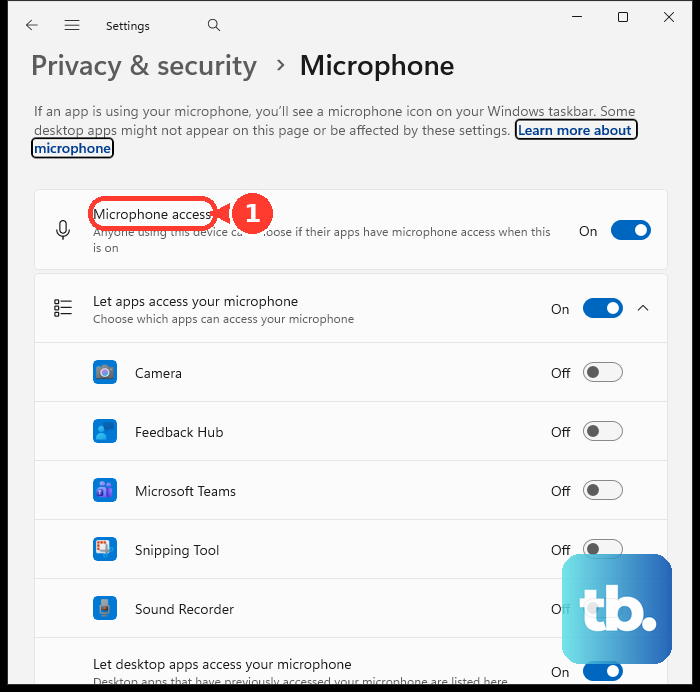
Turn on Let apps access your microphone.
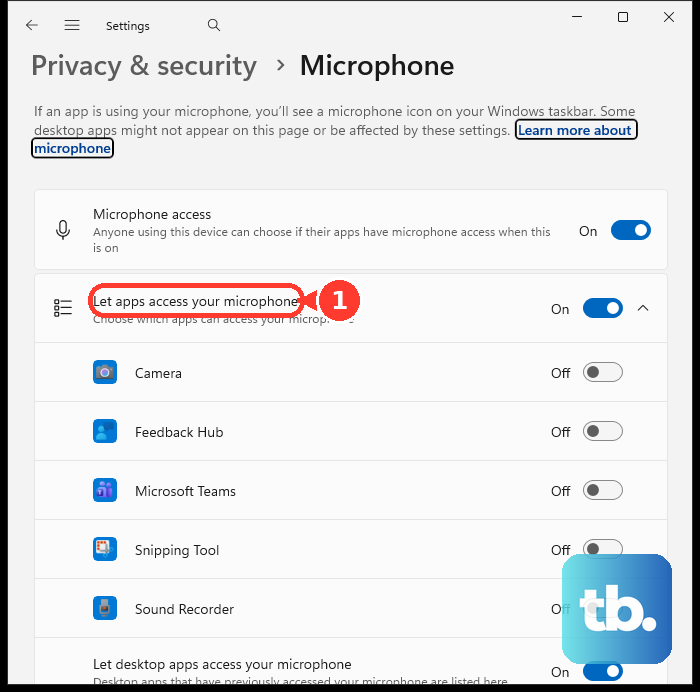
Turn on the individual app switch for the app you want to use.
Turn on Let desktop apps access your microphone for desktop apps such as games, browsers, Discord, or Teams.
After changing privacy access, close and reopen the app before testing the Nova 1 mic again.
6. Raise the input level and run the Windows troubleshooter
A low input level or stuck Windows audio route can make a detected mic seem dead.
Go to Start > Settings > System > Sound > Input, select the microphone, run Start test, then adjust the Input volume slider.
If apps still cannot use an input that Windows detects, open Settings > System > Sound > Advanced > Troubleshoot common sound problems and choose Input devices.
7. Fix SteelSeries GG and Sonar routing
Open SteelSeries GG > Sonar > Mixer.
In the mic channel, choose the Realtek or analog input that matches the Nova 1 connection.
If a yellow error banner appears, click Click to auto set defaults.
Open System > Sound > Advanced > More sound settings > Recording, then set Sonar Microphone as the default recording device.
In SteelSeries GG > Sonar > Mixer > Device Manager, raise the Mic level if it is low.
When your voice cuts in and out, lower Noise Gate, Automatic Noise Gate, and Noise Reduction in a quiet room.
If Sonar virtual devices are missing, close SteelSeries GG, restart the computer, right-click SteelSeries GG, choose Run as Administrator, and check Windows sound settings again.
If GG or Sonar still routes the wrong mic, uninstall SteelSeries GG from Add or Remove Programs, restart, reinstall it from the official SteelSeries GG page, then restart again.
8. Check the app that is using the mic
In Chrome, open More > Settings > Privacy and security > Site settings > Microphone, choose the correct default microphone, then change blocked sites to Allow.
In Discord, open User Settings > Voice & Video, clear mute or deafen, then select the correct Input Device.
A server mute or server deafen lasts until someone with the Mute Members or Deafen Members permission clears it, so ask the server owner, an admin, or a moderator who has that permission.
For Discord in Chrome, open More > Settings > Privacy and security > Site Settings > Microphone, remove Discord from Not allowed to use your microphone, join voice, and choose Allow.
In Microsoft Teams, open Settings and more > Settings > Devices.
Use Manage devices to connect or disconnect the headset.
Then open Audio > Audio settings, pick the connected mic from the Microphone dropdown, and select Make a test call.
During a Teams meeting, select the dropdown arrow next to Mic, open More audio settings, and confirm the right microphone.
9. Set the mic on Mac or console
On macOS, use Apple menu > System Settings > Sound > Input, select the external microphone or headset input, then adjust the input volume slider.
Give the app permission at Apple menu > System Settings > Privacy & Security > Microphone.
Use Mic Mode > Standard when voice filtering clips your speech.
On PS5, press the PS button, choose Mic, then set Input Device, mute state, and Adjust Microphone Level.
On Xbox, press the Xbox button, open Audio & music, and check headset volume, chat mixer, and mic monitoring.
On a school or work PC, check Start > Settings > Privacy & security > Microphone; when microphone controls are locked, the administrator must allow microphone access.
Frequently Asked Questions
Why does my Nova 1 mic show up as Realtek instead of SteelSeries?
The Arctis Nova 1 is an analog 3.5 mm headset, so Windows labels the mic by the PC audio chipset or sound card, such as Realtek, instead of the headset name.
Can I use any 3.5 mm cable with the Arctis Nova 1?
No. For mic support, use a 4-pole to 5-pole male-to-male 3.5 mm cable, with the 5-pole end connected to the headset and the 4-pole end connected to the device.
Does retracting the Nova 1 microphone mute it?
No. SteelSeries says retraction does not mute the mic, although pickup quality can drop while it is retracted. Use the physical Microphone Mute Button instead.
What should I do if the mic works in Windows but not Discord or Teams?
Select the correct input device inside the app and check app permissions. Browser apps also need microphone permission in Chrome or the browser blocks the mic even when Windows detects it.
What fixes a Nova 1 mic that cuts in and out in Sonar?
Open SteelSeries GG, go to Sonar, then Mixer and Device Manager. Raise the Mic level, and in a quiet room lower Noise Gate, Automatic Noise Gate, and Noise Reduction.