Steam Remote Play Together usually breaks in one of three places: the invite never appears, the guest cannot join, or the stream opens with lag, black video, or missing audio. Start with game support and the host’s Steam settings, then move through the network, video, audio, and client repair fixes that match current Steam paths.
Check the game and send a fresh invite
First, make sure the game actually supports the feature before changing Steam settings.
- 1.Open the game’s Steam Store page and confirm the feature list includes Remote Play Together.
- 2.Launch the supported game from Steam on the host computer.
- 3.Open Friends List while the game is running.
- 4.Select your friend and choose Remote Play Together.
- 5.For a mobile guest, have them accept the invite in Steam Chat and continue in Steam Link.
Turn on the Steam Overlay
The most common invite problem is a disabled Steam Overlay, which removes the in-game Remote Play Together controls. Open Steam, select Steam, open Settings, then choose In Game. Turn on Enable the Steam Overlay while in-game. Relaunch the game, press Shift+Tab or the controller Guide button, open Friends List, select your friend, and choose Remote Play Together.
Reset Remote Play in Steam
This fixes sessions where Remote Play is on, but Steam still refuses to connect or show invites correctly. Open Steam and select Steam. Go to Settings. Choose Remote Play.
Turn Enable Remote Play off. Restart Steam. Then return to Steam, open Settings, choose Remote Play, and turn Enable Remote Play back on.
Use an Invite Anyone link
Direct Steam-friend invites are not the only current way to start a Remote Play Together session. Valve’s Invite Anyone option creates a Remote Play Together link for guests on Windows, macOS, Linux, iOS, and Android.
Launch a supported Remote Play Together game, open the Friends List in the Steam Overlay, and use the Remote Play Together invite or copy-link control. Send the link to the guest and have them open it through Steam or Steam Link.
If this method fails, install or update Steam Link from Steam’s official Remote Play download page, then create a new invite link.
Allow Steam through your firewall
Open Windows Security on the host PC. Select Firewall & network protection. Choose Allow an app through firewall. Allow Steam on the appropriate Private or Public networks.
When your firewall prompts you about Steam, allow the Steam executables permission for TCP and UDP traffic. On macOS, open System Settings, choose Network, open Firewall, select Options, and allow Steam incoming connections.
Use manual port changes only when a firewall or network policy blocks Remote Play. Allow UDP local ports 27031-27036 and TCP local port 27036; Steam also lists streaming ports UDP 27031 and 27036, plus TCP 27036 and 27037.
Steam Remote Play is not supported on public networks, workplace or school/university networks, guest networks, networks with a gateway portal or log-in page, or any network with access point/client isolation enabled, so these connections usually fail even after a firewall change. Test from a home network instead, and make sure Access Point/Client Isolation is disabled in your router settings. On a managed network, consult your network administrator for details. Retest Remote Play Together right after allowing Steam.
Improve the network connection
Lag, freezes, disconnects, and black screens often come from the network path between the host, router, and guest device. Remote Play Together streams the game, so the host’s connection matters most.
Connect the host PC to the router with Ethernet. Put wireless clients on 5 GHz Wi-Fi, keep them near the router, and update router firmware from the manufacturer’s admin page or app.
Open Steam, go to Settings, choose Remote Play, open Advanced Host Options, and enable Prioritize Network Traffic. If this method fails, turn on the Steam Link performance overlay and watch for spikes in the cyan network-time line while streaming.
Fix black screen, stutter, or poor video
Use this when the guest joins but the stream is black, corrupt, unstable, or crashing. Start on the client device, then update the software that handles video. On the client device, open Steam, go to Settings, choose Remote Play, open Advanced Client Options, and disable hardware decoding.
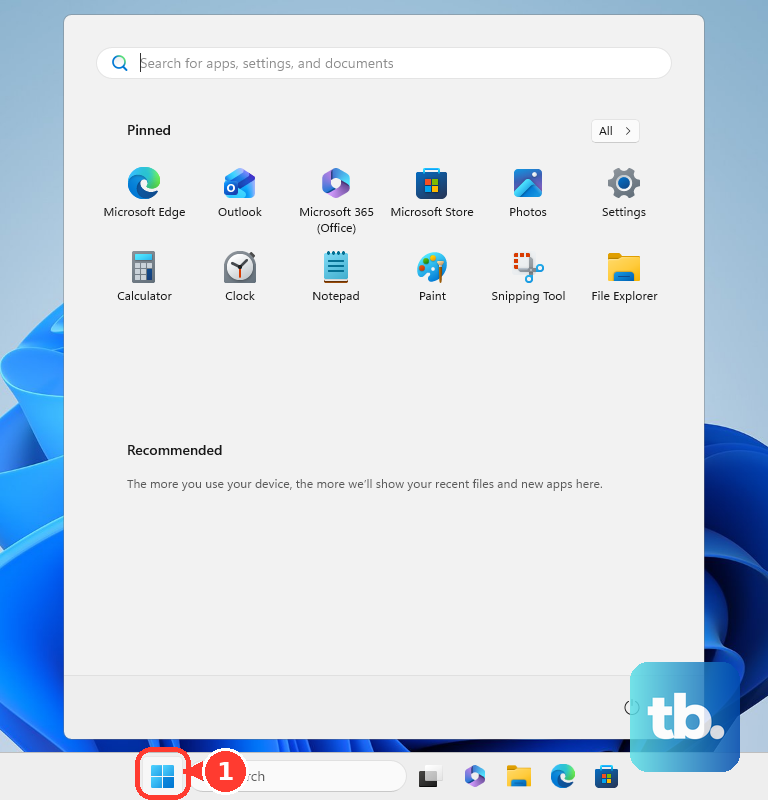
Update the host and guest operating systems. On Windows, open Start, search for update, and run Check for Updates.
Update graphics drivers from NVIDIA, AMD, Intel, or your PC maker’s current driver updater or download page, then restart the computer. When an older guide says In-Home Streaming, use the current Remote Play settings path instead.
Restore missing game audio
This fixes Remote Play sessions where the guest connects but game audio is missing or routed to the wrong device. On Steam Link, open the main menu and go to Settings. Select Streaming.
Press Y to open Advanced Options. Set Audio Streaming to Enabled.
On a Windows host, press the Windows key and type sound. Open Sound in Control Panel. Select the Playback tab. Right-click the needed inactive audio device and choose Set as default device.
Update or repair Steam
Exit Steam completely. Relaunch Steam and let the client apply available updates. Open Library, then Downloads, and let the game finish updating before hosting again.
Open Steam, go to Settings (Preferences on Mac), choose Interface, and open the Client Beta Participation dropdown. Select Steam Beta Update, and select Restart Now when prompted.
To go back to the stable client, pick the non-beta entry in the same dropdown and restart Steam. In Big Picture Mode, the equivalent control is Settings > System > Beta Participation > Steam Client Update Channel; on Steam Deck it is System Update Channel.
Download the installer from Steam’s official download page and reinstall Steam to the same location. Use a full uninstall only as a last resort, because Steam’s Windows uninstall process can remove installed game content in the Steam folder.
Steam no longer supports Windows 7, Windows 8, or Windows 8.1 as of January 1, 2024, so upgrade to a supported OS before troubleshooting current Remote Play Together. Use only Steam’s official download page when reinstalling the client.
Frequently Asked Questions
Do both players need to own the game for Steam Remote Play Together?
No. The host launches a supported Remote Play Together game, then invites the guest. Valve’s Invite Anyone link also lets guests join through Steam or Steam Link without a Steam account.
Why is the Remote Play Together button missing?
The game must support Remote Play Together, and Steam Overlay must be enabled. Check the game’s Steam Store feature list, then turn on Steam Overlay under Steam > Settings > In Game.
Can Steam Remote Play Together work on phones?
Yes. Mobile guests can accept the invite through Steam Chat and continue in the Steam Link app on iOS, iPadOS, or Android.
Should I follow older In-Home Streaming guides?
Use Steam > Settings > Remote Play instead. Valve renamed In-Home Streaming settings to Remote Play settings, so older menu names do not match the current Steam client.