Steam Local Network Game Transfers should move a game install or update from another device on your local network instead of pulling the whole download from Steam's public servers. When Steam local transfer is not working, Steam needs the right transfer permission, an online sender, a clean source copy, and LAN traffic that your firewall allows. Start with the fastest checks, then work down until the transfer appears on the Downloads page.
Start with Steam transfer settings
Turn the feature on where Steam looks for it.
- 1.Open Steam on each PC, Mac, Linux device, or Steam Deck.
- 2.Go to Steam, Settings, Downloads.
- 3.Open Game File Transfer over Local Network.
- 4.Choose Only my own devices, Only my friends, or Any user instead of Off.
- 5.Use the same transfer permission on both devices. For Only my friends, make sure the two Steam accounts are Steam friends.
Install from the receiving device
The most common cause is looking for a manual send button. Steam starts a local transfer from the device that needs the game.
On the receiving device, open Library, select the game, then choose Install or Update.
Steam checks the local network before downloading from Steam's public content servers.
Open the Downloads page while the install or update runs. Active local network game transfers appear there.
Keep both Steam clients online
Both Steam clients need to be signed in, online, and connected to the same local network or subnet. Offline Mode stops the transfer workflow.
Open Steam on both devices and sign in.
Turn off Offline Mode on each device, then connect both devices to the same LAN.
Start Install or Update again from the receiving device.
If this method fails, make the source device idle and check the game copy before changing firewall settings.
Prepare the sending PC
Close any game running on the sending device.
Pause or finish other Steam downloads on that device.
Open Library and update the source game until it is playable and up to date.
Do not try to transfer a preload or unreleased game. Wait until the game is released and playable by both Steam users.
Start Install or Update again on the receiving device.
Tip: a Steam Deck can host a transfer as it is. The desktop-client requirement applies to a sending PC, not to Steam Deck.
Use the Steam desktop client
This fixes a sender that can receive files but cannot host the transfer.
Exit Big Picture Mode on the sending PC.
Close the custom launcher.
Open the normal Steam desktop client and sign in.
On Steam Deck, no mode switch is needed to host. Leave Steam signed in and online.
Return to the receiving device and click Install or Update.
Allow Steam through your firewall
Use the firewall fix when Steam is enabled on both devices but the local transfer never appears in Downloads.
- 1.On Windows, open Windows Security, Firewall & network protection, Allow an app through firewall.
- 2.Click Change settings, allow Steam, and use the Private profile for a home LAN.
- 3.If Steam is missing, choose Allow another app and add the Steam app path.
- 4.If the app exception does not start transfers, create inbound allow rules for TCP 27040 and UDP 27031-27036 on the private or local network.
- 5.On macOS, open Apple menu, System Settings, Network, Firewall, Options, add Steam, and allow incoming connections.
Make Windows use a private network
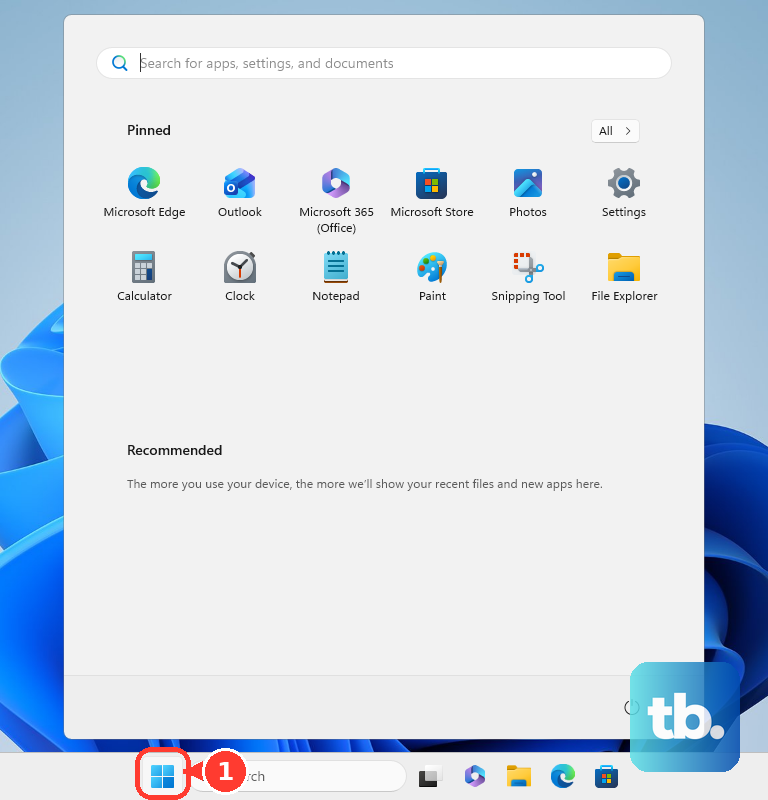
Windows applies private-profile firewall rules when your home connection is set to Private network. On Windows 11, open Start, Settings, Network & internet.
For Wi-Fi, choose Wi-Fi, select the connected Wi-Fi network, then set Network profile type to Private network.
For Ethernet, choose Ethernet, then set Network profile type to Private network.
Retry Install or Update from the receiving device after changing the network profile.
Refresh Steam downloads and client files
Use this when the install or update workflow is stuck, Steam falls back to internet download, or the client is behind on updates. The August 2026 stable Steam Client Update fixed additional cases that prevented local network game transfers from starting.
Restart Steam on all devices so the automatic client update applies.
On Steam Deck, press Steam, open Settings, then System, apply available updates, and restart when prompted.
Clear the download cache from Steam, Settings, Downloads, Clear Download Cache or Clear Cache, then Confirm. Sign back in afterward.
If the internet fallback is slow or failing, open Steam, Settings, Downloads, Download Region, choose another nearby region, and retry Install or Update.
Repair the game or restore a backup
Use this when a damaged source copy, broken library permissions, or a failed LAN path keeps the transfer from completing.
Restart the source computer, open Library, right-click the game or click the gear icon, then choose Properties..., Installed Files, Verify integrity of game files.
If installs or updates fail on the library drive, open Steam, Settings, Storage, select the affected library or drive, open the ... menu, and choose Repair Folder.
When LAN transfer still will not work, use Steam's backup flow. On the source computer, open Library, right-click the game, choose Properties..., Installed Files, Backup game files, Browse..., then Create Backup. On the other computer, install Steam, sign in, open the Steam menu, choose Restore Game Backup..., and select the backup files.
If this method fails, reinstall Steam in place from the official Install Steam page to preserve installed games, or move steamapps before uninstalling Steam on Windows.
Frequently Asked Questions
Why does Steam download from the internet instead of my other PC?
Steam falls back to public content servers when the source device is offline, busy, blocked by the transfer permission, missing a playable updated copy, or blocked by firewall rules.
Can Steam Deck use Local Network Game Transfers?
Yes. Steam Deck can both receive and host local network game transfers. The desktop-client rule applies to PCs: a PC can host only when it is running the Steam desktop client, not Big Picture Mode or a custom launcher.
Does Steam have a manual send button for local transfers?
No. Start the process from the receiving device with Install or Update, then check the Downloads page for local network transfer activity.
Can private Steam games transfer to another user on my network?
No. Private games cannot transfer to other users on the LAN. Remove the Private status, or use Only my own devices when both devices use the same Steam account.