Steam CAPTCHA can refuse to load, reject the right answer, or loop while you create an account, sign in, or recover a password. The fix is to move from the Steam client window to the right web page, then clear the browser, cookie, extension, network, and DNS blocks that stop the Steam CAPTCHA (hCaptcha) from completing.
1. Start With Steam's Web Login Page
Use Steam's current web pages before troubleshooting the embedded login flow in the Steam client.
Open Chrome, Firefox, Safari, or Chromium Edge.
To create a new account, go to https://store.steampowered.com/join/.
To fix sign-in or password recovery, go to https://help.steampowered.com/wizard/HelpWithLogin.
Follow the Steam prompts on that page.
Steam also points new users to the Steam login page and the Create a new Account option.
2. Switch to a Supported Browser
Use one of the two most recent major versions of Chrome, Firefox, Safari, or Chromium Edge on desktop.
On mobile, use Chrome, Safari, or the Android native browser.
Update your browser.
Next, close the Steam sign-up, sign-in, or recovery tab.
Open the Steam page again in the updated browser.
Select Refresh on the CAPTCHA page when Steam shows that button.
If there is no Refresh button, reload the page normally.
When the same Steam login flow keeps failing after reloads, stop retrying for a few hours, then try the web page again.
3. Clear Cookies and Cache
Old cookies and cached files break loading and formatting on websites, including sign-in pages. Clear them, reopen the Steam page, and run the CAPTCHA again.
In Chrome, open More > Delete browsing data, choose All time, select cookies and cached files, then choose Delete data.
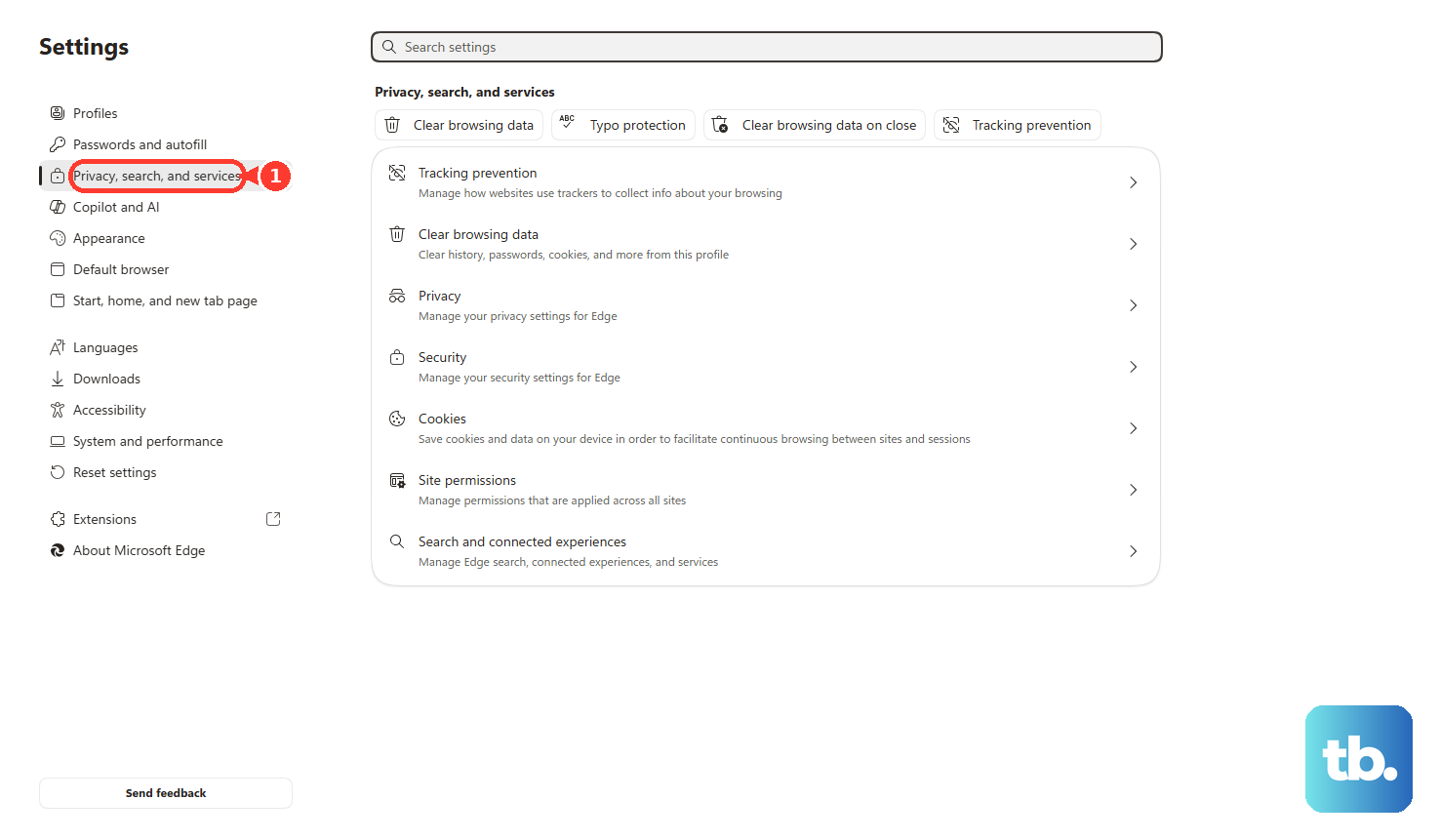
In Microsoft Edge, open Settings and more > Settings > Privacy, search, and services > Clear browsing data > Choose what to clear, select Cookies and other site data and Cached images and files, then choose Clear now.
In Firefox, open the menu, choose Settings > Privacy & Security, then use Cookies and Site Data or Browsing data to clear cookies and cached site data.
On iPhone or iPad, go to Settings > Apps > Safari > Clear History and Website Data, choose a timeframe, then tap Clear History.
On Mac, open Safari, choose History > Clear History, then choose how far back to clear.
4. Allow Cookies and JavaScript
CAPTCHA widgets need the right cookie and script settings before Steam can verify the challenge.
Steam's CAPTCHA provider (hCaptcha) needs cookies enabled, and CAPTCHA widgets need scripts to render and verify the challenge.
Chrome desktop: open More > Settings > Privacy and security > Third-party cookies, then choose Allow third-party cookies or add site exceptions for Steam and hCaptcha pages (hcaptcha.com).
Chrome Android: open More > Settings > Site settings > Third-party cookies, then choose Allow third-party cookies or add a site exception.
Safari on iPhone or iPad: go to Settings > Apps > Safari > Advanced, then turn off Block All Cookies.
Chrome and Chromium browsers: open More > Settings > Privacy and security > Site settings > JavaScript, then choose Sites can use JavaScript.
Use site exceptions when you want to keep stricter cookie settings for other websites.
5. Disable Extensions and Test a Private Window
In Chrome, go to More > Extensions > Manage extensions, then turn off suspicious extensions or choose Remove.
In Edge, select the Extensions icon, open Manage Extensions, then use the toggle next to each extension.
In Firefox, open the menu, choose Help > Troubleshoot Mode, then select Restart.
In Chrome, press Ctrl + Shift + N on Windows, Linux, or ChromeOS.
On Mac, press Command + Shift + N.
In Edge, open Settings and more > New InPrivate window.
Open the Steam CAPTCHA page in the private window.
If Chrome Incognito still fails, use the page's cookie control to temporarily allow third-party cookies for that Steam page.
Ad blockers, privacy extensions, script blockers, VPN extensions, and proxy extensions can block the CAPTCHA box or stop the response from reaching Steam.
6. Change Networks and Disconnect VPN
Shared or suspicious IP traffic is enough to put a Steam CAPTCHA attempt on the wrong side of the CAPTCHA provider's (hCaptcha's) check.
Public Wi-Fi, campus networks, work networks, carrier-grade NAT, VPN exit nodes, and proxy servers can all trigger that problem.
Disconnect from the current network.
Try a trusted home network.
Alternatively, try your phone hotspot.
Disconnect the VPN and reload the Steam page.
On Windows, go to Settings > Network & internet > VPN, select the VPN, then choose Disconnect.
For a Windows proxy, open Start > Settings > Network & Internet > Proxy, then under Manual proxy setup choose Set up next to Use a proxy server, turn off Use a proxy server, then choose Save.
On Mac, open Apple menu > System Settings > Network, select your network service, choose Details > Proxies, then turn off configured proxy services.
7. Refresh DNS on Windows
When Steam or reCAPTCHA resources fail to resolve correctly, clear the Windows DNS cache first.
- 1.Open PowerShell or Terminal as administrator.
- 2.Run Clear-DnsClientCache.
- 3.Close and reopen your browser or Steam.
- 4.Open the Steam CAPTCHA page again.
Change the DNS resolver next. On Windows 11, open Start > Settings > Network and Internet, choose the active adapter, open DNS server assignment > Edit, change Automatic (DHCP) to Manual, turn on IPv4, enter 1.1.1.1 and 1.0.0.1, then choose Save.
8. Use Steam Mobile or Steam Support
For an existing account, Steam Mobile QR sign-in avoids typing credentials into the desktop CAPTCHA flow.
Install or open Steam Mobile.
On the Steam desktop login page, choose QR sign-in.
Scan the QR code with Steam Mobile.
Confirm the sign-in in the app.
QR sign-in is for existing accounts, not new account creation or account recovery. When recovery is blocked, go to https://help.steampowered.com, choose Help, I can't sign in, then select I forgot my Steam Account name or password or My Steam Account was stolen and I need help recovering it.
If the Steam client itself is broken, download Steam from https://store.steampowered.com/about/ and run the official installer. For a full reinstall, uninstall Steam through Start > Settings > Apps on Windows or drag Steam from Applications to Trash on Mac.
Preserve your Steam library folders first, because uninstalling Steam removes installed games unless those folders are kept.
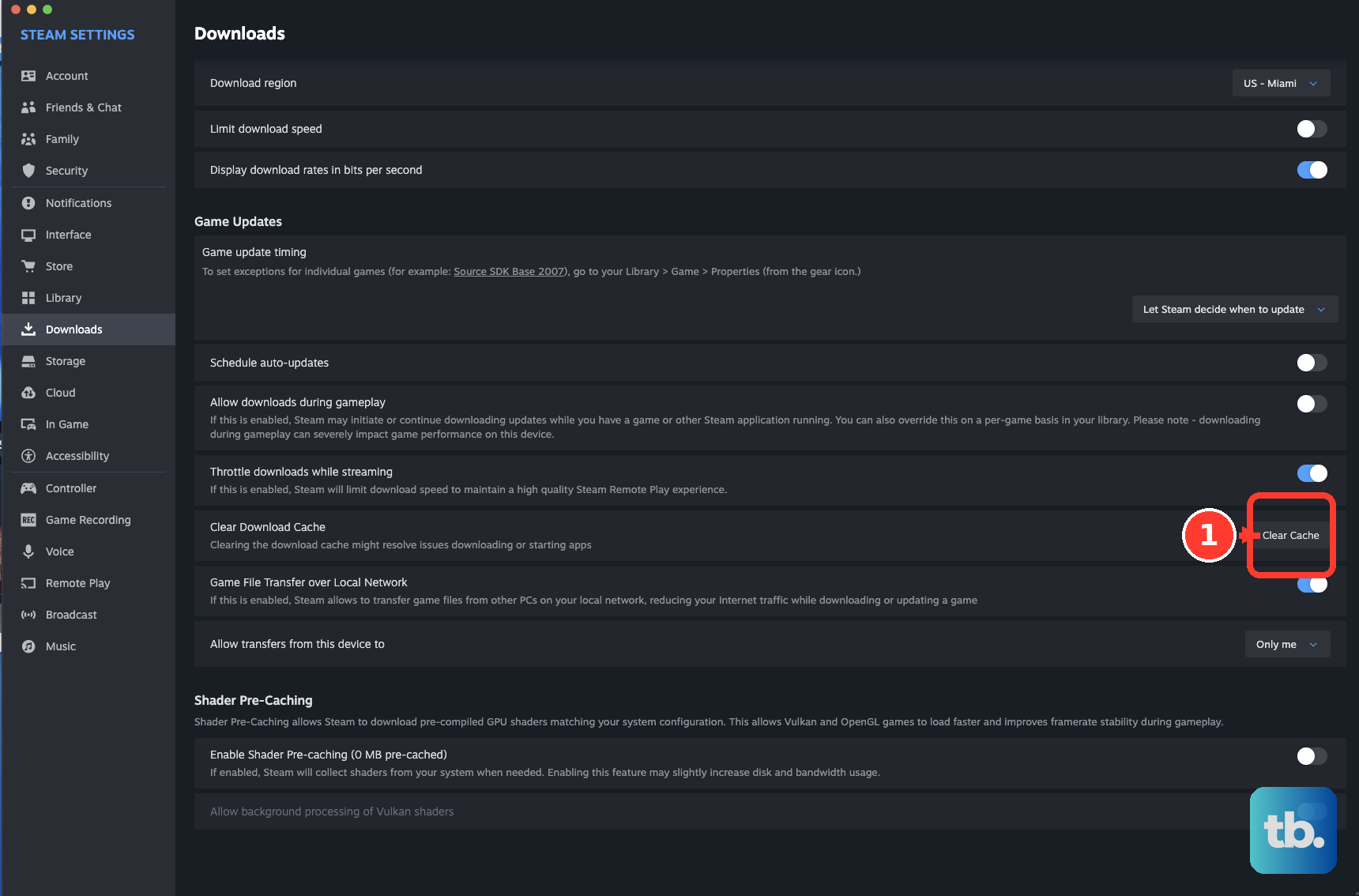
Skip the old IPv6 workaround. Microsoft says not to disable IPv6 or unbind it from interfaces; use DNS troubleshooting instead. Treat Clear Download Cache as a Steam download fix, not a Steam CAPTCHA fix.
Frequently Asked Questions
Why does Steam keep saying my CAPTCHA response is invalid?
Steam CAPTCHA rejects attempts when the browser is unsupported, cookies are blocked, JavaScript is disabled, extensions interfere, VPN or proxy traffic is active, or the current network IP address is distrusted by the CAPTCHA provider (hCaptcha).
Can I create a Steam account without the Steam client CAPTCHA?
Use Steam's web account creation page at https://store.steampowered.com/join/ in a supported browser. Steam also directs new users through the Steam login page and the Create a new Account option.
Does Steam Mobile QR sign-in work for new accounts?
No. Steam Mobile QR sign-in works for existing Steam accounts. It signs you into the desktop client, but it does not create a new account or replace Steam account recovery.
Should I disable IPv6 to fix Steam CAPTCHA?
No. Microsoft says not to disable IPv6 or unbind it from interfaces. Use the browser, cookie, network, VPN, proxy, and DNS fixes instead.