You open Spotify, search for a song, artist, podcast, or playlist, and the results spin, look wrong, or never load. Spotify search not working usually comes down to Offline mode, the connection, stale cache, an outdated app, browser data, or a setting that hides certain results. Start with the fastest checks, then use the deeper app, web player, and account fixes when Search still will not behave.
Check Search and Spotify status first
Start by confirming that Search is failing, not just one query.
- 1.Open Spotify and select Search.
- 2.Search for a few different result types: song, album, artist, audiobook, playlist, podcast, genre, mood, or profile.
- 3.For lyrics search, enter at least three words from the lyrics and look for results marked Lyrics match.
- 4.If Search fails on more than one device, open Spotify Support, go to Troubleshooting, then check Ongoing issues.
- 5.Search or ask in the Spotify Community when the same Search problem appears across multiple devices or users.
Turn off Offline mode
Open Spotify on your phone or tablet and tap your profile picture. Tap Settings and privacy, then open Data-saving and offline. Switch Offline mode off, then try Search again.
On desktop, open Spotify. On Mac, use the Apple menu bar and choose Spotify. On Windows, open the three-dot menu, choose File, then switch Offline mode off.
Tip: Offline mode can make online results unavailable and leave undownloaded content grayed out.
Fix the connection Spotify is using
Spotify Search needs a working connection, so test another app or web page on the same device. If other apps or pages fail too, switch Spotify to another Wi-Fi or mobile data connection.
For Wi-Fi, open your device settings, turn Wi-Fi off, wait 30 seconds, then turn it back on. Restart the router when the same Wi-Fi network still fails.
On Android, open Settings, then Network & internet or Connections. Turn Wi-Fi off and mobile data on, test Spotify, then turn mobile data off and Wi-Fi on and test again.
To reset Android radios, open Airplane Mode, turn it on, wait 10 seconds, then turn it off.
If this method fails, clear Spotify cache and check storage next, because Search can still stall when the connection is working.
Allow cellular data on iPhone or iPad
The most common cause when Spotify Search works on Wi-Fi but not mobile data is that cellular access is off for Spotify.
Open Settings on your iPhone and tap Cellular. Turn Cellular Data on. Scroll to Spotify and turn cellular data on for Spotify.
On a cellular iPad, open Settings, then Cellular Data, and allow Spotify to use cellular data. Reopen Spotify and test Search.
If the iPhone or iPad still will not connect, open Settings and make sure Airplane Mode is off. Then open Cellular and make sure Wi-Fi Assist is off.
Use Reset Network Settings only as a last resort from Settings, General, Transfer or Reset [device], Reset, and Reset Network Settings. This removes saved Wi-Fi networks and passwords, cellular settings, VPN settings, and APN settings.
Clear Spotify cache and free storage
Use this when Search opens but keeps hanging, loading old-looking results, or acting rough after app updates.
- 1.On iPhone or Android, open Spotify and tap your profile picture.
- 2.Go to Settings and privacy, then Data-saving and offline.
- 3.Under Storage, tap Clear next to Clear cache.
- 4.On desktop, click your profile picture, open Settings, scroll to Storage, and choose Clear cache.
- 5.Check device storage and free space if needed. Spotify recommends at least 1 GB of free memory.
Update Spotify and restart the device
This fixes Search problems caused by an outdated app, a frozen session, or a device that needs a fresh start after changes.
On iPhone or iPad, open the App Store. Tap your profile icon, then open App Updates. Update Spotify when it is listed.
On Android, open the Google Play Store. Search for Spotify, then tap UPDATE when the button appears. To keep Spotify current on Android, open the three-dot menu on Spotify's Play Store page and check Enable auto-update.
On desktop, look for a blue dot next to your Spotify profile picture. Click your profile picture and choose Update Spotify now. Close and reopen Spotify. If Search is still frozen or blank, restart the phone, tablet, or computer and test again.
Repair the web player or switch to the app
When Spotify Search fails only at open.spotify.com, open your browser's private or incognito mode, go to open.spotify.com, and search again. That clean window can bypass a broken signed-in browser state, extension problem, cookies, or cached files.
Update the browser next. In Chrome, open More, then Help, then About Google Chrome, and choose Relaunch when offered. In other supported browsers, use the browser's Help section to check for updates.
If Chrome still fails, open More, then Delete browsing data. Choose All time, select Cookies and other site data, select cached files if needed, and choose Delete data.
For Edge, open Settings and more, Settings, Privacy, search, and services, Clear browsing data, Choose what to clear, then Clear now. For Firefox, open Settings, Privacy & Security, then clear Cookies and Site Data or Browsing data. When the web player still will not search after those checks, install or open the Spotify desktop app and search there.
Sign out or reinstall Spotify
The most common reason to go this far is a stuck account session or a damaged app install that simpler refreshes did not clear.
On mobile or tablet, tap your profile picture, open Settings and privacy, scroll down, and tap Log out. On desktop or web player, click your profile picture and choose Log out.
If you need to clear all regular Spotify sessions, open your account page, go to Security and privacy, choose Sign out everywhere, then select Sign out everywhere. This does not include partner devices such as speakers, game consoles, and TVs.
Reinstall Spotify only after the earlier fixes fail. On iPhone or iPad, delete Spotify, restart the device, then install Spotify again from the App Store.
On Android, open Settings, Apps, Spotify, choose Uninstall, then install Spotify again from Google Play or your phone maker's app store.
On Mac, open Finder, choose Applications, drag Spotify to Trash, empty the trash, then download and install Spotify again.
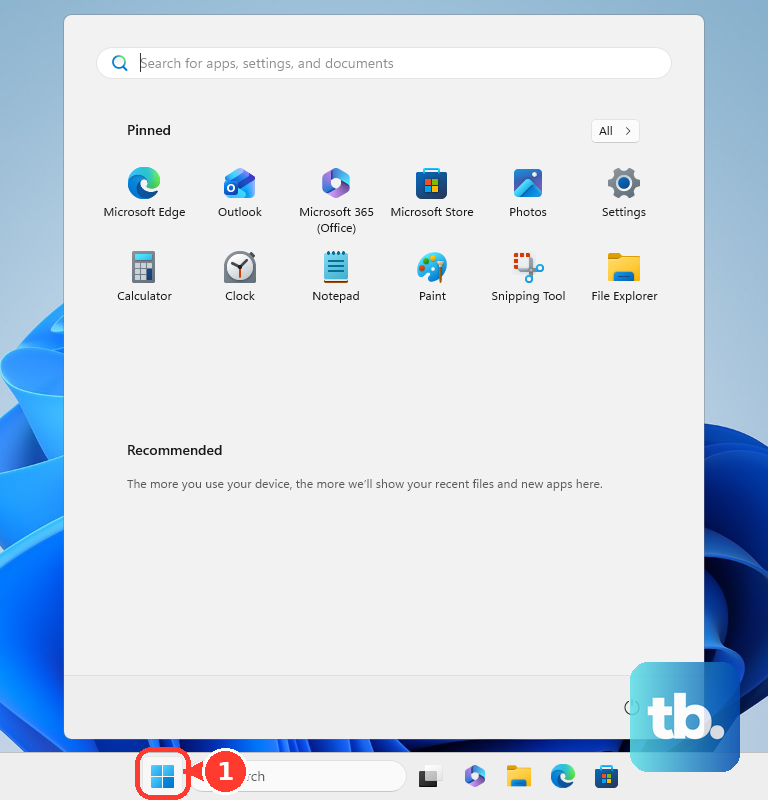
On Windows, close Spotify, open Start, Settings, Apps, Apps & Features, choose Spotify, select Uninstall, then install it again from the Microsoft Store or Spotify's download page.
Unblock missing or grayed-out results
This applies when Search loads, but certain songs, artists, or videos look missing, blocked, or grayed out. Content filters, managed accounts, network restrictions, or a deprecated voice feature can make Spotify look broken when Search itself is loading.
On mobile or tablet, open Spotify, tap your profile picture, go to Settings and privacy, and under Content and display, set Allow Explicit Content the way you want it. On desktop, click your profile picture, open Settings, and under Explicit Content, adjust Allow playback of explicit-rated content.
For Premium Family, the plan manager can open the Premium Family page, choose a member, and switch Explicit content on or off. For managed accounts, a parent or guardian can open Settings and privacy, then Parental controls, choose the managed account, and update Explicit content, Videos and Canvas, or blocked artists and songs.
On school, work, public, or other managed networks, ask the IT department or network administrator whether Spotify is restricted. If you use a firewall, make Spotify an allowed exception.
Do not try to restore the old in-app Hey Spotify voice search feature. Spotify deprecated it on July 18, 2022 and removed it from the app; use Siri, Google Assistant, Bixby, Alexa, or Spotify DJ where supported instead.
Frequently Asked Questions
Why does Spotify Search work on Wi-Fi but not cellular data?
On iPhone or cellular iPad, cellular data may be disabled for Spotify. Turn on Cellular Data, then enable cellular access for Spotify in Settings.
Why are some Spotify search results grayed out?
Offline mode, network trouble, or explicit-content settings can make content appear unavailable. Turn off Offline mode first, then check the content filter if only explicit results are missing.
Does clearing Spotify cache delete my playlists?
No. Clearing cache removes temporary stored app data, not your Spotify account, saved playlists, or library.
Can I still use Hey Spotify voice search?
No. Spotify deprecated the in-app Hey Spotify voice feature on July 18, 2022 and removed it from the app. Use Siri, Google Assistant, Bixby, Alexa, or Spotify DJ where supported.