Your monitor has a picture, but the audio is missing or coming from the wrong place. Start with output selection, then check volume, the monitor's own speaker menu, the app, and the connection before touching drivers. The steps below use current Windows 11 and macOS paths from Microsoft, Apple, Dell, Samsung, Google, and YouTube guidance.
1. Switch audio to the monitor first
This is the fastest fix when Windows or macOS is still sending sound to laptop speakers, headphones, or another output.
- 1.On Windows 11, select the Speakers icon on the taskbar.
- 2.Select the arrow to the right of the volume slider, labeled Select a sound output.
- 3.Choose the monitor, HDMI, DisplayPort, USB-C, or USB audio device.
For the full Windows path, open Start > Settings > System > Sound > Output, then select the monitor. Microsoft notes that selecting a device there also sets it as the default output.
On Mac, open Apple menu > System Settings > Sound > Output, then select the display speakers. If headphones or external speakers are plugged into the Mac, disconnect them first, then choose the display again.
2. Unmute every volume control
A monitor can be the correct output and still stay silent because Windows, macOS, the keyboard, the monitor, or the app volume is muted.
On Windows 11, select the Speakers icon on the taskbar and raise the output volume slider.
Next, select the settings icon next to Volume mixer, labeled More mixer settings, then make sure the device and app sliders are not muted.
Use WIN + CTRL + V on Windows 11 devices with the enhanced volume mixer update, then adjust the app or output device.
Use the PC, laptop, keyboard, monitor, or Surface Volume up, Volume down, and Mute buttons.
On Mac, open Apple menu > System Settings > Sound > Output, drag Output volume, clear Mute, and adjust Balance.
When a digital display output does not expose software volume on Mac, use the monitor, receiver, or connected speaker controls; the app's own volume slider may still work.
3. Confirm the monitor actually supports sound
Check the monitor specifications or user manual before reinstalling anything. Samsung notes that not all monitors have built-in speakers or support audio over HDMI.
Use an audio-capable connection: HDMI, DisplayPort, USB-C, USB audio, or the specific USB path required by the monitor. Reseat the cable, then confirm the monitor is on the correct Input or Source.
If the monitor has no built-in speakers, connect external speakers to the monitor audio port or directly to the computer by Bluetooth or audio cable. On supported Samsung gaming monitors with ARC, connect HDMI from the monitor HDMI port to the soundbar HDMI OUT, press Source on the soundbar or remote until HDMI appears, then change the monitor source to that HDMI port.
4. Raise the monitor speaker menu
Open the monitor's built-in menu with its buttons or joystick.
Then select Menu.
Open the monitor's Audio, Sound, or Speaker menu.
Turn off Mute.
Raise the monitor speaker volume.
For Dell S2422HZ and S2722DZ monitors, use Menu > Audio and webcam > Speaker, then set the speaker volume to 100.
5. Set the speaker inside the silent app
When Windows or Mac system audio works but one app is silent, change that app's audio output.
In a conferencing or media app, open Audio Settings, select the monitor or speakerphone as the output Speaker, then raise Speaker Volume. Dell's verified example uses Echo Canceling Speakerphone on supported monitor models.
For Chrome, open the site with the sound problem, right-click the tab, and select Unmute site. To allow site sound in Chrome, open Chrome > More > Settings > Privacy and security > Site settings > Additional content settings > Sound, then choose the sound permission.
On YouTube, turn on the video player's volume button, check browser sound, check device sound settings, then restart the browser or device. In Microsoft Edge, open Settings and more > Settings > Cookies and site permissions > Media autoplay, then choose Allow, Limit, or Block.
6. Reenable a missing Windows audio device
If the monitor output disappeared from Windows, reenable the audio device and make Windows scan for it again.
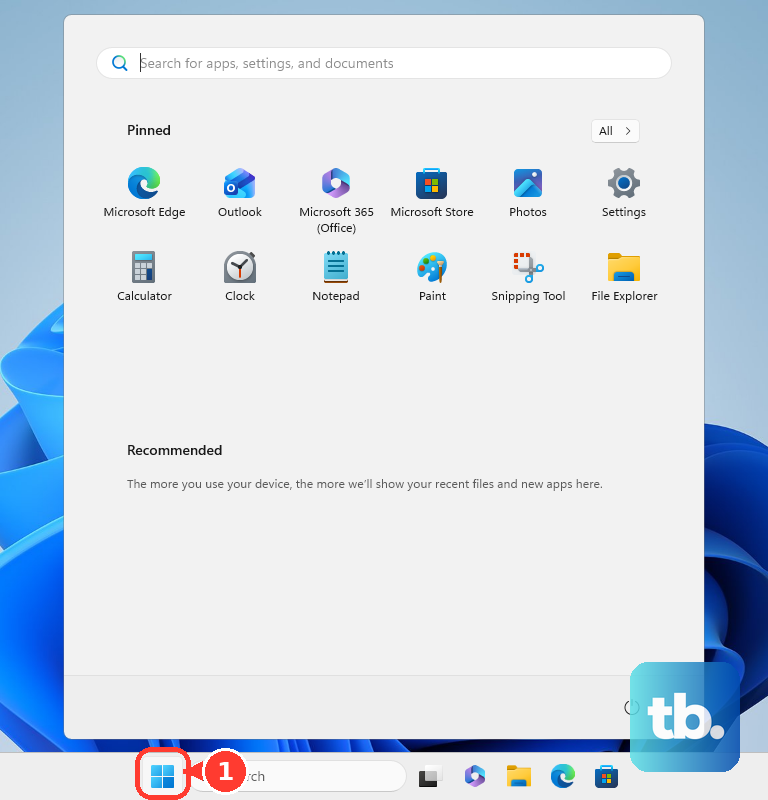
Open Start, type Device Manager, then open Device Manager.
Expand Sound, video and game controllers.
Right-click the audio device and select Enable device when that option appears.
If the device is still missing, select View > Show hidden devices.
Select Action > Scan for hardware changes.
If the output appears but is disabled in sound settings, open Start > Settings > System > Sound > Advanced > More sound settings > Playback, select the output device, then choose Properties > Device usage > Use this device.
7. Repair Windows drivers the current way
Start with a restart so Windows re-detects HDMI, DisplayPort, USB-C, docks, and audio devices.
Select Start > Power > Restart.
If update options appear, choose Update and restart or Update and shut down.
After Windows restarts, open Start > Settings > Windows Update > Check for updates.
If updates are available, select Install now, then restart when prompted.
Then use Device Manager for the audio driver:
To update it, open Device Manager > Sound, video and game controllers, right-click the audio device, select Update driver, then choose Search automatically for drivers.
To reinstall it, right-click the audio device in Device Manager, select Uninstall device, confirm, select Attempt to remove the driver for this device when shown, then restart the PC.
To use the generic Windows audio driver, select Update driver > Browse my computer for drivers > Let me pick from a list of available drivers on my computer, choose the audio device or High Definition Audio Device, then select Next.
To undo a bad update, right-click the audio device, select Properties > Driver > Roll Back Driver, follow the prompts, then select Yes.
For model-specific driver or firmware downloads, use the PC, monitor, dock, or GPU manufacturer's support site. Use Microsoft's official Software Download page for Windows installation media or product downloads.
8. Turn off enhancements and isolate software conflicts
Windows audio enhancements can break or distort monitor, HDMI, and DisplayPort audio.
Open Start > Settings > Sound > Output.
Select the audio device.
Scroll to Advanced settings.
Set Audio enhancements to Off.
Open Start > Settings > System > Troubleshoot > Other troubleshooters > Audio > Run.
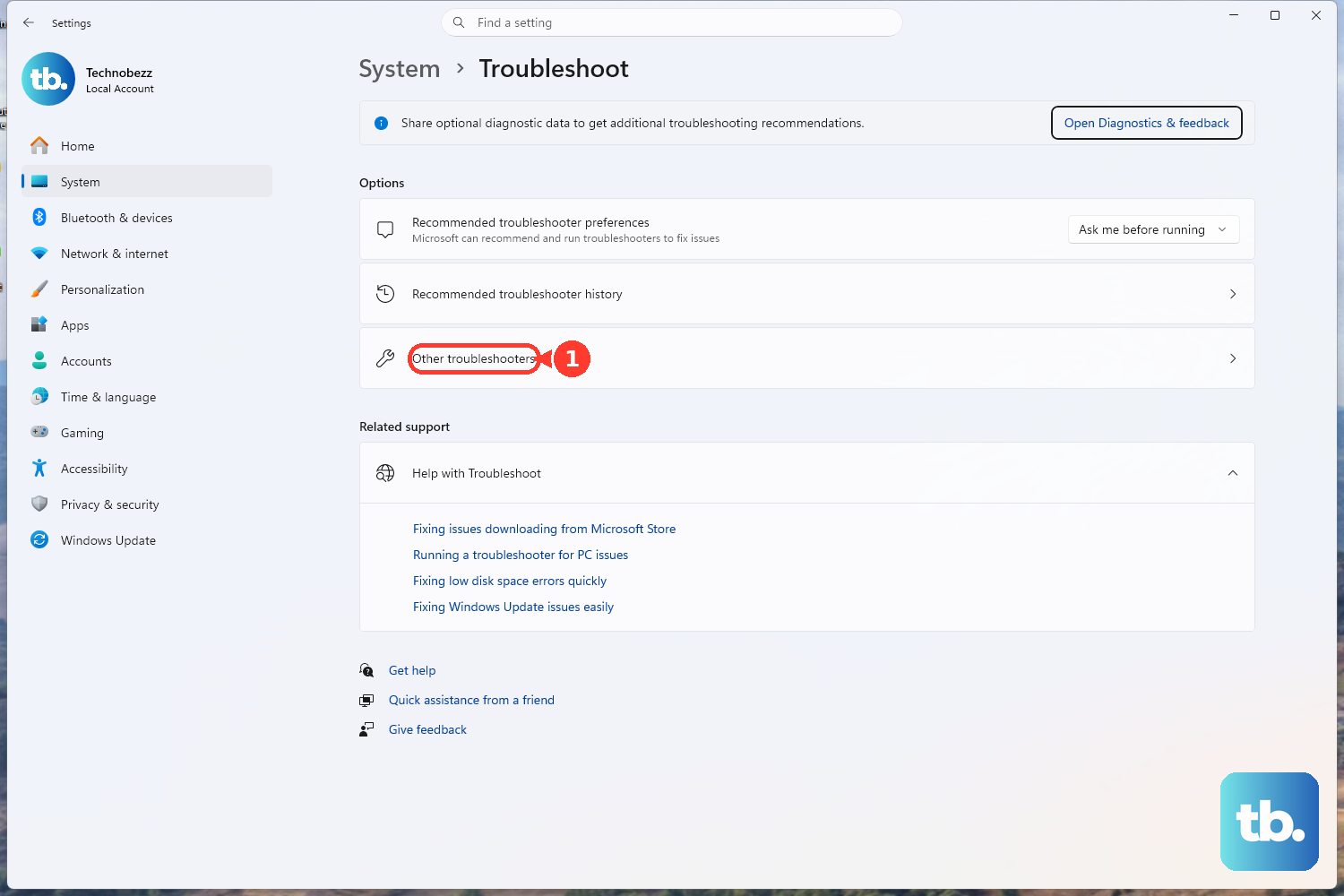
Windows 11 users can also start the automated Audio troubleshooter in the Get Help app.
On Mac, update macOS from Apple menu > System Settings > General > Software Update. For app updates, open App Store and install available updates.
For deeper Mac audio controls, open Audio MIDI Setup > Window > Show Audio Devices, select the monitor output, then use the available Volume, Configure Speakers, format, or speaker configuration controls. If third-party audio utilities or drivers are interfering, start in safe mode: on Apple silicon, choose Apple menu > Shut Down, hold the power button until Loading startup options appears, select a volume, hold Shift, then select Continue in Safe Mode. On an Intel Mac, restart and immediately hold Shift until the login window appears.
Frequently Asked Questions
Why does my monitor show video but no speaker option?
The monitor must expose an audio endpoint through HDMI, DisplayPort, USB-C, USB audio, or another supported audio path. If the model has no speakers or audio support, Windows or macOS has no monitor speaker to select.
Why is only Chrome or YouTube silent through my monitor?
Chrome tabs, site permissions, YouTube's player volume, browser sound, and app output can be muted separately from the system output. Unmute the site, turn on the YouTube player volume, and confirm the app speaker is set to the monitor.
Should I reinstall drivers to fix monitor sound?
Use output selection, volume controls, monitor speaker settings, cables, and app audio first. Reinstall, roll back, or replace the driver when the monitor audio device is missing, disabled, corrupted, or stopped working after an update.
Can a monitor play sound without built-in speakers?
No. A monitor without built-in speakers needs external speakers, a soundbar, Bluetooth audio, or another supported audio output path.