Silhouette Studio won't open, hangs at startup, or closes before you reach your designs. Start with the quick stalled-app checks, then tackle installation problems, security blocks, and damaged startup settings. None of these fixes requires access to Studio’s settings.
Clear a stalled launch first
Start by pressing Command-Q to quit Silhouette Studio. If it does not respond, press Option-Command-Esc, select Silhouette Studio, and click Force Quit. Reopen the app, remembering that force-quitting puts unsaved changes at risk.
If Studio keeps running without a usable window, open Activity Monitor. Select Silhouette Studio under Process Name, click Stop, and choose Quit or, if necessary, Force Quit. Open Studio again.
Still stuck? Choose Apple menu > Restart; only if your Mac cannot restart, hold its power button for up to 10 seconds until it switches off. Press the power button again to turn it on. On a MacBook with Touch ID, use the Touch ID button; a forced shutdown puts unsaved work at risk.
Check compatibility and complete the installation
Before changing software, open Apple menu > About This Mac to check your Mac against Silhouette’s requirements. Its Software Overview specifies macOS 14 Sonoma or later, 8 GB of RAM, and 4 GB of storage. Rosetta is needed only when you open an Intel build of Studio on Apple silicon: Silhouette’s release notes list a Mac Universal build from version 5.0.523 onward, though its Software Overview still describes the app as running through Rosetta 2.
For compatible macOS updates, open Apple menu > System Settings > General > Software Update. Check Studio compatibility before a major macOS upgrade.
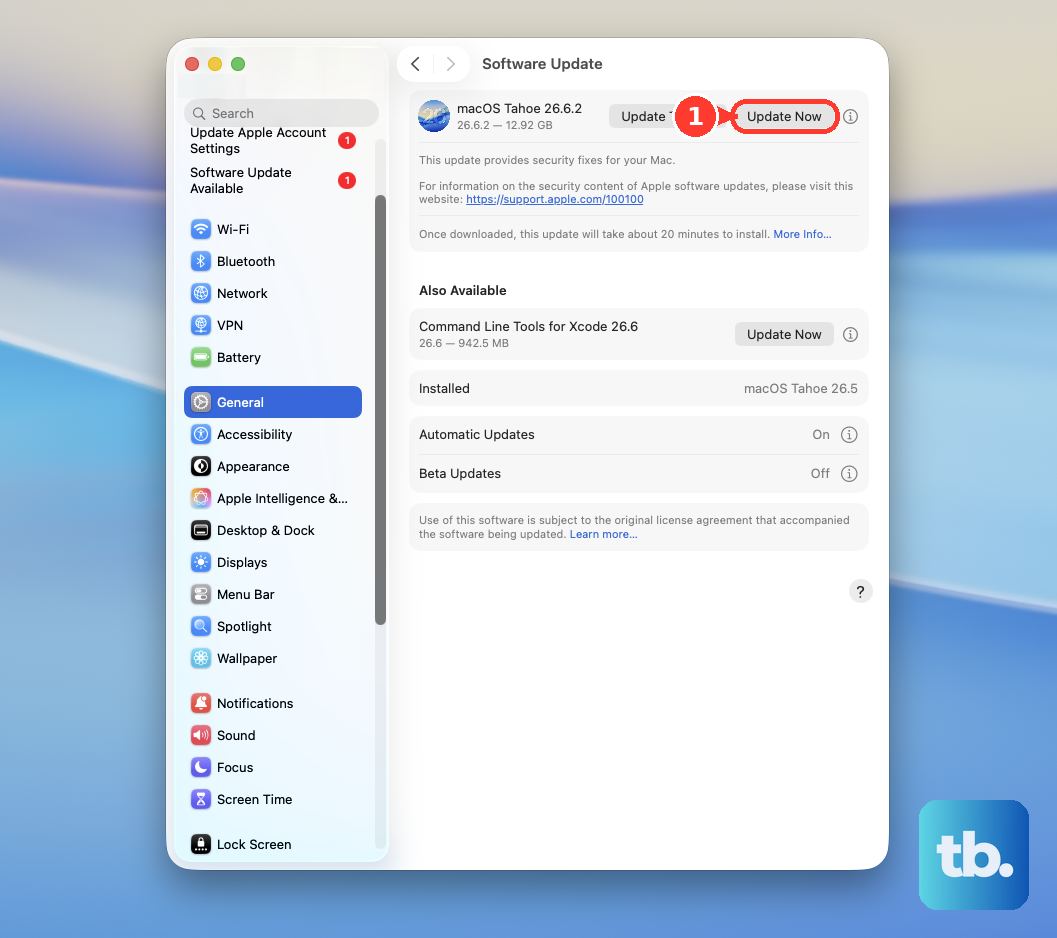
Select Update Now when a compatible update is offered. On Silhouette’s official software page, select MAC 64 under Silhouette Studio to download the current release. Use this route if Studio disappeared after an unsuccessful Mac update, too.
Double-click the downloaded DMG. Drag the Silhouette Studio icon into Applications. Wait for copying to finish. Launch the installed app from Applications.
If Studio still fails to open, follow the Rosetta or security-block fix below that matches your screen. If neither applies, continue to the preference reset.
Install Rosetta on an Apple silicon Mac
Use this fix when an Apple silicon Mac displays a Rosetta prompt or fails to launch an Intel build of Studio. Rosetta runs Intel apps on Apple silicon, and Apple documents its availability through macOS 27.
Connect your Mac to the internet, then open Silhouette Studio. If the Rosetta prompt appears, click Install. Enter your macOS username and password when requested. Rosetta works automatically after installation.
For manual installation, open Terminal through Finder > Applications > Utilities > Terminal. Run softwareupdate --install-rosetta by typing it and pressing Return. Follow the installation prompts. Reopen Silhouette Studio after installation finishes.
Approve an official download blocked by macOS
This clears a trusted-download verification block; it is not for malware warnings. Attempt to open the Studio application or installer downloaded from Silhouette’s official website. Open System Settings > Privacy & Security. Scroll down to the blocked-download notice.
Click Open Anyway, then click Open to confirm. If your Mac allows only App Store apps, open System Settings > Privacy & Security > Security. Under Allow apps downloaded from, select App Store and identified developers. Retry the official installer or application.
On a work or school Mac with unavailable security controls, contact your administrator to review the restriction and authorize installation. There is no universal consumer-side override.
Reset damaged startup preferences
Corrupted preferences are one cause of Studio startup failures. Preserve your local designs before reset or removal work. Record any custom settings you still have access to. This reset removes custom material settings and preferences.
Quit Silhouette Studio completely. In Finder, press Command-Shift-G to open Go to Folder. Enter ~/Library/Preferences and press Return. Check that the item you select is named exactly com.aspexsoftware.Silhouette_Studio.
Move that item to Trash. Empty Trash. Reopen Silhouette Studio to test the reset.
Isolate a damaged library
Use this test when Studio crashes while loading its library. Renaming the original folder keeps it available for restoration.
Quit Silhouette Studio. In Finder, press Command-Shift-G to open Go to Folder. Enter /Library/Application Support and press Return. This path starts with /Library, without a tilde.
Rename com.aspexsoftware.Silhouette_Studio.8 to com.aspexsoftware.Silhouette_Studio.8.OLD. Open Silhouette Studio to test whether it starts with a newly generated folder.
If it still fails, quit Silhouette Studio again. Remove the newly generated com.aspexsoftware.Silhouette_Studio.8 folder, keeping the original .OLD folder. Restore the original folder’s name to com.aspexsoftware.Silhouette_Studio.8.
Test for interference from startup software
On an Apple silicon Mac, shut down your Mac to begin Apple’s safe-mode diagnostic for startup-software interference. Hold the power button until you see Loading startup options. Select your startup volume. Hold Shift while clicking Continue in Safe Mode.
On an Intel Mac, instead restart while immediately holding Shift until the login window appears. Log in to your Mac. Test whether Silhouette Studio opens.
Restart normally afterward. If Studio opens in safe mode but fails during a normal startup, open Apple menu > System Settings > General > Login Items & Extensions.
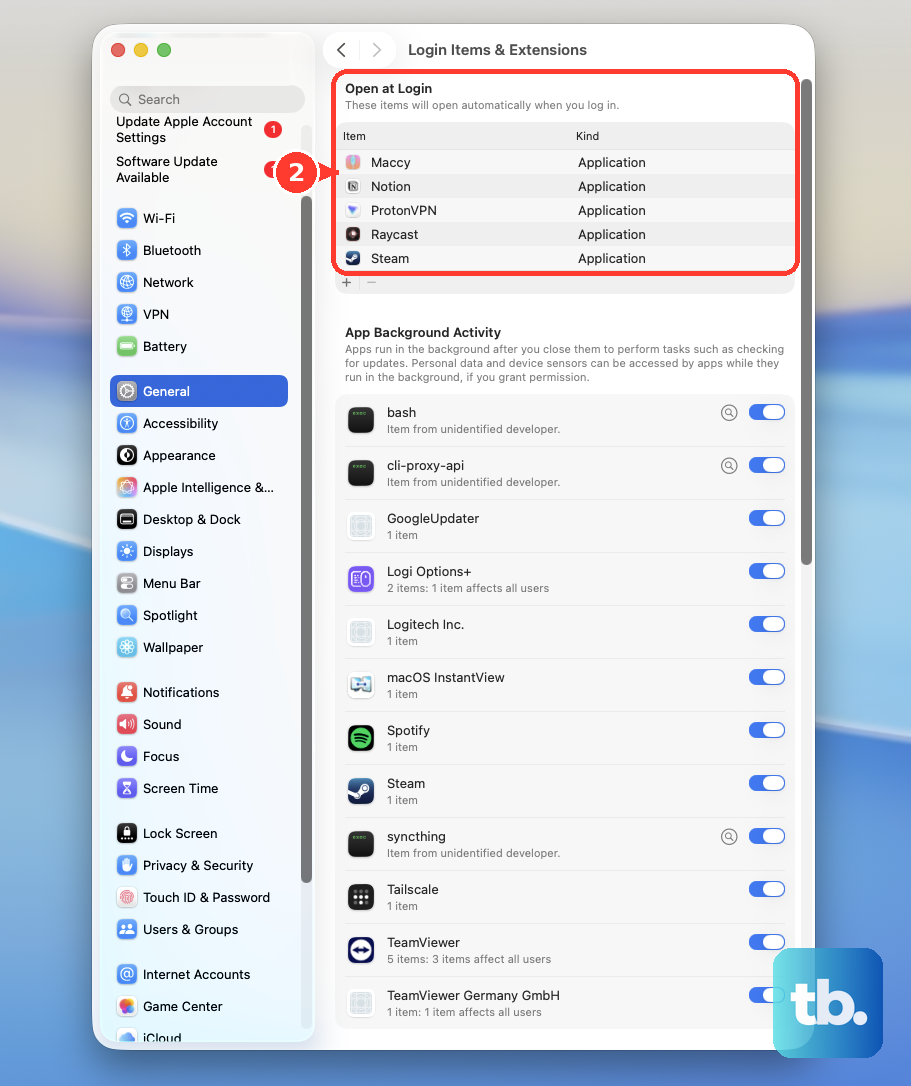
Record the entries under Open at Login. Remove those entries using the Remove button. Restart your Mac. Test Silhouette Studio again.
If that resolves the problem, restore one login entry. Restart your Mac after restoring it. Test Silhouette Studio again.
Repeat that sequence for each remaining entry to identify the conflict. Keep your recorded login-item list until testing is finished so you can restore your usual startup apps.
Reinstall under a fresh Mac account
For persistent crashes, Silhouette recommends a fresh-account installation test using the current release; beta builds are unsupported testing versions.
- 1.Preserve your local designs. In Finder, choose Go > Applications, move every Silhouette Studio application copy to Trash, then empty Trash. Removing the application is separate from deleting its preferences or library.
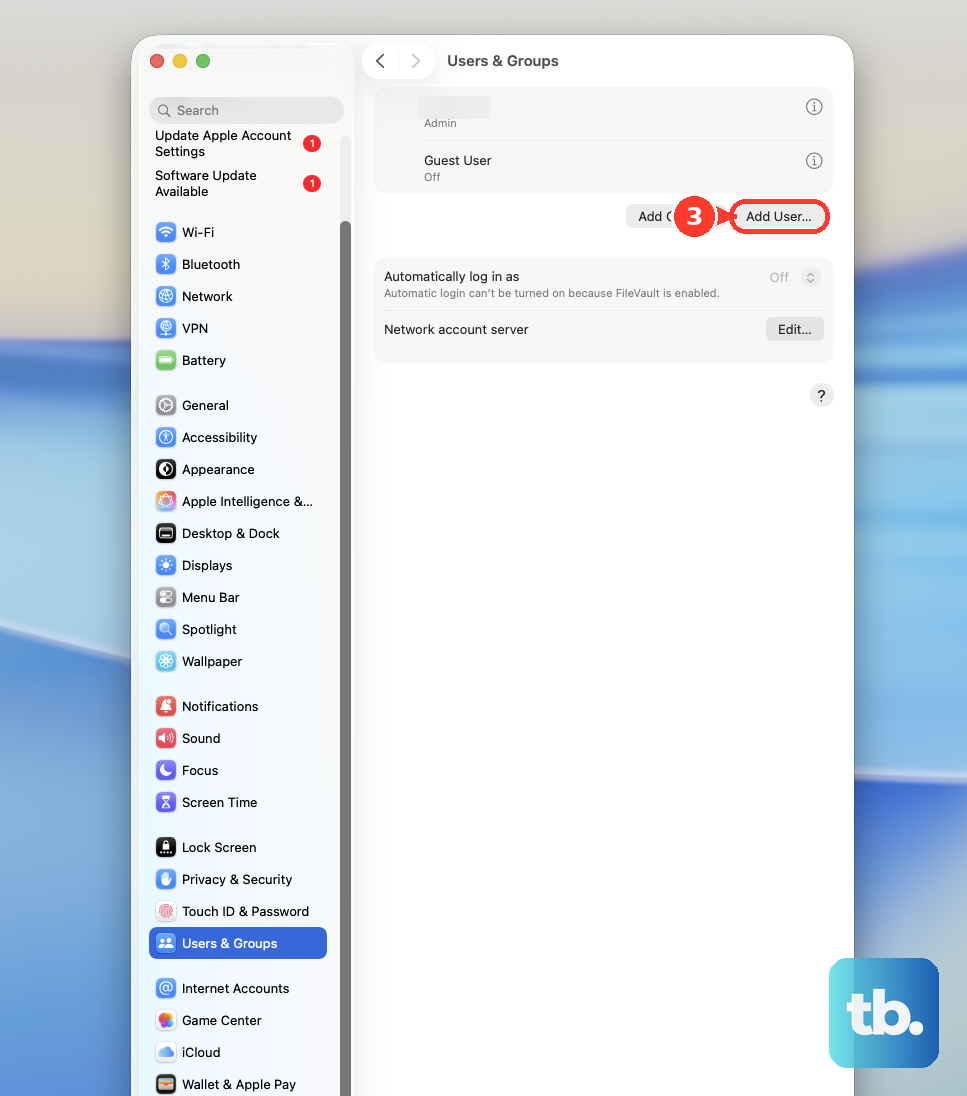
- 2.As an administrator, open Apple menu > System Settings > Users & Groups > Add User. Authenticate if requested, select the account type under New User, enter a name and password, and click Create User.
- 3.Sign into the new account. Download the current release using MAC 64 under Silhouette Studio on Silhouette’s software page.
- 4.Open the DMG and drag Silhouette Studio into Applications. Wait for copying to finish, then open the installed app.
- 5.If Studio opens successfully, quit it and retry from your original account.
- 6.If the launch error remains, contact [email protected] with your macOS version and the exact error message or code.
Frequently Asked Questions
Can I use Silhouette without fixing the Mac app first?
Silhouette Web provides an alternative design surface in a supported browser. On Silhouette’s official software page, select Access under Silhouette Web. Check feature and machine compatibility separately; the browser app does not repair Studio.
What if Studio opens but its window is unusable on my external monitor?
For a MacBook Pro with mixed-resolution displays, open and use Studio on the built-in screen. Silhouette also advises matching display types, both Retina or both standard, when using multiple monitors.
Does holding Shift bypass Studio’s recovery files?
Holding Shift while opening Studio prevents macOS from restoring previous app windows. It is a macOS window-restoration control, not a documented bypass for Studio’s own recovery system. Once Studio opens, choose File > Open Recovery, then delete unneeded recovery files.
What should I do if antivirus software blocks Silhouette Studio?
If your security software explicitly blocks Studio, confirm that you downloaded it from Silhouette. Then follow that security product’s instructions for marking the application as trusted. The controls depend on the antivirus product; there is no universal Mac menu path.
Why doesn't right-clicking and choosing Open bypass the security block?
Apple removed that security-override method starting with macOS Sequoia. For an official Studio download blocked by verification, use System Settings > Privacy & Security and its Open Anyway control.