Shift + Tab not working in Steam means the in-game Overlay is not opening from Steam's default shortcut. That leaves you stuck outside Steam's in-game panels while the game keeps running.
Start with the Overlay switches, then move through the shortcut, restart, file check, background software, updates, and Steam reinstall path that Valve supports.
Enable the Steam Overlay first
Shift + Tab opens the Steam Overlay only in a game where the Overlay is supported and enabled. Open Steam, choose Steam > Settings > In-game, and turn on Enable the Steam Overlay while in-game.
Start the game and press Shift + Tab while the game is running.
If the Overlay still does not open, check the setting for that specific game next.
Check the affected game setting
A single Steam game can have the Overlay turned off even when the global switch is on. In Library, select the game, open Properties..., choose General, and enable Enable the Steam Overlay while in-game.
Launch that game and press Shift + Tab again.
If this method fails, check the shortcut because the Overlay keybind has been changed or conflicts with another game shortcut.
Reset the Shift Tab shortcut
This fixes a remapped Steam Overlay shortcut or a shortcut conflict.
Open Steam.
Go to Steam > Settings > In-game.
Select Steam Overlay Shortcut Keys.
Set the shortcut back to Shift + Tab, or choose another shortcut that does not conflict with the keyboard or game.
Launch the game and test the Overlay again.
Restart Steam and the computer
The most common quick cause after the Overlay settings is a Steam or computer session that needs a restart.
Exit Steam completely.
Restart the computer.
Launch Steam again and start the affected game.
Press Shift + Tab in the game.
Reduce load before you play
Close the game.
Close unnecessary programs before launching it again.
Launch Steam with fewer programs running in the background.
Start the game.
Try Shift + Tab in the game.
Upgrade the operating system or hardware before retesting the Overlay if the computer is at or below the game's required or recommended specifications.
Keep only the programs you need open during gameplay so the Overlay does not close under heavy load.
Verify the game files in Steam
Use Valve's current Installed Files path for the integrity check.
- 1.Restart your computer and launch Steam.
- 2.Open Library, then right-click the game or click the gear icon on its Library page.
- 3.Select Properties....
- 4.Select Installed Files.
- 5.Click Verify integrity of game files.
Allow Steam through security software
The most common security cause is Steam or the affected game being blocked or monitored by a firewall or anti-virus tool.
Before launching the game, close or disable nonessential background tools that modify or monitor system, disk, or network activity.
Check anti-virus tools, ad-blockers, web optimizers, firewalls, system cleaners, recording software, proxies, and performance boosters.
Use your firewall's allow-list or exceptions screen to allow Steam and the affected game, or temporarily disable the firewall only for testing.
In your anti-virus app, use Exclusions or Settings to exclude Steam or Steam Library folders from live monitoring, or temporarily disable the anti-virus only for testing.
Relaunch Steam and the game after changing the security or background software setup.
Update Windows or macOS
This fixes Overlay freezes or unresponsive behavior tied to an outdated operating system or major hardware driver.
On Windows, open Start.
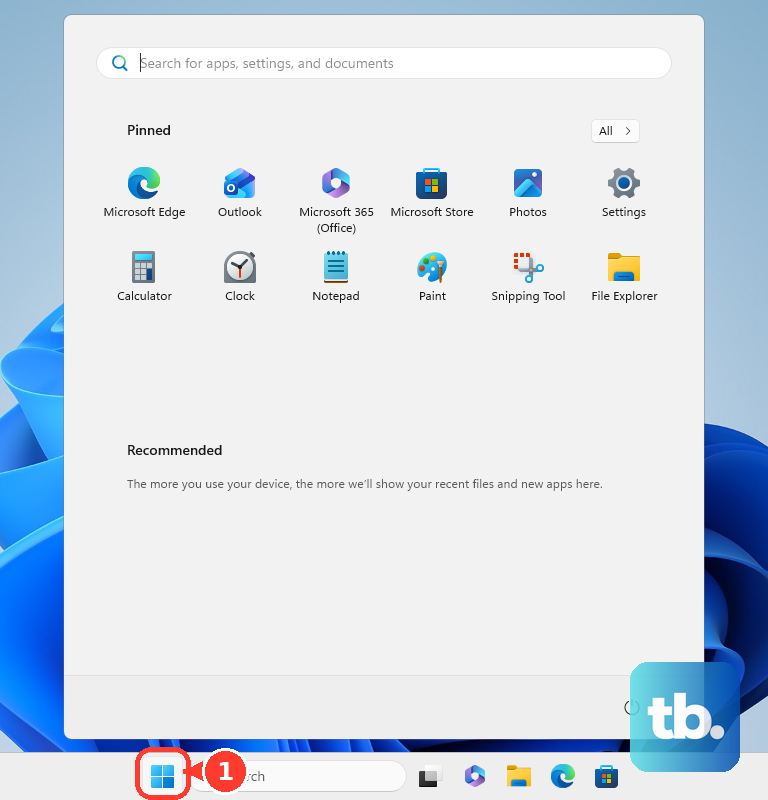
Search for update.
Run Check for Updates.
Update Windows and your major hardware drivers.
On Mac, open System Settings and run Software Update to install Apple's system and firmware updates.
If you use third-party hardware such as an audio interface, a controller, or an external graphics enclosure, also check the maker's site for a separate driver update.
Test Shift + Tab again after the updates finish.
Reinstall Steam over the current install
Use this after the Overlay settings, shortcut, game files, conflicts, and updates are checked. Reinstalling Steam over the current install is the Steam-client repair path; Big Picture is a fallback Steam surface, not a keyboard-shortcut fix.
Open Valve's official Steam download page at https://store.steampowered.com/about/ and choose Install Steam.
Run the installer and install Steam to the same location where Steam is already installed.
Do not uninstall Steam first unless you intend to remove game and userdata content.
On Mac, use Valve's separate Mac removal and reinstall instructions.
To use Big Picture instead, launch Steam and click Enter Big Picture Mode in the top-right corner, press the home button on your controller while using Steam, or press ALT + ENTER to toggle Big Picture fullscreen mode.
On a managed work or school device, ask the administrator to handle firewall or anti-virus allow-list changes for Steam and the affected game.
Frequently Asked Questions
Why does Shift + Tab work in one Steam game but not another?
The Steam Overlay must be supported and enabled for that game. Check Library > Properties... > General and turn on Enable the Steam Overlay while in-game.
Should I disable my firewall or anti-virus to test Steam Overlay?
Use firewall exceptions or anti-virus exclusions first. Temporarily disable them only for testing, then restore protection after checking whether the Overlay opens.
Will reinstalling Steam delete my installed games?
Valve says reinstalling Steam to the same location preserves installed games. Do not uninstall Steam first unless you intend to remove game and userdata content.
Does this apply on Mac or Linux too?
The Steam Overlay setting applies to the current Steam desktop client on Windows, macOS, and Linux. Big Picture applies on Windows 10 or newer, macOS 12 or later, and Linux machines using up-to-date Ubuntu.