Screen bleeding is the bright glow that appears near the edges or corners of an LCD screen, especially on dark backgrounds. Software settings can make it less distracting, but true backlight leakage is a physical panel issue. Start with the quickest visibility fixes, then use brand diagnostics or service when the glow still gets in the way.
Check whether it is normal glow or a defect
Move the laptop into a room with normal lighting. Open the laptop, turn on the screen, and view it from your normal working position. Then open a bright white app or webpage and check whether the uneven light still stands out.
Change brightness with your laptop brightness keys and watch whether the glow changes with the brightness level. Compare the screen with the same laptop model when one is available. Contact Dell Technical Support when light leakage is clearly visible in normal lighting, does not change with brightness, is much worse than the same model, or makes the laptop uncomfortable to use.
Tip: judge the screen from the seat and lighting where you work, not from an extreme angle in a dark room.
Lower the brightness first
High brightness makes edge and corner glow easier to see, especially on black screens. On Windows 11, select the Network icon on the right side of the taskbar, then move the Brightness slider down. You can also open Start > Settings > System > Display and adjust brightness there.
On a MacBook, press the Increase Brightness or Decrease Brightness function key. You can also open Apple menu > System Settings > Displays and move the Brightness slider.
On a Chromebook, press the screen brightness keys on the top row. In tablet mode or Quick Settings, select the time at the bottom right and move the brightness slider left or right.
If lowering brightness does not make the bleed comfortable, switch to lighter system colors next so black screens are not exposing the problem all day.
Stop adaptive brightness shifts on Windows
This fixes distracting brightness changes that make dark scenes look worse on supported Windows 11 laptops. Open Start.
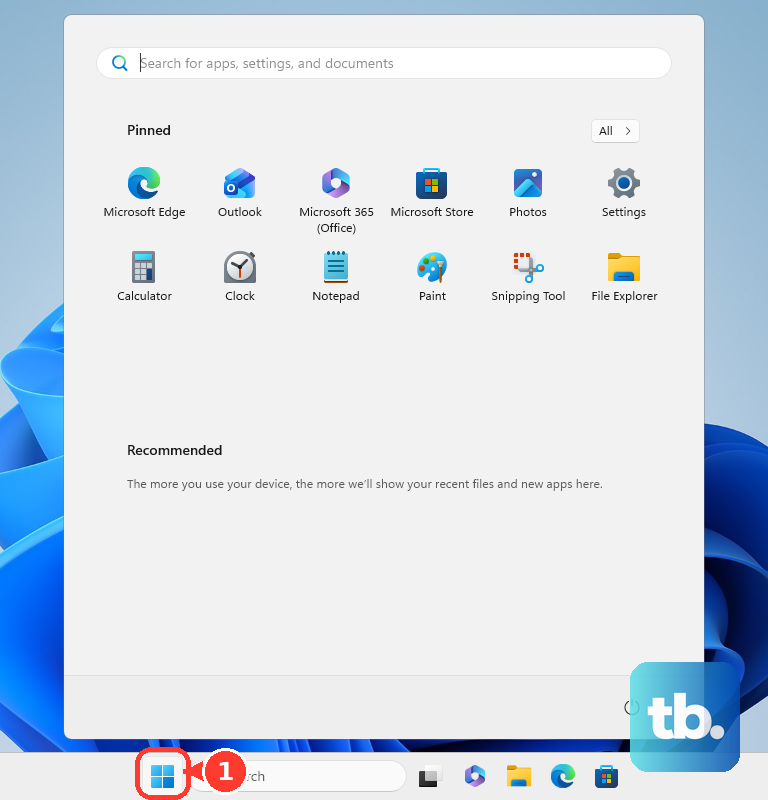
Go to Settings and select System. Open Display, then choose Brightness. Set Change brightness based on content to Off.
Switch Windows to light mode
Open Settings and select Personalization. Choose Colors, then open Choose your mode. Select Light. Choose Custom when you need separate control over app and window surfaces, then keep the surfaces you use most in a light style.
Tip: individual apps can keep their own dark setting, so change those app themes too when their black windows make the glow stand out.
Make Mac and Chromebook screens lighter
Dark windows make screen bleeding easier to notice. On a Mac, open System Settings > Appearance and choose Light. You can also use Control Centre > Display > Dark Mode from the menu bar for a quick toggle.
On a Chromebook, right-click the desktop, open Set Wallpaper and style, then go to Theme and choose Light. Choose Auto when scheduled switching fits how you use the laptop.
If lighter system colors are not enough, remove any dark browser theme that keeps large parts of Chrome black.
Reset a dark Chrome theme
Open Chrome on the laptop, then select More. Open Settings and choose Appearance. Select Reset to default.
Tip: this matters most when a Chrome Web Store theme is synced to your Google Account and keeps browser surfaces dark.
Run Dell LCD Built In Self Test
Use this on a Dell laptop when you need to check whether the panel itself shows uneven brightness or other hardware symptoms.
- 1.Shut the laptop down completely, disconnect external monitors, USB devices, docking stations, and headphones, then connect the power adapter.
- 2.Clean the screen gently so smudges do not look like panel faults.
- 3.Press and hold D, press the Power button, and keep holding D until colors appear.
- 4.Inspect the black, white, red, green, and blue screens for uneven brightness or other faults.
- 5.Press Esc or hold Power for 10 seconds to stop the test.
- 6.Write down what you saw, take photos, and contact Dell Technical Support if faults appear.
Know when repair is the fix
This applies when screen bleeding is obvious in normal lighting, affects comfortable work, or still distracts you after brightness and theme changes. At that point, treat it as a hardware concern.
For ASUS laptops, use a well-lit environment of 150 lux or above, set the desktop background to black, and confirm whether light leakage is still visible. If it persists, take a photo and contact an ASUS Service Center.
For Acer laptops, adjust display brightness, increase room lighting, and use light colored backgrounds and application themes. If those steps do not help and you think the issue is hardware, contact Acer Support; in the United States, have your Serial Number or SNID ready, check warranty status, and use the available in-warranty support or repair options.
For HP PCs, increase the ambient light around the computer, lower display brightness, and change system or application themes so the screen is not mostly black. Check exact model support through HP Support by serial or product selection.
For MacBook Air or MacBook Pro, use Apple Service and Repair for Mac Laptops to start an inspection, repair, or replacement. Apple lists in-person service through a Genius Bar or Apple Authorized Service Provider, plus mail-in service with a prepaid shipping box depending on location and parts availability.
For eligible Mac models, Apple Self Service Repair is intended for people experienced with electronic repairs and supports a variety of out-of-warranty repairs, including display replacement. Start with the repair manual for your exact Mac laptop model, then use genuine Apple parts and the required tools.
Ask IT for settings access
On a managed Windows laptop, your company can restrict display or personalization settings. That does not repair screen bleeding, but it can block the brightness and color changes that reduce how visible it looks.
Ask your IT admin to allow access to the Windows settings areas needed for Display brightness and Personalization colors when policy allows it.
There is no current official consumer fix that involves pressing on the panel, twisting the lid, loosening bezel screws, clamping the screen, or opening the display. Use brightness, lighting, theme changes, built-in diagnostics, and official service instead.
Frequently Asked Questions
Can screen bleeding be fixed permanently at home?
Brightness, room lighting, and light themes can reduce how visible it is, but true backlight leakage is a physical LCD or panel issue.
Is screen bleeding the same as a software display bug?
No. A software setting can make it look better or worse, but persistent edge or corner glow on dark screens points to the display panel.
Should I use dark mode if my laptop has screen bleeding?
Dark mode makes bleed more noticeable because large black areas reveal edge glow. Light mode or light app themes hide it better.
When should I contact the laptop maker?
Contact support when the glow is clearly visible in normal lighting, does not improve with brightness changes, looks much worse than the same model, or affects comfortable use.