Your Samsung TV shows a blank screen, won't detect your console, or leaves your HDMI soundbar silent. Start with the selected input and cable, then move through the fixes that match your symptoms. These checks narrow the problem down to the TV, the connection, or the device plugged into it.
Start with the device and selected input
Check these basics before changing the TV's settings.
- 1.Turn on your console, streaming player, cable box, or computer. Wake a computer from Sleep or Hibernate.
- 2.Check which numbered HDMI port the cable connects to on the TV or One Connect Box.
- 3.On a Samsung Smart Remote, press Home, press the left directional button, open Connected Devices, and select that HDMI input. With a remote that has a Source button, press it and select the matching port, such as HDMI 1.
- 4.Select the HDMI port even if the connected device's name is missing. You don't need automatic device identification to choose the input manually.
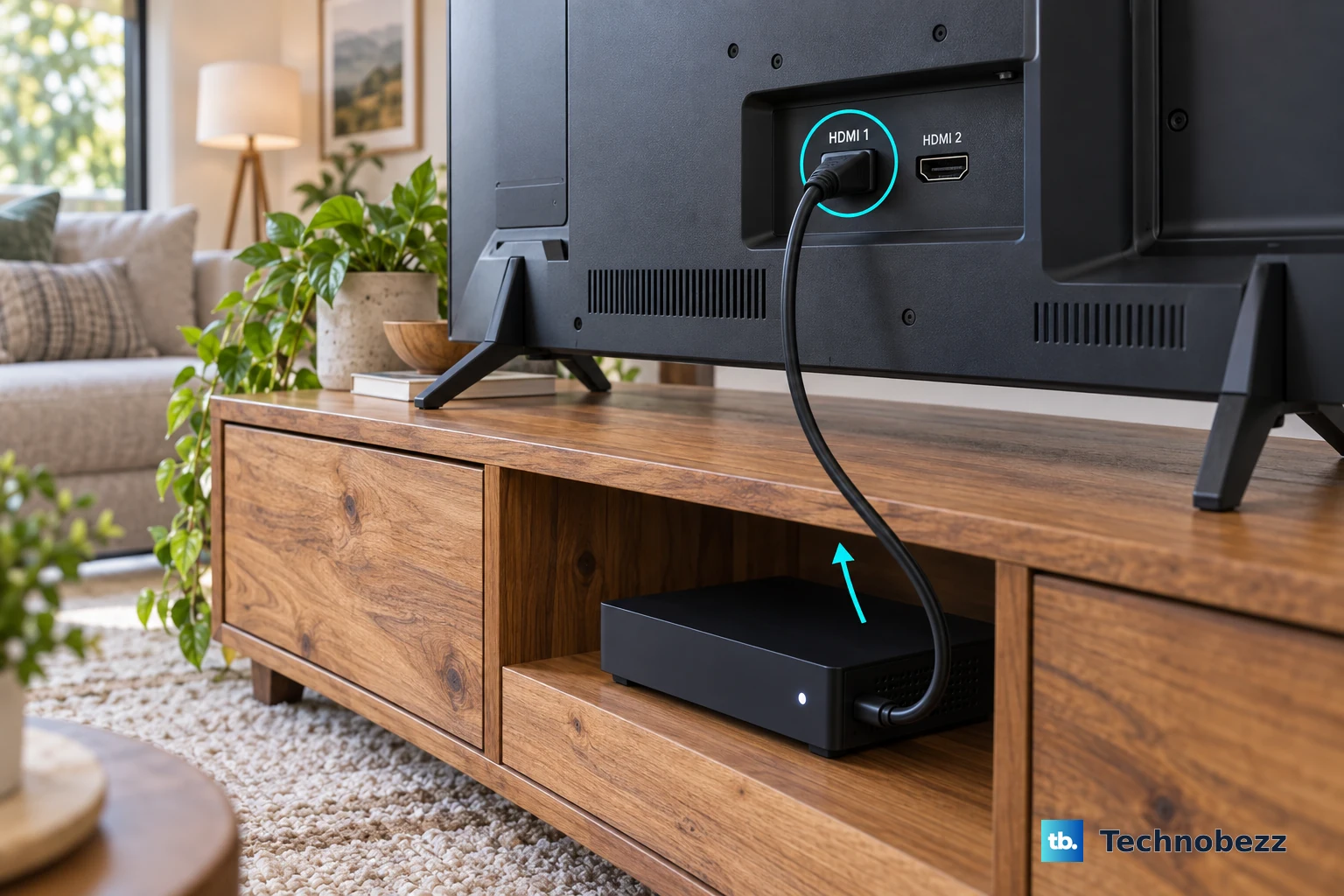
Rule out a loose or faulty cable
A loose, faulty, or incompatible HDMI cable prevents a reliable connection.
Disconnect the HDMI cable at both ends.
Reconnect it firmly to the external device first.
Reconnect the other end to the TV or One Connect Box.
Inspect the HDMI ports for visible damage or debris. A physically damaged port needs service.
Try a known-good HDMI cable. Choose a certified cable that supports the connected device's resolution and capabilities, especially for high-bandwidth video.
Move the same device and cable to another HDMI input.
Select that input on the TV under Connected Devices or with the remote's Source button. If only one port consistently fails, use a working port temporarily and arrange service. ARC/eARC audio still requires its designated port.
Connect a different, working HDMI device to test the original connection. If the replacement works, troubleshoot the original device with its manufacturer. If several devices and cables fail, continue with the TV checks below.
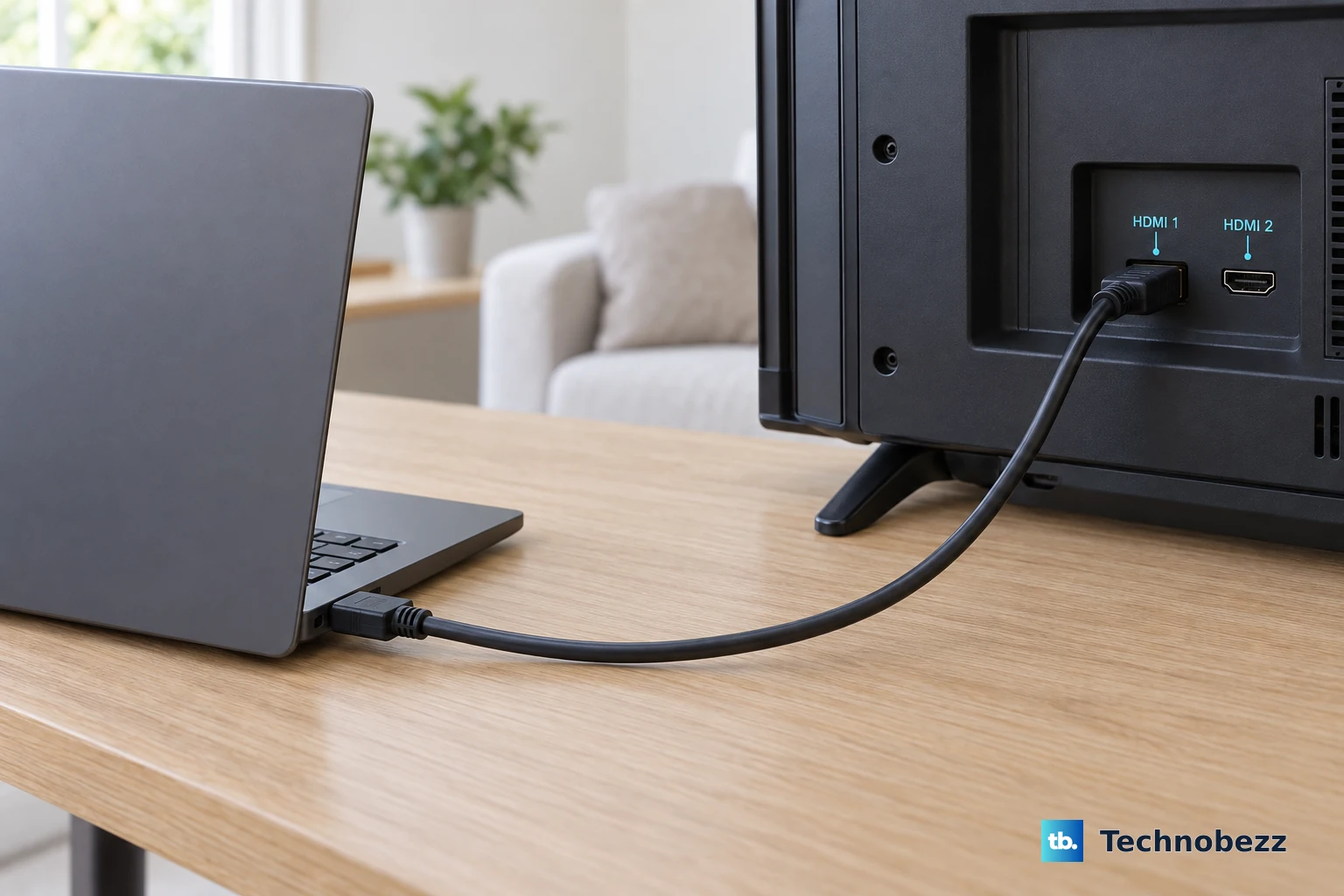
Restart the entire HDMI connection
This resets an HDMI connection the TV isn't detecting.
Disconnect all HDMI cables from the TV and external devices.
Unplug the TV and those devices from power for at least 10 seconds.
Restore power to the TV and devices.
Reconnect each HDMI cable to the external device first.
Reconnect each cable's other end to the TV.
Select the matching HDMI input under Connected Devices or with the Source button.
If the connection still fails, cold boot the TV. With the TV on, hold the Samsung remote's Power button until it switches off and back on.
Without a working remote, unplug the powered-on TV instead.
Wait 30 seconds.
Reconnect its power cord.
Turn the TV on.
Match the picture settings to your device
Use these checks when a PC or another source produces no picture or flickering at a particular resolution or refresh rate. The source's output, HDMI cable, and TV must support the intended video mode.
Check the supported resolution and refresh-rate combinations in your TV's e-Manual.
Set the connected device's display output to one of those combinations. Use that device's instructions for the exact menu.
For supported 2026 TVs receiving HDR or high-bandwidth HDMI video, open Home, press the left directional button, then select Settings > All Settings > General & Privacy > External Device Manager > Input Signal Plus.
Enable the connected HDMI port. HDR reception requires this setting on these models.
For a PC connection on TVs with the Connection layout, open Home > Menu > Settings > All Settings > Connection > External Device Manager > Input Signal Plus.
Enable the HDMI port connected to the PC.
On supported 2026 TVs, Input Signal Plus may not be available for a source that supports only UHD at 24/30 Hz or FHD. In that case, set that port's Input Signal Plus to Off. Turning it off also prevents HDR reception.
If you're replacing a console with another device on the same port on a supported 2026 TV, disconnect the console first.
Set Settings > All Settings > Advanced Features > Game Mode Settings > Game Mode to Off.
Connect the replacement device.
Bring the TV software up to date
On an internet-connected TV, open Settings > All Settings > Support > Software Update > Update Now.
Allow the installation and automatic restart to finish without cutting power.
If Software Update is grayed out while a streaming app is running, switch to the TV source.
Reopen Software Update.
For a USB update instead, download the firmware for your exact TV model from Samsung's support website. Use the matching regional support site for a non-US model.
Extract the firmware to an empty FAT32 USB drive without adding an enclosing folder.
Insert the drive into the TV.
Open Settings > All Settings > Support > Software Update > Update Now.
Select Yes if prompted.
Tip: Enable Auto Update in the same software menu for future updates.
Run the built-in HDMI and picture tests
On supported 2022-and-later TVs, open All Settings > Support > Device Care > Self Diagnosis > HDMI Troubleshooting. Select the connection and follow the prompts. On 2026 models, this Self Diagnosis item is named HDMI Test instead.
On supported 2026 TVs, press Home, press the left directional button, then open Settings > Support > Device Care > Self Diagnosis > HDMI Test. You can also reach HDMI Troubleshooting on these models from Home: press the left directional button, then open Connected Devices > Connection Guide > Video Device > HDMI Troubleshooting. Some models need a software update to make the diagnostic available; others don't include it.
Use a cable shorter than 2 meters for reliable cable-test results. Replace a cable the test identifies as faulty.
To check the TV's display separately, run All Settings > Support > Device Care > Self Diagnosis > Picture Test > OK on supported 2022-and-later TVs. A defective internal test image points toward a TV problem. A normal image directs attention back to the source or connection.
Restore HDMI sound when the picture works
For a soundbar connection, connect the TV's HDMI (ARC/eARC) port to the soundbar's HDMI TO TV (eARC/ARC) port. Labels vary by soundbar.
Power on both devices.
On Samsung soundbars using this input layout, press Source or Multi Function/Source to select D.IN.
Check for TV ARC on the soundbar display.
Select the soundbar under Settings > All Settings > Sound > Sound Output.
For compatible HDMI-CEC equipment, set Settings > All Settings > General & Privacy > External Device Manager > Anynet+ (HDMI-CEC) to On on 2025–2026 models. On 2023–2024 models, use Connection instead of General & Privacy.
Enable HDMI-CEC on the external device using its manufacturer's instructions.
For an eARC-capable TV and audio device connected through their designated ports, set Settings > All Settings > Sound > Expert Settings > HDMI-eARC Mode to Auto.
If the soundbar stays silent, select TV Speaker under Sound Output to check whether audio works through the TV.
If sound still fails through the connected sound system, try PCM under Settings > All Settings > Sound > Expert Settings > Digital Output Audio Format for format compatibility. PCM does not preserve every multichannel format; depending on the setup, output is reduced to stereo.
Check One Connect before resetting the TV
If multiple working devices and cables fail, or the internal picture test is defective, the TV needs further attention. On models with a One Connect Box, check that connection before a factory reset.
For a wired One Connect Box, disconnect both ends of the One Connect cable.
Reconnect both ends firmly.
Inspect the cable for bends, kinks, pinching, breaks, or pressure from heavy objects.
Replace a damaged cable.
For a Wireless One Connect Box, connect its supplied dedicated power adapter and cable.
Power on both the TV and box.
Place the wireless box in the same space as the TV, within 10 meters, avoiding walls and closed metal cabinets.
Reposition the box if the connection indicator is yellow or red.
If the indicator is white for power-saving mode, press PAIR once or reconnect the box's power.
For a persistent connection failure after these checks, use a factory reset as the last software step. It restores TV settings and requires setup again.
On supported 2026 TVs, open Settings > All Settings > General & Privacy > Factory data reset.
Enter your security PIN.
Select Reset. Samsung's 2025 instructions use Yes for confirmation; follow your model's manual if its labels differ.
Complete Initial Setup after the restart.
If HDMI still fails, request service through Samsung Support. A port that consistently fails with otherwise working equipment needs professional diagnosis. Arrange service for visible physical damage too.
Frequently Asked Questions
Can I rename an HDMI device on my Samsung TV?
Yes. In Connected Devices, highlight the device, press down or hold Select, then choose Edit. Use Add to Home to create a shortcut. Renaming helps identify the device but does not repair its connection.
Can I change the HDMI input without the remote?
Yes, on compatible models. In SmartThings, use + > Add device to connect the TV if needed. Select the powered-on TV, open Remote Control, and select the required HDMI source. Some TVs also offer source selection through the physical TV Controller beneath the screen or on the rear. Check the model's manual for its location and button sequence.
How do I pair Wireless One Connect again?
On compatible models, hold the box's PAIR button for 3 seconds. On the TV, open Settings > All Settings > Connections > Wireless One Connect > Set up Wireless One Connect. Holding PAIR for 10 seconds factory-resets the box and requires setup again.
Can another HDMI device interfere with soundbar audio?
Yes. Disconnect the other external devices from the TV. Switch the TV and soundbar off, then back on. Test the sound before reconnecting the other devices.